Add an existing program to a portfolio
You can add existing programs to a portfolio. Because programs cannot exist in two different portfolios, adding an existing program permanently moves it from one portfolio to another.
Access requirements
| table 0-row-2 1-row-2 2-row-2 3-row-2 layout-auto html-authored no-header | |
|---|---|
| Adobe Workfront package | Any |
| Adobe Workfront license |
Standard Plan |
| Access level configurations | Edit access to Portfolios and Programs |
| Object permissions | Manage permissions to the portfolio and the program |
*For information, see Access requirements in Workfront documentation.
Add an existing program to a portfolio
Your Workfront instance might not have both types of document storage.
For more information, see Document management overview for projects and related objects.
To add an existing program to another portfolio:
-
Go to a portfolio, then click Programs in the left panel.
-
Click New Program.
-
Click Existing Program.
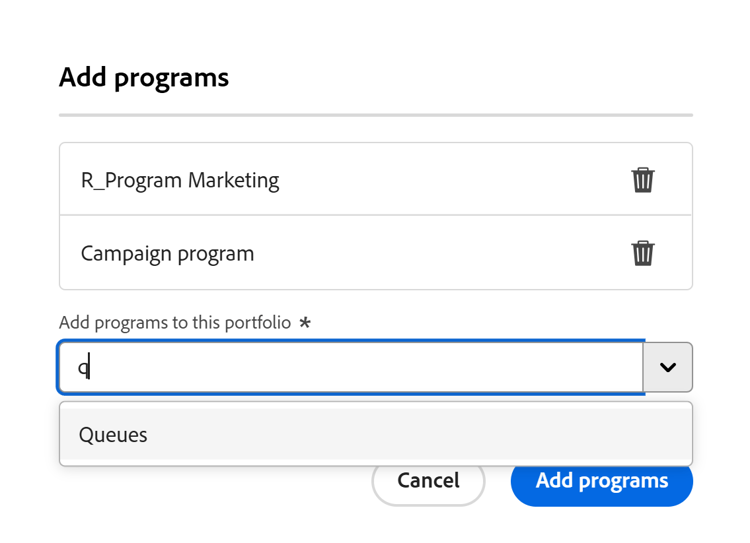
The Add programs box opens.
note important IMPORTANT Adding an existing program carries all projects associated with that program to the portfolio. Be careful not to unintentionally move projects this way. -
In the Add programs to this portfolio field, type the name of a program, then select it when it displays in the list.
You can add more than one program.
-
(Optional) Click the Delete icon

-
Click Add programs.
The program displays in the Programs tab on the portfolio you selected.