Add an approval to a request form in Adobe Workfront Planning
The highlighted information on this page refers to functionality not yet generally available. It is available only in the Preview environment for all customers. After the release to Preview, the same features are also available monthly in the Production environment for customers who enabled fast releases.
For information about fast releases, see Enable or disable fast releases for your organization.
You can add an approval process to an Adobe Workfront Planning request form, to initiate an approval for every submitted request, before it creates a record.
This article describes how a workspace manager can add an approval to a request form associated with a record type.
For information about creating a request form in Workfront Planning, see Create and manage a request form in Adobe Workfront Planning.
For information about submitting a request to a record type to create a record, see Submit Adobe Workfront Planning requests to create records.
Access requirements
| table 0-row-2 1-row-2 2-row-2 3-row-2 4-row-2 layout-auto html-authored no-header | |
|---|---|
| Adobe Workfront package |
|
| Adobe Workfront license | Workflow Standard |
| Adobe Planning license | Planning Standard |
| Access level configuration | You must add both a Workflow and a Planning license type to the access level when you have both a Workflow and a Planning package |
| Object permissions |
Manage permissions to a workspace and record type System Administrators have permissions to all workspaces, including the ones they did not create |
For more information about Workfront access requirements, see Access requirements in Workfront documentation.
Considerations about adding approvals to a request form
- You can add one or multiple approvers (users or teams) to a request form or to an approval rule.
- Approval rules route requests based on field values in the submitted request (e.g., different approvers for different values of a “Campaign type” field).
- You can display approval info on the created record via the Approved by and Approved date fields. See Create fields.
- If all approvers approve, a record is created for the record type associated with the request form.
- If at least one approver rejects, no record is created for the record type; the request instead remains/lands in the Requests area of Workfront. (This point appeared in both sections with slightly different wording — merged here as one statement.)
- When multiple approvers are required, all of them must make a decision before the request is approved or rejected — unless the Only one decision is required option is enabled.
- If a team is set as an approver, only one decision is needed from one member of that team.
- Approvals are optional — if a request form has no approval attached, Workfront Planning creates the record immediately on submission.
- You can add one or more stages to approvals.
Add approval rules to a request form
Approval rules define the approval process based on field values in the submitted requests.
For example, if a request form has the field “Campaign type,” a rule can be created that sends the request to one person when the field has the value “Digital”, and a different person when it has the value “Print.”
To set approval rules for a request form:
-
Start creating a request form for a record type, as described in the article Create and manage a request form in Adobe Workfront Planning.
-
When the request form opens, click Settings.
The Settings tab opens.
-
To begin configuring approval rules, click Approvals

-
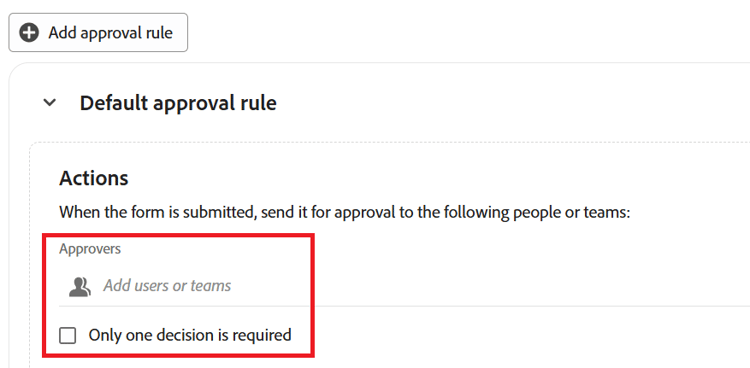
(Optional) If you want to set a default approval process, add at least one user or team to the Approvers field of the Default approval rule area, then click the Only one decision is required checkbox if you want the record to be created after any one of the default approvers has approved it.
-
(Optional) Start adding approval rules. For each custom approval rule, do the following:
- Click Add approval rule.
- Click the placeholder title Untitled approval rule and enter a name for the approval rule.
- Click Select a field and select the field that activates the rule.
- Select the operator for the rule. Operators vary based on the type of field.
- If the selected operator requires a value, click the plus icon and add one or more values.
- (Optional) Click Add condition to add more conditions and connect them by And or Or statements by configuring the additional conditions as in steps C-E.
- In the Actions area of the approval rule, in the Approvers field, add at least one user or team to be set as the approver when the condition is met.
- (Conditional and optional) If you want the record to be created after any one of the approvers has approved it, check the Only one decision is required checkbox. Otherwise, all approvers must decide on the approval before the request is accepted or rejected.
note NOTE Consider the following when adding approval rules: - If only a default rule is set up, it applies to every submitted request.
- If a custom rule is met, the default is not applied to the request approval workflow. Only the matched custom rules apply for approvals and the default rule is ignored.
- If multiple custom rules are met, the first one in the order applies. In this case, the default approval does not apply, if there is one.
-
(Optional) Click Add stage to add another stage to the approval.
-
Click Save to save the approval rules.
-
(Optional) To add more stages to the approval, do the following:
-
Click Add stage.
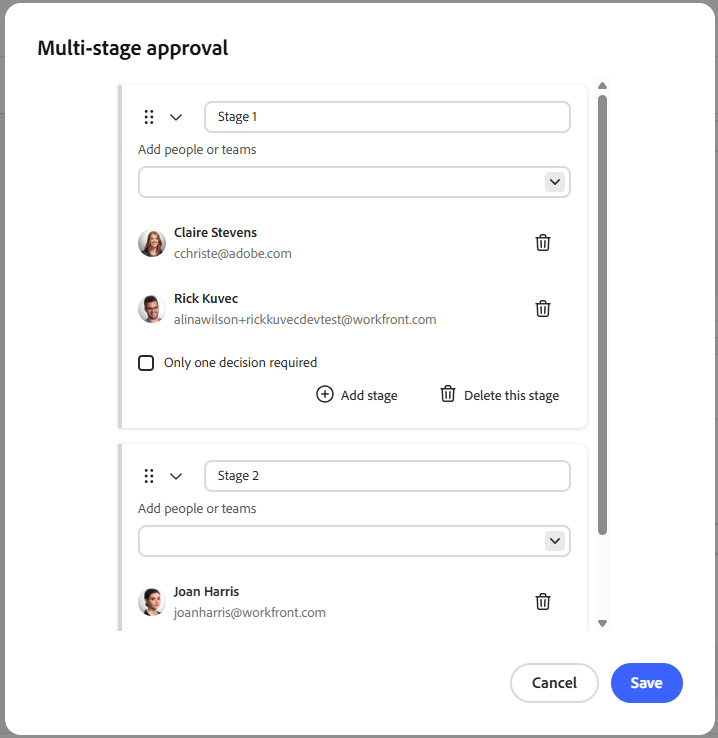
The Multi-stage approval box appears. If you already created a default approval action, those approvers are automatically added to Stage 1.
-
In the Add people or teams field, add at least one user or team to be set as the approver for the stage.
-
(Conditional and optional) If you want the record to advance to the next stage after any one of the approvers has approved it, check the Only one decision is required checkbox. Otherwise, all approvers must decide on the approval before the request moves to the next stage.
-
Click Add stage and repeat from step B to add more stages to the approval.
When two or more stages exist, you can click the Drag icon

Click Delete this stage to delete a stage from the approval, or click the Delete icon

-
When you are finished building the approval workflow, click Save.
You can edit or delete the multi-stage approval from the Approvals page.
-
-
(Optional) Click Publish if you have never shared the request form before.