Share records using a link
To collaborate with other users, you can share records with others.
You can share an Adobe Workfront Planning record in the following ways:
-
Copy the link of the record page from your browser when the page is open.
-
Copy a link to the record’s page when viewing records in the record type’s table view.
This article describes how you can share records by sharing a link.
Additionally, you can share records in the following ways:
-
Share all records in a workspace with other users by sharing the workspace and the record type. By default, all records are also shared with the same users.
For more information see the following articles:
-
You can share individual records with people, teams, roles, groups, or companies, by turning off Inherited permissions when the records are shared with workspaces or record types.
For information, see Share records.
Access requirements
| table 0-row-0 1-row-0 2-row-2 3-row-0 4-row-2 5-row-2 6-row-2 7-row-2 layout-auto html-authored no-header | |
|---|---|
| Adobe Workfront package |
|
| Adobe Workfront license | Workflow Contributor or higher |
| Adobe Planning license |
Planning Contributor or higher NOTE Not all customers have Planning Contributor licenses |
| Access level configuration | You must add both a Workflow and a Planning license type to the access level when you have both a Workflow and a Planning package |
| Object permissions |
View or higher permissions to a workspace and record type to share a record using a link System Administrators have permissions to all workspaces, including the ones they did not create |
For more information about Workfront access requirements, see Access requirements in Workfront documentation.
Share record links from the record type table view
-
Click the Main Menu icon

The Workfront Planning landing page opens.
The workspace that you accessed last opens.
-
Click a record type card.
The record type page opens.
-
(Conditional) From the View drop-down menu in the upper-right corner of the table, select a table view. This should be the default view, unless you viewed the record type in the timeline view when you accessed it last.
The records associated with the selected record type display in the table view.
-
Right-click a record row
Or
Hover over a record’s name, click the More menu

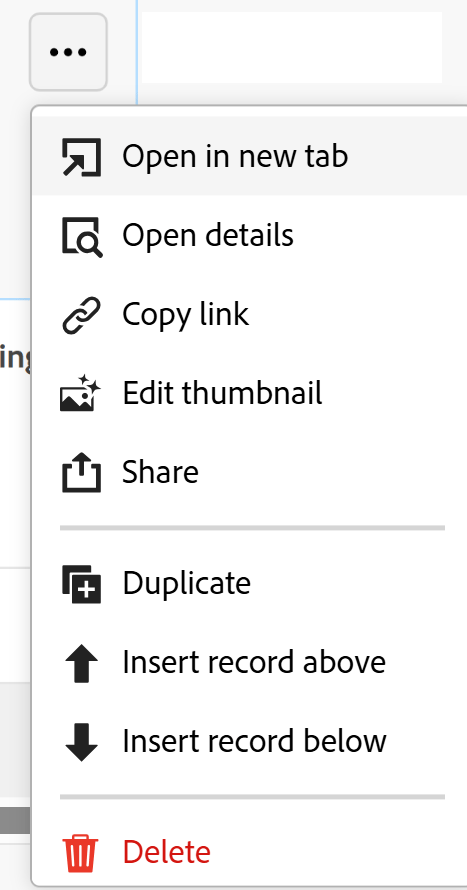
The link is copied to your clipboard.
-
Paste the link into an email, or chat window, to share with other users. When users receive the link, it opens the record page.
note tip TIP The fields in the record page are the same fields available in the Table view of the record.
Share all records in a workspace by sharing the workspace
You can share all records in a workspace when you share the workspace with others.
Record types and records inherit the same permissions from the workspace, by default.
Only users with Manage permissions to a workspace can share it with others.
For more information, see Share a workspace.
Share all records in a record type by sharing the record type
Records inherit permissions from the record type, by default.
By default, record types inherit permissions from the workspace.
However, you can do any of the following:
- Disable inherited permissions from the workspace on a record type. This removes higher permissions to the records, but keeps View permissions to the workspace, record type, and records.
- Manually grant permissions to users to a record type, even when they have no permissions to the workspace. This automatically gives them View permissions to the workspace. This grants View permissions to users to the records, by default.
Only users with Manage permissions to a workspace can share its record types and records with others.
For more information, see Share record types.
Share individual records
Users inherit record permissions from the workspace and record type by default.
To give only select users with record type permissions Manage permissions to only certain records, you can disable inherited permissions on select records and grant only those users Manage access to those records.
You can adjust permissions for one record, or for multiple records at the same time, in bulk.
For more information, see Share records.