Duplicate records
In Adobe Workfront Planning, a record is an instance of a record type.
You can duplicate an existing record in the table view. An identical copy of the existing record is added to the record type page.
Access requirements
| table 0-row-0 1-row-0 2-row-2 3-row-2 4-row-2 layout-auto html-authored no-header | |
|---|---|
| Adobe Workfront package |
Any Workfront and any Planning package Any Workflow and any Planning package For more information about what is included in each Workfront Planning package, contact your Workfront account representative. |
| Adobe Workfront license | Standard |
| Object permissions |
Contribute or higher permissions to a workspace and record type System Administrators have permissions to all workspaces, including the ones they did not create |
For more information about Workfront access requirements, see Access requirements in Workfront documentation.
Duplicate a record
You can create records in the table view of a record type page by duplicating an existing one. A record identical to the existing one is created and added under the original record.
-
Click the Main Menu icon

The Workfront Planning landing page opens.
-
(Optional and conditional) If you are a Workfront administrator, click one of the following tabs:
- My workspaces: Displays workspaces you created.
- Other workspaces: Displays all workspaces in Workfront Planning, including the ones shared with you.
For all other users, all workspaces you created or are shared with you display in the Workspaces area.
-
Click the workspace where you want to add records.
The workspace opens and the record types display as cards.
-
Click a record type card. For information about creating a record type, see Create record types.
The record type page opens in the view that you last accessed. By default, a record type page opens in the table view.
All the records of the selected type display in the view. -
(Conditional) Select a table view.
-
Do one of the following:
-
Hover over the name of a record then click the More menu inline with the record name, then click the Duplicate icon

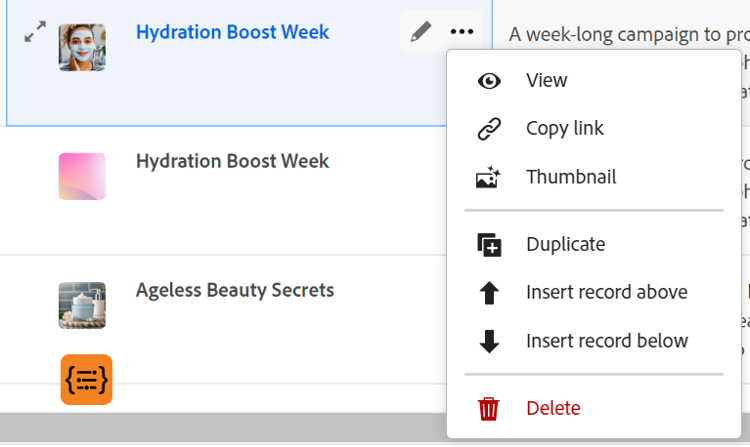
-
Select a record, then click the Duplicate icon

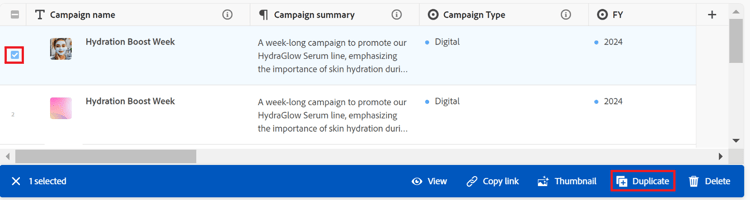
An identical record with an identical name is created underneath the original record. All fields of the new record are populated with the same information as in the original record.
-
-
(Optional) Start updating information about the new record in the fields available in the table view, or click the record and update information in the record preview or page.
note NOTE -
There are no mandatory fields for records. However, we recommend that you add information for the primary field of a record, as it is helpful to identify records when linking records to one another. For more information about primary fields, see Manage the table view and Primary field overview.
-
Fields that refer to other record types or calculated fields are read-only fields.
For more information about editing records, see Edit records.
-
-
(Optional) Use the following keyboard shortcuts to undo or redo adding new records or their information, when adding them in the table view:
- CTRL + Z (⌘ + Z for Mac) to undo a change
- CTRL + Shift + Z (⌘ + Shift + Z for Mac) to redo a change.