Edit record types
Record types are the object types of Adobe Workfront Planning. You can edit the appearance of record types that you or anyone else created. For information about creating Workfront Planning record types, see Create record types.
Access requirements
| table 0-row-0 1-row-0 2-row-2 3-row-2 4-row-2 layout-auto html-authored no-header | |
|---|---|
| Adobe Workfront package |
Any Workfront and Planning package Any Workfront and Planning package NOTE To configure connectable record types:
To configure global record types:
For more information about what is included in each Workfront Planning package, contact your Workfront account representative. |
| Adobe Workfront license | Standard |
| Object permissions |
Manage permissions to a workspace System Administrators have permissions to all workspaces, including the ones they did not create |
For more information about Workfront access requirements, see Access requirements in Workfront documentation.
Edit record types
-
Click the Main Menu icon

The Workfront Planning landing page opens.
-
(Optional and conditional) If you are a Workfront administrator, click one of the following tabs:
- My workspaces: Displays workspaces you created.
- Other workspaces: Displays all workspaces in Workfront Planning, including the ones shared with you.
For all other users, all workspaces you created or are shared with you display in the Workspaces area.
-
Click the workspace whose record types you want to edit.
The workspace page opens and the record types display.
-
Do one of the following:
- Hover over the card of a record type and click the More menu

Or - Click a record type card to open the record type page, click the More menu
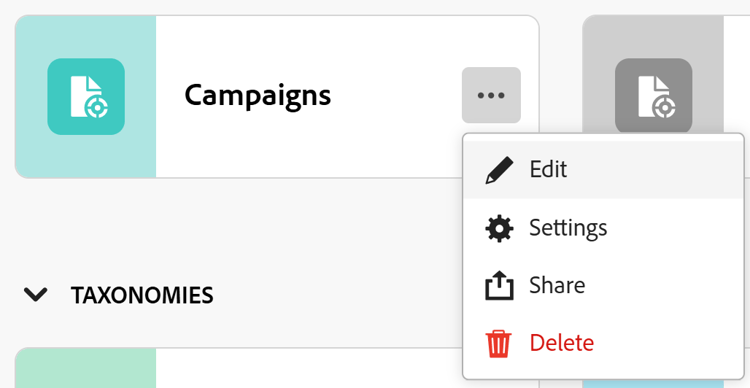
- Hover over the card of a record type and click the More menu
-
In the Edit record type box, the Appearance tab opens by default.
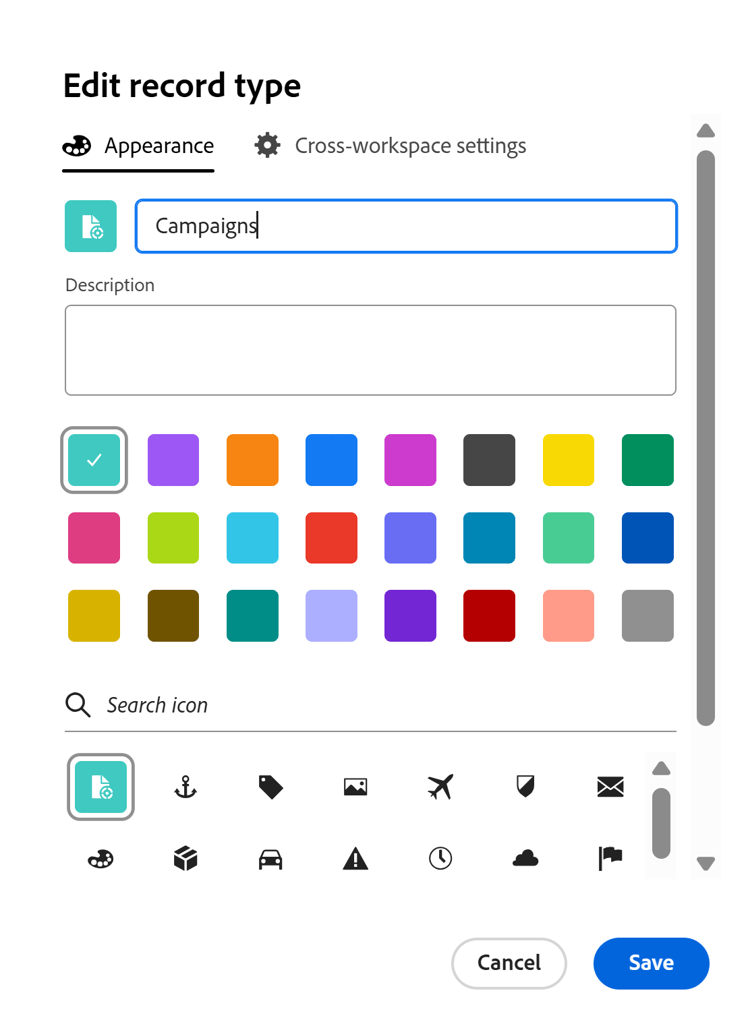
Update the following information in the Appearance tab:
-
Edit the record type name, if needed.
-
Description: Edit or add a description for the record type with more information about it.
-
Edit the color and shape of the icon associated with the record type. Do the following:
- Select a color to identify the record type. This is the color of the record type icon.
- Select an icon from the list, or start typing the name of an icon to describe what it represents, then select it when it displays. This is the icon of the record type. A file icon is selected by default.
-
-
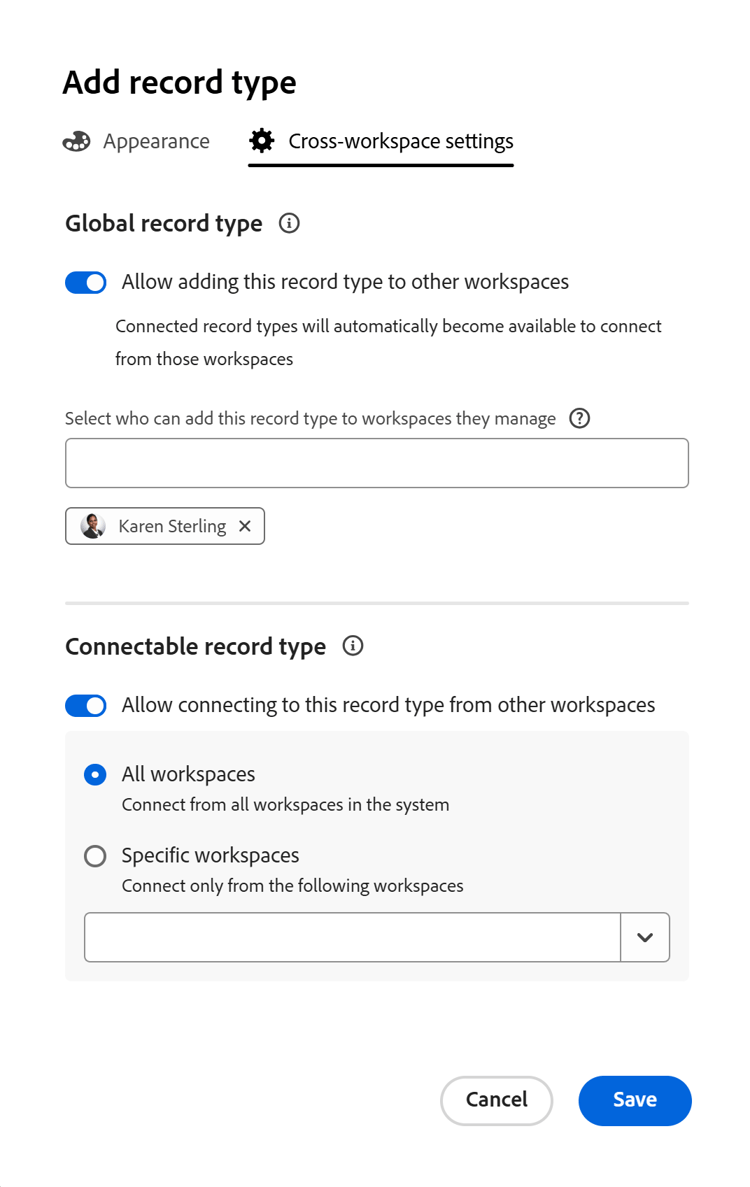
(Optional and conditional) If you are a system administrator, click the Cross-workspace settings tab and update information about the cross-workspace capabilities of the record type.
For more information, see Configure cross-workspace capabilities for record types.
-
Click Save.
If you selected to connect this record from other workspaces, the Connectable record icon

If you selected to allow adding this record to other workspaces, the Global record icon

-
(Optional) Click the record type card from the workspace area to open the record type’s page, then rename the record type in the header.
-
(Optional) To edit another record type, from the record type page, expand the downward-pointing arrow to the right of a record type name, search for a record type, then select it when it displays in the list.

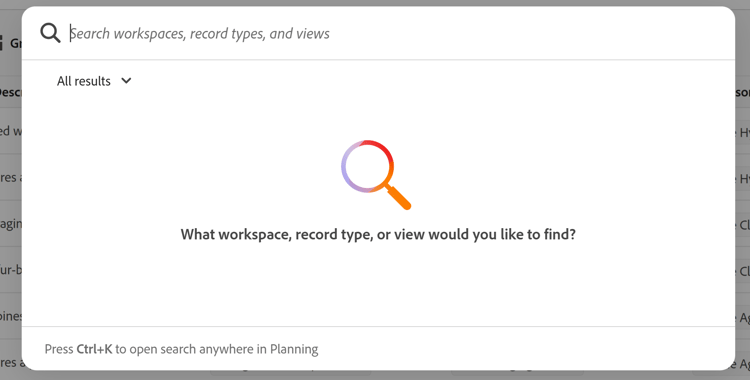
note tip TIP You can use the following keyboard combination to open the global search box from any Workfront Planning page and search for record types : - CTRL+K for Windows
- ⌘+K for Mac