Configure cross-workspace capabilities for record types
You can configure record types to work across multiple workspaces in Adobe Workfront Planning.
You can designate a record type as one of the following:
- A global record type: users can add global record types to other workspaces they can manage.
- A connectable record type: users can connect to this record type from other workspaces.
You must first define the cross-workspace capabilities of a record type before workspace managers can either add it to or connect it from other workspaces.
You define the cross-workspace capabilities of a record type when you create or edit a record type.
For information, see one of the following articles:
Access requirements
| table 0-row-0 1-row-0 2-row-2 3-row-2 4-row-2 layout-auto html-authored no-header | |
|---|---|
| Adobe Workfront package |
To configure connectable record types:
To configure global record types:
For more information about what is included in each Workfront Planning package, contact your Workfront account representative. |
| Adobe Workfront license |
To make a record global:
To make a record connectable:
|
| Object permissions |
Manage permissions to a workspace System Administrators have permissions to all workspaces, including the ones they did not create |
For more information about Workfront access requirements, see Access requirements in Workfront documentation.
Configure global record types
As a workspace manager, you can configure a record type to be a global record type. A global record type can be added to other workspaces.
A workspace manager can add a global record type to a workspace they manage. The record type’s original fields are also added to the secondary workspace.
Users can add records to a global record type from any workspace where they have Contribute permissions and where the global record type is added, including its original workspace. They can view records from workspaces they have only View permissions to from the primary workspace of the global record type.
For more information, see Cross-workspace record types overview.
To configure a record type as global:
-
Click the Main Menu icon

The Workfront Planning landing page opens.
-
(Optional and conditional) If you are a Workfront administrator, click one of the following tabs:
- My workspaces: Displays workspaces you created.
- Other workspaces: Displays all workspaces in Workfront Planning, including the ones shared with you.
For all other users, all workspaces you created or are shared with you display in the Workspaces area.
-
Click the workspace whose record types you want to configure as global.
The workspace page opens and the record types display.
-
Do one of the following:
-
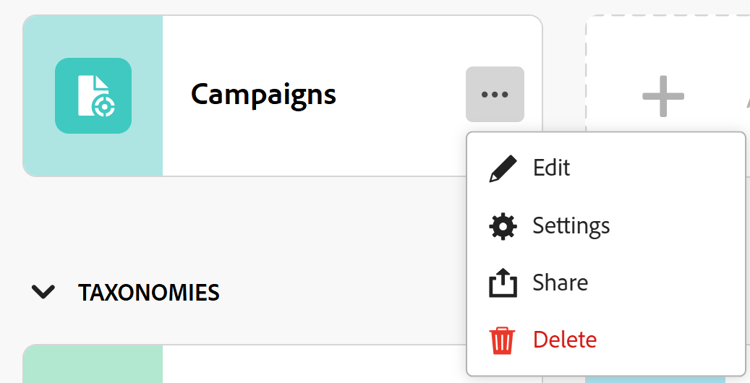
Hover over the card of a record type and click the More menu

-
Click a record type card to open the record type page, then click the More menu
-
-
Click Edit or Settings.
note tip TIP When a record type is added to another workspace, it displays as a global record type in that workspace. In this case, the Edit and Settings options are removed. -
(Conditional) If you clicked Edit, in the Edit record type box, click the Cross-workspace settings tab
Or, if you clicked Settings, click the Cross-workspace settings section in the left panel.
-
Enable the Allow adding this record type to other workspaces setting.
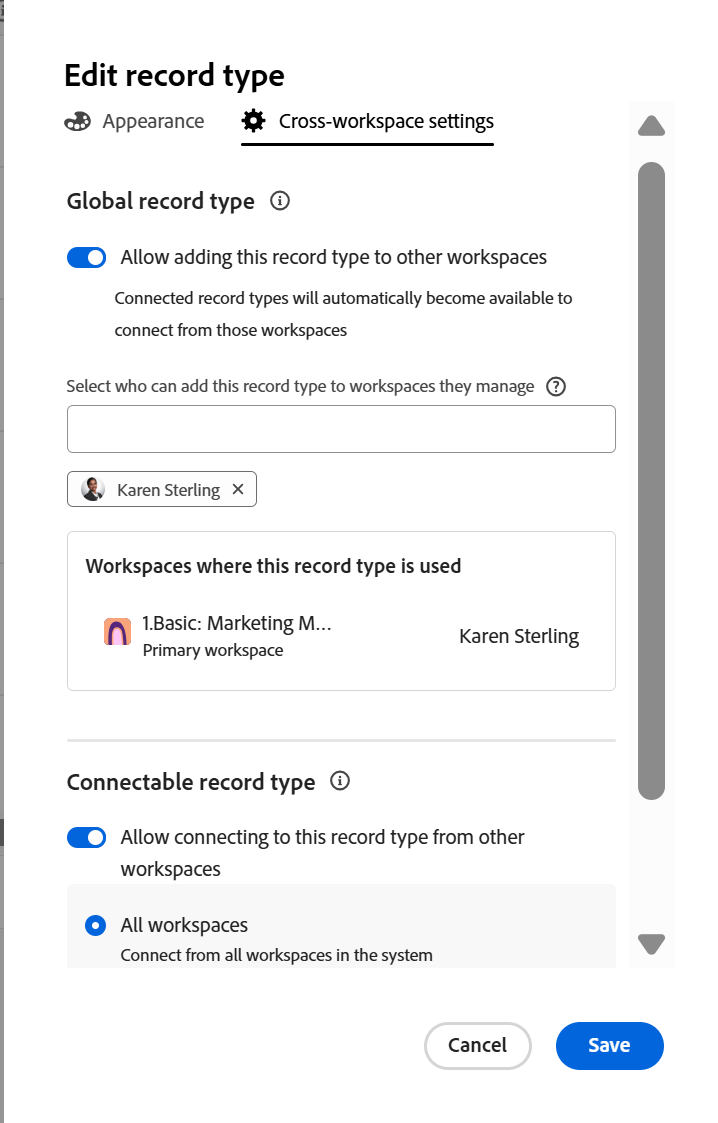
note tip TIP After you add a global record type to another workspace, this setting can no longer be disabled. -
In the Select who can add this record type to workspaces they manage field, add entities that you want to allow to add this record type to workspaces they manage.
Your name is automatically added in the field.
You can add individual users, groups, teams, job roles, or companies whose users you want to allow to add this record type to the workspaces they manage.
You can edit this field, after you save the record type.
-
(Optional) Remove your name from the Select who can add this record type to workspaces they manage field.
note tip TIP You must designate at least one entity (user, team, group, role, or company) to be able to enable this setting. -
(Conditional) Click Save in the Edit record type box, or click the back arrow to the left of Settings section in the page header to save your changes.
The following things occur:
-
The record type and its fields are now available to be added to another workspace by the people you designated.
note NOTE You can edit the record type’s appearance and settings and its original fields only from its original workspace. -
The record type card displays a global record type icon

-
A system-generated Workspace field is added to the table view of the record type and its records’ details.
The Workspace field displays the workspace from where each record is created.
This field is read-only and cannot be deleted.
note tip TIP If the field value for the Workspace field is empty, the record was created from a secondary workspace where the global record type was deleted after the record was created.
-
-
(Optional) Go to another workspace and create a record type by using an existing record type. Select the record type you enabled in the steps above.
For information, see Add existing record types from another workspace.
The record type added from a global record type in the secondary workspace displays a similar global record type icon

-
(Optional) Go back to the original workspace where you created the global record type and edit the record type by following steps 1-4 above
-
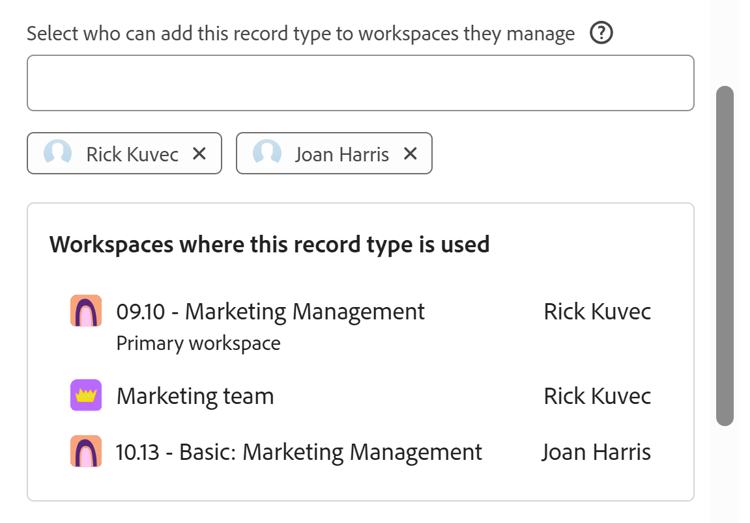
(Optional) Review the list of workspaces where the global record has been added in the Workspaces where this record type is used section. The workspace owner is also listed next to the workspace name.
-
(Optional) Click the name of one of workspaces listed in the Workspaces where this record type is used section to open that workspace.
Configure connectable record types
-
Click the Main Menu icon
The Workfront Planning landing page opens.
-
(Optional and conditional) If you are a Workfront administrator, click one of the following tabs:
- My workspaces: Displays workspaces you created.
- Other workspaces: Displays all workspaces in Workfront Planning, including the ones shared with you.
For all other users, all workspaces you created or are shared with you display in the Workspaces area.
-
Click the workspace whose record types you want to configure as connectable.
The workspace page opens and the record types display.
-
Do one of the following:
-
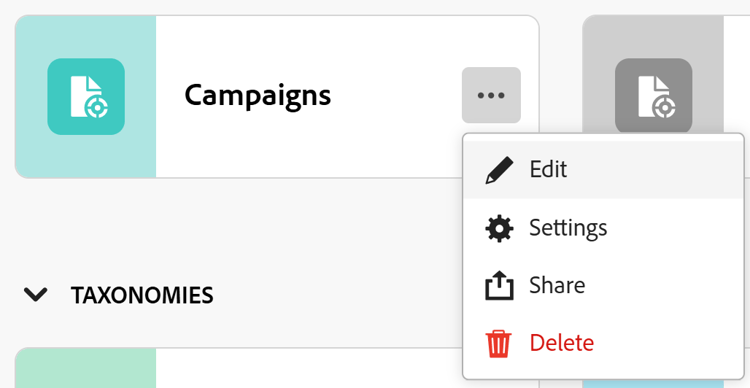
Hover over the card of a record type and click the More menu
-
Click a record type card to open the record type page, then click the More menu
-
-
Click Edit or Settings.
-
(Conditional) If you clicked Edit, in the Edit record type box, click the Cross-workspace settings tab
Or, if you clicked Settings, click the Cross-workspace settings section in the left panel.
-
Enable the Allow connecting to this record type in other workspaces setting.
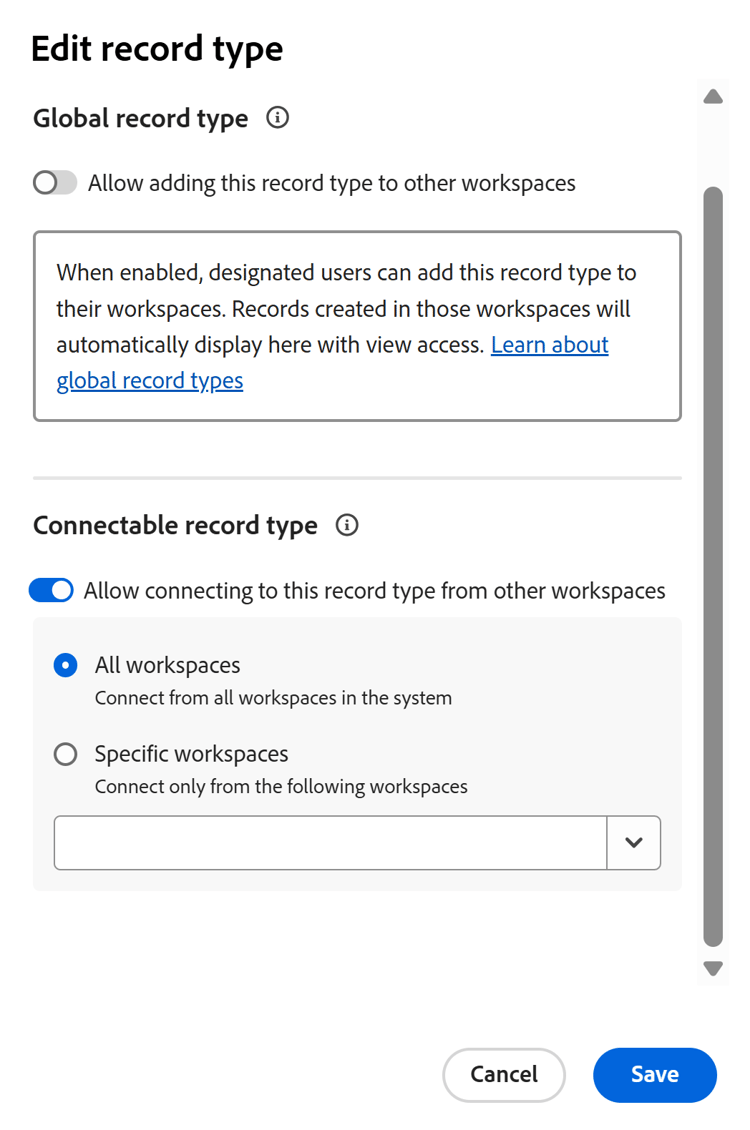
When enabled, the record type is accessible and can be connected to from other workspaces.
-
(Conditional) Depending on which license you have, choose from which workspaces the record type can be accessed. Choose from the following options:
- All workspaces: Users can connect to this record type from all workspaces where they have Manage permissions. This option is dimmed for workspace managers with a Standard license. Only System Administrators can turn on connecting record types from all workspaces.
- Specific workspaces: From the drop-down menu, add the names of the workspaces where workspace managers can connect to this record type.
-
(Conditional) Click Save in the Edit record type box, or click the back arrow to the left of Settings in the page header to save your changes.
The following things occur:
- The record type and its fields are now available to connect to from the workspaces you designated.
- The record type card displays a connectable record type icon

-
(Optional) Go to another workspace and add a connection to the record type you enabled for cross-workspace connectability in the steps above.
For information, see Connect record types.