Add existing record types from another workspace
As a workspace manager, you can add a record type that exists in another workspace to a workspace that you manage in Adobe Workfront Planning.
A workspace manager must first designate a record type as a global record type before you can add it into workspaces you manage as an existing record type. Workspace managers can designate a record type as global when they create or edit them, by defining the record type’s cross-workspace settings.
For information, see Configure cross-workspace capabilities for record types.
This article describes how you can add a record type from an existing one.
Before adding records to a workspace from a global record type, also see the article Cross-workspace record types overview.
Access requirements
| table 0-row-0 1-row-0 2-row-2 3-row-2 4-row-2 layout-auto html-authored no-header | |
|---|---|
| Adobe Workfront package |
For more information about what is included in each Workfront Planning package, contact your Workfront account representative. |
| Adobe Workfront license | Standard |
| Object permissions |
Manage permissions to a workspace System Administrators have permissions to all workspaces, including the ones they did not create |
For more information about Workfront access requirements, see Access requirements in Workfront documentation.
Create a record type by adding an existing one from another workspace
-
Go to a workspace where you want to create a record type (secondary workspace).
-
Start creating a record type, as described in the article Create record types, then click Add existing.
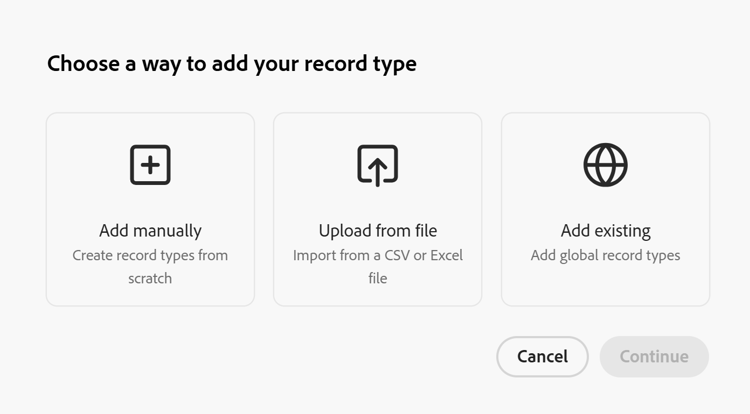
note tip TIP When there are no record types configured to be added to other workspaces in your system, the Add existing option does not display. -
Click Continue.
-
In the Choose the record type box, click the card for the record type that you want to add from an existing workspace, then click Add.
The record type is added to the secondary workspace that you selected and the global record type icon

The global record type icon includes an arrow when displayed on a record type in the secondary workspace, to indicate that the record type was added from an existing record type.The following things occur:
-
The following information is also added from the existing global record type:
- All original fields
- All record connections
-
You cannot view records added from the original workspace of the record type from the secondary workspace.
-
You can view records added from the original workspace of the record type in that workspace, only in the original workspace, if you have at least View permissions to that workspace.
-
The read-only Workspace field is added to the new record type table view. The field displays the workspace where each record was created.
note NOTE You cannot edit the new record type’s appearance, additional settings, or original fields. You can edit the record type and all its original fields and settings only from the original workspace.
-
-
(Optional) Hover over the global record type icon
-
(Optional) Click, then drag and drop the newly added record type to any section within the workspace.
-
(Optional) Click the More menu on the new record type’s card or to the right of the record type name on its page, then click one of the following:
-
Share to share the record type from the secondary workspace.
-
Delete to delete the record type from the secondary workspace. Deleting record types from the secondary workspace also deletes records added from the secondary workspace.
Views added from the secondary workspace are not deleted.
For more information, see the section “Delete global record types” in the article Delete record types.
-