Breadcrumbs overview
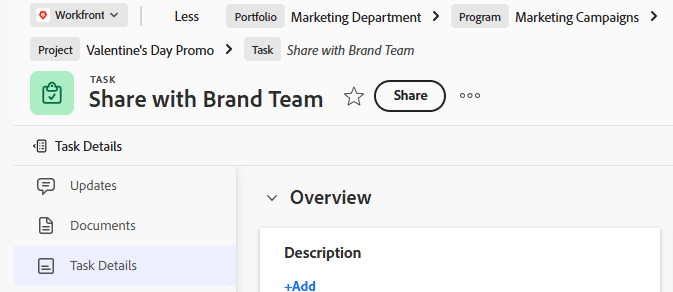
Breadcrumbs display the full navigational hierarchy for all object types. Each object in the breadcrumb path has a label that displays the object type. The page that you are currently on displays both in the page header and at the end of the breadcrumb path in italics. In the example below, this is the “Share with Brand Team” task.
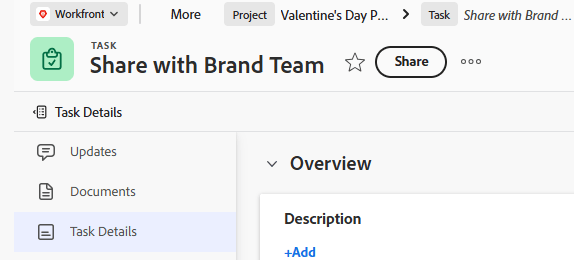
When there are too many objects in the breadcrumb path or the screen width prohibits the full navigational hierarchy from displaying, the path collapses some of the breadcrumbs and groups these objects at the beginning of the breadcrumb path. Both the project and the current object page are always visible in the breadcrumb path.
For example, “3 more” in the image above indicates that 3 objects are not displaying. These items could be located above the project level or between the project and the current page.
Clicking “more” allows you to expand the full hierarchy. You can click “Less” to collapse the breadcrumb path again.
You can also use the following keys to navigate the breadcrumbs:
Access a parent object from the breadcrumbs
For information about parent objects in Workfront, see Understand objects in Adobe Workfront.
-
(Conditional) If you don’t see the object you want to navigate to in a collapsed breadcrumb path, click more, then locate the object.
note NOTE If you don’t have permission to an object, it’s not visible in the breadcrumbs. -
Click any object in the breadcrumb path to access that object.
The object page opens.
If you are looking at a project that is connected to an object in Workfront Planning (for example, a campaign), you can switch between both the Planning and the Workfront object types from the breadcrumb. For more information, see Hierarchy and breadcrumb overview.
Copy the name and link from a breadcrumb
The highlighted information on this page refers to functionality not yet generally available. It is available only in the Preview Sandbox environment.
You can copy an object’s name and link together in one action from the breadcrumb path.
-
Hover over any object in the breadcrumb path.
-
Click the Copy link icon that appears next to the object name.

The object’s name and link are copied together. When you paste the copied information, it appears as a clickable link with the object name as the link text.