Automated Workflow Stages overview
Proof stages are segments of time in which different users review a proof. As the proof moves from one stage to the next, Adobe Workfront notifies the reviewers to tell them when it’s time to work on it.

Stages occur in two different situations:
Create a proof with an Automated workflow create-a-proof-with-an-automated-workflow
When you add an automated workflow to a proof, you set up the stages of review work you want to occur.
When you set up stages for a proof with an automatic workflow:
- You can configure the stages to run consecutively or simultaneously.
- You can configure some stages to become active only after a previous stage is completed.
- You can make some stages private. This is useful, for example, for an agency that reviews a proof before it is shared with a client and does not want the resulting comments visible to the client.
For instructions on creating stages for a proof with an automated workflow, see Create an advanced proof with an Automated workflow.
Assign deadlines for different reviewers on a proof assign-deadlines-for-different-reviewers-on-a-proof
When you assign different proofing deadlines to reviewers on a proof, the system creates a stage for each deadline and groups the reviewers for each deadline in the corresponding stage.
Example: For example, if you create a proof with four reviewers:
- For reviewers Olivia and Tony, you specify a deadline for 14:00 a few days from now.
- For Aaron and Amy, you specify a deadline for 17:00 a few days later.
- You don’t specify a deadline for yourself.
The system creates a stage for each of these three “groups” of reviewers:
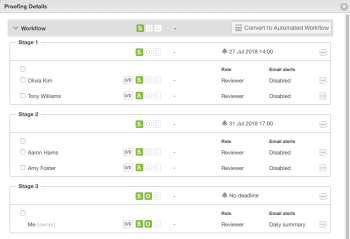
If you share the proof with another reviewer, and do not specify a deadline, Workfront adds the user to Stage 3, where there is no deadline.