On this page: Learn how to set the goal metric and additional metrics of an A/B, Experience Targeting (XT), or Multivariate Test (MVT) activity, and which characters are not allowed in metric names.
Use metrics in an Adobe Target A/B, Experience Targeting (XT), or Multivariate Test (MVT) activity to determine when a visit is successful. For detailed information about success metrics, see Success Metrics.
Set a metric set-a-metric
-
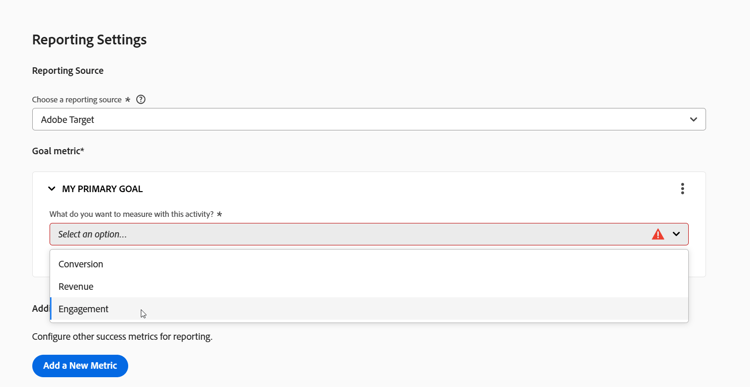
In the Reporting Settings section of the Goals & Settings page, select a success metric.
The Select Metrics option lists the success metrics that you can choose for your activity. The success metrics are divided into the following categories:
- Conversion
- Revenue
- Engagement
You can use any of the pre-built success metrics, or create a custom success metric. You can also mark a success metric as a primary metric. Reports and Experience Cloud cards default to show the primary metric, if one is set.
-
Specify the settings for your metrics. The available settings depend on the success metric that you are using.
-
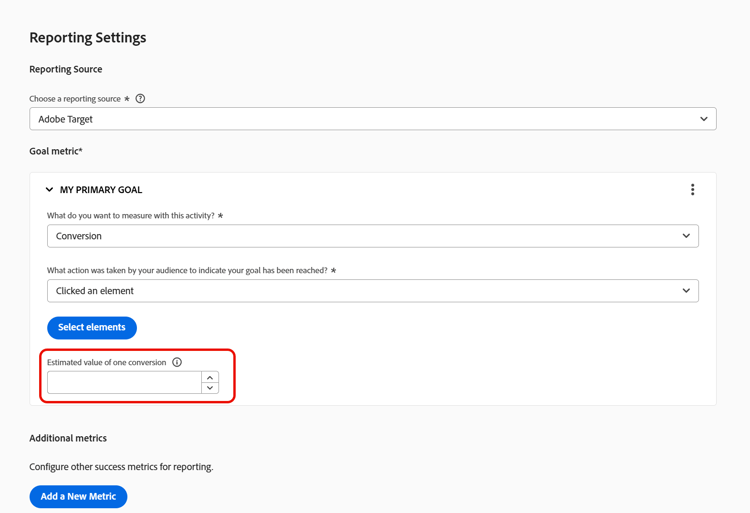
If enabled, the Estimated Value of the Conversion field provides a value for your goal:
- The value enables Target to calculate an estimated lift in revenue.
- The field is optional; however, incremental revenue for any non-revenue metric cannot be calculated without it.
- The field is not available for the Page Score metrics.
- The data type is currency.
- The field is progressively shown after the user indicates the action taken to satisfy the goal.
See Estimating Lift in Revenue for more information. The correct configuration of success metrics is critical for making sure you get the data that you expect.
-
(Optional) To track more than the goal metric, click Add a new metric, then select and configure each additional metric as described in the previous steps.
-
When you are finished setting your metrics, click Continue in an XT activity, or Save and Close in an MVT activity.
Characters not allowed in metric names metric-name-rules
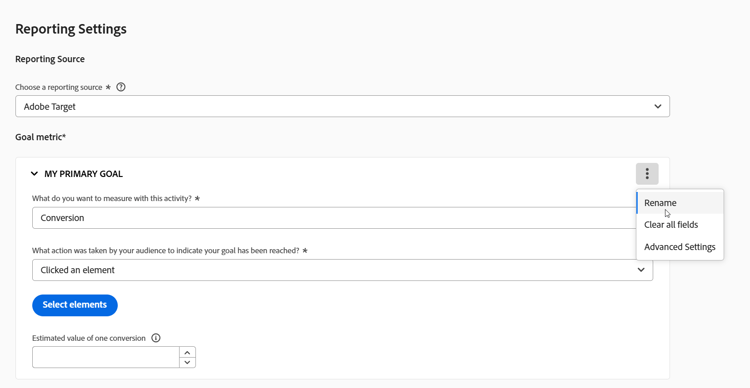
When you name or rename a metric, the following characters are not allowed:
/?#:=+-@