On this page: Learn how to create a Multivariate Test (MVT) in the Visual Experience Composer (VEC). You create the activity, build and review the experiences, set targeting, then configure goals and settings.
style
shade-box
The Visual Experience Composer (VEC) in Adobe Target makes it easy to create a Multivariate Test and to modify portions of the page within Target.
The Target point-and-click editor enables you to pick any location and add multiple offers.
The Multivariate Test (MVT) takes a page-first report. In other words, the test runs on a specific URL, with the experiences you design for that page.
Before you create the test, review the planning recommendations to check your traffic, choose the elements to test, and prepare your content.
Follow the steps below to create a Multivariate Test (MVT):
Choose the activity type and delivery type, specify the page to test, and name the activity.
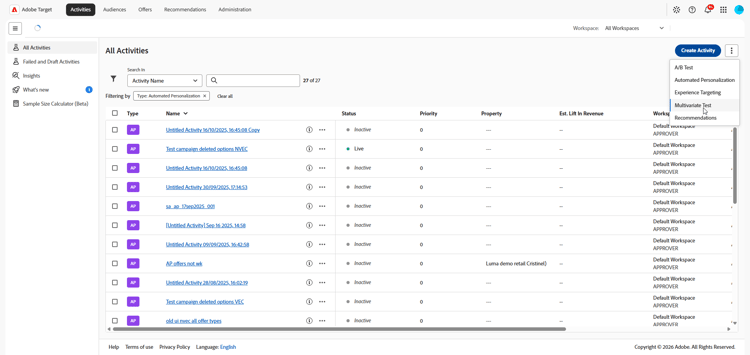
Click Create Activity > Multivariate Test.
For more information about the various activity types available in Target and their differences, see Activities. See Target Activity types to help you decide which activity type best suites your needs.
Choose the delivery type: Web, Mobile, Email, or Other/API.
Specify the URL for the page that you want to test. Use a complete URL, including HTTP or HTTPS at the beginning.
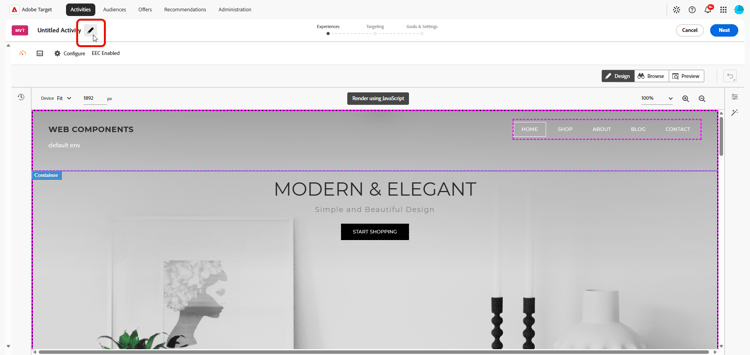
Then, click Create. The Visual Experience Composer opens.
To name the activity, click the Edit icon (
) and specify a descriptive name for the activity, and then click Save.
The activity name cannot begin with =, +, -, or @. The activity name also cannot contain any of the following character sequences: ;=, ;+, ;-, ;@, ,=, ,+, ,-, ,@, [", or "].
Build and review the experiences build-experiences
Add offers to each location, preview the resulting experiences, and check that your test plan is feasible.
Click the Show Experiences icon (
) to display the list of all experiences in the left frame, then click a specific experience in the list to view that experience.
You might choose to exclude an experience that shows conflicting variations or an experience that is not aesthetically balanced.
Click the Manage Content icon (
) to display the Manage Experiences dialog box.
To exclude one experience, click the More Actions icon (
) next to that experience, then click Exclude.
To exclude multiple experiences, select the check boxes for the desired experiences, then click Exclude.
Set targeting set-targeting
Choose which visitors enter the test, and review the test summary.
Click Next to access the Targeting page.
The flow diagram leads you through the steps of assigning an audience and its traffic percentage, selecting the traffic allocation method, and specifying the traffic allocation for each experience in the activity.
(Conditional) Click the All Visitors control to select another audience for the activity.
The All Visitors audience is set as the default. If you select another audience, its name displays in the leftmost control. For example, you might limit entries to 50% of all visitors or 45% of your “Californians” audience.
accordion
Steps to select a different audience
The right frame displays, which lets you add or delete an audience and assign the visitor percentage for the activity.
To change the audience, click the Replace icon (
) in the right frame.
To create an audience that combines several audiences, click Combine Audiences. For details, see Combine multiple audiences.
To create a new audience that is not already in the Audience Library, click Create Audience. In the create-audience workflow, choose one of the following options:
Audience Library: Create an on-demand audience that is saved to the Audience Library and can be reused in other activities.
This activity only: Create an activity-specific audience that is not saved to the Audience Library and can be used in the current activity only.
Click Visitor Percentage in the right frame, then choose the percentage of qualifying visitors that you want to enter the activity.
Configure goals and settings configure-goals-and-settings
On the Goals & Settings page, you tell Target how to measure the test. The available settings depend on whether you use Target or Analytics as the reporting source.
An optional objective, the Priority (used when several activities share a location and an audience), and the Duration (start and end dates).
Reporting Settings
The reporting source, the goal metric (for example, a Conversion metric), additional metrics, and audiences for reporting. Advanced settings for the goal metric are also available here.
Other Metadata
Notes about the activity that are useful for you or for other team members.