On this page: Learn how to create the image and HTML offers that make up the combinations of a Multivariate Test.
In a Multivariate Test (MVT), every location contains several offers, and each combination of offers across the locations is one experience. Use the Visual Experience Composer (VEC) in Adobe Target to create the offers that you want to include in your test.
For more information about using the VEC to create and edit offers, see Visual Experience Composer options.
Image offers image-offers
Test multiple image offers within a location to determine which image is most successful.
-
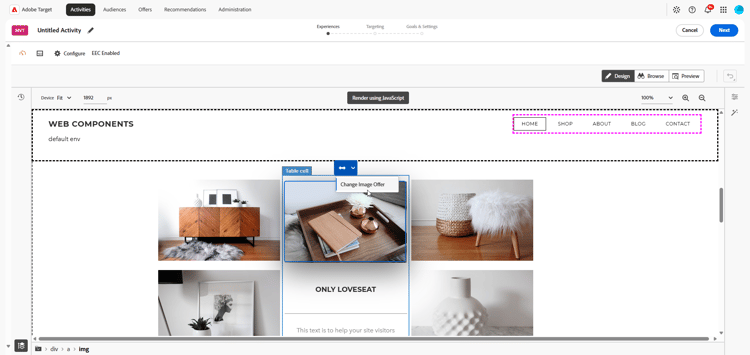
Click an image on your page, and then select Change Image Offer.
-
From the Image Offer dialog box, select all the images that you want to include in the test, then click Add.
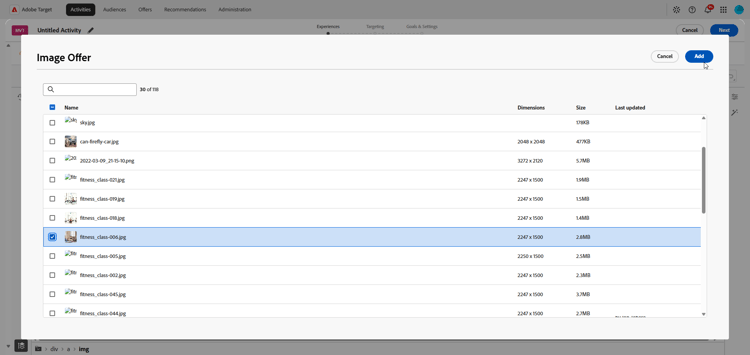
Each image becomes a separate experience in that location.
HTML offers html-offers
Test multiple HTML offers within a location to determine which offer is most successful.
-
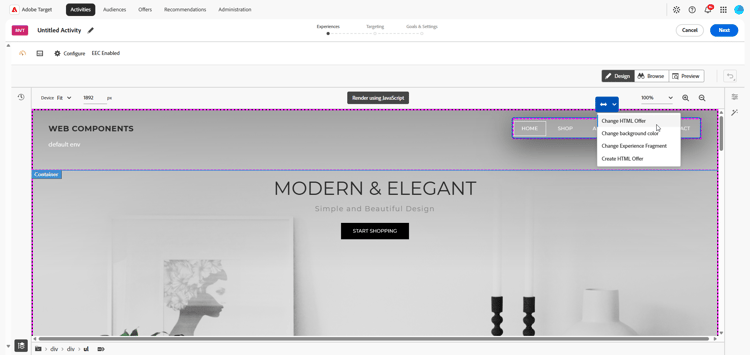
Click an HTML offer on your page, then click Change HTML Offer.
-
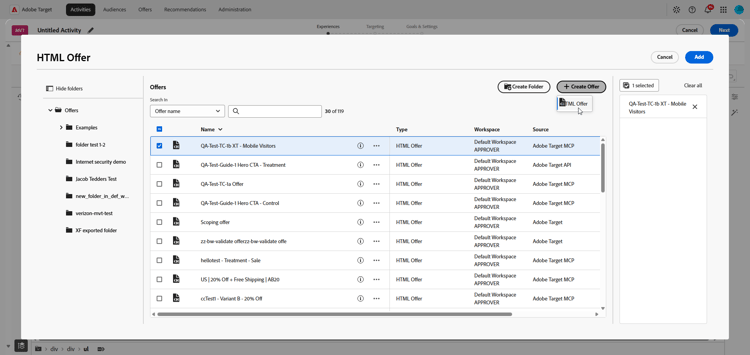
Choose your HTML offer and click Create Offer then HTML Offer.
-
Name the offer, type or paste the code for the HTML offer, then click Create.
Repeat for any additional HTML offers that you want to include.
-
Click Save.
Each HTML offer becomes a separate experience in that location.
For recommendations on how many combinations to include and how to review them before you launch the test, see Multivariate Test best practices.