
Build a category page manually
The AEM Commerce Prerender solution generates category (product listing) pages automatically. It fits most catalogs, but has documented limits: category changes are picked up on a fixed cadence, each path prerenders 10,000 products, and it can’t merge content overrides. If you encounter these limits, you can author the category page by hand instead.
This tutorial covers the manual path: create a page that represents one category, give it SEO metadata, and keep existing links working when you change the page’s URL. You author everything in Document Authoring (DA.live), so no code changes are required. To produce many category pages with a script instead of by hand, see Generate category pages programmatically.
What you’ll build
Section titled “What you’ll build”By the end of this tutorial, you’ll have:
- A category page authored as a single document, published at a URL you choose (for example,
/apparel) - A
product-list-pageblock on that document, bound to a Commerce category through itsurlPath - SEO metadata on the page (title, description, structured data, and more), applied per page or in bulk
- A plan for changing a category page’s URL without breaking existing links
Prerequisites
Section titled “Prerequisites”Before starting this tutorial, make sure you have:
- A working Commerce storefront on Edge Delivery Services
- Category pages powered by the Product Discovery drop-in
product-list-pageblock (the default in the storefront) - Access to author and publish content in Document Authoring (DA.live)
- The URL key (also called the URL path) of the Commerce category you want to display
How a category page works
Section titled “How a category page works”A category page is a document with two tables:
- A
product-list-pageblock that renders the category’s product grid. ItsurlPathvalue tells the block which Commerce category to load; the block fetches that category’s products in the browser using the URL key. - A
metadatablock that sets the page’s SEO fields — title, description, and structured data.
The document’s location in your content tree becomes the page URL. A document at /apparel is served at https://<your-storefront>/apparel. That path is independent of the urlPath value inside the block: the path is where shoppers go, and urlPath is which category loads there.
Step 1: Create the document at your chosen path
Section titled “Step 1: Create the document at your chosen path”In Document Authoring, create a document at the path where you want the category to live — for example, apparel for a page served at /apparel. The document’s path in the content tree becomes the page URL, so choose it to match the URL you want shoppers to use.
Step 2: Add the product-list-page block
Section titled “Step 2: Add the product-list-page block”Add a table whose header row (both cells merged) reads product-list-page. In the next row, add a urlPath cell in the first column and the category’s URL key in the second column — for example, apparel.
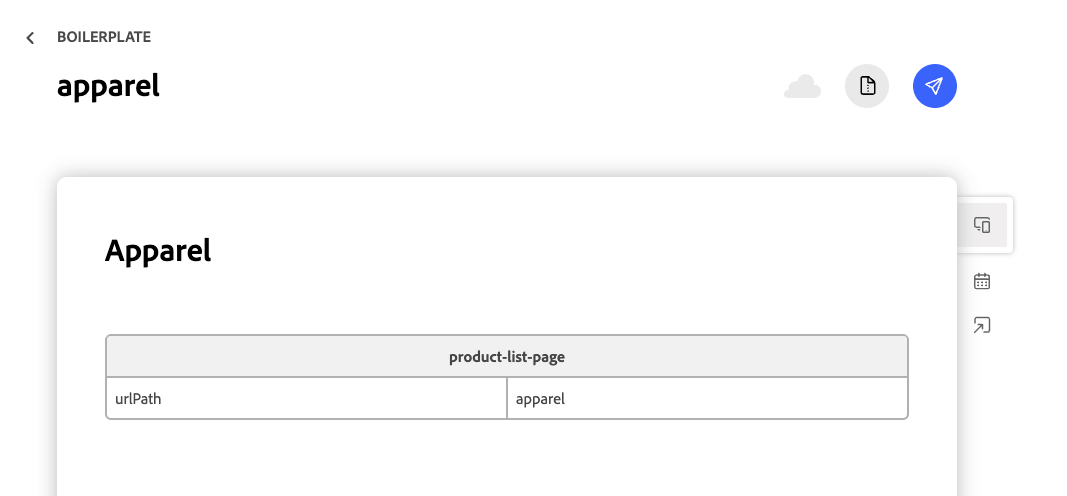
This single value binds the page to the Commerce category. When the page loads, the product-list-page block reads urlPath and fetches that category’s products. This block is the same one the storefront uses for its automatically generated category pages, so the layout, filters, and pagination match the rest of your site.
Step 3: Add SEO metadata to the page
Section titled “Step 3: Add SEO metadata to the page”To set the page’s title, description, and structured data, add a metadata table to the document. At minimum, add a title and description for search results.
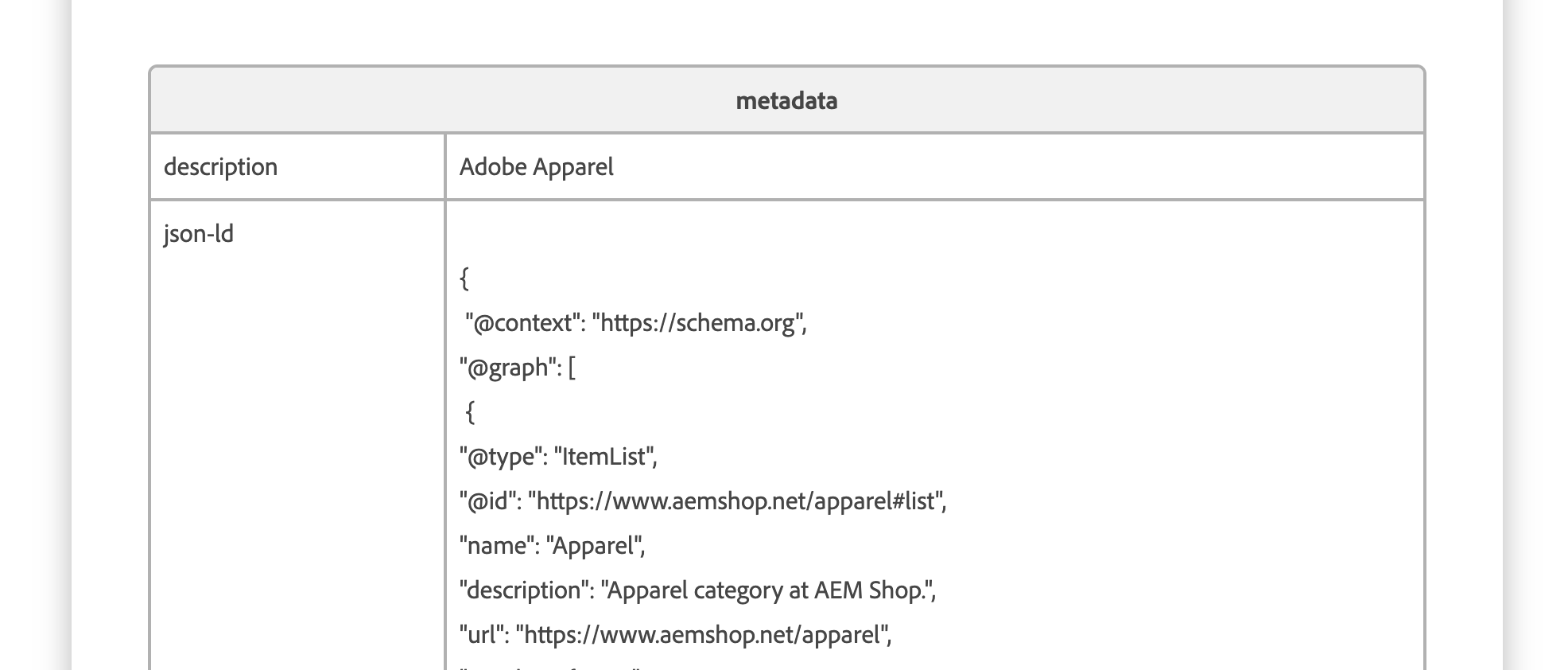
The example above sets a description and a json-ld value carrying ItemList structured data for the category. For the full list of supported properties — Title, Description, Keywords, Robots, og: tags, json-ld, and more — and how the table is structured, see Page metadata. For catalog SEO guidance specific to product and category pages, see SEO metadata.
Step 4: Apply metadata in bulk (optional)
Section titled “Step 4: Apply metadata in bulk (optional)”If you’re authoring several category pages, or want to keep SEO values in one place, define them in a bulk metadata sheet instead of on each document. A metadata sheet matches pages by URL pattern (for example, a row for /apparel or a wildcard such as /categories/**) and applies properties to every matching page. Per-page metadata still takes precedence where both are set.
See Bulk Metadata on AEM.live for the sheet format and matching rules, and SEO metadata for a tool that generates a bulk metadata sheet from your catalog.
Step 5: Preview and publish
Section titled “Step 5: Preview and publish”Preview the document with the AEM Sidekick, confirm the product grid and metadata render as expected, then publish. The category page is now live at the path you chose in Step 1.
Change a category page’s URL
Section titled “Change a category page’s URL”When a category’s URL changes — you’re moving the page from one path to another, for example /apparel to /clothing — you can’t rename it in place. Create the page at the new path, remove the old one, and redirect so existing links and search rankings follow to the new URL.
- Create the category document at the new path, following Steps 1–5 above, and publish it.
- Unpublish and delete the old category document so it’s no longer served at the old URL.
- Add a redirect from the old path to the new one in your
redirectssheet (for example,/apparel→/clothing), so shoppers and crawlers that hit the old URL land on the new page.
Add the redirect rather than only deleting the old page: a redirect preserves inbound links and search equity, while a deleted page with no redirect returns a 404, and the old URL is disconnected. Edge Delivery Services redirects are permanent (301) redirects managed in a spreadsheet — see Redirects for how the sheet works in this storefront, and Redirects on AEM.live for the sheet columns and behavior. After the redirect is live, update your sitemap so search engines discover the new URL.
What you built
Section titled “What you built”| Artifact | Purpose |
|---|---|
Category document (for example, /apparel) | The page shoppers visit; its path is the page URL |
product-list-page block with urlPath | Binds the page to a Commerce category and renders its product grid |
metadata block (or bulk metadata sheet) | Sets the page’s SEO: title, description, structured data |
redirects sheet entry | Keeps old links working after a page URL change |