
OrdersList container
The OrdersList container is a standalone component designed to provide access to a customer’s order history and detailed order information. It can be rendered in a full-size or minified view.
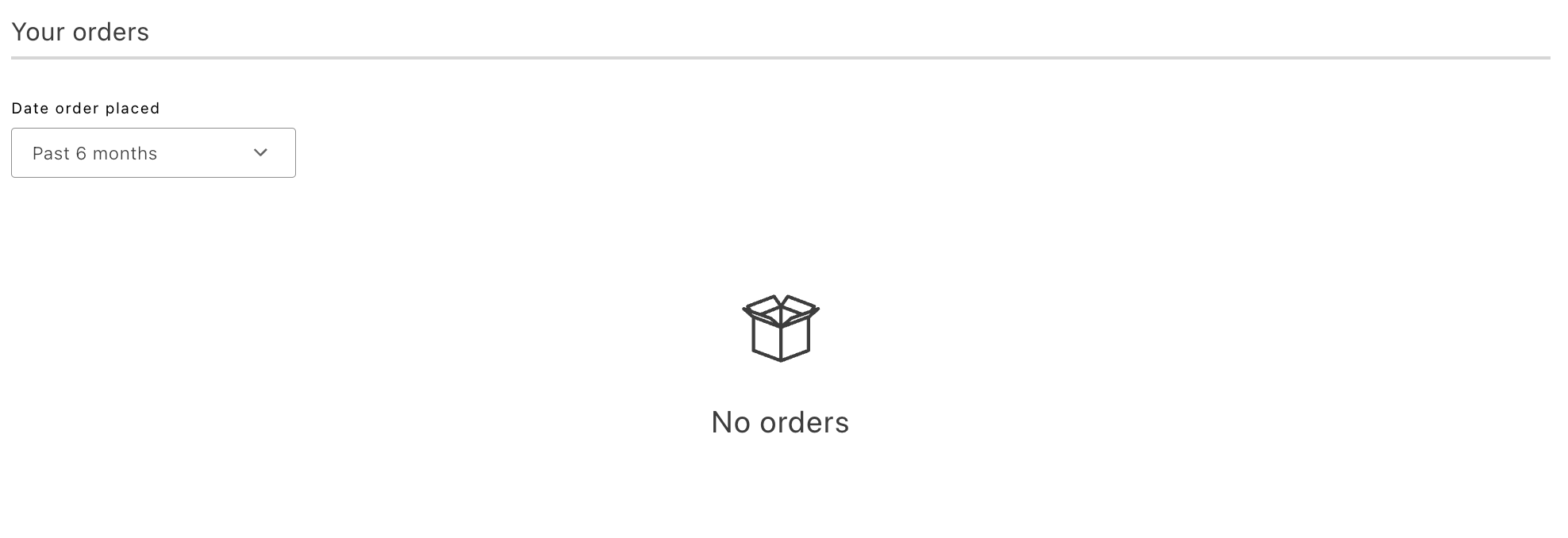
Use the full-size view when the OrdersList component functions as a standalone page. This view displays the complete list of orders, includes a filter for filtering by the date placed. It also features pagination, which is visible if the number of orders exceeds one page.
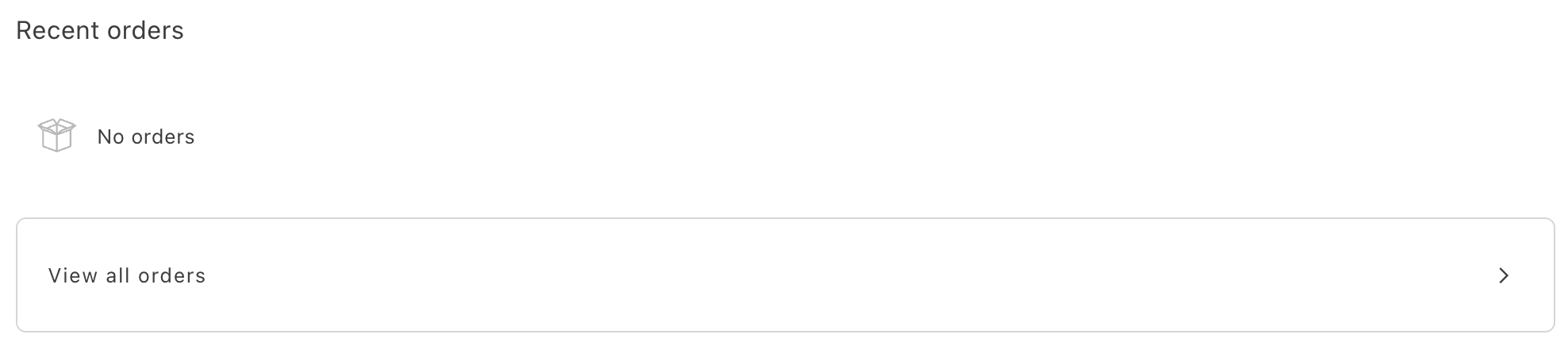
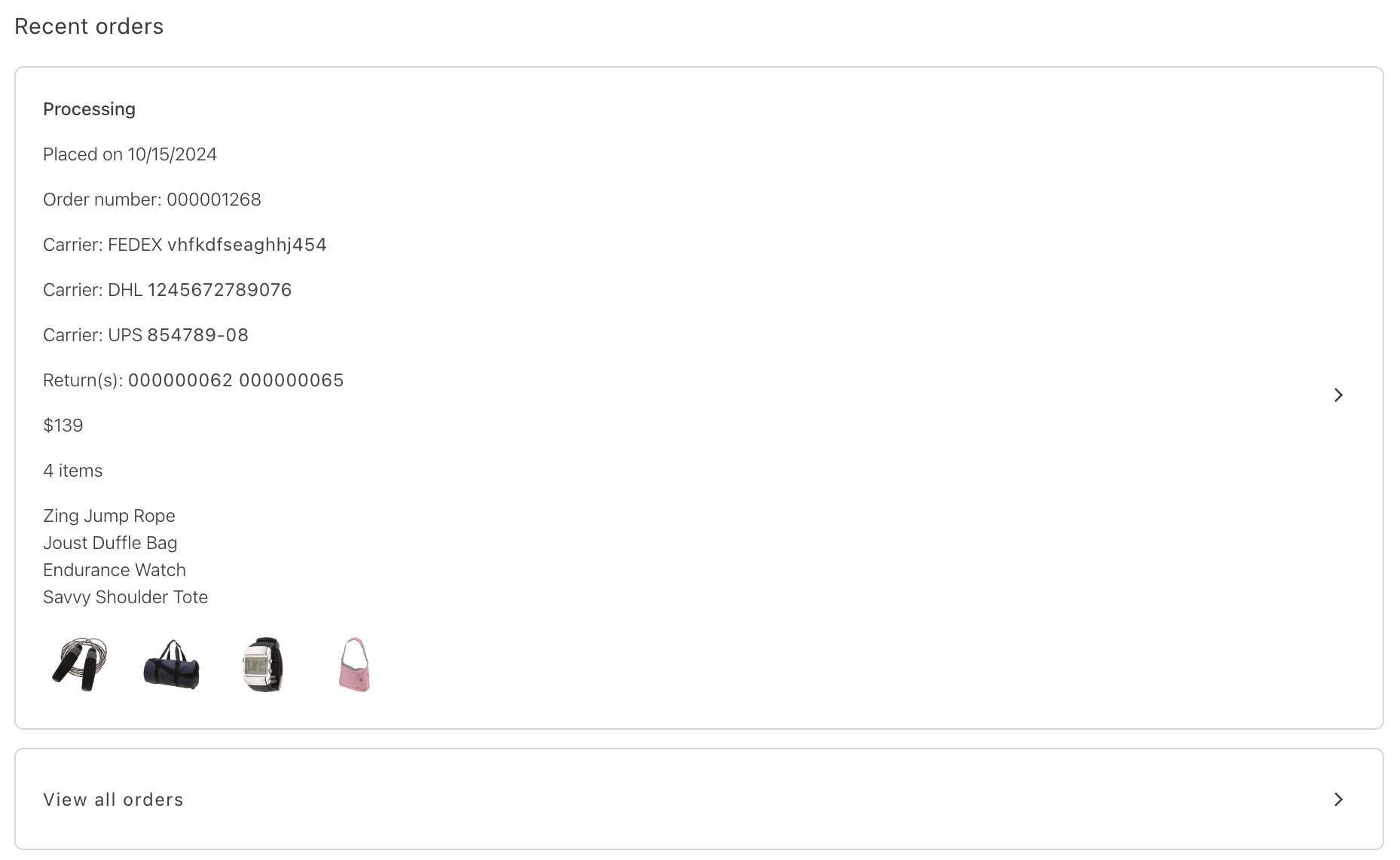
The minified view can be usef when the container is part of a page alongside other components, such as a user account dashboard. In this view, only a few of the most recent orders are displayed (the number is configurable). A View all orders button is rendered at the bottom, which navigates the customer to the full order history page.
OrdersList configurations
Section titled “OrdersList configurations”The OrdersList container provides the following configuration options:
Example
Section titled “Example”The following example demonstrates how to use the OrdersList container:
export default async function decorate(block) { const { 'minified-view': minifiedViewConfig = 'false' } = readBlockConfig(block);
if (!checkIsAuthenticated()) { window.location.href = CUSTOMER_LOGIN_PATH; } else { await accountRenderer.render(OrdersList, { minifiedView: minifiedViewConfig === 'true', withSearch: true, searchScope: 'allOrders', routeOrdersList: () => CUSTOMER_ORDERS_PATH, routeOrderDetails: (orderNumber) => `${CUSTOMER_ORDER_DETAILS_PATH}?orderRef=${orderNumber}`, routeReturnDetails: ({ orderNumber, returnNumber }) => `${CUSTOMER_RETURN_DETAILS_PATH}?orderRef=${orderNumber}&returnRef=${returnNumber}`, routeOrderProduct: (productData) => (productData ? `/products/${productData.product.urlKey}/${productData.product.sku}` : '#'), })(block); }}Order search
Section titled “Order search”Set withSearch to true to add a search box above the order list in the full-size view. Customers use it to find their orders by order number, product name, or product SKU.
The search runs when the customer presses Enter or selects the search button, not as they type. An order lookup does not need the type-ahead behavior used for product search, so this avoids sending a request on every keystroke.
A search term must be between three and 100 characters. The container does not submit a term shorter than three characters.
Use searchScope to set how far a search reaches:
selectedDate(default): the search stays within the date range the customer has selected.allOrders: the search covers the customer’s full order history, regardless of the selected date.
Most storefronts set searchScope to allOrders so a customer can find any order without first widening the date filter.
The search box appears in the full-size view only, not in the minified view.
Administrator-assisted orders
Section titled “Administrator-assisted orders”When the seller-assisted buying feature is in use, the OrdersList container shows a “Placed by an administrator” label on any order where adminAssistedOrder > 0. The label appears automatically in both the minified and full-size views. No configuration is required.
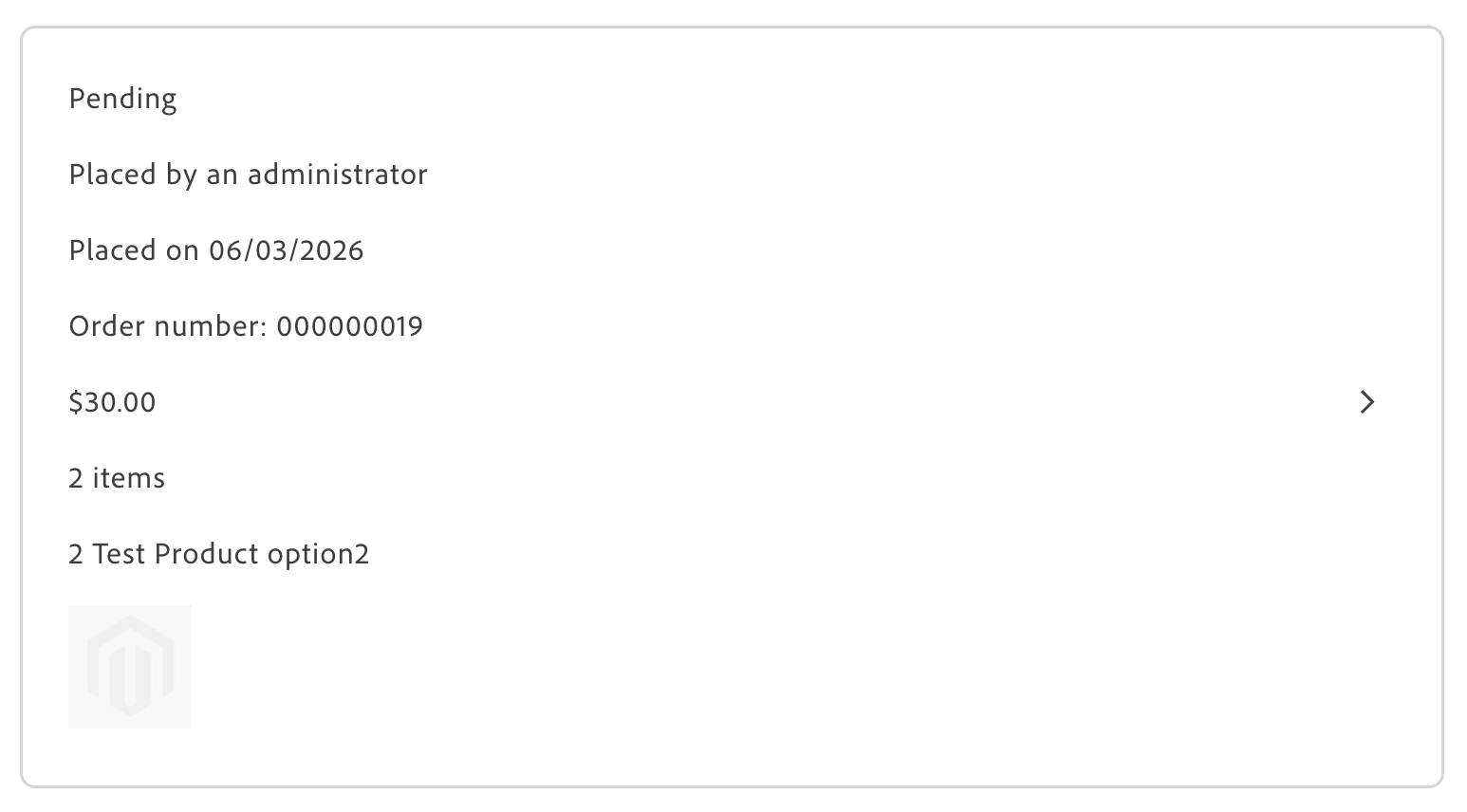
To customize the label text, override the dictionary key in the account initializer:
- Minified view:
Account.minifiedView.OrdersList.OrdersListCard.placedByAdministrator - Full-size view:
Account.fullSizeView.OrdersList.OrdersListCard.placedByAdministrator
For the end-to-end flow, see Seller-assisted buying.