
Getting started as a developer
Welcome to storefront development. Every Adobe Commerce storefront begins with ready-made starter code. Product details, cart, checkout, and other shopping features are already included and integrated into Commerce blocks, so your work goes into making the storefront look and feel like your brand.
Where you work
Section titled “Where you work”Your storefront brings together two kinds of work: code from developers and content from authors.
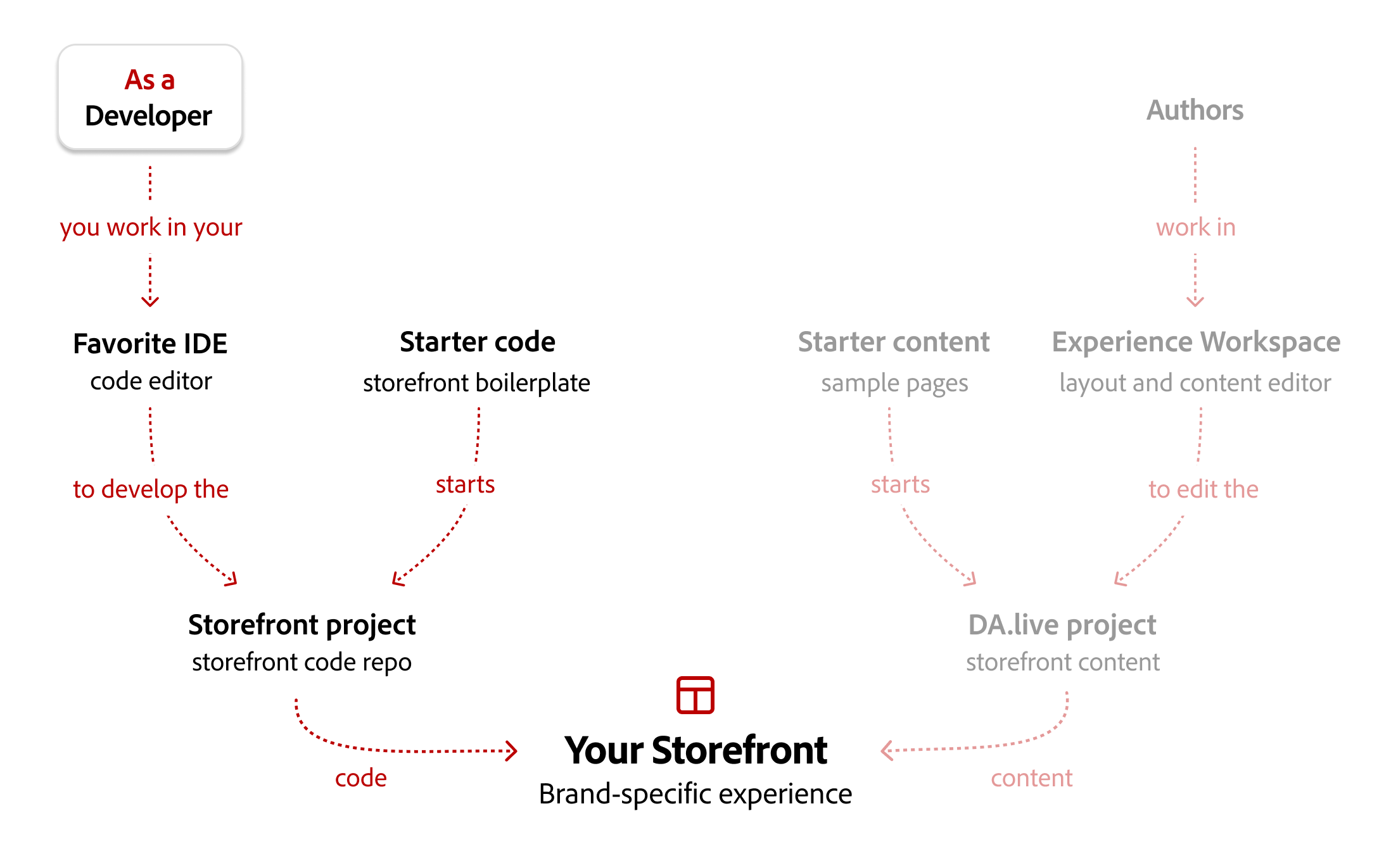
- Favorite IDE: Edit blocks, scripts, and styles with the tools you already use, then check each change in a local preview.
- Starter code: The storefront boilerplate that every project begins from.
- Storefront project: Your team’s own Git repository. Make changes here, not in the starter code.
- Authors: Edit pages in Experience Workspace. Their Document Authoring (DA.live) project begins with starter content, a set of sample pages.
- Your storefront: The brand-specific shopping experience your customers see.
What’s on a storefront page
Section titled “What’s on a storefront page”Every storefront page mixes default content (headings, text, images) with blocks, reusable pieces that render together in the browser. Shopping features arrive as drop-ins, each inside a Commerce block.
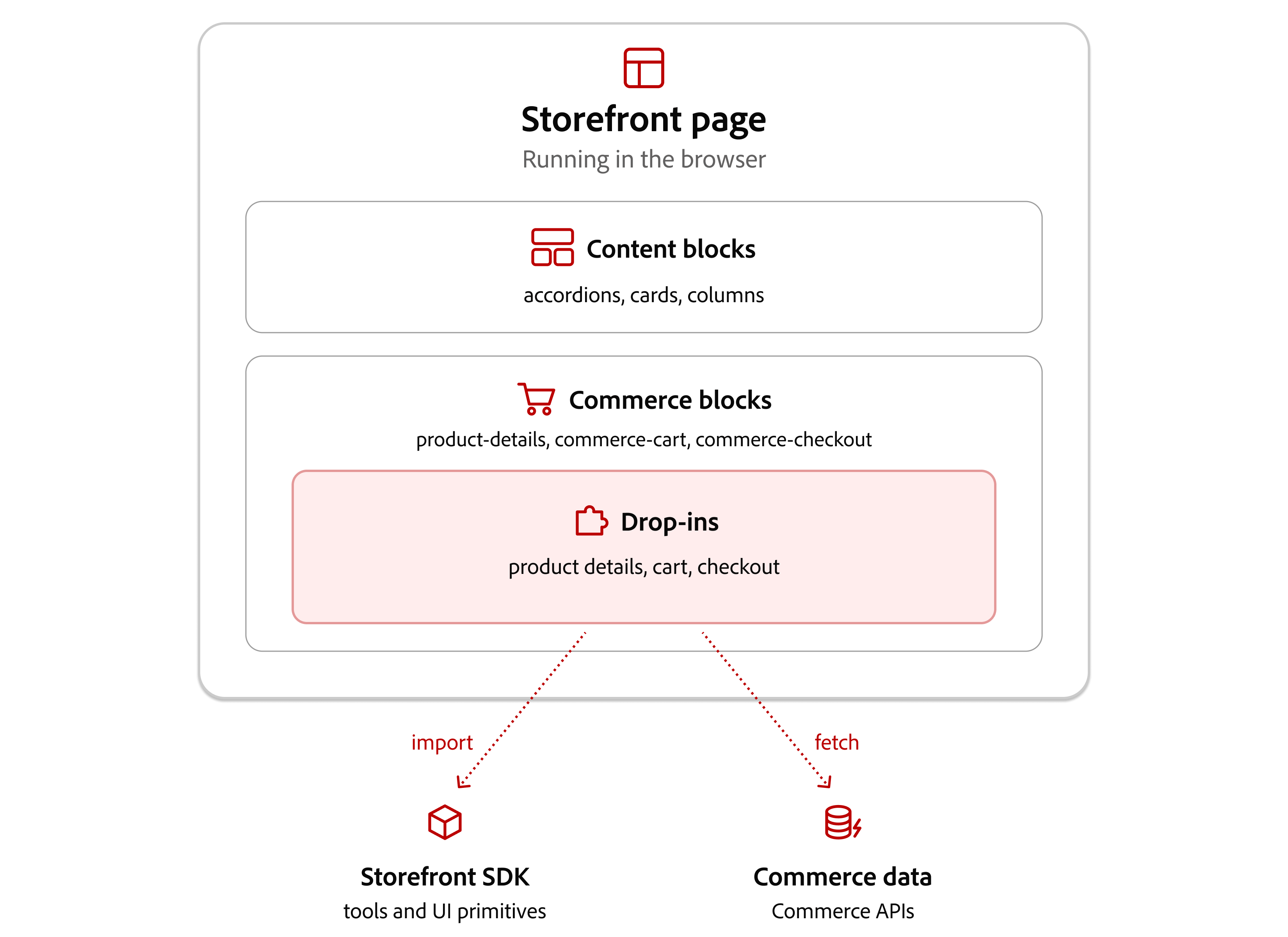
- Content blocks: Editorial layouts, such as accordions, cards, and columns.
- Commerce blocks: Hold a drop-in and place it on the page. For example, the
commerce-cartblock holds the cart drop-in.- Drop-ins: Ready-made shopping features, such as product details, cart, and checkout.
- Storefront SDK: Shared tools and UI primitives that drop-ins import. Your blocks can use them too.
- Commerce data: Product, cart, and order information that drop-ins fetch from Commerce APIs.
Where your changes go
Section titled “Where your changes go”Drop-ins and the Storefront SDK are npm packages installed into your project, so you don’t edit their code directly. Your project uses them from three places.
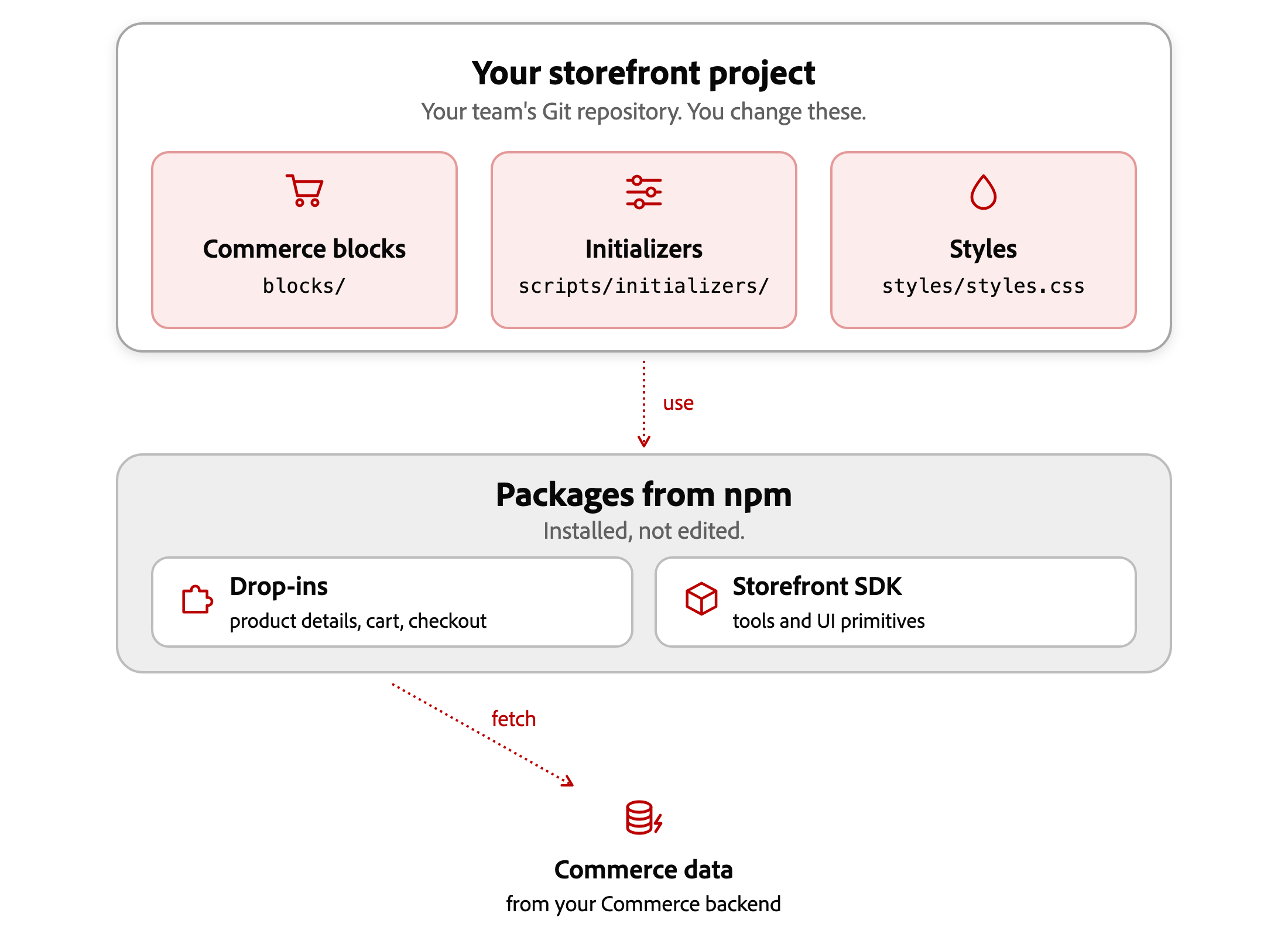
- Commerce blocks: Import a drop-in’s containers and render them on the page, for example in
blocks/commerce-cart/commerce-cart.js. - Initializers: Set up each drop-in, including its API endpoint and labels, for example in
scripts/initializers/cart.js. - Styles: Define design tokens that drop-ins also use, such as
--color-brand-500instyles/styles.css.
Blocks and drop-ins shows how these files connect.
Create a new storefront
Section titled “Create a new storefront”Start with these steps if your team does not already have a storefront project. If it does, skip to Run your storefront locally.
-
Prerequisites: Gather the tools, accounts, and Commerce access you need.
-
Backend options: Confirm the license and setup requirements for Adobe Commerce as a Cloud Service or Adobe Commerce Optimizer.
-
Create a storefront: Set up your project repository, Commerce connection, and starter content.
-
Run your storefront locally: Open a local preview with your project’s content and Commerce data.
-
Verify your storefront setup: Test the shopping features your project needs.
Then try Make your first change to update a link color and see the result in your local preview.
More help on this topic
Section titled “More help on this topic”- Find your code: Locate the files for your change.
- Developer how-tos: Find instructions for a specific change.
- Architecture: Follow how content, code, and Commerce data work together.
- Install the AI tools: Set up tools for AI-assisted changes.