
Add custom product lines to cart summary
What you’ll edit or create
Section titled “What you’ll edit or create”- Edit the cart block —
blocks/commerce-cart/commerce-cart.js - Edit the
ProductAttributesslot on theCartSummaryListcontainer - Edit the
Footerslot on theCartSummaryListcontainer
What you’ll build
Section titled “What you’ll build”By the end of this tutorial, you’ll have:
- A
ProductAttributesslot added to theCartSummaryListcontainer inblocks/commerce-cart/commerce-cart.jsthat shows a custom product attribute, like shipping notes, on cart items that have it. - A
Footerslot in the same container that displays promotional text from a cart price rule beneath qualifying items.
Prerequisites
Section titled “Prerequisites”This tutorial requires that you create the following entities in the Adobe Commerce Admin:
-
A custom product attribute. Here, the product attribute is assigned the label
Shipping Notes, and the *Catalog Input Type for Store Owner is set to Text Field. You can optionally set the Used for Sorting in Product Listing option to Yes to increase the visibility of products using the product attribute in the Products grid. Product attributes overview describes how to create a custom product attribute.In addition, you must assign the product attribute to one or more products. In this tutorial, the text fields will contain the strings “These item(s) are available to ship on Nov 1, 2024” and “FINAL SALE: This item ships separately and is ineligible for return.”.
-
A custom cart price rule. In this tutorial, a cart price rule named
25% Off $75+ with Code BOO24has been created. Its definition defines the coupon code, the discount amount, and the conditions that must be met to apply the discount. Cart price rules overview describes how to create a cart price rule.
Step-by-step
Section titled “Step-by-step”The following steps describe how to modify the commerce-cart.js block file in the boilerplate template to add custom content to the CartSummaryList container.
Add text from a custom product attribute
Section titled “Add text from a custom product attribute”In this task, we’ll add text that provides shipping information when certain conditions apply. For example, an item might be out of stock, and therefore cannot be shipped immediately. Or maybe the product is on clearance and cannot be returned. The CartSummaryList component is extended to display text defined by a merchant in the Admin using a custom product attribute. If the custom product attribute is not assigned to a product, then no additional information is displayed.
The following images show how these custom lines can be rendered:
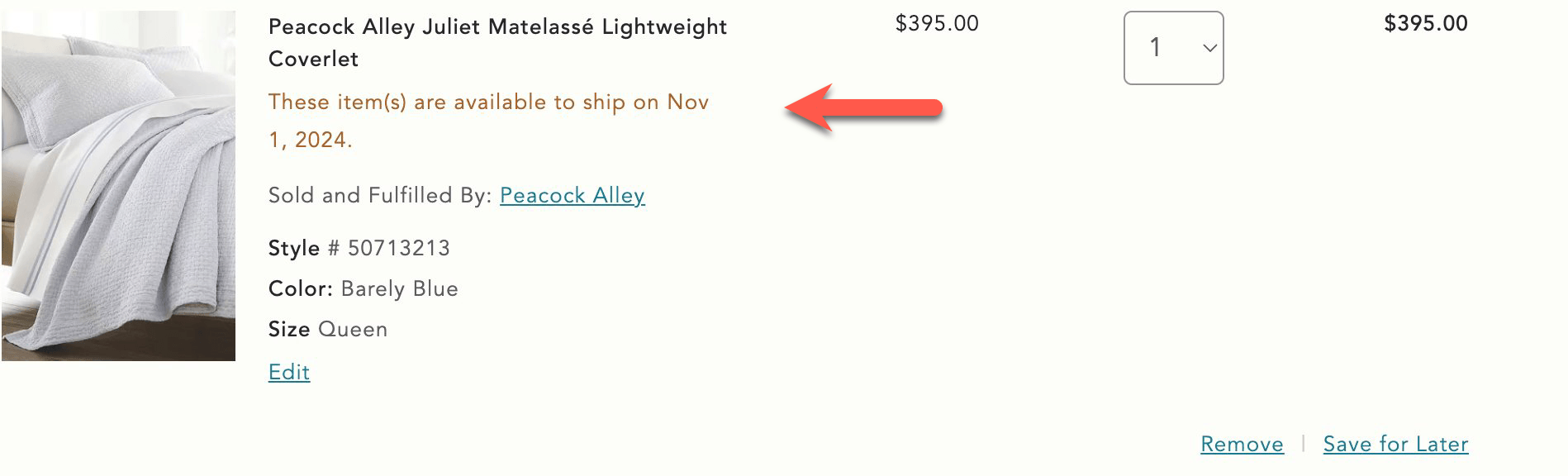
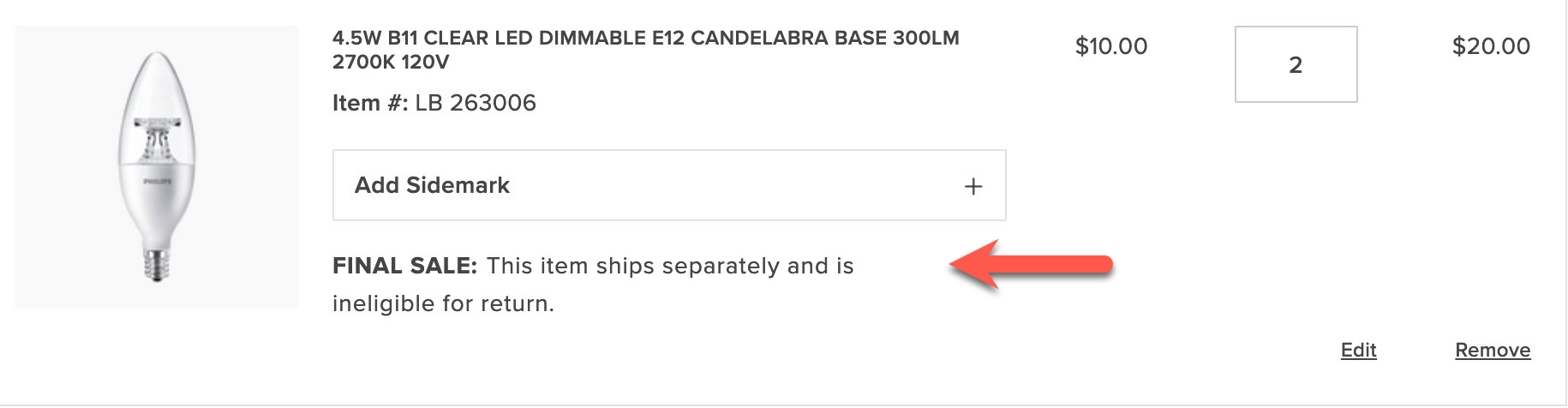
-
Open the
blocks/commerce-cart/commerce-cart.jsboilerplate file. This file imports theCartSummaryListcontainer, and we want to use a slot to display the custom product attribute. Find theprovider.render(CartSummaryList, {line in the file and insert aProductAttributesslot with the following code:slots: {ProductAttributes: (ctx) => {// Prepend Product Attributesconst ProductAttributes = ctx.item?.productAttributes;ProductAttributes?.forEach((attr) => {if(attr.code === "shipping_notes") {if(attr.selected_options) {const selectedOptions = attr.selected_options.filter((option) => option.label.trim() !== '').map((option) => option.label).join(', ');if(selectedOptions) {const productAttribute = document.createElement('div');productAttribute.innerText = `${attr.code}: ${selectedOptions}`;ctx.appendChild(productAttribute);}} else if (attr.value) {const productAttribute = document.createElement('div');productAttribute.innerText = `${attr.code}: ${attr.value}`;ctx.appendChild(productAttribute);}}})},This code creates a slot named
ProductAttributesthat displays the custom product attributeShipping Notes, if it is assigned to a product. If the corresponding attribute is found, the slot creates a newdivelement and appends the attribute code and value to the element. The element is then appended to thectxelement, which is the product line in the cart summary. -
Save the file and generate the page to see the changes.
Display promotional information in the footer of a cart item
Section titled “Display promotional information in the footer of a cart item”Now we’ll add information defined in a custom cart price rule to the footer of the CartSummaryList container. If the conditions set in the cart price rules are not met, then no additional information is displayed. For example, if a specific coupon has not been applied or if the subtotal threshold has not been met, then this information is not displayed.
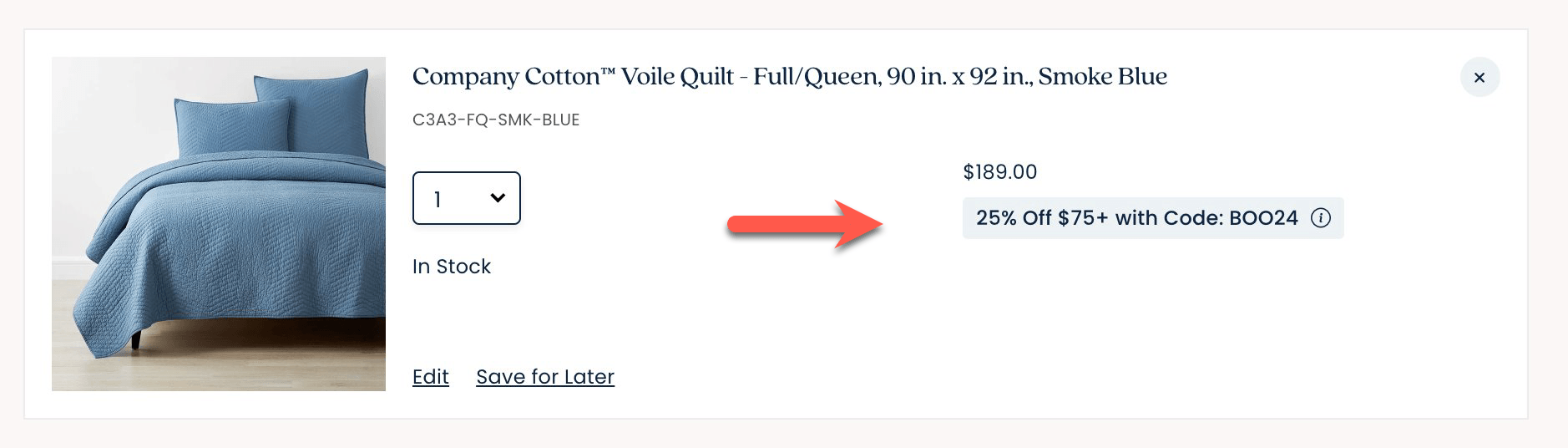
-
The
Footerslot only receives the current item in its context — cart-level information like the applied cart price rule’s label lives on the cart itself, not on the item. Track the cart’sappliedDiscountsin a variable your block updates whenever the cart changes:import { events } from '/@dropins/tools/event-bus.js';let appliedDiscounts = [];events.on('cart/data', (data) => {appliedDiscounts = data?.appliedDiscounts ?? [];}, { eager: true }); -
Add a
Footerslot beneath theProductAttributesslot.slots: {ProductAttributes: (ctx) => {...}Footer: (ctx) => {// Runs on mountconst wrapper = document.createElement('div');ctx.appendChild(wrapper);// Append the cart's applied discount labels on every update, for items that qualifyctx.onChange((next) => {wrapper.innerHTML = '';const itemQualifies = next.item?.discountPercentage || next.item?.savingsAmount;if (!itemQualifies) return;appliedDiscounts.forEach(({ label }) => {const discount = document.createElement('div');discount.style.color = '#3d3d3d';discount.innerText = label;wrapper.appendChild(discount);});});},This code creates a slot named
Footer, which displays the promotional information defined in the custom cart price rule beneath items that received a discount. Thenext.item?.discountPercentageandnext.item?.savingsAmountchecks identify items the discount applied to; the label text itself comes from the cart’sappliedDiscounts, not from the item. -
Save the file. Add products that total at least $75 and apply the BOO24 coupon code to the cart. The page displays the rule name beneath each item in the cart.
Related
Section titled “Related”- Slots — the slot mechanism this tutorial builds on.
- Customize order summary lines — apply the same approach to the order summary.