
Labeling and Localization
The Commerce Boilerplate provides a placeholder system that lets merchants handle labelingCustomizing UI text labels for tone, branding, or clarity while staying in the same language. without code. Learn to implement placeholder filesJSON files that store storefront UI labels by drop-in and locale so merchants can change text without changing code. to override default text in drop-in components.
Overview
Section titled “Overview”Labeling drop-in components in the storefront involves two files:
- The placeholders files that provide the default drop-in component UI labels that merchants can quickly update as needed.
- The drop-in block (examples,
product-details.js,cart.js) where you add code to fetch, map, and override the drop-in component dictionary at runtime.
The following diagram shows the process for adding and overriding labels and text for drop-in components within the boilerplate template.
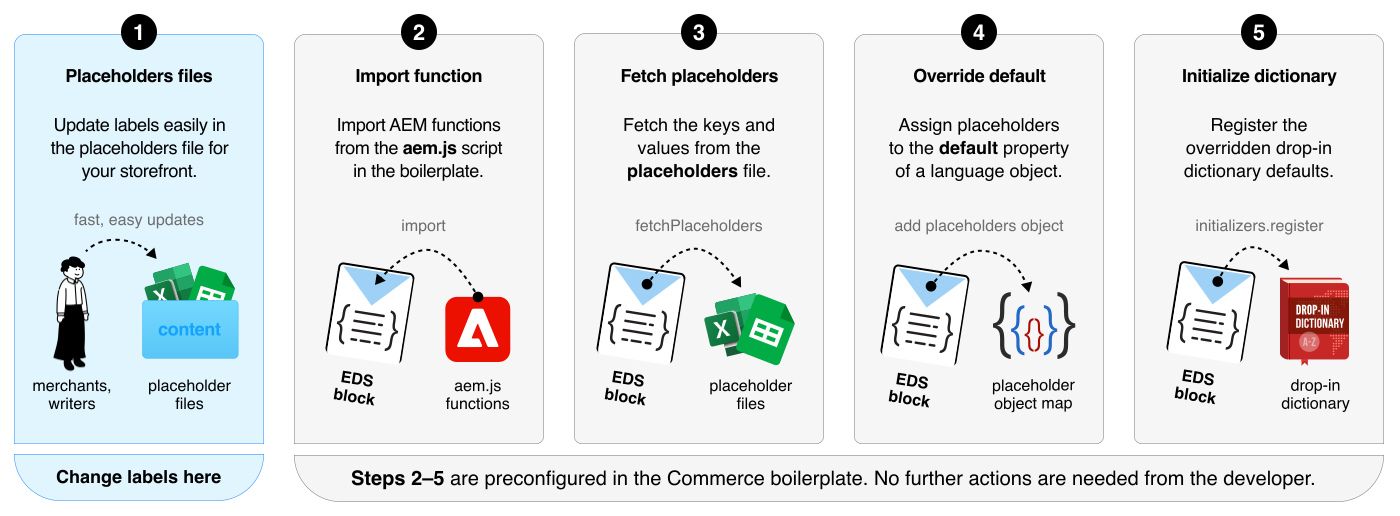
- Placeholder files. Merchants can change the storefront labels by changing the values in the placeholder JSON files, which organize drop-in components—
cart.json,checkout.json,pdp.json, and so on. - Import function. You need to import the
fetchPlaceholdersfunction from the boilerplate’scommerce.jsfile. - Fetch placeholders. Use the
fetchPlaceholdersfunction to retrieve theplaceholderskey-value pairs from the content folder. - Override default dictionary. Override the
defaultproperty from thelangDefinitionsobject with the keys and values from theplaceholderobject. - Initialize dictionary. Use the
registerfunction to update the dictionary at runtime.
Step-by-step
Section titled “Step-by-step”In the boilerplate code, the UI text labels in drop-in components come from the placeholder files. By using these files as the source for all storefront UI labels, merchants can easily change labels without involving developers.
There are two things to be aware of when using the fetchPlaceholders() function:
-
During initialization:
You must provide the path to the drop-in’s placeholders file. This file is then fetched and merged into the existing placeholders object. Subsequent calls tofetchPlaceholders()without a path return the merged object containing all fetched labels. -
After initialization:
You can callfetchPlaceholders()without a path to retrieve all initialized placeholders as a single object. This object can be accessed from a Block or anywhere else in the project.
Import fetchPlaceholders function
Section titled “Import fetchPlaceholders function”In the drop-in block (for example, product-details.js, cart.js), import the fetchPlaceholders function from the boilerplate’s commerce.js file.
import { fetchPlaceholders } from '/scripts/commerce.js';Initialize placeholders with path
Section titled “Initialize placeholders with path”During initialization, you must use the fetchPlaceholders() function using an argument for the path to your drop-in’s placeholders file. This fetches and merges the placeholders into the global object.
// Initialize placeholders for this drop-inconst placeholders = await fetchPlaceholders('placeholders/cart.json');
const langDefinitions = { default: { ...placeholders, },};
// Register Initializersinitializers.mountImmediately(initialize, { langDefinitions, //...});Fetch placeholders after initialization
Section titled “Fetch placeholders after initialization”After initialization, you can use the fetchPlaceholders function without a path to retrieve all merged placeholders. The following diagram and code snippet shows how to fetch the placeholders.
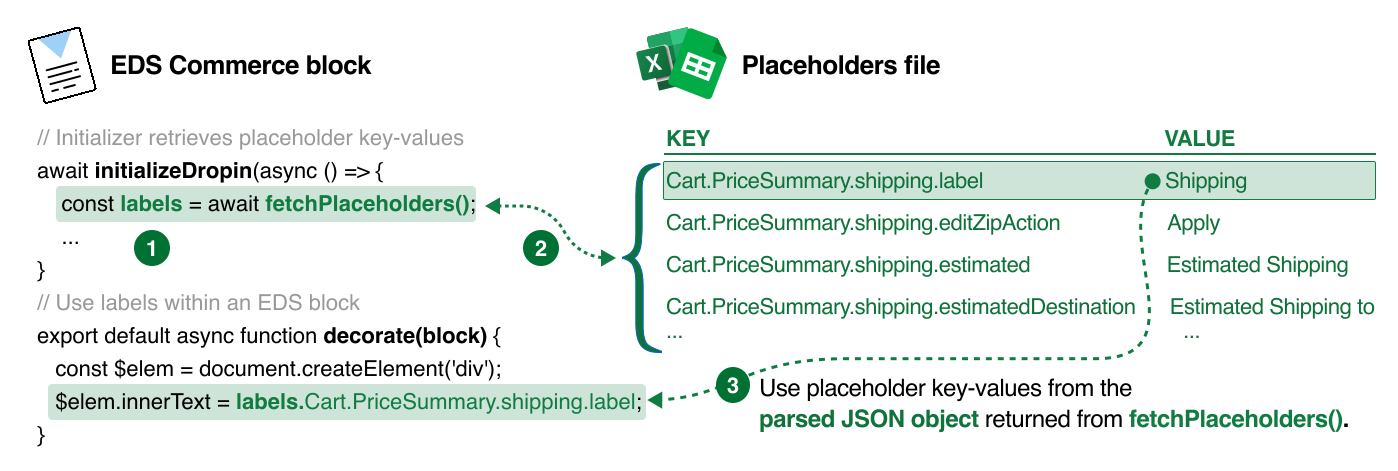
// Retrieve the placeholders language objectconst labels = await fetchPlaceholders();
export default async function decorate(block) { const $elem = document.createElement('div'); $elem.innerText = labels.Cart.PriceSummary.shipping.label;}Test the changes
Section titled “Test the changes”To ensure the new labels are displayed correctly after you’ve updated the drop-in component dictionary with the new langDefinitions object, test the changes in the storefront. If the labels are not displaying as expected, review the mapping between the placeholder keys and the drop-in component dictionary keys. Make sure the keys match exactly. If the keys don’t match, the drop-in component uses the default dictionary values.