
Add messages to mini cart
The mini cart block already includes inline feedback messages by default: a brief message flashes at the top of the mini cart when a shopper adds or updates a product, then disappears automatically. This tutorial explains how those default messages work, then shows you how to build a custom overlay-style alternative that displays the same feedback centered over the mini cart with a semi-transparent background.
What you’ll edit or create
Section titled “What you’ll edit or create”- Edit the mini cart block —
blocks/commerce-mini-cart/commerce-mini-cart.js(to add the overlay variant) - Edit the mini cart styles —
blocks/commerce-mini-cart/commerce-mini-cart.css(to add overlay styles) - Create an overlay version of the
showMessage()function - Reuse the existing message placeholders —
Global.MiniCartAddedMessage/Global.MiniCartUpdatedMessage
What you’ll build
Section titled “What you’ll build”By the end of this tutorial, you’ll have:
- An understanding of the inline messages that already ship by default in
commerce-mini-cart.js, flashing at the top of the mini cart for a few seconds after a cart update. - A custom overlay variant of the same messages, styled through
commerce-mini-cart.css, that appears centered over the mini cart instead of inline. - Message text and display duration driven by the content placeholders sheet and the
cart/product/addedandcart/product/updatedevents, for either variant.
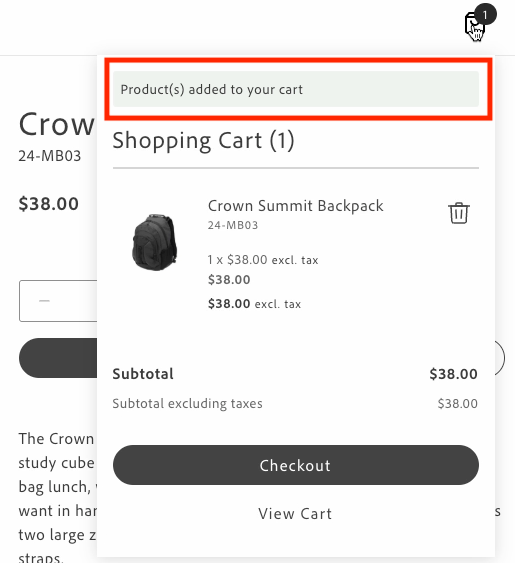
Inline messages already appear at the top of the mini cart by default for a brief period (three seconds) and then automatically disappear, providing immediate feedback to users about their cart actions.
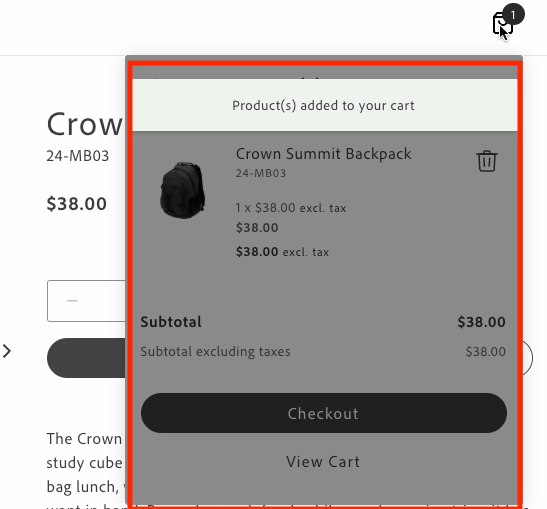
If you’d rather show that same feedback as an overlay, build a custom variant that displays a message at the top center of the mini cart with a semi-transparent background instead:
You can customize the appearance and behavior of either variant by modifying the following:
-
Message text: Update the translations in the content placeholders sheet under the
Global.MiniCartAddedMessageandGlobal.MiniCartUpdatedMessagekeys. -
Message styling: Modify the CSS classes in
commerce-mini-cart.css. The styles use design tokens (prefixed with--) to maintain consistency with the design system. The overlay variant can be customized as follows:- Background opacity using the alpha value in the overlay’s
background-color(the sample below uses 50%) - Message position using the
top,left, andtransformproperties - Colors, spacing, shadows, and other visual properties using design tokens
- Background opacity using the alpha value in the overlay’s
-
Message position: For inline messages, change where the message appears in the mini cart by modifying the insertion point in the DOM.
-
Display duration: Change the timeout value in the
showMessagefunction (default is 3000ms).
Prerequisites
Section titled “Prerequisites”Before implementing inline messages, ensure you have:
- Access to the content folder to manage message localization through placeholders.
- Understanding of the design system tokens used in the Commerce boilerplate template.
- The
commerce-mini-cart.cssfile in yourblocks/commerce-mini-cart/directory.
Events
Section titled “Events”The inline and overlay messages respond to two cart events:
cart/product/added: Triggered when products are added to the cartcart/product/updated: Triggered when products in the cart are updated
Implementation
Section titled “Implementation”To add inline or overlay messages to your mini cart, follow these steps:
Retrieve translations for message texts using placeholders
Section titled “Retrieve translations for message texts using placeholders”Get translations for custom messages from the content folder.
const placeholders = await fetchPlaceholders();
// Access the message texts from the Global placeholders sheetconst MESSAGES = { ADDED: placeholders?.Global?.MiniCartAddedMessage, UPDATED: placeholders?.Global?.MiniCartUpdatedMessage,};Create the appropriate message containers
Section titled “Create the appropriate message containers”Inline messages require a container for the update message and a shadow wrapper to display the message. Overlay messages require an overlay container and a message container.
// Create a container for the update messageconst updateMessage = document.createElement('div');updateMessage.className = 'commerce-mini-cart__update-message';
// Create a shadow wrapperconst shadowWrapper = document.createElement('div');shadowWrapper.className = 'commerce-mini-cart__message-wrapper';shadowWrapper.appendChild(updateMessage);// Create an overlay containerconst overlay = document.createElement('div');overlay.className = 'commerce-mini-cart__overlay';
// Create a message containerconst messageContainer = document.createElement('div');messageContainer.className = 'commerce-mini-cart__message';
overlay.appendChild(messageContainer);Create a function to show and hide messages
Section titled “Create a function to show and hide messages”Create a function that displays the message in the container and then hides it after a specified duration, such as three seconds.
const showMessage = (message) => { updateMessage.textContent = message; updateMessage.classList.add('commerce-mini-cart__update-message--visible'); shadowWrapper.classList.add('commerce-mini-cart__message-wrapper--visible'); setTimeout(() => { updateMessage.classList.remove('commerce-mini-cart__update-message--visible'); shadowWrapper.classList.remove('commerce-mini-cart__message-wrapper--visible'); }, 3000);};const showMessage = (message) => { messageContainer.textContent = message; overlay.classList.add('commerce-mini-cart__overlay--visible'); setTimeout(() => { overlay.classList.remove('commerce-mini-cart__overlay--visible'); }, 3000);};Add event listeners for cart updates
Section titled “Add event listeners for cart updates”Listen for the cart/product/added and cart/product/updated events and display the appropriate message.
import { events } from '/@dropins/tools/event-bus.js';
events.on('cart/product/added', () => showMessage(MESSAGES.ADDED), { eager: true,});events.on('cart/product/updated', () => showMessage(MESSAGES.UPDATED), { eager: true,});Insert the message container into the mini cart block
Section titled “Insert the message container into the mini cart block”Add the message container to the mini cart block to display the messages.
// Find the products container and add the message div at the topconst productsContainer = block.querySelector('.cart-mini-cart__products');if (productsContainer) { productsContainer.insertBefore(shadowWrapper, productsContainer.firstChild);} else { console.info('Products container not found, appending message to block'); block.appendChild(shadowWrapper);}block.appendChild(overlay);Update the CSS styles
Section titled “Update the CSS styles”Add styles to your commerce-mini-cart.css file.
.commerce-mini-cart__update-message { display: none; font: var(--type-body-2-default-font); letter-spacing: var(--type-body-2-default-letter-spacing);}
.commerce-mini-cart__message-wrapper { background-color: var(--color-positive-200); border-radius: var(--shape-border-radius-1); padding: var(--spacing-xsmall); display: none; margin-bottom: var(--spacing-small);}
.commerce-mini-cart__message-wrapper--visible,.commerce-mini-cart__update-message--visible { display: block;}.commerce-mini-cart__overlay { background-color: rgb(0 0 0 / 50%); display: none; position: absolute; inset: 0; z-index: 1000; border-radius: var(--shape-border-radius-1);}
.commerce-mini-cart__message { background-color: var(--color-positive-200); border-radius: var(--shape-border-radius-1); padding: var(--spacing-small); position: absolute; top: var(--spacing-medium); left: 50%; transform: translateX(-50%); font: var(--type-body-2-default-font); letter-spacing: var(--type-body-2-default-letter-spacing); box-shadow: var(--shape-shadow-3); width: 90%; max-width: 400px; text-align: center;}
.commerce-mini-cart__overlay--visible { display: block;}Complete example
Section titled “Complete example”Here’s a complete example of implementing inline and overlay messages in your commerce-mini-cart.js block file:
import { render as provider } from '/@dropins/storefront-cart/render.js';import MiniCart from '/@dropins/storefront-cart/containers/MiniCart.js';import { events } from '/@dropins/tools/event-bus.js';
// Initializersimport '/scripts/initializers/cart.js';
import { readBlockConfig } from '/scripts/aem.js';import { fetchPlaceholders, rootLink } from '/scripts/commerce.js';
export default async function decorate(block) { const { 'start-shopping-url': startShoppingURL = '', 'cart-url': cartURL = '', 'checkout-url': checkoutURL = '', } = readBlockConfig(block);
// Get translations for custom messages const placeholders = await fetchPlaceholders();
const MESSAGES = { ADDED: placeholders?.Global?.MiniCartAddedMessage, UPDATED: placeholders?.Global?.MiniCartUpdatedMessage, };
// Create a container for the update message const updateMessage = document.createElement('div'); updateMessage.className = 'commerce-mini-cart__update-message';
// Create shadow wrapper const shadowWrapper = document.createElement('div'); shadowWrapper.className = 'commerce-mini-cart__message-wrapper'; shadowWrapper.appendChild(updateMessage);
const showMessage = (message) => { updateMessage.textContent = message; updateMessage.classList.add('commerce-mini-cart__update-message--visible'); shadowWrapper.classList.add('commerce-mini-cart__message-wrapper--visible'); setTimeout(() => { updateMessage.classList.remove('commerce-mini-cart__update-message--visible'); shadowWrapper.classList.remove('commerce-mini-cart__message-wrapper--visible'); }, 3000); };
// Add event listeners for cart updates events.on('cart/product/added', () => showMessage(MESSAGES.ADDED), { eager: true, }); events.on('cart/product/updated', () => showMessage(MESSAGES.UPDATED), { eager: true, });
block.innerHTML = '';
// Render MiniCart first await provider.render(MiniCart, { routeEmptyCartCTA: startShoppingURL ? () => rootLink(startShoppingURL) : undefined, routeCart: cartURL ? () => rootLink(cartURL) : undefined, routeCheckout: checkoutURL ? () => rootLink(checkoutURL) : undefined, routeProduct: (product) => rootLink(`/products/${product.url.urlKey}/${product.topLevelSku}`), })(block);
// Find the products container and add the message div at the top const productsContainer = block.querySelector('.cart-mini-cart__products'); if (productsContainer) { productsContainer.insertBefore(shadowWrapper, productsContainer.firstChild); } else { console.info('Products container not found, appending message to block'); block.appendChild(shadowWrapper); }
return block;}import { render as provider } from '/@dropins/storefront-cart/render.js';import MiniCart from '/@dropins/storefront-cart/containers/MiniCart.js';import { events } from '/@dropins/tools/event-bus.js';
// Initializersimport '/scripts/initializers/cart.js';
import { readBlockConfig } from '/scripts/aem.js';import { fetchPlaceholders, rootLink } from '/scripts/commerce.js';
export default async function decorate(block) { const { 'start-shopping-url': startShoppingURL = '', 'cart-url': cartURL = '', 'checkout-url': checkoutURL = '', } = readBlockConfig(block);
// Get translations for custom messages const placeholders = await fetchPlaceholders();
const MESSAGES = { ADDED: placeholders?.Global?.MiniCartAddedMessage, UPDATED: placeholders?.Global?.MiniCartUpdatedMessage, };
block.innerHTML = '';
// Render MiniCart first await provider.render(MiniCart, { routeEmptyCartCTA: startShoppingURL ? () => rootLink(startShoppingURL) : undefined, routeCart: cartURL ? () => rootLink(cartURL) : undefined, routeCheckout: checkoutURL ? () => rootLink(checkoutURL) : undefined, routeProduct: (product) => rootLink(`/products/${product.url.urlKey}/${product.topLevelSku}`), })(block);
// Create overlay container const overlay = document.createElement('div'); overlay.className = 'commerce-mini-cart__overlay';
// Create message container const messageContainer = document.createElement('div'); messageContainer.className = 'commerce-mini-cart__message';
overlay.appendChild(messageContainer); block.appendChild(overlay);
const showMessage = (message) => { messageContainer.textContent = message; overlay.classList.add('commerce-mini-cart__overlay--visible'); setTimeout(() => { overlay.classList.remove('commerce-mini-cart__overlay--visible'); }, 3000); };
// Add event listeners for cart updates events.on('cart/product/added', () => showMessage(MESSAGES.ADDED), { eager: true, }); events.on('cart/product/updated', () => showMessage(MESSAGES.UPDATED), { eager: true, });
return block;}And here’s the accompanying CSS file (commerce-mini-cart.css):
.commerce-mini-cart__update-message { display: none; font: var(--type-body-2-default-font); letter-spacing: var(--type-body-2-default-letter-spacing);}
.commerce-mini-cart__message-wrapper { background-color: var(--color-positive-200); border-radius: var(--shape-border-radius-1); padding: var(--spacing-xsmall); display: none; margin-bottom: var(--spacing-small);}
.commerce-mini-cart__message-wrapper--visible,.commerce-mini-cart__update-message--visible { display: block;}.commerce-mini-cart__overlay { background-color: rgb(0 0 0 / 50%); display: none; position: absolute; inset: 0; z-index: 1000; border-radius: var(--shape-border-radius-1);}
.commerce-mini-cart__message { background-color: var(--color-positive-200); border-radius: var(--shape-border-radius-1); padding: var(--spacing-small); position: absolute; top: var(--spacing-medium); left: 50%; transform: translateX(-50%); font: var(--type-body-2-default-font); letter-spacing: var(--type-body-2-default-letter-spacing); box-shadow: var(--shape-shadow-3); width: 90%; max-width: 400px; text-align: center;}
.commerce-mini-cart__overlay--visible { display: block;}Related
Section titled “Related”- MiniCart container — reference for the mini cart you extended.
- Slots — the slot used to inject messages.