Media reports enablement
Each report suite that collects media metrics must be configured before media data is sent.
-
In Adobe Analytics, navigate to Admin → Report suites.
-
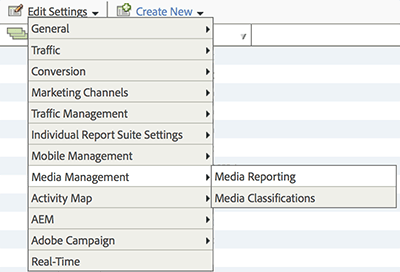
Select the report suite(s) that collect media data. Select Edit Settings → Media Management → Media Reporting.
-
On the Media Reporting page, enable the desired streaming media components (see below).
-
Select Save.
If this report suite is already configured to collect media data, after you click Save, an additional configuration page is displayed. If you see the Media Core measurement page, continue to the next step.
Available streaming media modules
Media measurement includes the following modules:
-
Media Core: Required for all streaming media tracking. It reserves solution variables for content playback and session data.
-
Dimensions:
-
Metrics:
-
-
Media Ads: Enables tracking of advertisements within the media content.
-
Dimensions:
-
Classification dimensions:
-
Metrics:
-
-
Media Chapters: Enables tracking of chapters within media content.
-
Dimension:
-
Classification dimensions:
-
Metrics:
-
-
Media Quality: Enables tracking of playback quality data, including buffering, bitrate, and error events.
-
Dimensions:
-
Metrics:
-
-
Video Metadata: Enables tracking of standard video content attributes such as show, season, and genre.
-
Dimensions:
-
Metric:
-
-
Audio Metadata: Enables tracking of standard audio content attributes such as artist, album, and station.
-
Player State Tracking: Enables measurement of standard player UI states such as full screen, closed captioning, and picture in picture.
-
Metrics:
- Closed captioning counts
- Closed captioning total duration
- Full screen counts
- Full screen total duration
- In focus counts
- In focus total duration
- Mute counts
- Mute total duration
- Picture in picture counts
- Picture in picture total duration
- Streams impacted by closed captioning
- Streams impacted by full screen
- Streams impacted by in focus
- Streams impacted by mute
- Streams impacted by picture in picture
-