在此頁面上:在 Adobe Journey Optimizer 介面 (頂端列、首頁和左側導覽) 中尋找方向,讓您快速存取所需的功能。
若要存取 Adobe Journey Optimizer,請使用您的 Adobe ID 登入 Adobe CX Enterprise,然後選取 Journey Optimizer。
快速導覽 quick-tour
Journey Optimizer 介面包含四個主要區域:
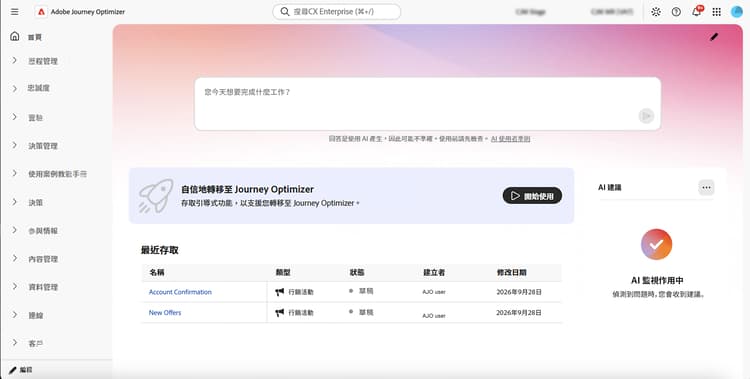
- 左側導覽 - 存取按功能整理的所有功能和特性
- 頂端列 - 通用搜尋、說明、通知和設定
- 首頁 - 快速存取最近的項目和有用的資源
- 主要工作區 - 您在這裡建立和管理內容
秘訣:新使用者可以從 首頁 頁面開始,以存取最近的項目和實用資源,或使用頂端列中的 說明 圖示取得情境式指引。
頂端列功能 top-bar
通用搜尋 universal-search
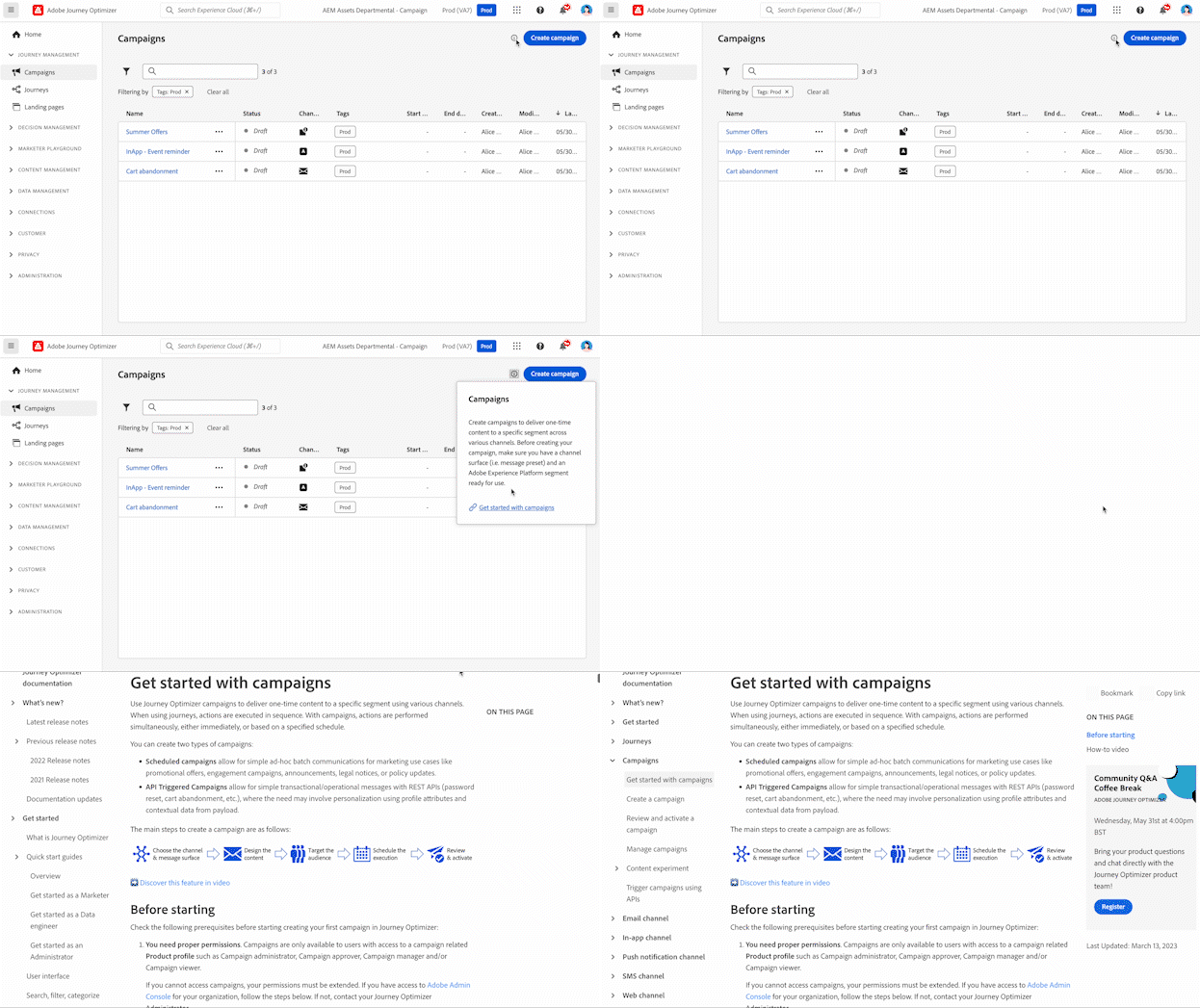
使用搜尋圖示快速尋找 Journey Optimizer 中的歷程、行銷活動、資產和其他物件。 輸入關鍵字以檢視來自平台所有區域的相關結果。 深入瞭解通用搜尋。
說明與支援 help
按一下 說明 圖示以:
- 搜尋說明文章和影片
- 存取目前頁面的內容說明
- 聯絡 Adobe 支援
- 分享意見回饋
內容說明會顯示與您檢視的畫面相關的指引,並直接連結至對應的文件,因此您不需要離開工作流程即可取得正確的資訊。
支援票證指引 support-ticket-guidelines
聯絡 Adobe 支援時,請包含下列內容以加快根本原因分析和解決:
- 環境詳細資料 – 沙箱名稱、組織 ID 和產品區域 (例如歷程、行銷活動、決策)
- 影響層級 – 問題的嚴重性 (例如,生產遭到封鎖、功能有限、裝飾)
- 複寫步驟 – 清晰的逐步指示以重現問題
- 記錄或螢幕擷取畫面 – 說明問題的相關錯誤訊息、請求 ID 或螢幕擷取畫面
- 相關 ID – 歷程 ID、行銷活動 ID、客群 ID 或與問題相關的其他物件識別碼
通知 in-product-uc
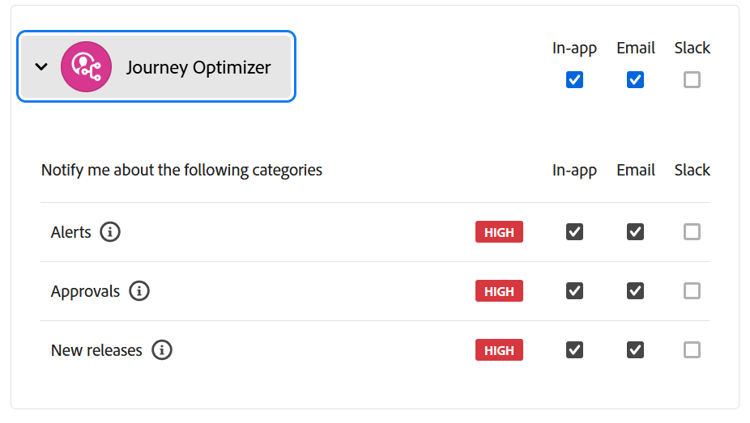
啟用產品內通知和電子郵件通知,以隨時掌握以下資訊:
- 警示 - 系統故障和效能問題
- 核准 - 需要您檢閱的請求
- 新版本 - 產品更新與新功能
要設定通知:
- 按一下設定檔圖示,選取偏好設定
- 在 通知 下,尋找 Journey Optimizer
- 啟用您想接收的通知類型
語言偏好設定 language
此介面有提供以下語言版本:英文、法文、德文、義大利文、西班牙文、巴西葡萄牙文、日文、韓文、繁體中文和簡體中文。
若要變更您的語言:
- 按一下設定檔選單中的偏好設定
- 選取您偏好的語言
- 可選擇第二種語言作為備用語言
- 按一下儲存
提供鍵盤快速鍵和協助工具功能。 了解更多
首頁 home-page
首頁提供以下資訊:
- CX Enterprise Coworker - 請在 「您今天想完成什麼?」 輸入業務目標 提示中開始對話。
- 最近項目:指向近期建立事件、歷程、行銷活動和其他物件等捷徑
- 資源:文件、教學課程和已支援的連結
左側導覽 left-nav
左側導覽會將 Journey Optimizer 功能按功能類別整理。 可用的選單項目取決於您的權限和授權。
主要區段 main-sections
首頁 - 快速存取最近建立的項目和有用資源的起點
歷程管理 - 建立和管理客戶體驗
決策管理 - 管理個人化產品建議。 了解決策管理
- 產品建議 - 建立和管理個人化產品建議
- 元件 - 為產品建議設定位置、規則和標籤
內容管理 - 建立和整理內容
資料管理 - 管理您的資料基礎。 了解結構描述和資料集
- 結構描述 - 定義資料結構
- 資料集 - 儲存和管理資料集合
- 查詢 - 寫入並執行查詢
- 監視 - 追蹤資料擷取
連線 - 與其他系統整合
- 來源 - 從外部系統擷取資料。 設定來源
- 目的地 - 將資料匯出至雲端儲存空間。 設定目標。 您也可以從 Experience Platform 目的標錄把客群啟用到符合資格的個人化目的地,例如 Adobe Target。
客戶 - 管理客群和輪廓
隱私權 - 控制隱私權與合規性。 隱私權概觀
- 原則 - 定義資料治理原則
- 請求 - 處理隱私權請求 (GDPR、CCPA)
- 稽核 — 檢閱活動記錄。 檢視稽核記錄
- 資料生命週期 - 設定資料保留
管理 - 設定系統設定。 存取控制概觀
CX Enterprise Coworker cx-enterprise-coworker
CX Enterprise Coworker 是產品內的對話式體驗。 請在 Journey Optimizer 首頁的 「您今天想完成什麼?」 輸入業務目標 提示中開始對話。 它提供即時協助和運作洞察。 進一步了解 CX Enterprise Coworker。
相關主題 related-topics
This section contains structured knowledge intended to support interpretation, retrieval, and question answering related to this topic.
For complete understanding, this information should be combined with the documentation on this page. Neither source is intended to stand alone; the page describes the feature, while this section provides additional context that helps disambiguate terminology, intent, applicability, and constraints.
- TL;DR: This page explains how to navigate the Adobe Journey Optimizer interface, covering the four main areas, top bar features, the home page, the left navigation, and CX Enterprise Coworker.
Intents:
- Sign in and navigate the four main interface areas
- Use universal search and help in the top bar; configure notifications and language preferences from your profile menu
- Configure in-product and email notifications
- Start a conversation with CX Enterprise Coworker from the home-page prompt; find recents and resources on the home page
- Find capabilities organized in the left navigation
Glossary:
- Universal search: A top bar search that finds journeys, campaigns, assets, and other objects across all areas of Journey Optimizer (product-specific)
- Contextual help: Help that displays guidance relevant to the screen you are viewing and links directly to the corresponding documentation (product-specific)
- Use Case Playbooks: Pre-built workflows for common marketing scenarios, listed under Content Management (product-specific)
- CX Enterprise Coworker: The in-product conversational experience; enter a business goal in the home-page prompt to start a conversation (product-specific)
Guardrails:
- Components and capabilities available in your environment depend on your permissions and licensing package.
- Available left navigation menu items depend on your permissions and license.
- The interface is available in ten languages: English, French, German, Italian, Spanish, Portuguese (Brazilian), Japanese, Korean, Traditional Chinese, and Simplified Chinese.
Terminology:
- Canonical name: Navigate the interface
- The four main areas: Left navigation, Top bar, Home page, and Main workspace
- Notification types: Alerts, Approvals, and New releases
FAQ:
- Q: What are the four main areas of the interface? — Left navigation, Top bar, Home page, and Main workspace.
- Q: How do I start a conversation with CX Enterprise Coworker? — Enter a business goal in the home-page prompt, “What would you like to accomplish today?”
- Q: What else does the home page provide? — Recents and links to documentation, tutorials, and support.
- Q: Why do I not see certain menu items or capabilities? — Available components and capabilities depend on your permissions and licensing package; available menu items depend on your permissions and license.
- Q: Which languages does the interface support? — English, French, German, Italian, Spanish, Portuguese (Brazilian), Japanese, Korean, Traditional Chinese, and Simplified Chinese. You can optionally select a second language as fallback.
Personas:
- marketer: Can create one-time or scheduled messages with Campaigns and build multi-step, cross-channel experiences with Journeys. Can also create content templates, fragments, and landing pages under Content Management, and manage personalized offers in Decision Management. The page states that available left navigation menu items depend on your permissions and license. Where: “Left navigation”.
Onboarding:
- Level: Intermediate
- First minimal step: Sign in to Adobe CX Enterprise with your Adobe ID, then select Journey Optimizer.
- Success check: The home page displays recently accessed campaigns and AI Recommendations.
- Next: Choose your learning path by role: Roles and responsibilities | Adobe Journey Optimizer (start/quick-start.md); Understand how Journey Optimizer works: Understanding Journey Optimizer (start/understanding-ajo.md)