On this page: Access, search, and organize your campaigns, understand each lifecycle status, and use the calendar and common operations so you can keep your campaign workspace efficient and act on each campaign at the right time.
Learn how to access, organize, and manage your campaigns in Adobe Journey Optimizer. This guide covers everything from finding campaigns to understanding statuses, performing common operations, and maintaining your campaign workspace.
Jump directly to what you need:
- Create a new campaign - Choose your campaign type | Create Action campaign | Create API-triggered campaign | Create Orchestrated campaign
- Find existing campaigns - Search and filter | Organize with folders
- View campaign performance - Campaign reports
- Schedule campaigns - Use the calendar
- Manage conflicts - Conflict management guide
Access and browse campaigns access
Campaigns are accessible from the Campaigns menu. Use the tabs to browse campaigns by type: Action campaigns, API-triggered campaigns, Orchestrated campaigns, and Folders. Learn more about the types of campaigns. Available types depend on your license agreement and your permissions.
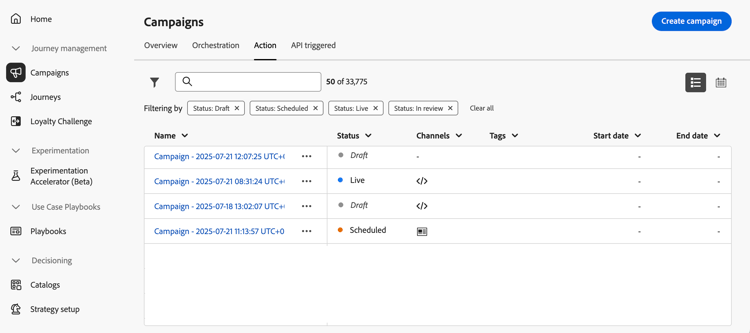
Select the Action tab to access the list of Action campaigns.
By default, the list shows all campaigns with the Draft, Scheduled, and Live statuses. To display stopped, completed, and archived campaigns, you need to clear the filter.
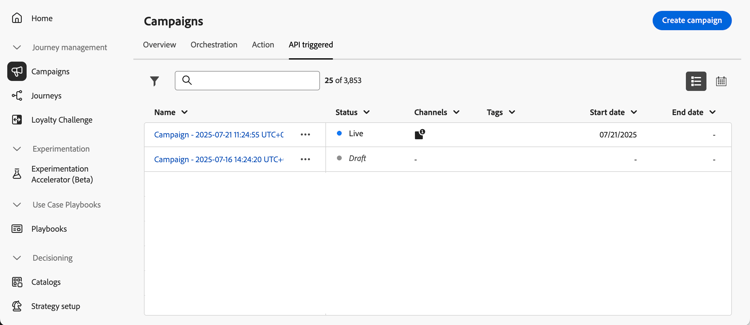
Select the API triggered tab to access the list of API triggered campaigns.
By default, the list shows all campaigns with the Draft, Scheduled, and Live statuses. To display stopped, completed, and archived campaigns, you need to clear the filter.
Select the Orchestration tab to access the list of Orchestrated campaigns.
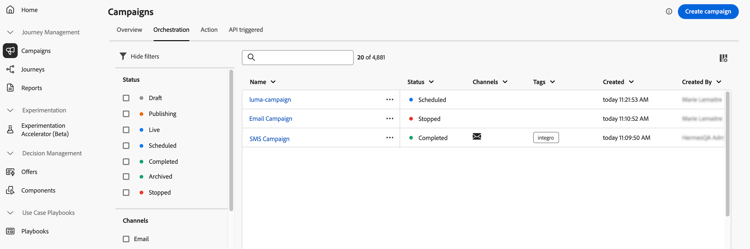
Each Orchestrated campaign in the list displays information such as the campaign’s current status, the associated channel and tags, or the last time it was modified. You can customize the displayed columns by clicking the

Search and filter campaigns search-filter
In addition, a search bar and filters are available to facilitate easy searching within the list. For example, you can filter campaigns to display only those associated to a given channel or tag, or those created during a specific date range.
Organize campaigns with folders folders
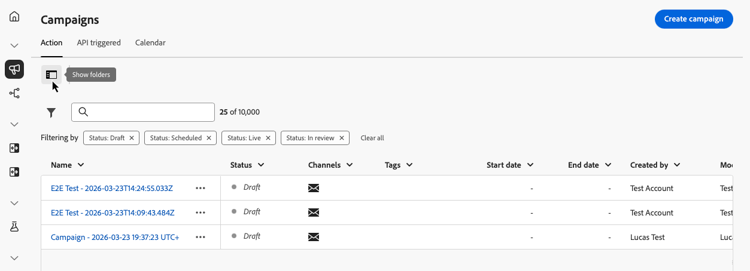
In the Campaigns inventory, click the Show folders icon to open the folder view and organize your campaigns. Learn how to work with folders in Search, filter, organize.
Campaign operations operations
The

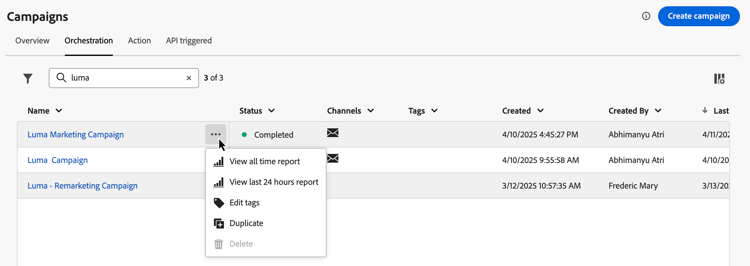
Available actions
For all campaign types:
- View all time report / View last 24 hours report - Access reports to measure and visualize the impact and performances of your campaigns. Learn more about campaign reports →
- Edit tags - Edit the tags associated to the campaign. Learn how to use tags →
- Duplicate - Use this option to duplicate a campaign, for example to execute an Orchestrated campaign that has been stopped. Learn more about duplicating →
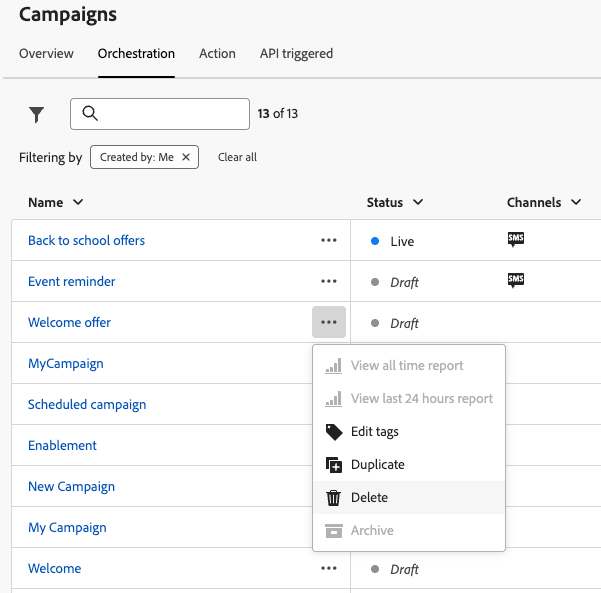
- Delete - Use this option to delete a campaign. Learn more about deleting →
- Archive - Archive the campaign. All archived campaigns are deleted on a rolling schedule 30 days after their last modified date. This action is available for all campaigns except for Draft campaigns. Learn more about archiving →
For Action and API triggered campaigns only:
- Subscribe to alerts - Choose which campaign lifecycle system alerts apply to this campaign only (in addition to any sandbox-wide alert subscriptions). Learn more about system alerts →
- Add to package - Add the campaign to a package in order to export it to another sandbox. Learn how to export objects →
- Open draft version - If a new version of the campaign has been created and has not been activated yet, you can access its draft version using this action.
For Orchestrated campaigns only:
- Back to draft - Unpublish and revert a campaign to draft status for error recovery. This action is available when a scheduled campaign has not yet started, or when a live campaign encounters an error before any executions are completed. Learn more about reverting campaigns →
Bulk actions bulk-actions-campaigns
You can select multiple campaigns at once and apply bulk operations to all of them. Available operations include adding items to a package, moving them to a folder, editing tags, managing access, and deleting. Learn more about bulk actions →
Understanding campaign status statuses
Each campaign moves through a lifecycle that is reflected by its status in the interface. Understanding these statuses helps you know what actions are available and what to do next.
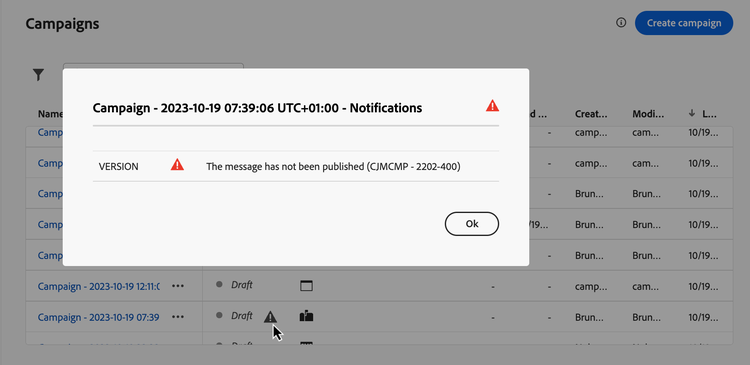
Error indicators error-indicators
When an error occurs within one of your campaigns, a warning icon appears alongside the campaign’s status. Click on it to display information regarding the alert. These alerts may occur in various situations, such as when the campaign message has not been published or if the chosen configuration is incorrect.
Campaigns calendar calendar
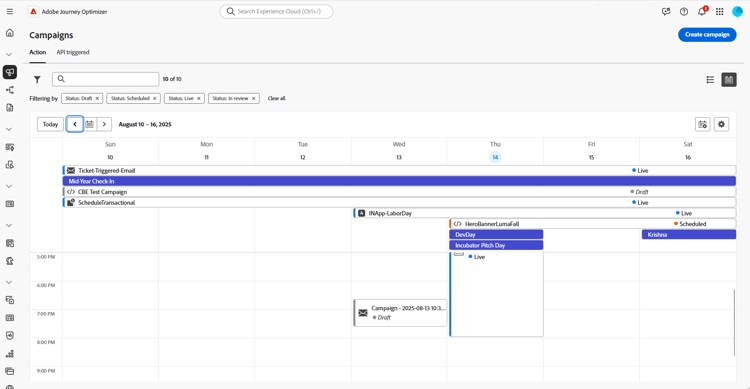
In addition to the campaigns list, Journey Optimizer provides a calendar view of your campaigns, offering a clear visual representation of their schedules.
How the calendar works
How campaigns are represented:
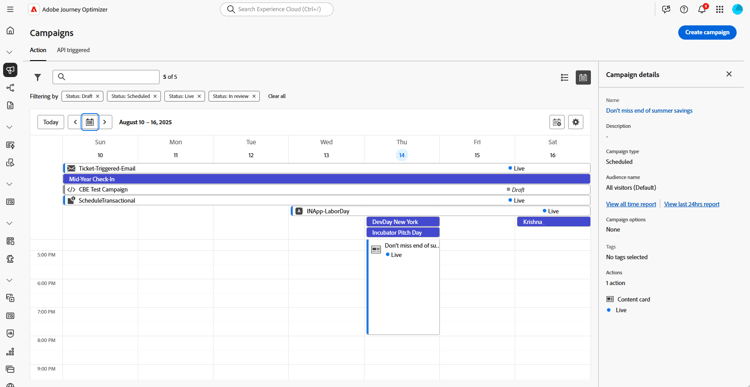
- By default, the calendar grid shows all live and scheduled campaigns for the selected week. Additional filter options can show completed, stopped and finished activations or activations of a certain type or channel.
- Draft campaigns are not displayed.
- Campaigns spanning multiple days appear at the top of the calendar grid.
- If no start time is specified, the closest manual activation time is used to position it in the calendar.
- Campaigns are displayed as 1-hour timespans, but this does not reflect actual send or completion time.
Navigate the calendar
-
Click the

-
Use the arrow buttons or the date selector above the calendar to move between weeks.
The calendar displays all campaigns scheduled for the current week.
-
Click the

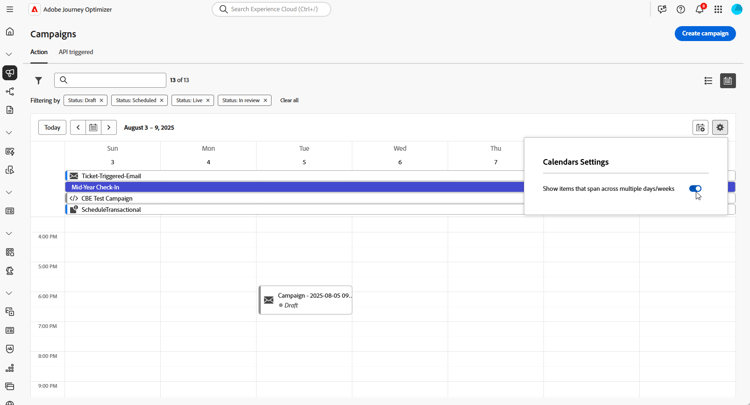
-
Click the

-
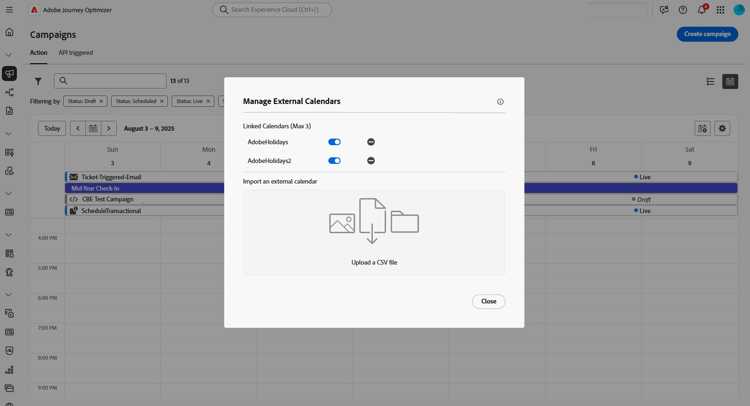
Drag and drop your CSV files containing event names, start dates, and end dates.
Uploaded events appear for all users in your organization and display on both Journey and Campaign calendars.
accordion CSV format should be as follows: table 0-row-3 1-row-3 Column1 Column2 Column3 Event name Start date in mm/dd/yy format End date in mm/dd/yy format -
If needed, you can hide, unhide, or remove added external calendars.

-
For more details on a campaign, click its visual block to open details on it. An information pane will open with various information on the campaign such as its type, access to the reports, or the tags that have been assigned.
Modify and stop recurring Action campaigns modify
Modify an Action campaign modify-an-action-campaign
To modify and create a new version of a recurring Action campaign, follow these steps:
-
Open the Action campaign then click the Modify campaign button.
-
A new version of the campaign is created. You can check the live version by clicking Open live version.
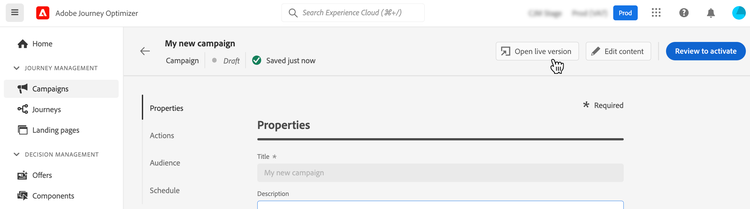
The draft version has its own version ID. The current live version remains available while you work on the draft; activating the draft replaces the live version.
For campaigns with a decision policy that includes a content experiment, a campaign version can contain a cloned decision policy and a separate experiment. Treatment assignments, including test and control group membership, may be re-segmented between versions, so do not assume assignments or results are continuous across versions. Account for the version boundary when interpreting experiment results.
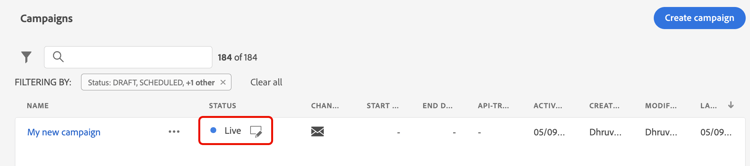
In the campaigns list, activated campaigns with a draft version in progress display with a specific icon in the Status column. Click this icon to open the draft version of the campaign.
-
Once your changes are ready, you can activate the new version of the campaign (see Review and activate a campaign).
note important IMPORTANT Activating the draft will replace the live version of the campaign.
Related topics:
Stop an Action campaign stop
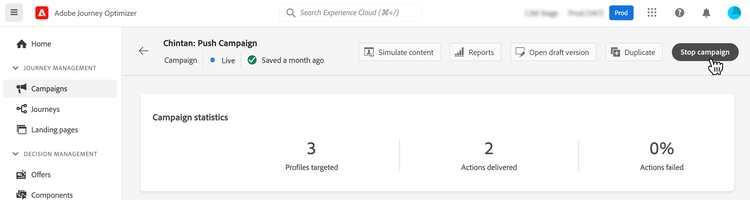
To stop a recurring campaign, open it then click the Stop campaign button.
Archive a campaign archive-a-campaign
With time, the list of campaigns keeps growing and eventually makes it more difficult to browse completed and stopped campaigns.
To prevent this, you can archive completed and stopped campaigns that you do not need anymore. To do this, click the ellipsis button then select Archive.
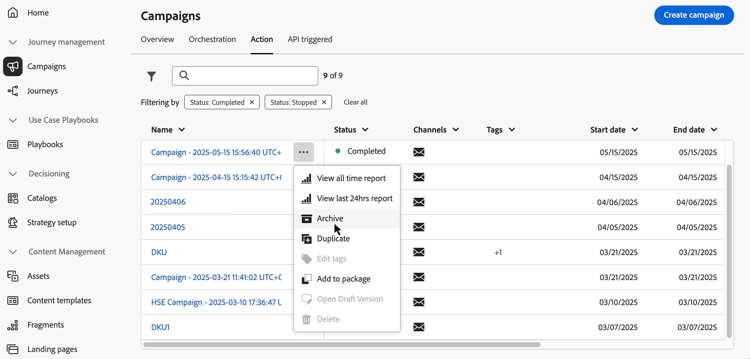
Archived campaigns can then be retrieved using the dedicated filter in the list.
Delete a campaign delete-a-campaign
To delete a campaign, use the ellipsis
Duplicate a campaign duplicate-a-campaign
To duplicate a campaign, for example if it has been stopped, use the ellipsis
Enter the name of the campaign and confirm.
The campaign is created and added to the campaign list.
Additional resources
-
Getting started - Get started with campaigns | Create your first Action campaign | API-triggered campaigns guide | Orchestrated campaigns guide
-
Campaign configuration - Campaign properties | Campaign actions and channels | Campaign content design | Campaign audience selection | Campaign scheduling
-
Advanced features - Approval workflows | Conflict management & prioritization | Frequency capping by channel | Priority scores | Export campaigns to other sandboxes
-
Monitoring & optimization - Campaign reports (CJA) | Set up alerts
-
Organization - Work with tags | Manage permissions