On this page: Set frequency caps by channel and communication type so you can limit how many messages a profile receives and avoid overwhelming customers with similar communications.
Channel rule sets apply capping rules to communication channels. For example, do not send more than 1 email or mobile communication per day.
Leveraging channel rule sets allows you to set frequency capping by communication type to prevent overloading customers with similar messages. For example, you can create a rule set to limit the number of promotional communications sent to your customers and another rule set to limit the number of newsletters sent to them. Depending on the type of campaign that you are creating, you can then choose to apply either the promotional communication or the newsletters rule set.
Create a channel capping rule
To create a channel rule set, follow these steps :
-
Access the Rules sets list, then click Create rule set.

-
Select the rule set where you want to add the capping rule, or create a new rule set:
-
To use an existing rule set, select it from the list. Channel capping rules can only be added to rule sets with the “channel” domain. You can check this information in the rule sets lists, in the Domain column.

-
To create the capping rule inside a new rule set, click Create rule set, specify a unique name for the rule set and select “Channel” from the Rule Set Domain drop-down, then click Save.

-
-
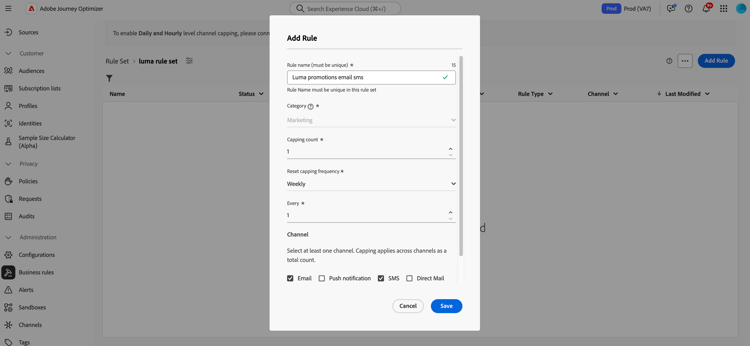
In the rule set screen, click the Add Rule button and define a unique name for the rule.
-
The Category field specifies the category of message the rule applies to. For now, this field is read-only as only the Marketing category is available.
-
In the Capping count field, set the capping for your rule, meaning the maximum number of messages that can be sent to an individual user profile each month, week or day or hour - according to your selection in the following fields.
-
From the Reset capping frequency drop-down list, select if you want the capping to be applied hourly, daily, weekly or monthly. Frequency cap is based on the selected calendar period. It is reset at the beginning of the corresponding time frame.
The expiry of the counter for each period is as follows:
- Hourly - The frequency cap is valid for the selected number of hours. The counter automatically resets at the beginning of each time window. For a 1-hour frequency cap, it resets every hour, coinciding with the end of a UTC hour.
- Daily - The daily frequency cap is valid for the day until 23:59:59 UTC and resets to 0 at the start of the next day.
- Weekly - The frequency cap is valid until Saturday 23:59:59 UTC of that week. The expiry date applies regardless of when the rule was created. For example, if the rule is created on Thursday, this rule is valid until Saturday at 23:59:59.
- Monthly - The frequency cap is valid until the last day of the month at 23:59:59 UTC. For example, the monthly expiration for January is 01-31 23:59:59 UTC.
note important IMPORTANT -
To ensure accuracy, make sure you choose the highest priority namespace while authoring a campaign or journey. Learn more about namespace priority in the Platform Identity Service guide
-
The profile counter value updates once the communication is delivered. Please be cognizant of this when you are sending large volumes of communications as the throughput could result in the recipient getting the email minutes or even hours after the initiation of the communication (in the case that you are sending millions of communications simultaneously). This matters in the case that a recipient receives two communications close together. We suggest spacing communications apart by at least two hours where possible to give sufficient time for the recipient to receive the communication and the counter value to update accordingly.
-
The Every field allows you to repeat the frequency capping rules over multiple hours, days, weeks, or months, depending on the specified duration. Example: apply the frequency capping rule for 2 weeks.
Make sure you enter a value that matches the selected duration type: 1-23 for Hourly, 1-30 for Daily, 1-4 for Weekly, and 1-3 for Monthly.
The counter automatically resets to 0 when a new time window begins. For a 2-day frequency cap, this reset occurs every two days at midnight UTC.
-
Select the channel(s) you want to use for this rule: Email, Mobile message, Push notification, Direct mail or WhatsApp.
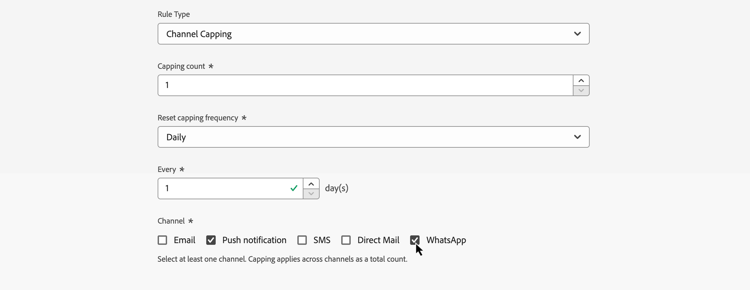
Select several channels if you want to apply capping across all selected channels as a total count.
For example, set capping to 5, and select both the Email and Mobile message channels. If a profile has already received 3 marketing emails and 2 marketing mobile messages for the selected period, this profile will be excluded from the very next delivery of any marketing email or mobile message.
-
Click Save to confirm the rule creation. Your message is added to the rule set, with the Draft status.

-
Repeat the steps above to add as many rules as needed to the rule set.
-
When the capping rule is ready to be applied to messages, activate the rule set and the rule where it has been added. Learn how to activate rule sets
Apply rule sets to a message apply-frequency-rule
To apply a rule set to a message, follow these steps:
-
When creating a journey or campaign message, select one of the channels you defined for your rule set and edit the content of your message
-
In the content edition screen, click the Add Business Rule button.
-
Select the rule set you created.
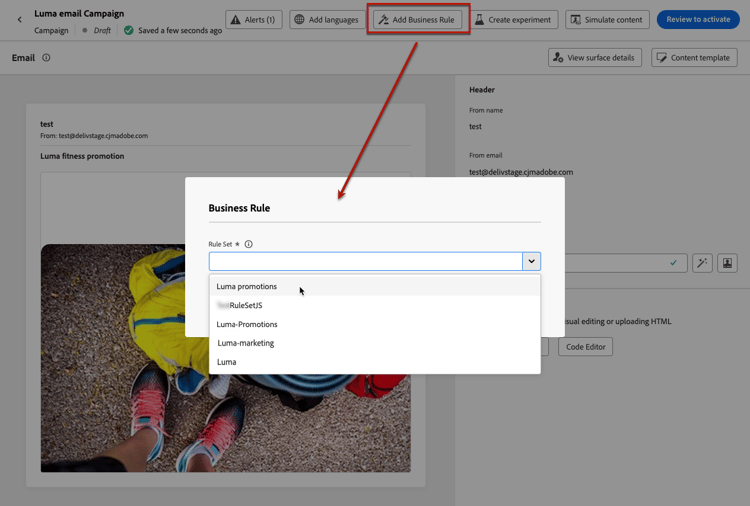
note NOTE Only activated rule sets display in the list. -
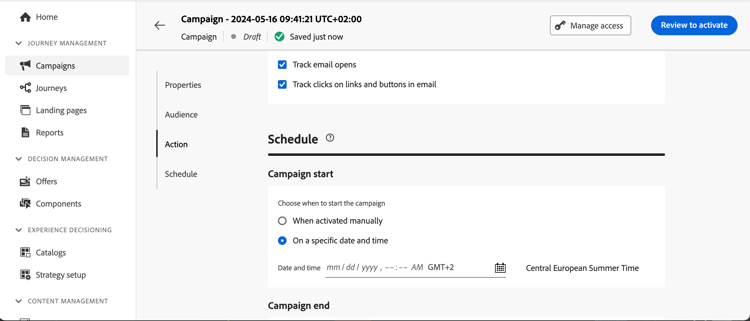
Before activating your journey or campaign, make sure you schedule its execution at least 10 minutes into the future.
This allows for sufficient time to populate the counter values on the profile for the business rule you selected. If you activate the campaign immediately, the rule set counter values will not populate on the profiles of the recipients, and the message will not be counted toward their frequency capping rules for the custom rule sets. In addition, the capping may not work correctly for journeys and campaigns activated immediately and API triggered campaigns.
-
You can view the number of profiles excluded from delivery in the Customer Journey Analytics report, and in the Live report, where frequency rules will be listed as a possible reason for users excluded from delivery.
When testing frequency rules, it is recommended to use a newly created test profile, because once a profile’s frequency cap is reached, there is no way to reset the counter until the next period. Deactivating a rule will allow capped profiles to receive messages, but it will not remove or delete any counter increments.
How-to video video
➡️ See it in practice: Learn how to implement daily frequency capping in Adobe Journey Optimizer in this community use case.
This section contains structured knowledge intended to support interpretation, retrieval, and question answering related to this topic.
For complete understanding, this information should be combined with the documentation on this page. Neither source is intended to stand alone; the page describes the feature, while this section provides additional context that helps disambiguate terminology, intent, applicability, and constraints.
- TL;DR: This page explains how to create channel rule sets that apply frequency capping rules by channel and communication type, limiting how many messages a profile receives per hour, day, week, or month, and how to apply them to journey and campaign messages.
Intents:
- Create a channel capping rule inside a channel-domain rule set
- Set a Capping count and a Reset capping frequency (hourly, daily, weekly, or monthly)
- Apply capping across several channels as a single total count
- Apply an activated rule set to a journey or campaign message with Add Business Rule
- Understand how and when frequency counters reset and update
- Test frequency rules and view profiles excluded from delivery in reporting
Glossary:
- Channel rule set: A rule set whose Domain is “channel”; it applies capping rules to communication channels (product-specific)
- Capping rule: A rule defining the maximum number of messages sent to a profile for the selected period (product-specific)
- Capping count: Field setting the maximum number of messages that can be sent to an individual user profile each month, week, day, or hour (product-specific)
- Reset capping frequency: Drop-down that selects whether the capping is applied hourly, daily, weekly, or monthly, reset at the beginning of the corresponding time frame (product-specific)
- Every: Field that repeats the frequency capping rule over multiple hours, days, weeks, or months (product-specific)
- Communication type: A category of message (for example promotional communications, newsletters) that a rule set can be built to limit (product-specific)
- Category: Field specifying the message category the rule applies to; read-only, with only Marketing available (product-specific)
Guardrails:
- You can create up to 10 active local rule sets for each channel domain and for the journey domain.
- The Every field value must match the selected duration type: 1-23 for Hourly, 1-30 for Daily, 1-4 for Weekly, and 1-3 for Monthly.
- The Category field is read-only, as only the Marketing category is available.
- Selecting several channels applies capping across all selected channels as a total count.
- Frequency caps reset on calendar periods in UTC: hourly caps are valid for the selected number of hours and reset at the beginning of each time window (for a 1-hour cap, at the end of a UTC hour), daily until 23:59:59 UTC, weekly until Saturday 23:59:59 UTC, and monthly until the last day of the month 23:59:59 UTC.
- Before activating, schedule the journey or campaign execution at least 10 minutes into the future so counter values populate; activating immediately means the capping may not work correctly for journeys, campaigns, and API-triggered campaigns.
- The profile counter value updates once the communication is delivered; spacing communications at least two hours apart is recommended so the counter can update.
- Frequency capping rules also apply when sending proofs; if a test profile has reached the cap, proofs show as finished but no email is delivered.
- Once a profile’s frequency cap is reached, there is no way to reset the counter until the next period; deactivating a rule lets capped profiles receive messages but does not remove or delete counter increments.
- To ensure channel-level capping works correctly, choose the highest priority namespace while authoring a campaign or journey.
Terminology:
- Canonical name: channel capping — variants: frequency capping by channel and communication type, channel rule set, frequency capping rules
- Do not confuse: “rule set” (a group of rules) ≠ “capping rule” (a single rule inside a rule set)
- Do not confuse: “Reset capping frequency” (the period unit: hourly, daily, weekly, or monthly) ≠ “Every” (how many of those periods the rule spans)
FAQ:
- Q: How many channel messages can a profile receive? — Whatever you set in the Capping count for the selected Reset capping frequency; if several channels are selected, the count is shared as a total across those channels.
- Q: When do frequency counters reset? — At the start of the next calendar period in UTC (hourly, at the beginning of each time window; daily until 23:59:59 UTC, weekly until Saturday 23:59:59 UTC, or monthly until the last day of the month 23:59:59 UTC).
- Q: Can I reset a profile’s counter once its cap is reached? — No, there is no way to reset the counter until the next period; deactivating a rule lets capped profiles receive messages but does not remove counter increments.
- Q: Why might capping not work for an immediately activated campaign? — Counter values do not populate on the profiles of the recipients if you activate immediately, so capping may not work correctly; schedule execution at least 10 minutes into the future.
- Q: Do frequency caps apply to proofs? — Yes; if a test profile has reached the cap, the proof shows as finished but no email is delivered.
- Q: Where can I see profiles excluded by frequency rules? — In the Customer Journey Analytics report and the Live report, where frequency rules are listed as a reason for exclusion.