On this page: Learn how to test, publish, and monitor Orchestrated campaigns in Adobe Journey Optimizer, including the campaign lifecycle, execution logs, and activity status indicators.
Once you have created your orchestrated campaign and designed the tasks to perform in the canvas, you can publish it and monitor how it is being executed. You can also execute the campaign in test mode to check its execution and the result of the different activities.
Campaign lifecycle at a glance lifecycle
Orchestrated campaigns move through a defined set of states. The key stages in the publication workflow are:
Test your campaign before publishing test
Journey Optimizer allows you to test Orchestrated campaigns before going live. When a campaign is created, it enters the Draft state by default. In this state, you can execute the campaign manually to test the flow.
To test an Orchestrated campaign, open the campaign and select Start. Each activity in the campaign is executed sequentially until the end of the canvas is reached.

For triggered orchestrated campaigns, the system waits for an API call to start the campaign. You need to send the signal to continue the test. Learn how to test signal-triggered campaigns.
During the test, you can control the campaign execution using the action bar in the canvas. From there, you can:
- Stop the execution at any time.
- Start the execution again.
- Restart the execution to reset and re-run the workflow in a single action. This is particularly useful when you want to quickly retest the campaign flow after making modifications.
- Resume the execution if it was previously paused.
The Alerts / Warning icon in the canvas toolbar notifies you of issues, including warnings that may appear proactively before execution and errors that occur during or after execution.

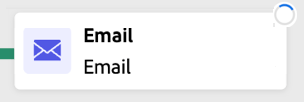
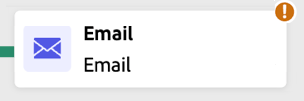
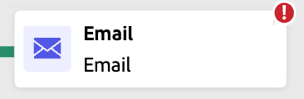
You can also quickly identify failed activities using the visual status indicators displayed directly on each activity. For detailed troubleshooting, open the campaign’s logs, which provide in-depth information about the error and its context.
If you have added channel activities in the canvas, you can preview and test the content of your messages. Learn how to work with channel activities and simulate content.
- The campaign ran successfully in test mode with no errors in the logs.
- Message content has been previewed using Simulate Content.
- The schedule is configured if this is a scheduled campaign.
- You have reviewed the sending confirmation behavior — for non-recurring campaigns, no messages are sent until you explicitly approve the send after publishing.
Publish the campaign publish
Once your campaign is tested and ready, click Publish to make it live.

The visual flow restarts, and real profiles begin flowing through the journey in real-time.
If the publish action fails (e.g., due to missing message content), you are alerted and must fix the issue before retrying. On successful publishing, the campaign begins executing (immediately or on schedule), moves from Draft to Live status, and becomes “Read only”.
Publication-time execution sequence publication-sequence
When you click Publish, the following sequence occurs internally:
- Scheduler activation — If the campaign has a schedule configured, the scheduler kicks in and triggers execution at the defined time.
- Save Audience activities run first — Any Save audience activities in the workflow execute before message activities. The audience shell is created within the Audience Portal, and qualified profiles begin ingesting.
- Message execution begins — Channel activities start processing for the first message activity in the workflow.
- Profile snapshot lookup — Profile data is resolved against a snapshot taken at publication time, not the real-time profile. This ensures consistency across the entire execution.
- Consent evaluation — For matching profiles, consent is honored directly from the profile record. Consent is not re-evaluated at send time. Learn more about consent management
- On-the-fly profile creation — Profiles that do not match an existing record are created on the fly during execution.
- Delivery log creation — Delivery events are recorded in the
ajo_message_feedback_eventdataset, which is the primary source for delivery logs and post-send validation.
To validate results after execution, use Journey Optimizer reporting capabilities. Learn more on Orchestrated campaigns reporting
Revert a campaign back to draft back-to-draft
The Back to draft feature allows you to unpublish and revert an orchestrated campaign to draft status in specific situations. This is designed as a recovery mechanism to fix issues before any messages are sent, while maintaining the integrity of the campaign lifecycle.
This option is available in two scenarios:
-
Scheduled campaigns awaiting execution: when a campaign is scheduled to execute at a specific time and that time has not yet been reached, you can use back to draft to review and modify the campaign before it starts executing. However, if the campaign is recurring (such as a daily scheduled campaign) and at least one execution has already occurred, the option is no longer available. In that case, you should duplicate the campaign instead.
-
Live campaigns with execution errors: when a campaign has encountered an error during execution and is paused, and no campaign executions have been completed yet, you can use back to draft to fix the error and republish the campaign.
To switch a campaign back to draft status, open the orchestrated campaign and click the Back to draft button in the campaign canvas toolbar.
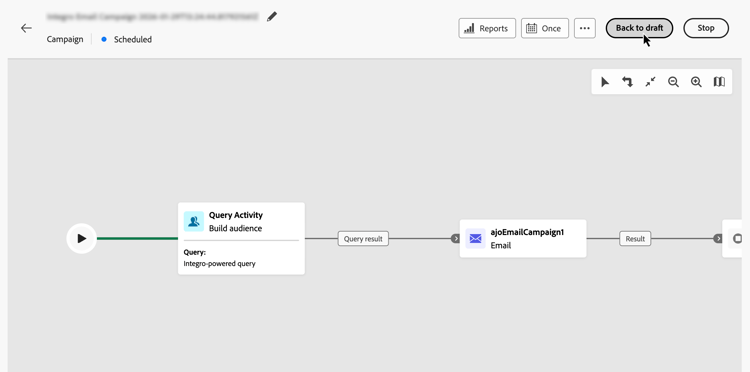
The campaign is unpublished and the workflow is stopped. The campaign returns to Draft status. You can now fix the identified issues, then test the campaign and publish it again when ready.
Confirm message sending confirm-sending
By default, for non-recurring orchestrated campaigns, message delivery is paused until you explicitly approve the send. After publishing the campaign, confirm the send request from the channel activity’s properties pane. Until it is confirmed, the channel activity stays pending and no message is sent.
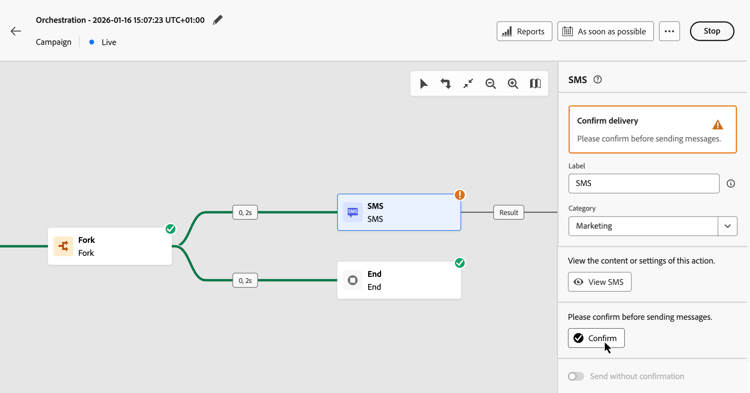
Before publishing, you can disable sending confirmation from the channel activity properties pane. For details, see Confirm message sending.
Monitor campaign execution monitor
Visual flow monitoring flow
While running (in test or live mode), the visual flow shows how profiles move through the journey in real-time. The number of profiles transitioning between tasks is displayed.
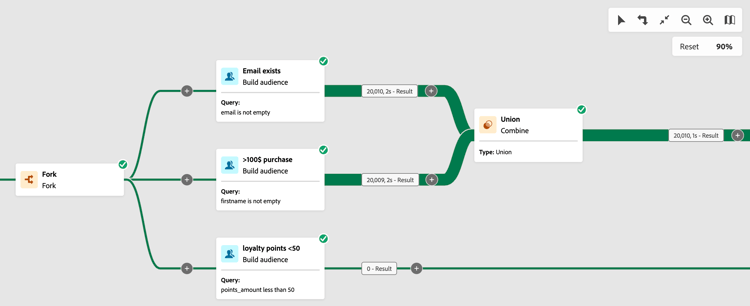
Data transported from one activity to another through transitions is stored in a temporary work table. This data can be displayed for each transition. To inspect data passed between activities:
-
Select a transition.
-
In the properties pane, click Preview schema to view the work table schema. Select Preview results to see the transported data.

You can now inspect the data passed between activities to validate your campaign flow and confirm that each activity is processing the expected profiles.
Activity execution indicators activities
Visual status indicators help you understand how each activity is performing:

Logs and tasks logs-tasks
Monitoring logs and tasks is a key step to analyze your Orchestrated campaigns and make sure they are running properly. Logs and tasks are accessible from the Logs button which is available in both test and live mode in the canvas toolbar.

The Logs and tasks screen provides a complete history of your campaign execution, recording all user actions and encountered errors.

Two types of information are available:
- The Log tab contains the chronological history of all operations and errors.
- The Tasks tab details the step-by-step execution sequence of activities.
In both tabs, you can choose the displayed columns and their order, apply filters, and use the search field to quickly find the desired information.
Set up alerts alerting
System alerts provide proactive notifications about issues in your Orchestrated campaigns, so you can investigate and take corrective action without continuously checking the monitoring view. You can view and manage available alerts from Administration > Alerts.
For information about available alerts and how to subscribe, see Access and subscribe to system alerts.
You can also create your own alert by adding an Alert activity to the campaign canvas. The alert fires when campaign execution reaches the activity. Learn how to configure the Alert activity.
Next steps next
After starting the Orchestrated campaign canvas, you can use Journey Optimizer reporting capabilities to get insights such as understanding audience behavior, and measuring the performance of each step in your customer journey. Learn more on Orchestrated campaigns reporting
Have questions about Orchestrated campaigns? Check the Orchestrated campaigns FAQ for answers to the most common questions from practitioners.