On this page: Learn how to add and configure email, mobile, push, and direct mail channel activities to send marketing or transactional messages within an Orchestrated campaign.
Adobe Journey Optimizer allows you to automate and execute campaigns across channels—email, Mobile messages, push notifications, direct mail, and custom—for both marketing and transactional messages. You can combine these channel activities into the campaign canvas to create cross-channel Orchestrated campaigns. These campaigns can trigger actions based on customer behavior and data.
For example:
- Send a welcome series through email, Mobile messages, push and direct mail.
- Deliver a follow-up email post-purchase.
- Send personalized birthday greetings via Mobile messages.
- Trigger a message through a custom channel when a customer abandons their shopping cart.
By using channel activities, you can create comprehensive and personalized campaigns that engage customers across multiple touchpoints and drive conversions.
Guardrails and limitations channel-guardrails
-
Supported channels - Only Mobile message, Push, Email and Direct mail channels are supported in Orchestrated campaigns.
-
Channel activities limit - An Orchestrated campaign supports a maximum of 10 channel activities (Email, Mobile message, Push, or Direct mail). Only channel activities count toward this limit, targeting and flow control activities do not.
If you exceed the limit when saving or publishing, the operation fails. To stay within the limit, reduce the number of channel activities or split message delivery across multiple Orchestrated campaigns.
See Guardrails and limitations for all Orchestrated campaign guardrails and limitations.
Add a channel activity and define its properties add
-
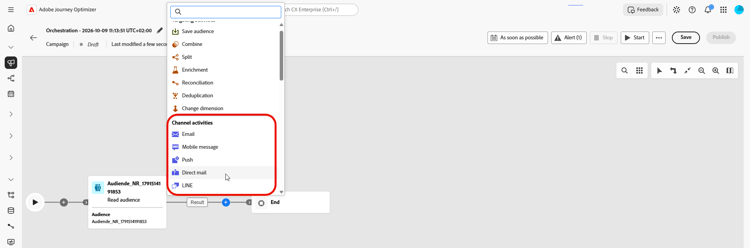
Add a channel activity into the canvas. Available channel activities are Email, Line, Mobile message, Push and Direct mail.
-
In the right rail, use the Category field to choose Marketing or Transactional for this message. Transactional messages do not require opt-in and are suited for time-sensitive communications such as disruptions, emergencies, or cancellations.
-
Select the activity and click Edit email, Edit mobile message, Edit push, or Edit direct mail depending on the chosen channel.
-
In the Target section, configure the target of the delivery:
-
Select the Target dimension for this send from the drop-down list.
-
When a secondary dimension applies (related tables linked to each profile), choose how many messages to send:
- One message per profile: Send one message per profile, even when several rows from the secondary dimension exist.
- One message per secondary dimension: Send one message per qualifying row from the secondary dimension. When several rows match the same profile, that profile can receive multiple messages.
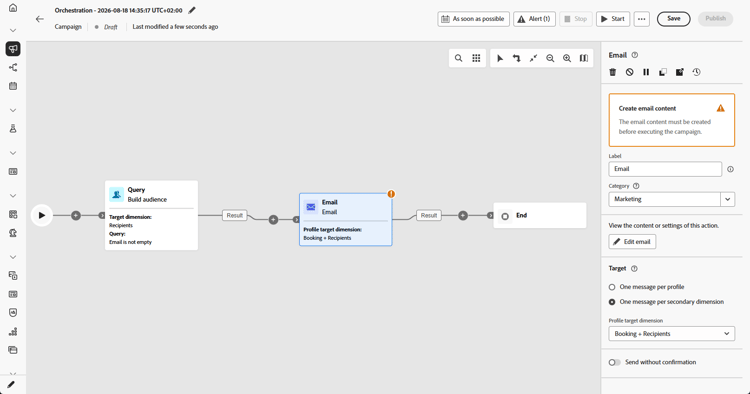
Example – Suppose a “flights” table is linked to your recipients table and you want each profile to receive one message per flight that applies to them. Select One message per secondary dimension. Use One message per profile when you only want one message per profile regardless of how many related flight rows qualify.
For more information on targeting dimensions and how to configure them, refer to this page: Configure a Targeting dimension
-
Marketing vs Transactional messages marketing-vs-transactional
Choosing the right category determines how messages are delivered and which rules apply:
Set up the channel configuration and settings configuration
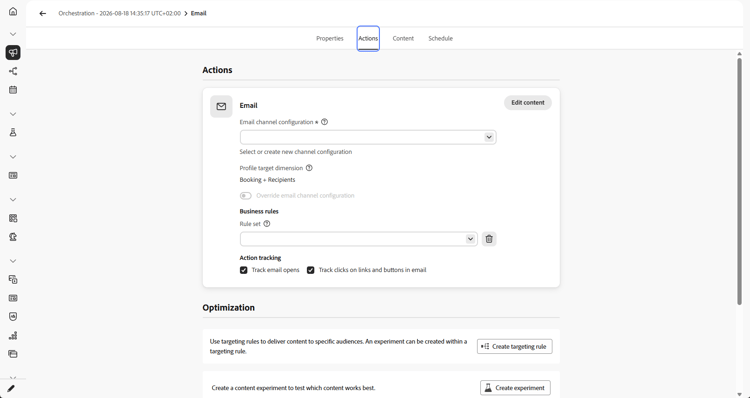
Use the Actions tab to select a channel configuration for your message and configure additional settings such as tracking, content experiment, or multilingual content.
-
Select a channel configuration
A configuration is defined by a System Administrator. It contains all the technical parameters for sending the message, such as header parameters, subdomain, mobile apps, etc. Learn how to set up channel configurations
The list of channel configurations is filtered according to the target you set for the delivery in the properties pane when selecting it from the canvas. Only configurations that are compatible with that target appear.
-
Apply capping rules
In the Rule set drop-down list, select a channel rule set to apply capping rules to your campaign. Leveraging channel rule sets allows you to set rules including frequency capping and quiet hours by communication type to prevent overloading customers with similar messages and to avoid messaging them during configured quiet hours. Learn how to work with rule sets.
-
Create a content experiment
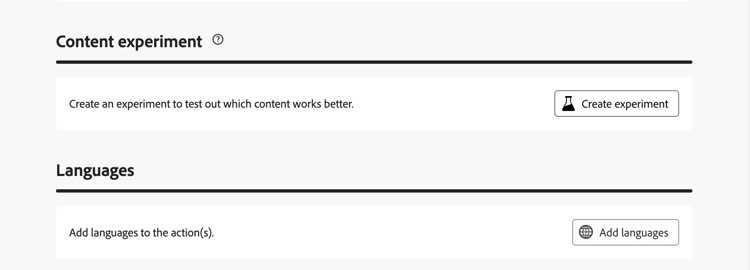
Use the Content experiment section to define multiple delivery treatments in order to measure which one performs best for your target audience. Click the Create experiment button then follow the steps detailed in this section: Create a content experiment.
-
Add multilingual content
Use the Languages section to create content in multiple languages within your campaign. To do so, click the Add languages button and select the desired Language settings. Detailed information on how to set up and use multilingual capabilities are available in this section: Get started with multilingual content.
Additional settings are available depending on the selected communication channel. Expand the sections below for more information.
| note important |
|---|
| IMPORTANT |
| This capability is only available for a set of organizations (Limited Availability). To gain access, contact your Adobe representative. |
| Journey Optimizer lets you personalize the sender information, including data from Campaign Orchestration’s relational store, enabling use cases such as sending an email in the name of the account manager. Since this data may be subject to usage restrictions defined by your organization or by legal regulations, ensure that your data operations within Journey Optimizer are compliant with your legal and compliance obligations. |
| Adobe Journey Optimizer handles consent through the Adobe Experience Platform (AEP) at the profile level. When personalizing using Journey Optimizer Campaign Orchestration relational, non-profile data, organizations should create and enforce consent policies using segmentation and personalization. |
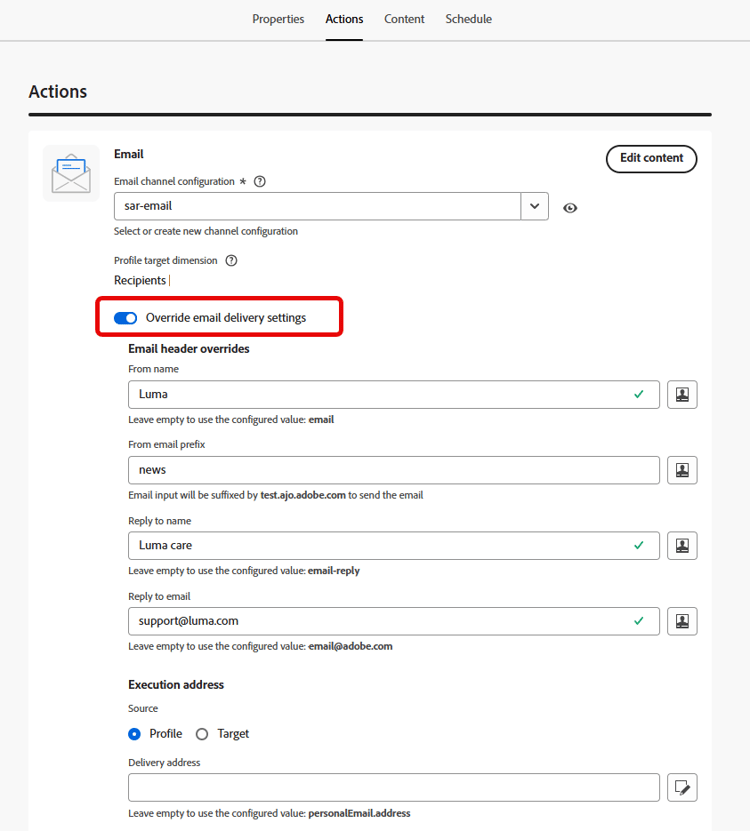
After selecting your channel configuration, enable Override email delivery settings to replace values defined in that configuration. You can customize the following settings for this channel activity:
-
Email header parameters: From name, From email prefix, Reply to name, and Reply to email
-
Execution address: Source (Profile or Target Dimension), and Delivery address
For any field you leave blank, Journey Optimizer uses the value from the selected channel configuration.
Rapid delivery mode is a Journey Optimizer add-on that allows very fast push message sending in large volumes through campaigns. Rapid delivery is used when delay in message delivery is business-critical. For instance, you want to send an urgent push alert on mobile phones, such as breaking news to users who have installed your news channel app. Learn how to enable Rapid delivery mode for Push notifications on this page.
For more information on performance when using Rapid delivery mode, refer to Adobe Journey Optimizer product description.
When your channel activity has been configured, select the Content tab to define its content.
Define the content content
Create the message content
Switch to the Content tab to create your message. The process steps vary based on the selected channel. Learn detailed steps to create your message content in the following pages.



Add personalization and conditional content add-personalization
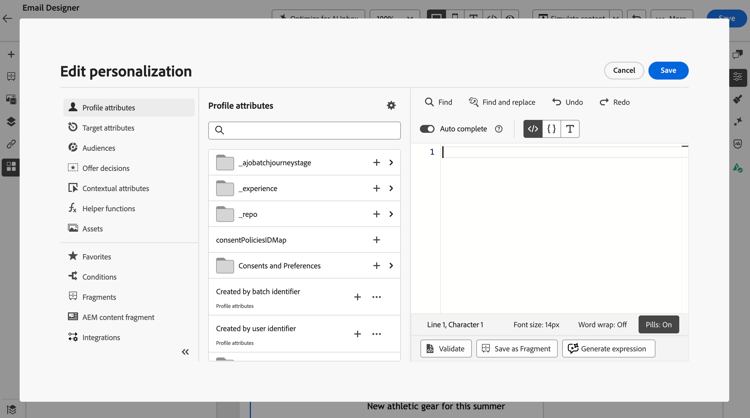
From the message editor on a channel activity, insert Profile attributes and Target attributes from the campaign worktable (targeting dimension and enrichment data).
➡️ Learn how to add personalization in Orchestrated campaigns, including enrichment collection arrays, array functions, and {{#each}} iteration.
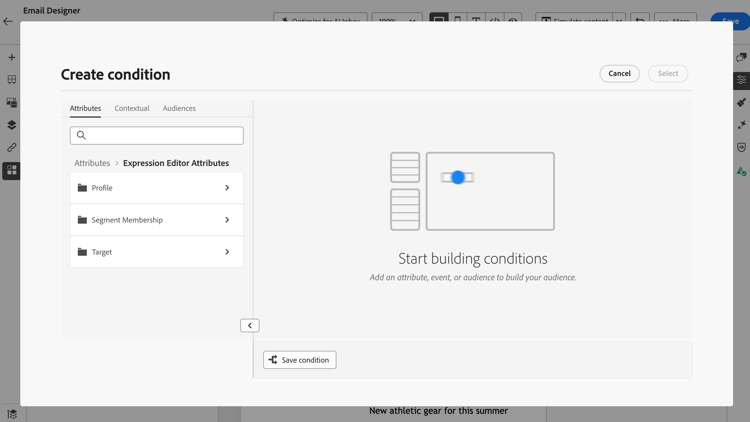
When creating conditional content for an email delivery, you can use Target attributes from the campaign worktable. These attributes include incoming audience or enrichment data from relational schemas, so you can show different content based on the target record. Conditions are specific to the current delivery and cannot be saved as reusable conditions.
➡️ Learn how to create conditional content in the Email Designer.
Check and test your content simulate-content-test-profiles
Once the content is created, you can preview and test it using either simulation method:
- Click Simulate content to test content variations with sample input data or AI auto-generation. Learn how to simulate content variations
- Click Simulate content, then select Simulate content (AEP profiles) from the dropdown to preview and test your content with test profiles. Learn more

When you simulate content with test profiles in an Orchestrated campaign, two important constraints apply:
-
Execution must have reached the channel activity in test - Run the campaign in test using the Start button so the workflow reaches the channel activity you want to simulate. In test mode, the workflow pauses at the channel activity, so a channel activity that comes after another channel activity is never reached. You cannot use Simulate Content for those downstream channel activities. See Test your campaign before publishing.
-
The test profile must match the channel activity target - Use a test profile that belongs to the audience targeted by that channel activity. If the profile is not in that audience, selecting it will not render a preview of your content. See Select test profiles.
Confirm message sending
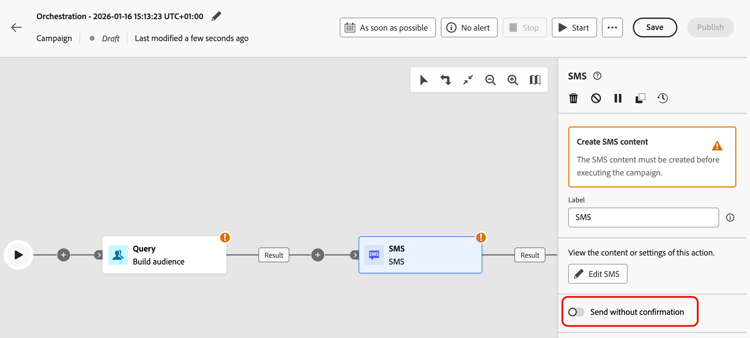
By default, for non-recurring orchestrated campaigns, message delivery is paused until you explicitly approve the send. After publishing the campaign, confirm the send request from Properties in the right rail while the channel activity is selected.
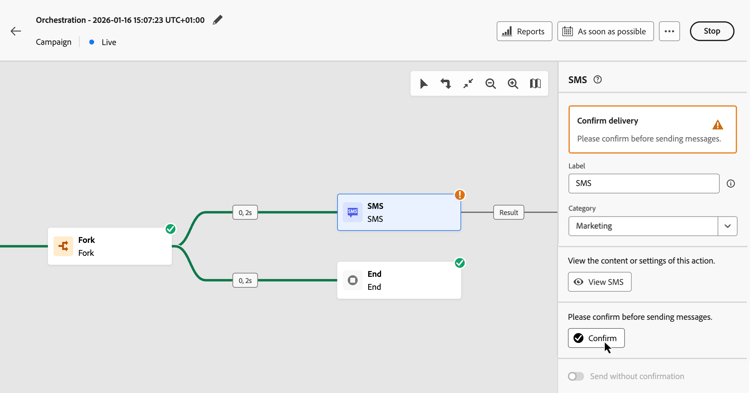
Sending confirmation can be disabled before publishing the orchestrated campaign. To do so, select the channel activity on the canvas, go to Properties in the right rail, and turn on Send without confirmation.
Set rate control rate-control
Journey Optimizer allows you to enable rate control for outbound actions in Orchestrated campaigns.
This feature is particularly useful for preventing overload on downstream systems, such as landing pages or customer care platforms. For example, you can set a rate limit of 165 messages per second to ensure steady delivery without overwhelming downstream systems.
To set rate control, follow these steps:
-
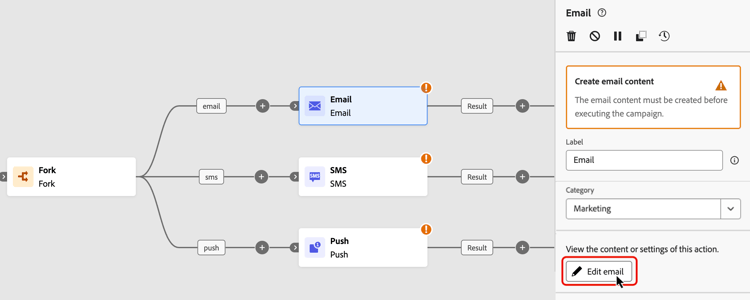
Select an outbound channel activity in the canvas and click Edit email, Edit Mobile message, or Edit Push depending on the chosen channel.
-
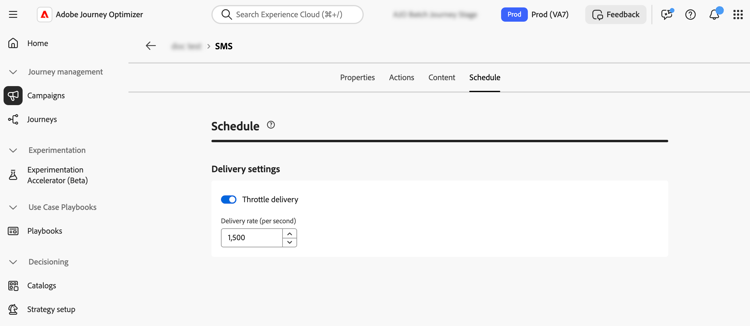
Navigate to the Schedule tab, and enable the Throttle delivery option in the Delivery settings section.
-
Specify the desired Delivery rate per second.
- Minimum delivery rate supported: 1 per second.
- Maximum delivery rate supported: 2000 per second when the “Throttle delivery” option is enabled.
Next steps next
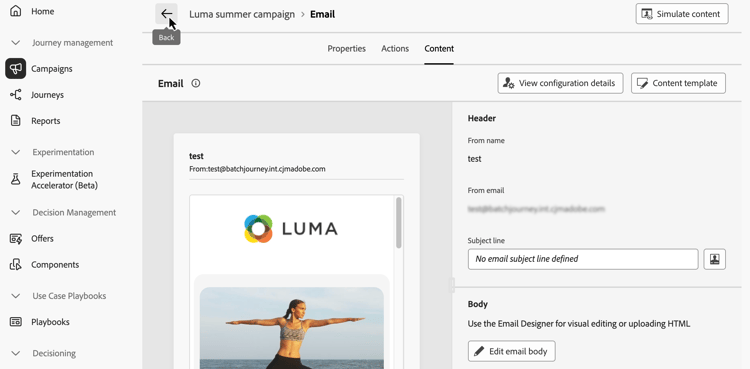
When the message content is ready, navigate back to your Orchestrated campaign using the Back arrow. You can then complete the activities orchestration in the canvas and publish the campaign to start sending messages. Learn how to start and monitor Orchestrated campaigns