On this page: Learn how to use the Build audience targeting activity to define the audience that enters an Orchestrated campaign, using an existing audience or the rule builder.
As a marketer, you can create complex audience segments through an intuitive interface, allowing you to target users based on a wide range of criteria and behaviors to tailor your campaigns more effectively.
To do this, use the Build audience targeting activity. This activity defines the audience that enters the Orchestrated campaign. When sending messages as part of an Orchestrated campaign, the audience is defined in the Build audience activity, not within the Orchestrated campaign.
Configure the Build audience activity build-audience-configuration
Follow these steps to configure the Build audience activity:
-
Add a Build audience activity.

-
Define a Label.
-
Configure your audience by following the steps detailed in the tabs below.
-
Choose the Targeting dimension. The targeting dimension lets you define the population targeted by the operation: recipients, contract beneficiaries, operator, subscribers, etc. By default, the target is selected from the recipients.
-
Click Continue.
-
Use the rule builder to define your query. Learn more about the Rule builder in this section
-
Specify whether an outbound transition should be generated when the audience is empty.
Examples build-audience-examples
Here is an example of an Orchestrated campaign with two Build audience activities. The first targets profiles that have items in their cart, followed by an email delivery. The second targets profiles with a wishlist, followed by an SMS delivery.

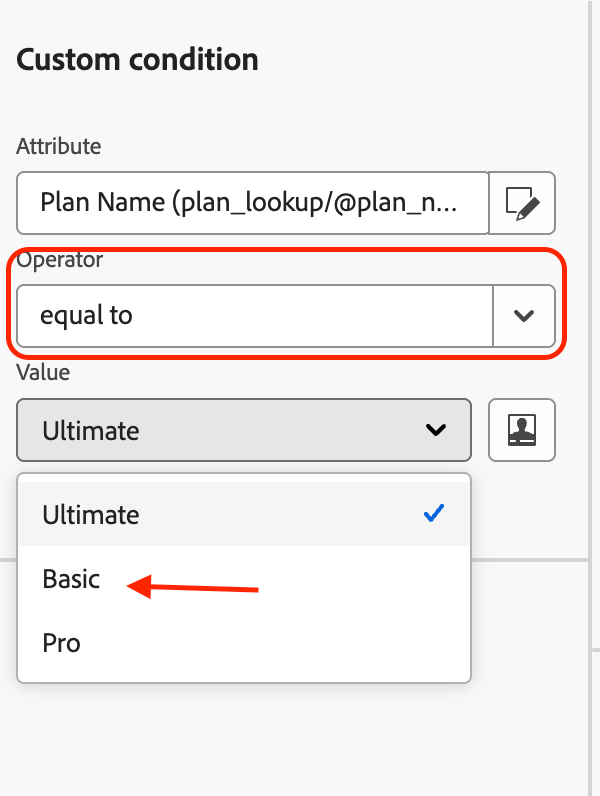
In the example below, the Build audience activity uses the rule builder to filter profiles by their subscription plan. A condition is set on the plan attribute to include only profiles where plan = "basic", narrowing the audience to basic-tier subscribers before passing them to the next activity.
This section contains structured knowledge intended to support interpretation, retrieval, and question answering related to this topic.
For complete understanding, this information should be combined with the documentation on this page. Neither source is intended to stand alone; the page describes the feature, while this section provides additional context that helps disambiguate terminology, intent, applicability, and constraints.
- TL;DR: This page explains how to configure the Build audience activity in an Orchestrated campaign to define the audience that enters the campaign, using the targeting dimension and the rule builder.
Intents:
- Add a Build audience activity to an Orchestrated campaign.
- Define a label and choose the targeting dimension for the audience.
- Use the rule builder to define the query for the audience.
- Specify whether an outbound transition should be generated when the audience is empty.
Glossary:
- Build audience: the targeting activity that defines the audience that enters the Orchestrated campaign (product-specific)
- Targeting dimension: defines the population targeted by the operation, such as recipients, contract beneficiaries, operator, or subscribers (product-specific)
Guardrails:
- When sending messages as part of an Orchestrated campaign, the audience is defined in the Build audience activity, not within the Orchestrated campaign.
- By default, the target is selected from the recipients.
Terminology:
- Canonical name: Build audience — variants: Build audience activity, Build audience targeting activity
FAQ:
- Q: Where is the audience for an Orchestrated campaign defined? — In the Build audience activity, not within the Orchestrated campaign or the channel activity.
- Q: What does the targeting dimension do? — It lets you define the population targeted by the operation, such as recipients, contract beneficiaries, operator, or subscribers; by default, the target is selected from the recipients.
- Q: How do I define the query for the audience? — Use the rule builder after choosing the targeting dimension.
- Q: Can I control what happens when the audience is empty? — Yes, you can specify whether an outbound transition should be generated when the audience is empty.
Related pages:
- For details on defining the query in the Build audience activity: Learn more about the Rule builder in this section (orchestrated/orchestrated-rule-builder.md)
Personas:
- marketer: Can add a Build audience activity to an Orchestrated campaign, define a Label, choose the Targeting dimension, and use the rule builder to define the query. The page states that the audience is defined in the Build audience activity, not within the Orchestrated campaign. Where: “Configure the Build audience activity”.
Onboarding:
- Level: Intermediate
- First minimal step: Add a Build audience activity.
- Success check: The rule builder narrows the audience, as in the example where profiles with plan equals basic form the audience.
- Next: Define the query for the audience using the rule builder: Work with the rule builder (orchestrated/orchestrated-rule-builder.md)