On this page: Learn how to use the rule builder to filter data and create the queries that target audiences in your Orchestrated campaigns.
Orchestrated campaigns comes with a rule builder that simplifies the process of filtering the database based on various criteria. The rule builder manages very complex and long queries efficiently, offering enhanced flexibility and precision.
It also supports predefined filters within conditions, empowering you to refine queries with ease while utilizing advanced expressions and operators for comprehensive audience targeting and segmentation strategies.
Access the rule builder access
The rule builder is available in every context where you need to define rules to filter data.

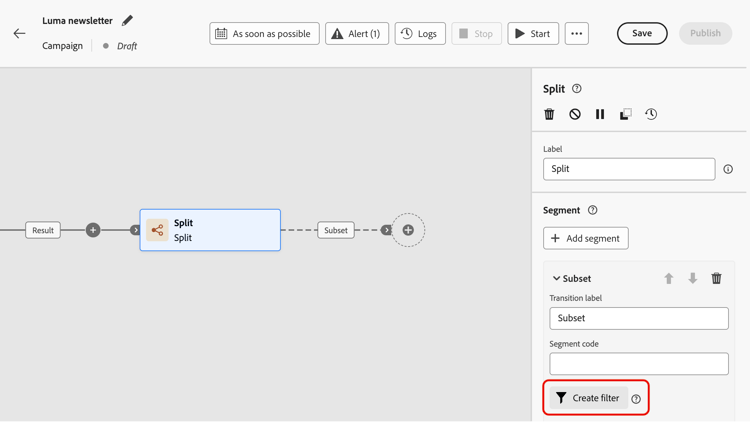

Rule builder interface interface
The rule builder provides a central canvas where you build your query and a properties pane that provides information on the rule.

-
The central canvas is where you add and combine the different components to build your rule. Learn how to build a rule
-
The Rule properties pane provides information on your rule. It allows you to perform various operations to check the rule and ensure it suits your needs.
This pane displays when building a query to create an audience. Learn how to check and validate your query
Work with predefined filters
Predefined filters let you reuse saved queries in the rule builder, including versions with parameters. For a full walkthrough of saving, applying, and managing predefined filters, see Work with predefined filters.
This section contains structured knowledge intended to support interpretation, retrieval, and question answering related to this topic.
For complete understanding, this information should be combined with the documentation on this page. Neither source is intended to stand alone; the page describes the feature, while this section provides additional context that helps disambiguate terminology, intent, applicability, and constraints.
- TL;DR: This page explains how to access and use the rule builder to filter data and build the queries that target audiences in Orchestrated campaigns.
Intents:
- Identify the contexts where the rule builder is available.
- Specify a target population using a Build audience activity.
- Apply a condition in the campaign canvas using a Split activity.
- Build advanced filters for lists such as campaign logs or targeting dimensions.
- Understand the central canvas and the Rule properties pane in the rule builder interface.
- Reuse saved queries through predefined filters.
Glossary:
- Rule builder: a tool that simplifies filtering the database based on various criteria, manages complex and long queries, and supports predefined filters within conditions (product-specific)
- Central canvas: the part of the rule builder interface where components are added and combined to build a rule (product-specific)
- Rule properties pane: the pane that provides information on the rule and allows operations to check the rule and ensure it suits the user’s needs; it displays when building a query to create an audience (product-specific)
- Build audience activity: used to specify the population to target in an Orchestrated campaign by creating new audiences (product-specific)
- Split activity: used to apply rules within the campaign canvas (product-specific)
- Predefined filters: saved queries, including versions with parameters, that can be reused in the rule builder (product-specific)
Guardrails:
- None stated on the page.
Terminology:
- Canonical name: rule builder — variants: none stated
FAQ:
- Q: Where is the rule builder available? — In every context where rules are needed to filter data, including building audiences with a Build audience activity, applying conditions in the campaign canvas with a Split activity, and building advanced filters for lists such as campaign logs or targeting dimensions.
- Q: What does the rule builder interface consist of? — A central canvas where components are added and combined to build the rule, and a Rule properties pane that provides information on the rule and lets the user check it.
- Q: When does the Rule properties pane display? — When building a query to create an audience.
- Q: Can saved queries be reused in the rule builder? — Yes, through predefined filters, including versions with parameters.
Related pages:
- To build audiences in Orchestrated campaigns: Learn how to build audiences (orchestrated/activities/build-audience.md)
- To apply a condition in the campaign canvas: Learn how to use a Split activity (orchestrated/activities/split.md)
- To build a rule in the central canvas: Learn how to build a rule (orchestrated/build-query.md)
- To check and validate a query: Learn how to check and validate your query (orchestrated/build-query.md)
- To save, apply, and manage predefined filters: Work with predefined filters (orchestrated/predefined-filters.md)
Personas:
- marketer: Can specify a target population in an Orchestrated campaign using a Build audience activity. Can apply a condition in the campaign canvas using a Split activity, or build advanced filters for lists such as campaign logs. Where: “Access the rule builder”.
Onboarding:
- Level: Intermediate
- First minimal step: Specify the population you want to target in your Orchestrated campaigns using a Build audience activity.
- Success check: The Rule properties pane lets you check the rule to ensure it suits your needs.
- Previous: Specify a target population using a Build audience activity: Use the Build audience activity (orchestrated/activities/build-audience.md); Apply a condition in the campaign canvas using a Split activity: Use the Split activity (orchestrated/activities/split.md)
- Next: Build a rule in the central canvas: Build your first rule (orchestrated/build-query.md); Reuse saved queries through predefined filters: Work with predefined filters (orchestrated/predefined-filters.md)