Work with predefined filters predefined-filters
Predefined filters are saved rules that you can reuse in the rule builder. Use them to avoid rebuilding common queries and to standardize targeting logic across orchestrated campaigns.
You can mark predefined filters as favorites, share them with other users, and add parameters so selected fields can be edited when the filter is applied.
Create a predefined filter create
Save a custom filter from the rule builder to make it available for future use. Follow these steps:
-
Open the rule builder and define your filtering conditions. Learn how to build a rule
-
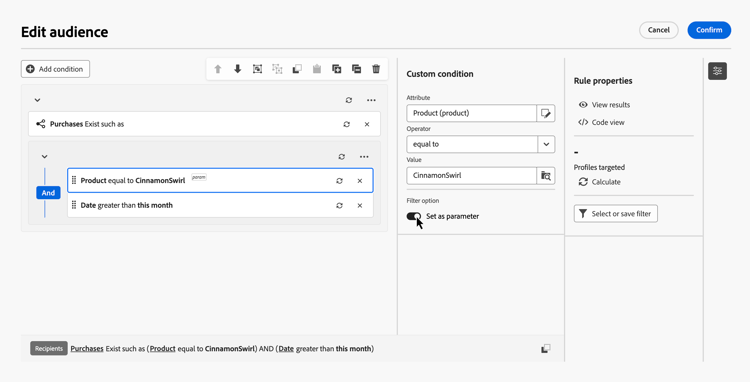
Optional: To make certain fields editable when using the filter, select the field and toggle on Set as parameter. When you apply the filter, only these fields can be edited.
-
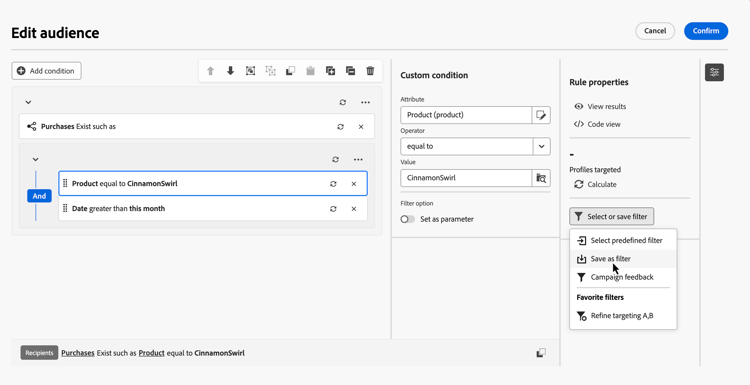
To save the filter, click Select or save filter, and select Save as filter.
-
Enter a label and a description for the filter, then click Save.
- To save the filter as a favorite, toggle on the Favorite filter option. Learn more in this section.
- To make the filter accessible to other users, enable the Shared filter option. Learn more in this section.
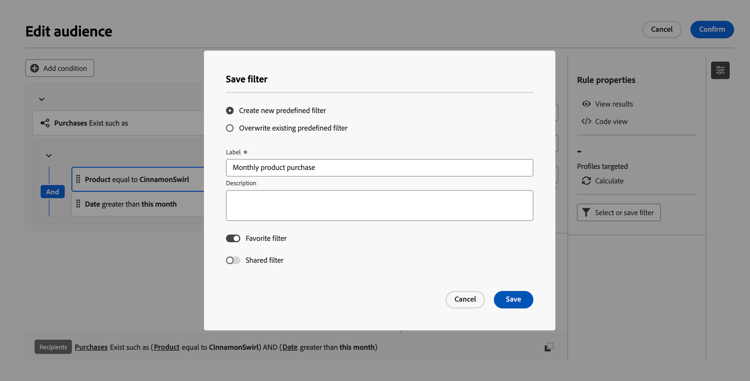
Your custom filter is now available in the Predefined Filters list.
Use a predefined filter in a rule apply
Predefined filters are available when defining queries in the rule builder.
-
In the Rule properties pane, click Select or save filter.
-
Choose Select predefined filter and select a filter. You can also directly select a predefined filter from the list if it has been added to favorites.
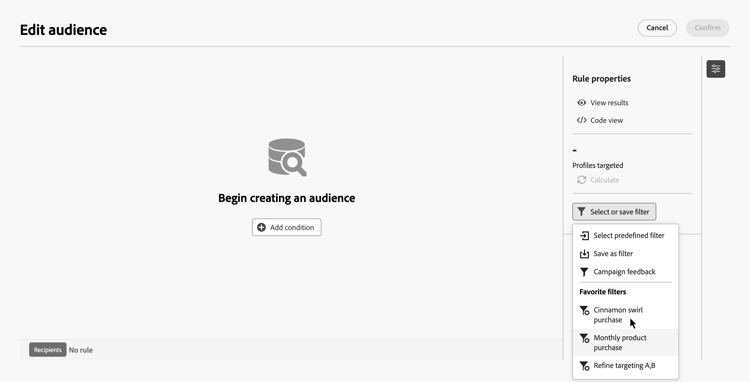
note important IMPORTANT Selecting a predefined filter replaces the rule that has been built in the canvas with the selected filter. -
The filter opens in the canvas. Continue editing the condition as needed.
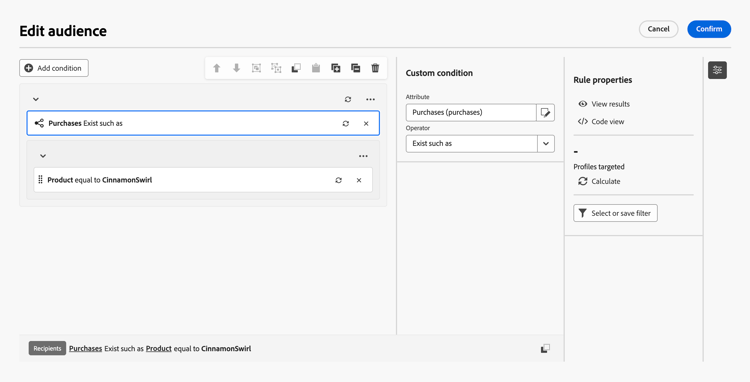
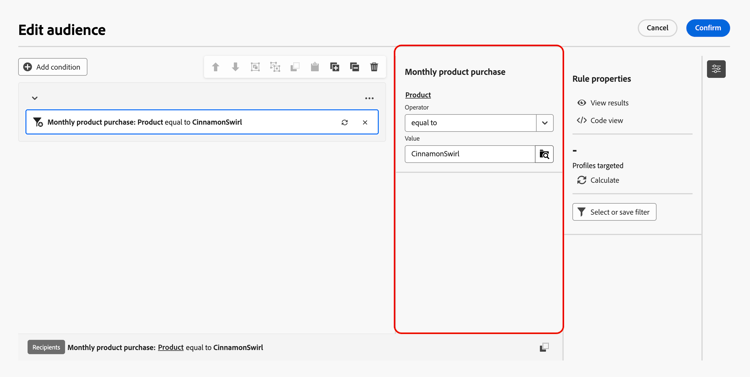
If the filter you selected includes parameters, only the fields marked as parameters can be edited. They display in the pane next to the Rule properties pane.
To edit the predefined filter itself, click the

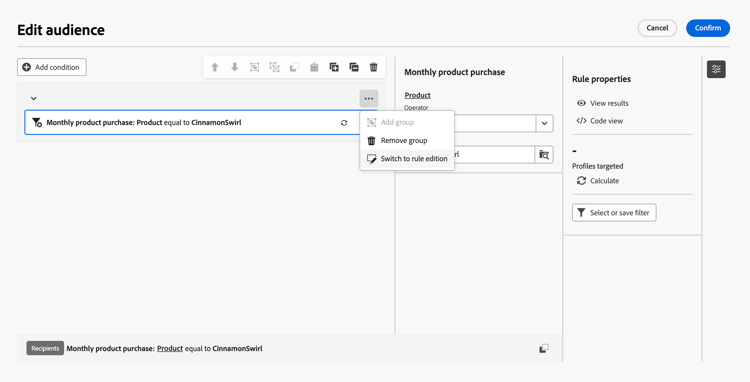
Save a filter as a favorite fav-filter
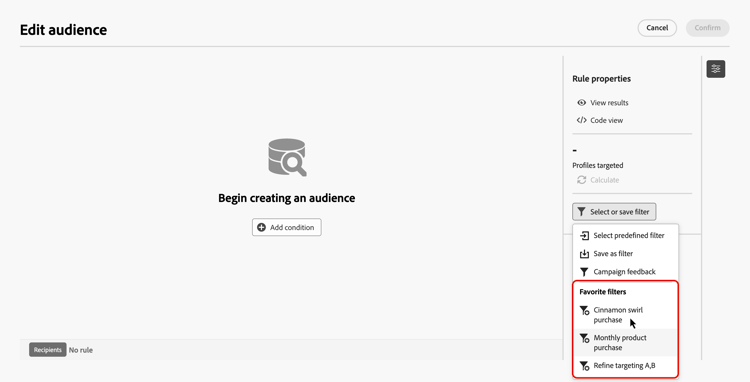
When creating a predefined filter, enable the Favorite filter option to see this predefined filter in your favorites.
When a filter is saved as a favorite, it appears in the Favorite filters section of the filter list, as shown below:
Share a predefined filter share-filter
By default, predefined filters you create are private and visible only to you. To make a filter accessible to other operators in your organization, enable the Shared filter option.
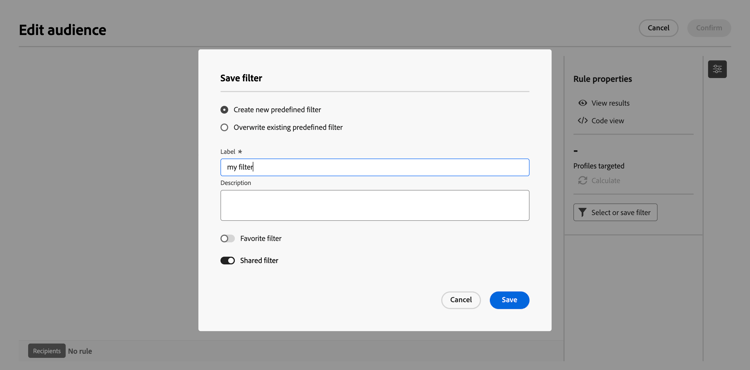
Shared filters appear in the predefined filter list for all users, allowing them to use these filters in their own rules.
Manage predefined filters manage-predefined-filter
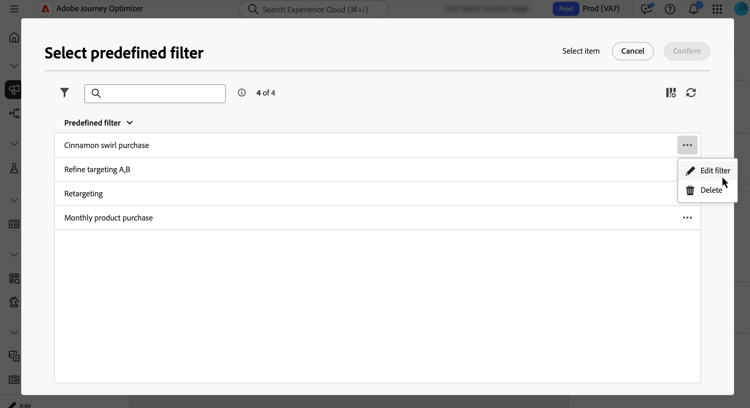
To edit or delete predefined filters, follow these steps:
-
Open the predefined filter list using the Select or save filter button in the rule build.
-
Select the