On this page: Create an Action campaign and define its core properties, such as name, description, tags, and access labels, so you can identify, organize, and control access to your campaign before configuring its action.
To create an Action campaign and define its properties, follow these steps:
-
Browse to the Campaigns menu and select the Action tab.
-
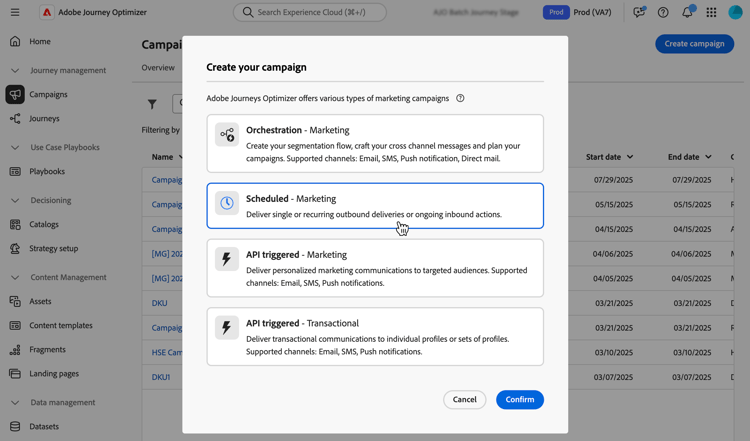
Click the Create campaign button and select the Scheduled - Marketing campaign type.
-
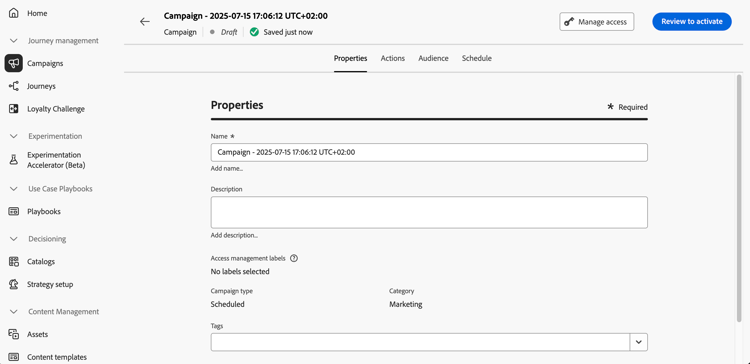
In the Properties tab, enter a name and a description for your campaign.
-
Use the Tags field to assign Adobe Experience Platform Unified Tags to your campaign. This allows you to easily classify them and improve search from the campaigns list. Learn how to work with tags.
-
If custom metadata fields have been defined and selected for Action campaigns, they are displayed in the Metadata fields section of the Properties tab. Fill them in to track specific business information such as line of business, product or cost center. Fields marked with an asterisk are required. Learn more on custom metadata
note availability AVAILABILITY This capability is available in Limited Availability. Contact your Adobe representative to gain access. -
You can limit the access to this campaign based on access labels. To add an access limitation, browse to the Manage access button at the top of this page. Make sure to select only labels you have permission for. Learn more about Object Level Access Control.
Next steps next
Once your Action campaign is created and configured, you can configure its action. Learn more
This section contains structured knowledge intended to support interpretation, retrieval, and question answering related to this topic.
For complete understanding, this information should be combined with the documentation on this page. Neither source is intended to stand alone; the page describes the feature, while this section provides additional context that helps disambiguate terminology, intent, applicability, and constraints.
- TL;DR: This page explains how to create an Action campaign of type Scheduled - Marketing and define its properties: name, description, tags, custom metadata fields, and access labels.
Intents:
- Create an Action campaign of type Scheduled - Marketing
- Enter a name and a description for the campaign
- Assign Adobe Experience Platform Unified Tags to classify the campaign and improve search from the campaigns list
- Fill in custom metadata fields to track business information
- Limit access to the campaign based on access labels
Glossary:
- Tags: Adobe Experience Platform Unified Tags assigned to a campaign to classify it and improve search from the campaigns list. (product-specific)
- Metadata fields: Custom fields, when defined and selected for Action campaigns, displayed in the Properties tab to track business information such as line of business, product or cost center. (product-specific)
- Access labels: Labels used to limit access to the campaign, set with the Manage access button. (product-specific)
Guardrails:
- Metadata fields marked with an asterisk are required.
- When adding an access limitation, select only labels you have permission for.
Prerequisites and permissions:
- Custom metadata fields on Action campaigns are available in Limited Availability; contact your Adobe representative to gain access.
Terminology:
- Canonical name: Action campaign properties — variants: campaign properties
- Acronym: OLAC — Object level access control
FAQ:
- Q: Which campaign type do I select to create an Action campaign? — Browse to the Campaigns menu, select the Action tab, click Create campaign, and select the Scheduled - Marketing campaign type.
- Q: Why do I not see the Metadata fields section? — The section is displayed if custom metadata fields have been defined and selected for Action campaigns. This capability is available in Limited Availability.
- Q: How do I limit access to a campaign? — Use access labels with the Manage access button; select only labels you have permission for.
- Q: What are tags used for? — To classify campaigns and improve search from the campaigns list.
Related pages:
- Tags: Learn how to work with tags (start/search-filter-categorize.md#tags)
- Custom metadata: Learn more on custom metadata (administration/custom-metadata.md)
- Access labels: Learn more about Object Level Access Control (administration/object-based-access.md)
- Next step, action: Configure the campaign action (campaigns/campaign-action.md)
Personas:
- marketer: Can create an Action campaign of type Scheduled - Marketing and enter a name and description in the Properties tab. Can assign Adobe Experience Platform Unified Tags, fill in metadata fields, and limit access using access labels in Manage access. The page states that metadata fields marked with an asterisk are required. Where: “Define the Action campaign properties”.
Onboarding:
- Level: Beginner
- First minimal step: Browse to the Campaigns menu and select the Action tab.
- Success check: The Action campaign is created and configured.
- Next: configuring the campaign’s action after the Action campaign is created and configured: Configure the campaign action (campaigns/campaign-action.md)