On this page: Schedule your Action campaign by setting start and end dates, recipient timezone delivery, execution frequency, and rate control so your messages reach the right audience at the right time without overwhelming downstream systems.
Use the Schedule tab to define the campaign schedule.
Set a campaign start date
By default, Action campaigns start once they are activated manually, and end as soon as the message has been sent once. If you do not want to execute your campaign right after its activation, you can specify a date and time at which the message should be sent in the Campaign start section.
When scheduling campaigns in Adobe Journey Optimizer, ensure your start date/time aligns with the desired first delivery. For recurring campaigns, if the initial scheduled time has already passed, the campaigns will roll over to the next available time slot according to their recurrence rules.
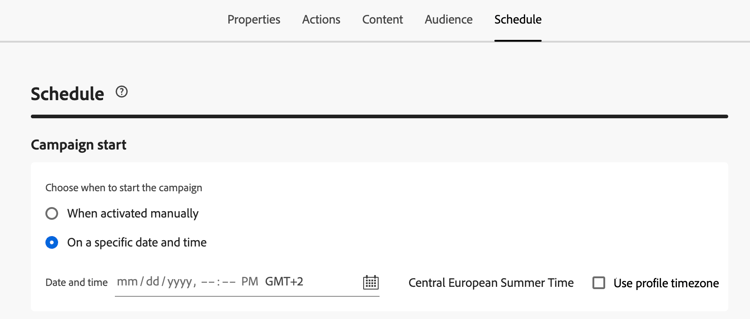
Send at recipient’s local time profile-timezone
When scheduling a campaign for a specific date and time, you can choose to send messages based on each recipient’s profile timezone. This ensures that all recipients receive the message at the same local time, regardless of their geographic location.
For example, if you schedule a campaign to send at 9 AM using profile timezone, recipients in New York (ET) will receive it at 9 AM ET, while recipients in Los Angeles (PT) will receive it at 9 AM PT.
To enable profile timezone scheduling:
-
In the Campaign start section, specify the date and time when the message should be sent.
-
Enable the Use profile timezone option.
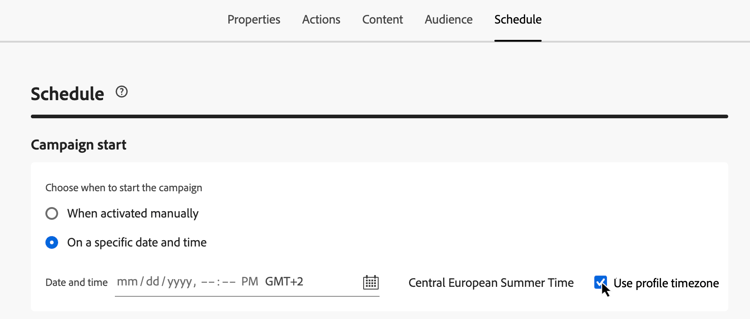
How it works:
The system uses the profile.timeZone field from each recipient’s Adobe Experience Platform profile to determine their local timezone. If a profile does not have a timezone value, the system uses the timezone in which the campaign was created as the fallback.
The campaign remains in Live status while messages are being delivered across all timezones. Once all timezones have been processed, the campaign status changes to Completed.
Supported time zone identifiers:
The profile.timeZone format can be either IANA naming or defined as UTC offsets. IANA naming is the preferred format, as it automatically adjusts for daylight-saving rules.
For IANA naming, the identifiers are case-sensitive and must match the official IANA naming. Offsets can change over time due to daylight-saving rules and historical updates. Refer to the IANA Time Zone Database{_blank} for the official list of identifiers.
Set an execution frequency
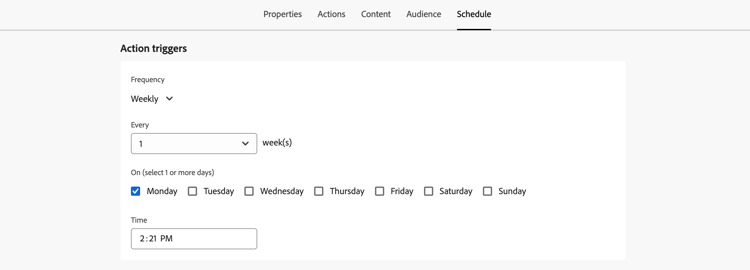
For Email, Mobile message, and Push notification actions, you can define a frequency at which the campaign’s message should be sent. To do this, use the Action triggers options in the campaign creation screen to specify if the campaign should be executed daily, weekly, or monthly.
Set an end date
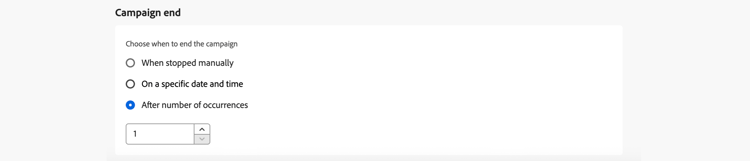
The Campaign end section allows you to specify when a campaign should stop being executed. Outside of the specified dates, the campaign will not be executed.
Set rate control
Journey Optimizer allows you to enable rate control for outbound actions (Email, Mobile messages, Push notifications).
This feature is particularly useful for preventing overload on downstream systems, such as landing pages or customer care platforms. For example, you can set a rate limit of 165 messages per second to ensure steady delivery without overwhelming downstream systems.
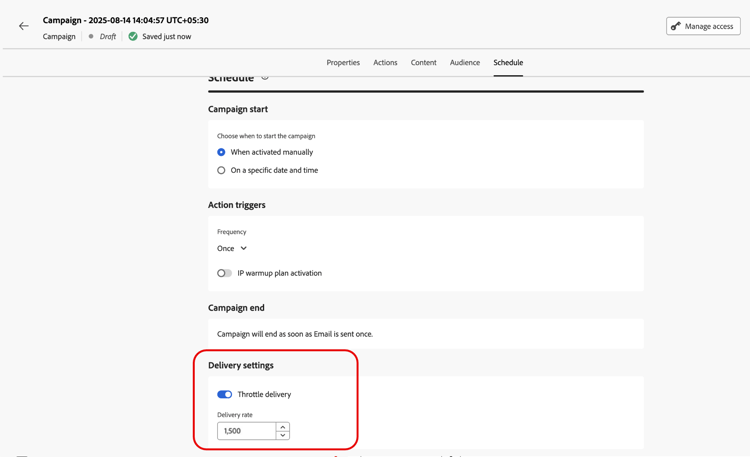
To set rate control, enable the Throttle delivery option in the Delivery settings section and specify the desired Delivery rate per second.
- Minimum delivery rate supported: 1 per second.
- Maximum delivery rate supported: 2000 per second when the “Throttle delivery” option is enabled.
Send using waves
To deliver your campaign message in batches over time instead of all at once, you can use wave sending. This helps balance load, support deliverability, and avoid overwhelming downstream systems (for example, call centers or landing pages). You define the number of waves, their size (by percentage or absolute number), and the schedule for each wave.
Learn how to send using waves.
Next steps next
Once your campaign schedule is ready, you can review and activate the campaign. Learn more