On this page: Learn how to access, subscribe to, and manage system alerts in Adobe Journey Optimizer to proactively monitor journey and campaign lifecycle events, custom action errors, profile issues, and email deliverability.
Overview
Alerts are automated notifications that help you monitor and troubleshoot issues in Adobe Journey Optimizer. They provide real-time awareness of potential problems in your journeys, campaigns, and channel configurations, enabling you to take corrective action before customer experiences are impacted.
Adobe Journey Optimizer provides two types of alerts:
-
In-canvas validation alerts: When building journeys and campaigns, use the Alerts button in the canvas to identify and resolve configuration errors before publishing. Learn how to troubleshoot your journeys and review your campaigns: Action campaigns | API-triggered campaigns | Orchestrated campaigns.
-
System monitoring alerts (detailed on this page): Receive proactive notifications when operational thresholds are exceeded or issues are detected in live journeys and channel configurations, and when important campaign lifecycle events occur (activation, delivery, stop, and related failures). System alerts monitor metrics such as error rates, profile discards, anomalous journey traffic, and email deliverability issues, in addition to those campaign events.
Key benefits of system alerts:
- Proactive issue detection before customer impact
- Automated monitoring of journey performance and health
- Early warning for email deliverability problems
- Reduced time to identify and resolve operational issues
How system alerts work
Alerts are sent via email and/or in-app notifications in the Journey Optimizer notification center (bell icon in the top-right corner). Configure your preferred delivery channels in your Adobe Experience Cloud Preferences.

Journey Optimizer provides both one-time alerts (informational events like “journey published”) and repeating alerts (monitoring thresholds). Repeating alerts continue evaluating and notifying until the condition is resolved.
To prevent notification fatigue from fluctuating values, alerts automatically resolve after 1 hour even if the condition persists. This prevents continuous notifications when metrics hover around threshold values.
Alert lifecycle:
- Triggering: The alert triggers when its specific condition is met (e.g., error rate exceeds 20%)
- Notification: All subscribed users receive notifications via their configured channels
- Monitoring: The alert continues to monitor the condition at regular intervals
- Resolution: When the condition is resolved, subscribers receive a “Resolved” notification
System alerts can be managed from the Alerts menu under Administration. Adobe Experience Platform provides several predefined alert rules that you can enable, including Adobe Journey Optimizer-specific alerts for journeys and channel configurations.
Prerequisites
Before working with alerts:
-
Permissions: You need specific permissions to view and manage alerts. See required permissions in Adobe Experience Platform.
-
Sandbox awareness: Alert subscriptions are sandbox-specific. When you subscribe to alerts, they apply only to the current sandbox. When a sandbox is reset, all alert subscriptions are also reset.
-
Notification preferences: Configure how you receive alerts (email and/or in-app) in your Adobe Experience Cloud Preferences.
Available alerts available-alerts
Journey Optimizer provides pre-configured alert rules that monitor specific aspects of your journeys, campaigns, and channel configurations. You do not need to create these alerts - they are available out-of-the-box and can be enabled through subscription.
To access the alerts list:
Navigate to Administration > Alerts in the left menu. The Browse tab displays all pre-configured alerts available for Journey Optimizer.
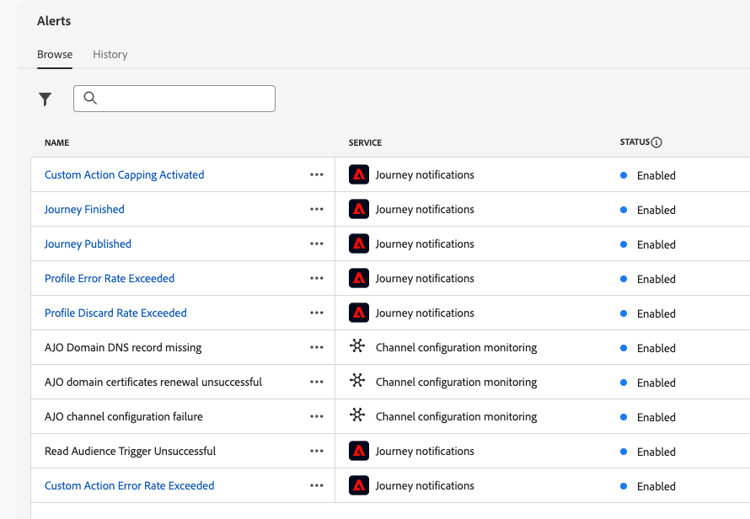
Browse the tabs below to review journey, campaign, and channel configuration alerts. Select an alert name in a tab to expand its full description.
All journey notifications available in the user interface are listed in this tab. Select an alert name to expand its full description and guidance.
➡️ Learn more about alert delivery | Learn how to manage alert subscriptions | Learn how to monitor and resolve journey issues
| note caution |
|---|
| CAUTION |
| Adobe Journey Optimizer specific alerts apply only to live journeys. Alerts are not triggered for journeys in test mode. |
| accordion |
|---|
| Read Audience trigger unsuccessful |
|
This alert warns you if a Read Audience activity has not processed any profile 10 mins after scheduled time of execution. This failure can be caused by technical issues, or because the audience is empty. If this failure is caused by technical issues, be aware that retries can still happen, depending of the type of issue (eg: if the export job creation has failed, we will retry every 10mn for 1h max). Alerts on Read Audience activities only apply to recurring journeys. Read Audience activities in live journeys that have a schedule to run Once or As soon as possible are ignored. Alerts on Read Audience are resolved when a profile enters the Read Audience node, or after 1 hour. The I/O event subscription name corresponding to the Read Audience Trigger Unsuccessful alert is Journey read audience Delays, Failures and Errors. To troubleshoot Read Audience alerts, check your audience count in the Experience Platform interface. |
| accordion |
|---|
| Profile discard rate exceeded |
|
This alert warns you if the ratio of profile discards to entered profiles over the last 5 minutes exceeded threshold. The default threshold is set to 20% but you can define a custom threshold. Click the name of the alert to check the alert details and configuration.
There are several reasons a profile could be discarded, which will inform the method of troubleshooting. Some common reasons are listed below:
|
| accordion | |||
|---|---|---|---|
| Custom action error rate exceeded | |||
|
This alert warns you if the ratio of custom action errors to successful HTTP calls over the last 5 minutes exceeded threshold. The default threshold is set to 20% but you can define a custom threshold.
Click the name of the alert to check the alert details and configuration. Custom actions errors can happen for a variety of reasons. To troubleshoot these errors, you can:
|
| accordion |
|---|
| Profile error rate exceeded |
|
This alert warns you if the ratio of profiles-in-error to entered profiles over the last 5 minutes exceeded threshold. The default threshold is set to 20% but you can define a custom threshold. Click the name of the alert to check the alert details and configuration. To troubleshoot profile error, you can query the data in step events to understand where and why the profile failed in the journey. ➡️ Work with journey step events |
| accordion |
|---|
| Journey Published |
|
This alert notifies you when a journey has been published by a practitioner in the journey canvas. This is an informational alert that helps you keep track of journey lifecycle events in your organization. There is no resolution criteria as this is a one-time notification. |
| accordion |
|---|
| Journey Finished |
|
This alert notifies you when a journey has finished. The definition of “finished” varies depending on the journey type. This is an informational alert that helps you keep track of journey completion. There is no resolution criteria as this is a one-time notification. |
| accordion |
|---|
| Custom action capping triggered |
|
This alert warns you when capping has been triggered on a custom action. Capping is used to limit the number of calls sent to an external endpoint to prevent overwhelming the endpoint. Click the name of the alert to check the alert details and configuration. When capping is triggered, it means that the maximum number of API calls has been reached within the defined time period, and further calls are being throttled or queued. This alert is resolved when the capping is no longer active, or when no profiles reach the custom action during the evaluation period. To troubleshoot capping issues:
|
| accordion | |||
|---|---|---|---|
| Journey Anomaly Detected | |||
|
This alert warns you when a live journey’s daily traffic deviates from its own historical baseline, or drops to zero unexpectedly. Three metrics are monitored independently for each journey: Journey Entries, Journey Exits, and Event Sends. The check runs once daily, using a 30-day lookback per journey. Baseline: the expected value for each metric combines Customer Journey Analytics’ forecast for that day with a 7-day rolling median of the journey’s own actual values. If the forecast falls below 50% of the rolling median, the rolling median is used instead, to avoid under-predicting a journey that has been running steadily. The following reasons can trigger an alert:
Note that this alert applies only to live journeys of type unitary event, read-audience, or audience-qualification (recurring Read Audience journeys only), and requires the organization or sandbox to be subscribed to alerting. ➡️ Inspect the journey live report to troubleshoot a Journey Anomaly Detected alert
|
System alerts notify you when important lifecycle or delivery events occur on Action and API-triggered campaigns. Select an alert name below to expand its description.
➡️ Learn more about alert delivery | Learn how to manage alert subscriptions | Learn how to monitor and resolve campaign issues
| accordion |
|---|
| Campaign Activated |
|
Notifies you when a campaign has been activated successfully (publish/activation completed). |
| accordion |
|---|
| Campaign Activation Failed |
|
Notifies you when activation of a campaign fails. Use this alert to detect configuration or technical issues early and retry or fix the campaign before customers are impacted. ➡️ Review and activate an Action campaign |
| accordion |
|---|
| Campaign Stopped |
|
Notifies you when a campaign has been stopped successfully (for example, after a manual stop or when the run completes according to your workflow). |
| accordion |
|---|
| Campaign Stopping Failed |
|
Notifies you when a stop operation fails. Investigate the campaign state and any errors shown in the UI before retrying. |
| accordion |
|---|
| Campaign Delivery Started |
|
Notifies you when message delivery for a campaign has started (execution has moved into the delivery phase). |
| accordion |
|---|
| Campaign Delivery Completed |
|
Notifies you when message delivery for a campaign has completed successfully. |
| accordion |
|---|
| Campaign Delivery Failed |
|
Notifies you when message delivery for a campaign fails. Review campaign reports, execution logs, and channel configuration to troubleshoot. |
System alerts notify you about important events in an Orchestrated campaign. Select an alert name below to expand its description.
➡️ Learn more about alert delivery | Learn how to manage alert subscriptions | Learn how to monitor and resolve Orchestrated campaign issues
| accordion |
|---|
| Orchestrated Campaign Error |
| Notifies you when an Orchestrated campaign encounters an error during execution. |
| accordion |
|---|
| Orchestrated Campaign Delivery Started |
| Notifies you when a delivery from an Orchestrated campaign starts. |
| accordion |
|---|
| Orchestrated Campaign Delivery Failed |
| Notifies you when a delivery from an Orchestrated campaign fails. |
| accordion |
|---|
| Orchestrated Campaign Delivery Completed |
| Notifies you when a delivery from an Orchestrated campaign completes successfully. |
| accordion |
|---|
| Orchestrated Campaign Start |
| Notifies you each time an Orchestrated campaign run starts. For recurring Orchestrated campaigns, each recurrence triggers this alert. This alert is distinct from the publication alert: a scheduled Orchestrated campaign can be published without having started yet. |
| accordion |
|---|
| Orchestrated Campaign Stopped |
| Notifies you when an Orchestrated campaign is stopped. |
| accordion |
|---|
| Orchestrated Campaign Publish |
| Notifies you when an Orchestrated campaign is published. |
| accordion |
|---|
| Orchestrated Campaign Completed |
| Notifies you when an Orchestrated campaign completes after all recurrences have finished. |
Channel configuration monitoring alerts available in the user interface are listed in this tab. Select an alert name to expand remediation steps and notes.
➡️ Learn more about alert delivery | Learn how to manage alert subscriptions | Learn how to monitor and resolve channel configuration issues
| accordion | ||||||
|---|---|---|---|---|---|---|
| AJO Domain DNS record missing | ||||||
|
This alert notifies you when critical DNS records (NS or CNAME) required for proper deliverability configuration are missing or misconfigured. Without these records, email deliverability may be compromised.
The AJO Domain DNS record missing alert is triggered when the system detects that the required NS or CNAME records are absent or do not match the configuration standards.
If the changes do not resolve the issue, the same alert will be triggered again the next day. |
| accordion | |||||||||
|---|---|---|---|---|---|---|---|---|---|
| AJO channel configuration failure | |||||||||
This alert is triggered in case the system audit detects email channel configuration issues. These issues may include misconfigured channel settings, invalid DNS configuration, suppression list issue, IP inconsistency, or any other errors that can impact email delivery. If you receive such an alert, the resolution steps are listed below.
If the change does not resolve the issue, the same alert will be triggered again the next day. When resolving email configuration issues, keep in mind the best practices listed below:
|
| accordion | ||||||
|---|---|---|---|---|---|---|
| AJO domain certificates renewal unsuccessful | ||||||
This alert notifies you when a Resource or Tracking domain certificate on a custom delegation subdomain is expiring within 30 days or has already expired. Without valid certificates, email deliverability and link tracking may be disrupted.
If this alert is triggered, follow the steps below to investigate and resolve the issue.
|
Subscribe to alerts subscribe-alerts
Alert subscriptions determine which users receive notifications when specific conditions are met (such as error rate thresholds being exceeded or configuration issues detected). Only subscribed users receive alert notifications for the selected alerts.
You can subscribe to alerts in several ways:
- Global (sandbox) subscription: Receive notifications for all matching journeys or campaigns in the current sandbox. Use this when you want broad coverage.
- Journey-specific subscription: For supported journey alerts, limit notifications to one journey at a time from the journey inventory.
- Campaign-specific subscription: For supported campaign lifecycle alerts, limit notifications to one campaign at a time from the campaign inventory.
Global subscriptions allow you to receive alerts for all journeys and campaigns in the current sandbox.
To subscribe to an alert:
-
Navigate to Administration > Alerts in the left menu.
-
In the Browse tab, locate the alert you want to monitor.
-
Click Subscribe for the desired alert.
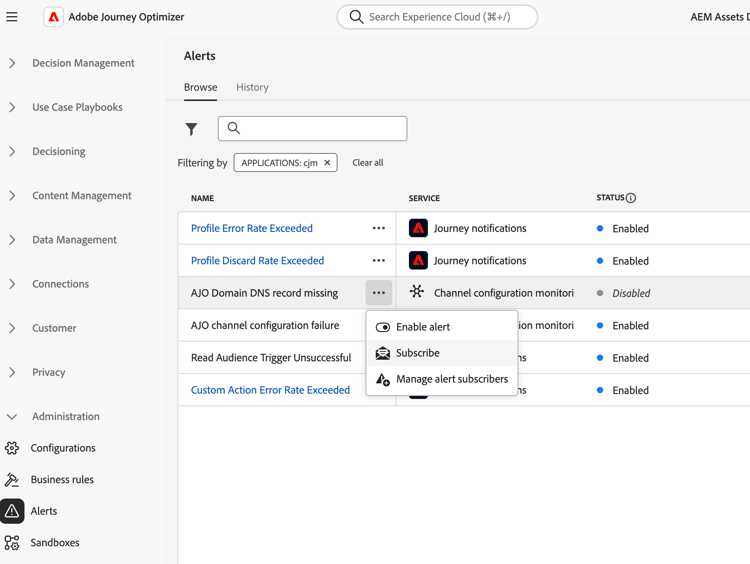
To unsubscribe:
Click Unsubscribe next to the alert.
| note important |
|---|
| IMPORTANT |
| Alert subscriptions are sandbox-specific. You must subscribe to alerts separately in each sandbox where you want to receive notifications. |
Alternative subscription method:
You can also subscribe via I/O Event notifications, which allows integration with external systems. Journey alert I/O subscription names are noted in the Journey alerts tab under Available alerts where applicable. Campaign lifecycle alerts follow the same Platform subscription model; refer to that documentation for programmatic integration.
Journey-specific subscriptions allow you to monitor individual high-priority journeys without receiving alerts for all journeys in your organization.
To subscribe to alerts for a specific journey:
-
Go to the journey inventory.
-
Click the ⋯ (more actions) menu for the journey you want to monitor.
-
Select Subscribe to alerts.
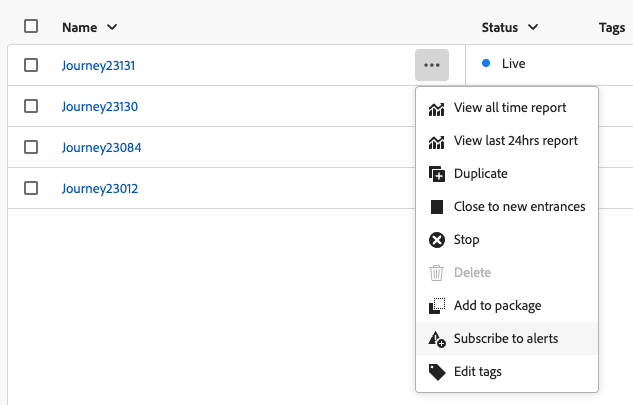
-
Select the alert(s) you want to enable from the available options:
-
Click Save to confirm your subscriptions.
To unsubscribe:
Open the same dialog, deselect the alert(s), and click Save.
| note |
|---|
| NOTE |
| The Read Audience Trigger Unsuccessful alert is only available through global subscription, not per-journey subscription. |
Campaign-specific subscriptions apply to the campaign lifecycle alerts. They let you monitor individual high-priority campaigns without receiving the same alert for every campaign in the sandbox.
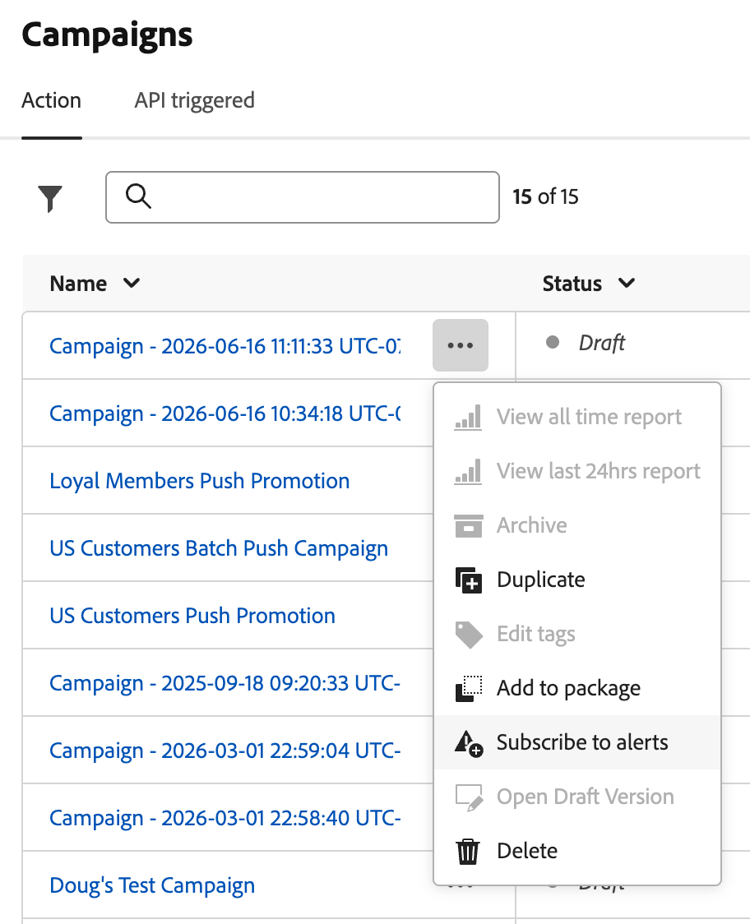
To subscribe to campaign lifecycle alerts for a specific campaign:
-
Go to the Campaigns inventory and open the tab for your campaign type (Action or API triggered).
-
Click the ⋯ (more actions) menu for the campaign you want to monitor.
-
Select Subscribe to alerts.
-
Select the campaign lifecycle alert(s) you want from the available options (see Campaign alerts).
-
Click Save to confirm your subscriptions.
To unsubscribe:
Open the same dialog, deselect the alert(s), and click Save.
Manage alerts manage-alerts
Edit an alert
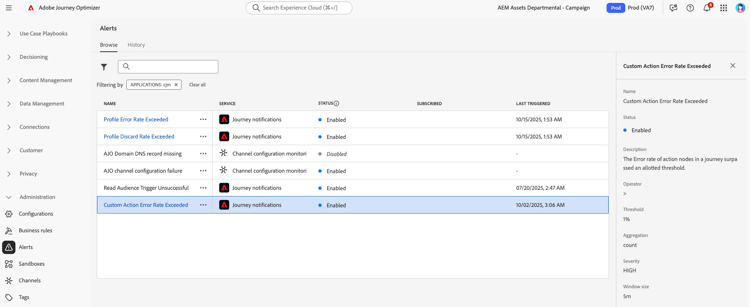
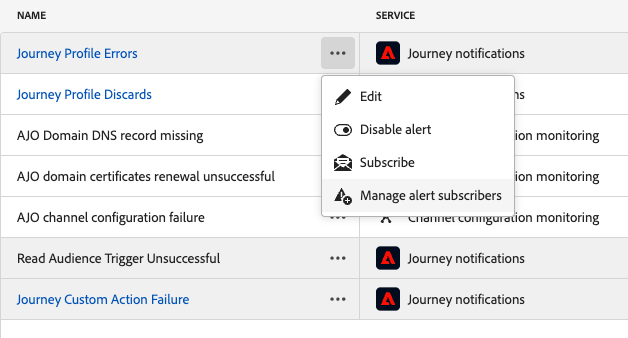
You can check the details of an alert by clicking on its line. The name, status and notification channels are displayed in the left panel.
For Journey alerts, use the More actions button to edit them. You can then define a custom threshold for these alerts.
Define a custom threshold custom-threshold
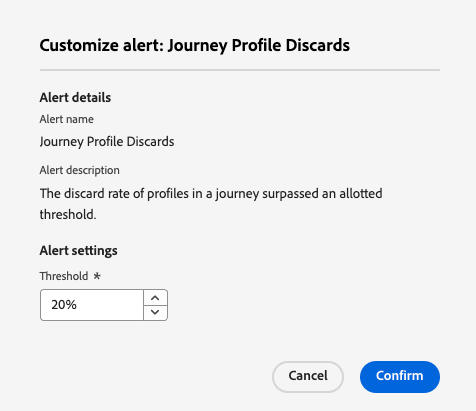
You can set thresholds for the Journey alerts. The threshold alerts above default to 20%.
To change the threshold:
- Browse to the Alerts screen
- Click the More actions button of the alert to update
- Enter the new threshold and confirm. The new threshold applies to all journeys
Disable an alert
By default, all alerts are enabled. To disable an alert, select the the Disable alert option: all subscribers to this alert will no longer receive the related notifications.
Alert statuses
The possible alert statuses are listed below:
- Enabled - The alert is enabled and is currently monitoring trigger condition.
- Disabled - The alert is disabled and is currently not monitoring trigger condition. You will receive no notifications for this alert.
- Triggered - The alert’s trigger condition is currently being met.
View and update subscribers manage-subscribers
Select Manage alert subscribers to view the list of users who subscribed to the alert.
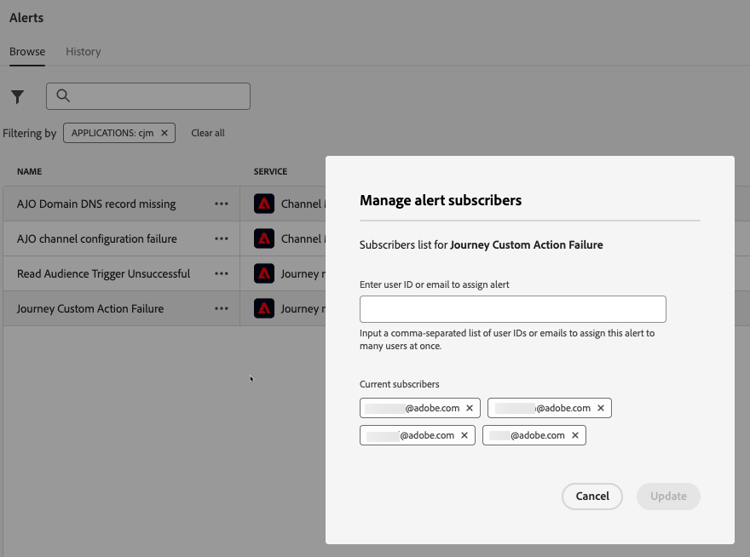
To add more subscribers, enter their email separated by a comma, and select Update.
To remove subscribers, delete their email address from the current subscribers, and select Update.
Related topics additional-resources-alerts
Journey and campaign management:
- Troubleshoot journeys - Identify and resolve common journey issues and errors
- Test and publish journeys - Validate journey configuration before publishing
- Review and activate action campaigns - Pre-publication validation for scheduled and one-time campaigns
- Review and activate API-triggered campaigns - Validation for API-triggered campaigns
- Monitor orchestrated campaigns - Track and manage orchestrated campaign execution
Alert framework:
- Adobe Experience Platform Alerts Overview - Understanding the alert framework
- Manage alerts in the UI - View, subscribe, and manage alerts
- Subscribe to alerts via I/O Events - Advanced integration options
- Standard alert rules - Complete list of available Platform alerts