On this page: Learn how to find and fix activity and journey configuration errors before you test or publish, so your journey can run without issues.
In this section, learn how to troubleshoot journeys before testing or publishing. All the checks listed below can be performed when the journey is in test mode or when the journey is live. The recommendation is to make all the checks below in test mode and then proceed to publication. Learn more about the test mode on this page.
Learn how to troubleshoot journey events, check if profiles entered your journey, how they navigate through it, and if messages are sent on this page. If no profiles enter your event-based journey despite events being ingested, ensure the event condition data types match the event schema.
If you are using inbound actions, learn how to troubleshoot them on this page.
Errors in activities activity-errors
Before testing and publishing your journey, verify that all the activities are properly configured. You cannot perform tests or publications if errors are still detected by the system.
Errors appear with a warning symbol displayed on the activities themselves on the canvas. Place your cursor on the exclamation mark to display the error message. If you select the activity, you should see the line in error with a warning. For example:
-
if a mandatory field is empty, an error will be displayed
-
in the canvas, when two activities are disconnected, a warning is displayed
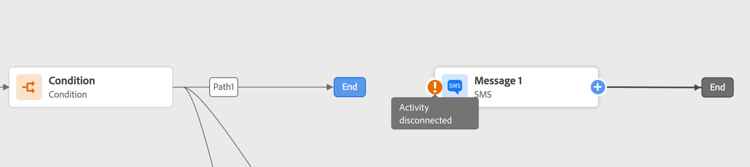
Errors in the journey canvas-errors
Errors are also visible from the Alerts button, above the canvas. This button lets you see errors detected by the system and which prevent test mode activation or journey publication.
The system detects two kinds of issues: errors and warnings. Errors block publication and test activation. Warnings indicate potential issues that are not blocking test activation or publication. You will see a description of the issue and an issue log ID of the type ERR_XXX_XXX. This can help identify the issue.
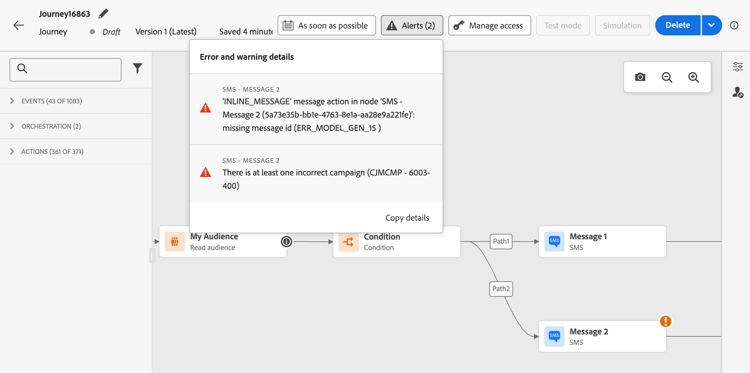
Errors and warnings that are global to the journey appear first in the list. Error and warnings related to specific activities are listed after, by activity order or appearance in the journey from left to right. At the bottom of the list of alerts, the Copy details button lets you copy technical information about the journey which are useful to troubleshoot the issues. For the list of copied fields (including pause and resume information), see Copy technical details in journey properties.
Add an alternative path canvas-add-path
You can define a fallback action in case of an error for the following journey activities: Optimize and Action.
When an error occurs in an action or a condition, the journey of an individual stops. The only way to make it continue is to solve the issue. To avoid interrupting the journey, you can also check the option Add an alternative path in case of a timeout or an error in the activity’s properties. Learn more in this section.
This section contains structured knowledge intended to support interpretation, retrieval, and question answering related to this topic.
For complete understanding, this information should be combined with the documentation on this page. Neither source is intended to stand alone; the page describes the feature, while this section provides additional context that helps disambiguate terminology, intent, applicability, and constraints.
- TL;DR: This page explains how to identify and resolve configuration errors and warnings in a journey before entering test mode or publishing.
Intents:
- Identify activity-level configuration errors before testing or publishing a journey
- Distinguish between blocking errors and non-blocking warnings in the Alerts panel
- Use the error log ID (ERR_XXX_XXX format) to diagnose journey issues
- Copy technical journey details to share with administrators for troubleshooting
- Add an alternative path to prevent individual journeys from stopping on error or timeout
Glossary:
- Alerts button: Canvas control that surfaces all system-detected errors and warnings blocking publication or test activation (product-specific)
- ERR_XXX_XXX: Issue log ID format assigned to each detected problem, used to identify and communicate errors (product-specific)
- Alternative path: A fallback branch added to an action or condition activity that continues the journey when an error or timeout occurs (product-specific)
Guardrails:
- You cannot activate test mode or publish a journey if blocking errors remain unresolved.
- Warnings do not block publication or test activation but indicate potential issues.
- Alternative paths are only available for Optimize and Action activities.
Terminology:
- Canonical name: Alerts — Acronym: none — variants: Alerts panel, Alerts button
- Synonyms: “errors” = “blocking issues”; “warnings” = “non-blocking issues”
- Do not confuse: “errors” (block publication) ≠ “warnings” (do not block publication)
FAQ:
- Q: What is the difference between an error and a warning in Journey Optimizer? — Errors block both test mode activation and journey publication; warnings indicate potential issues but do not prevent testing or publishing.
- Q: Where can I see all errors affecting my journey? — Click the Alerts button above the canvas to see a consolidated list of all system-detected errors and warnings.
- Q: What should I do if I cannot identify an issue from the error description? — Use the Copy details button at the bottom of the Alerts list to capture technical information and send it to your administrator.
- Q: Can I keep a journey running for individuals even if an action encounters an error? — Yes, enable the “Add an alternative path in case of a timeout or an error” option in the activity properties to define a fallback path.
- Q: When should I perform these troubleshooting checks? — All checks can be performed in test mode or when the journey is live; the recommendation is to resolve all issues in test mode before publishing.