On this page: Learn how to debug and resolve common issues with inbound actions — such as in-app, web, and code-based experiences — in a journey before reaching out to support.
Inbound actions, such as In-app, web, and code-based experiences, are critical components of Journey Optimizer as they enable personalized engagement with users during their journey. However, unexpected behavior, such as missing inbound content, or continued delivery after a profile exits the journey, can occur.
This guide provides a step-by-step process to debug issues related to inbound actions in a journey, in order to help you identify and resolve them independently before reaching out to support.
Prerequisites prerequisites
Before you can start troubleshooting, ensure the following:
-
Set up an Assurance session. Learn how in the Adobe Experience Platform Assurance documentation.
-
Navigate to the journey containing the inbound action to retrieve the journey name and version ID.
note NOTE The journey version ID can be found in the URL after ‘journey/’ (for example: 86232fb1-2932-4036-8198-55dfec606fd7). 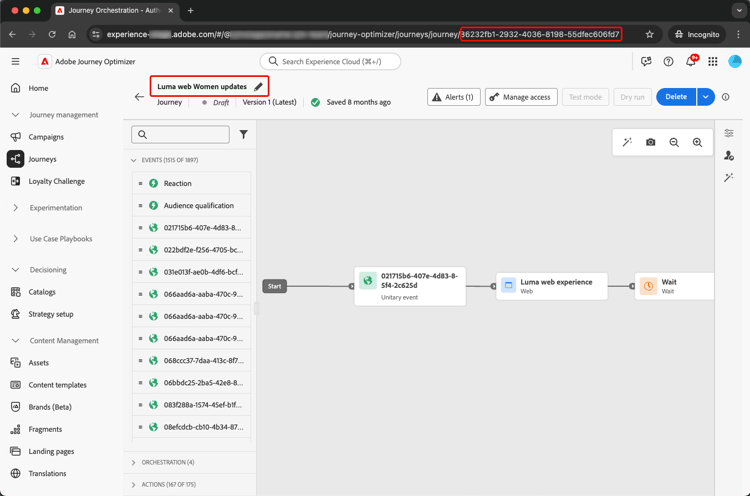
-
Click the inbound action to view its details. Retrieve the inbound action label and ID.
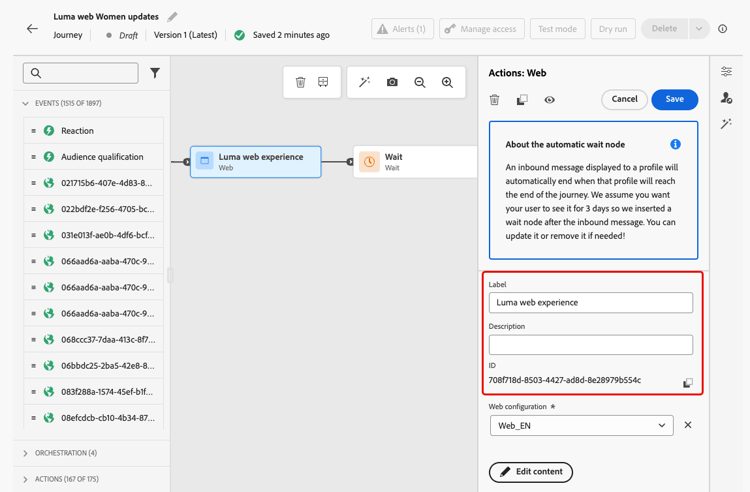
-
Get the profile namespace and ID to identify the profile encountering issues. Based on your configuration, the namespace can be ECID, email, or customer ID for example. Learn how to look up a profile in the Experience Platform documentation.
Scenario 1: The user hasn’t received the inbound content scenario-1
In this scenario, a profile has entered the inbound action in the journey, but even after 30 minutes, the corresponding inbound content is not showing up in the device/client at the setup trigger step.
Pre-checks pre-checks
-
Journey Inbound dataset is enabled for profile ingestion
The inbound action uses the Journey Inbound dataset for the profile updates during execution. Ensure that the dataset is enabled for Profiles in the current sandbox. Learn more on datasets
-
‘joai’ identity defined in platform identities
The inbound action uses the joai namespace in the profile
segmentMembershipfor activating the profile for the inbound step. Ensure it has been defined in Platform Identities for the sandbox. Learn more on Experience Platform Identity Service
Debugging steps debugging-steps
The chart below shows the sequence of debugging steps you can follow:
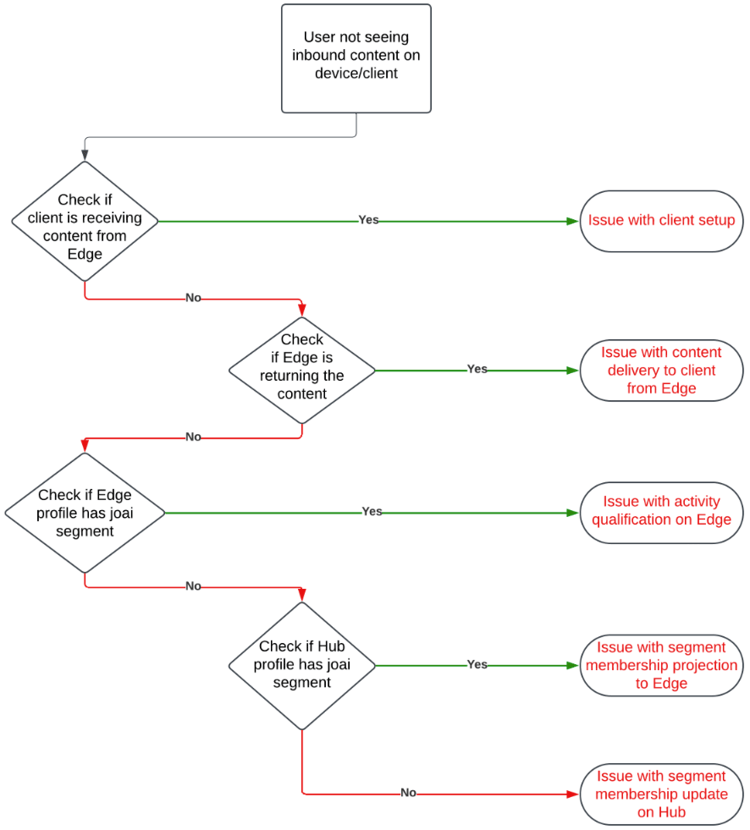
Step 1: check if the device/client is receiving the content from the Edge Network step-1
Start by checking if the device/client is getting the expected content.
-
Go to the Assurance session and select the In-App Messaging section from the left panel.
-
In the Messages on Device tab, click the Messages drop-down list.
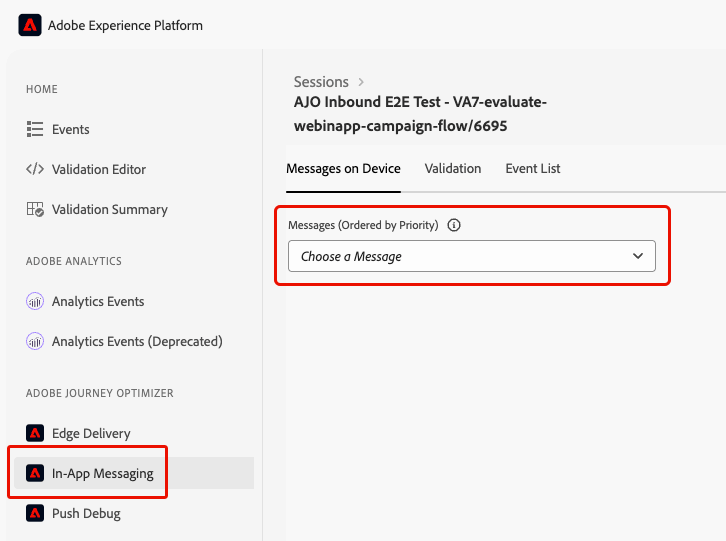
-
Look for a message with the journey name followed by ‘- In-app message’. If present, it means the In-app message is present on the device/client and the issue might be related to the In-app trigger.
-
If the message is not found, the In-app message was not received by the device/client.
Step 2: check if the Edge Network is returning the content step-2
This step is to make sure the Edge Network is returning the expected inbound content to be rendered on the device/client.
When a profile enters an inbound action in a journey, it is automatically qualified into a special audience segment (in the joai namespace) corresponding to the inbound journey action.
When a client makes a request to the Edge Network for a given profile and surface, the profile qualifies to receive content for the inbound journey actions targeting that surface - only if the profile is a member of the corresponding joai segment at the time of the request.
To debug the Edge Network behavior, follow the steps below.
-
Open the Edge Delivery view in the Assurance session. This view provides information about the execution of the inbound action on the Edge Network server. Learn more in the Experience Platform documentation.
-
Verify if the Edge activity corresponding to the inbound action is listed in the Qualified Activities or Unqualified Activities sections.
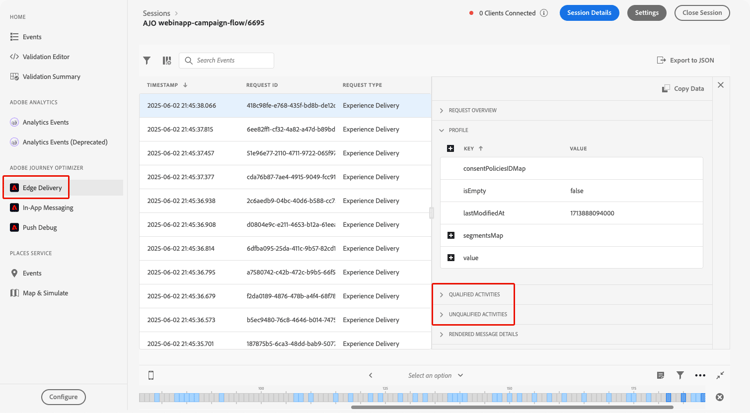
- If in the Qualified Activities section, the profile qualified for the inbound journey action, and the content should be returned.
- If in the Unqualified Activities section, the profile did not qualify for the inbound journey action. See the exclusion reasons for more details.
- If in neither section, either there was a problem with publishing the inbound journey action to the Edge Network, or the requested surface URI did not match the channel configuration settings for the inbound action.
note NOTE To find your Edge activity in the Assurance session, look for the activity where the audienceNamespace is joai and the audienceSegmentId is <JourneyVersionID>_<JourneyActionID> (for example: 86232fb1-2932-4036-8198-55dfec606fd7_708f718d-8503-4427-ad8d-8e28979b554c). 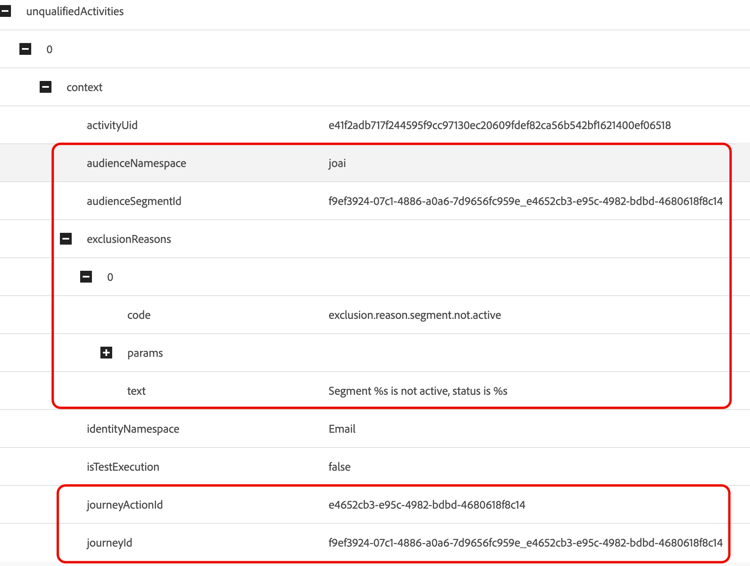
-
If your activity is in the Unqualified Activities section and the exclusion reason is ‘Segment is not active’, it means the Edge Network delivery server does not think the profile is part of the relevant joai audience segment.
You can double check whether the joai segment is present in the Edge Network delivery server’s view of the profile by opening the segmentsMap element of the Profile section and looking for the presence of the joai segment ID.
-
If the Edge Network delivery server does not view the profile as being in the relevant joai segment, go to the next step.
Step 3: check if the ‘joai’ audience membership has propagated to the Edge Network step-3
This step is to verify that the Edge profile was correctly updated when the profile entered the inbound journey action and the profile was qualified into the corresponding joai segment.
When a profile is qualified into a joai segment, the profile is first updated on the Hub and then the segment membership is projected to the Edge Profile for use by the Edge Network delivery server.
To check for the presence of the joai segment in the Edge profile’s segmentMembership attribute, follow the steps below.
-
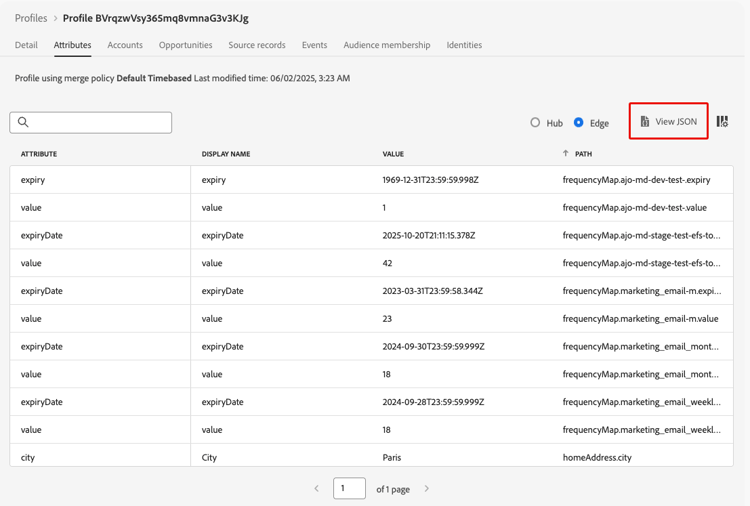
Navigate to the Customer > Profiles menu in the Journey Optimizer left navigation pane and browse to the profile using namespace and ID. Learn more on Real-time Customer Profiles
-
Select the Attributes tab and choose the Edge view.
-
Click View JSON to open the JSON view for the profile.
-
Go to the
segmentMembershipattribute and check if the segment ID <JourneyVersionID>_<JourneyActionID> is present in the joai namespace and if in realized status.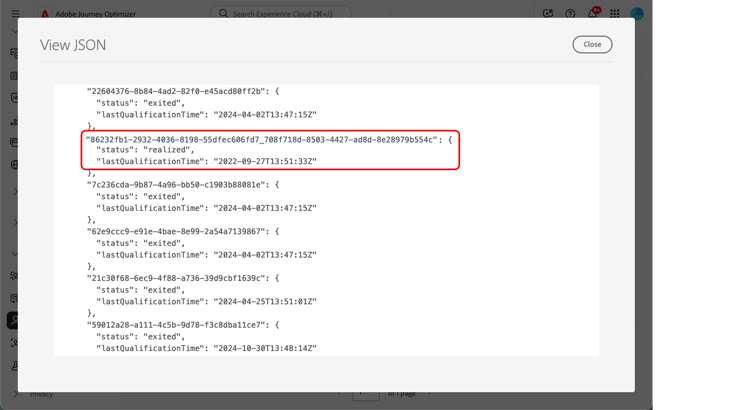
-
If present, the joai segment corresponding to the inbound journey action was correctly propagated to the Edge profile.
-
If not displayed in the Edge Network delivery server’s view of the profile, there might be a problem with how the delivery server is loading the Edge profile.
-
-
If the joai segment ID is not present or is in exited state, it means it was not (yet) propagated to Edge.
Wait 15 to 30 minutes for the
segmentMembershipvalues to be propagated from the Hub to the Edge. If still not present, go to the next step.
Step 4: check if the ‘joai’ audience membership is present in the profile on the hub step-4
This step is to verify that the Hub profile was correctly updated when the profile entered the inbound journey action and the profile was qualified into the corresponding joai segment.
To check for the presence of the joai segment in the Hub profile’s segmentMembership attribute, follow the steps below.
-
Navigate to the Customer > Profiles menu in the Journey Optimizer left navigation pane and browse to the profile using namespace and ID. Learn more on Real-time Customer Profiles
-
Select the Attributes tab and choose the Hub view.
-
Click View JSON to open the JSON view for the profile.
-
Go to the segmentMembership attribute and check if the segment ID <JourneyVersionID>_<JourneyActionID> is present in the joai namespace and if in realized status.
-
If present, the joai segment corresponding to the inbound journey action was correctly ingested in the Hub profile.
-
If not found in the Edge profile after at least 30 minutes, there might be a problem with the Edge projection system.
-
-
If the joai segment ID is not present or is in exited state, it means the profile was not (yet) correctly qualified into the special joai audience segment upon entry into the corresponding inbound journey action.
Wait 15 to 30 minutes for the
segmentMembershipvalues to be ingested into the profile on the Hub. If still not present, go to the next step.
Step 5: If the client/device is still not getting the expected content step-5
If you’ve gone through all the steps above and aren’t seeing the expected behavior after waiting 30 to 60 minutes for the segment membership to propagate to the Edge Network, contact Adobe Customer Care or your Adobe representative.
Include as much detail as you can from the debugging steps, such as:
- the step where you see the unexpected behavior;
- the journey version ID;
- the journey action ID;
- the full Assurance trace;
- the JSON view of Edge profile;
- the JSON view of Hub profile;
- etc.
Scenario 2: The user is still receiving the inbound content scenario-2
This scenario is the reverse of Scenario 1: the profile has exited the journey, but the user is still receiving the inbound content.
However, when a profile exits a journey, it should no longer qualify for the joai audience segments corresponding to the inbound actions in the journey.
Go through the same debugging steps as for Scenario 1 to check whether the Hub profile, Edge profile and Edge Network delivery server correctly reflect the segment membership status of the relevant joai segment, and whether the client is no longer receiving the inbound content.
Related topics related
This section contains structured knowledge intended to support interpretation, retrieval, and question answering related to this topic.
For complete understanding, this information should be combined with the documentation on this page. Neither source is intended to stand alone; the page describes the feature, while this section provides additional context that helps disambiguate terminology, intent, applicability, and constraints.
- TL;DR: This page provides a step-by-step process to debug issues related to inbound actions in a journey, covering two scenarios: a profile entering an inbound action but the user not receiving the content, and a user still receiving the content after the profile exits the journey.
Intents:
- Set up an Assurance session and gather the journey, action, and profile details before debugging inbound action issues
- Verify whether the device or client is receiving inbound content for the In-app, Web, and Code-based experience channels
- Check whether the Edge Network returns the content by reading the Qualified Activities and Unqualified Activities sections of the Edge Delivery view in Assurance
- Confirm that the joai audience segment membership is present in the Edge profile and the Hub profile
- Debug a user who still receives inbound content after the profile exits the journey
- Escalate to Adobe Customer Care or an Adobe representative with the right diagnostic information when the steps do not resolve the issue
Glossary:
- Inbound actions: Journey actions such as In-app, web, and code-based experiences that enable personalized engagement with users (product-specific)
- joai namespace: The namespace used in the profile
segmentMembershipfor activating the profile for the inbound step; it must be defined in Platform Identities for the sandbox (product-specific) - joai segment: A special audience segment in the joai namespace into which a profile is automatically qualified when it enters an inbound action; its segment ID is <JourneyVersionID>_<JourneyActionID> (product-specific)
- Journey Inbound dataset: The dataset the inbound action uses for the profile updates during execution (product-specific)
- Hub profile: The profile that is first updated when a profile is qualified into a joai segment; the segment membership is then projected to the Edge profile
- Edge profile: The profile to which the segment membership is projected from the Hub, for use by the Edge Network delivery server
- Assurance: The Adobe Experience Platform tool whose session is used on this page to check the messages on the device and the Edge response payload
Guardrails:
- The Journey Inbound dataset must be enabled for Profiles in the current sandbox (pre-check)
- The joai namespace must be defined in Platform Identities for the sandbox (pre-check)
- A client request qualifies a profile for inbound content on a surface only if the profile is a member of the corresponding joai segment at the time of the request
- Propagation of the joai segment membership from the Hub to the Edge can take up to 15-30 minutes from the moment the profile is updated on the Hub
- Ingestion of the joai segment membership into the Hub profile can take up to 15-30 minutes from the moment the profile entered the inbound journey action
- If the expected behavior is still not seen after waiting 30 to 60 minutes for the segment membership to propagate to the Edge Network, contact Adobe Customer Care or your Adobe representative
Prerequisites and permissions:
- An Assurance session set up
- The journey name and journey version ID, retrieved from the journey containing the inbound action
- The inbound action label and ID
- The profile namespace and ID of the profile encountering issues
Terminology:
- Canonical name: joai namespace — variants: joai identity
- Canonical name: Inbound actions — variants: inbound journey action
- Synonyms: “joai segment” = “joai audience segment”
- Do not confuse: “Qualified Activities” ≠ “Unqualified Activities” in the Edge Delivery view — in Qualified Activities the profile qualified for the inbound journey action and the content should be returned; in Unqualified Activities the profile did not qualify, and the exclusion reasons give more details
FAQ:
- Q: What are the two scenarios covered by this guide? — Scenario 1: a profile has entered the inbound action but, even after 30 minutes, the inbound content is not showing up in the device/client at the setup trigger step. Scenario 2: the profile has exited the journey, but the user is still receiving the inbound content.
- Q: What tool do I use to debug inbound action delivery? — Assurance. Set up an Assurance session first, then use the In-App Messaging section for the In-app channel and the Edge Delivery section for the Edge response payload.
- Q: What is the joai segment and why does it matter? — When a profile enters an inbound action, it is automatically qualified into a special audience segment (in the joai namespace) corresponding to the inbound journey action. The profile qualifies to receive content for the inbound journey actions targeting a surface only if it is a member of the corresponding joai segment at the time of the request.
- Q: How do I find my Edge activity in Assurance? — Look for the activity where the audienceNamespace is joai and the audienceSegmentId is <JourneyVersionID>_<JourneyActionID>.
- Q: How long does it take for the joai segment membership to appear on the Edge profile? — Up to 15-30 minutes from the moment the profile is updated on the Hub.
- Q: What does it mean if the joai segment ID is not present or is in exited state on the Edge profile? — It was not (yet) propagated to the Edge. Wait 15 to 30 minutes for the
segmentMembershipvalues to be propagated from the Hub to the Edge; if the segment ID is still not present, check the Hub profile. - Q: What does it mean if the joai segment ID is not present or is in exited state on the Hub profile? — The profile was not (yet) correctly qualified into the joai segment upon entry into the inbound journey action. Wait 15 to 30 minutes for the values to be ingested into the Hub profile; if still not present, go to the next step, which is to contact Adobe Customer Care or your Adobe representative.
- Q: What information should I provide when escalating? — The step where you see the unexpected behavior, the journey version ID, the journey action ID, the full Assurance trace, and the JSON views of the Edge profile and the Hub profile.
Related pages:
- Troubleshooting errors before testing or publishing a journey: Troubleshoot errors before testing or publishing your journey (building-journeys/troubleshooting.md)
- Troubleshooting a live journey execution: Troubleshoot your live journey execution (building-journeys/troubleshooting-execution.md)
- Journey error codes: Error codes reference (building-journeys/error-codes-reference.md)