On this page: Find your way around the Adobe Journey Optimizer interface—top bar, home page, and left navigation—so you can quickly access the features and capabilities you need.
To access Adobe Journey Optimizer, sign in to Adobe CX Enterprise with your Adobe ID, then select Journey Optimizer.
- Components and capabilities available in your environment depend on your permissions and licensing package.
- This documentation is updated frequently. Some screenshots may differ slightly from your interface.
Quick tour quick-tour
The Journey Optimizer interface consists of four main areas:

- Left navigation - Access all capabilities and features organized by function
- Top bar - Universal search, help, notifications, and settings
- Home page - Quick access to recent items and helpful resources
- Main workspace - Where you create and manage your content
Tip: New users can start from the Home page to access recent items and helpful resources, or use the Help icon in the top bar for contextual guidance.
Top bar features top-bar
Universal search universal-search
Use the search icon to quickly find journeys, campaigns, assets, and other objects across Journey Optimizer. Type keywords to see relevant results from all areas of the platform. Learn more about universal search.
Help & support help
Click the Help icon to:
- Search help articles and videos
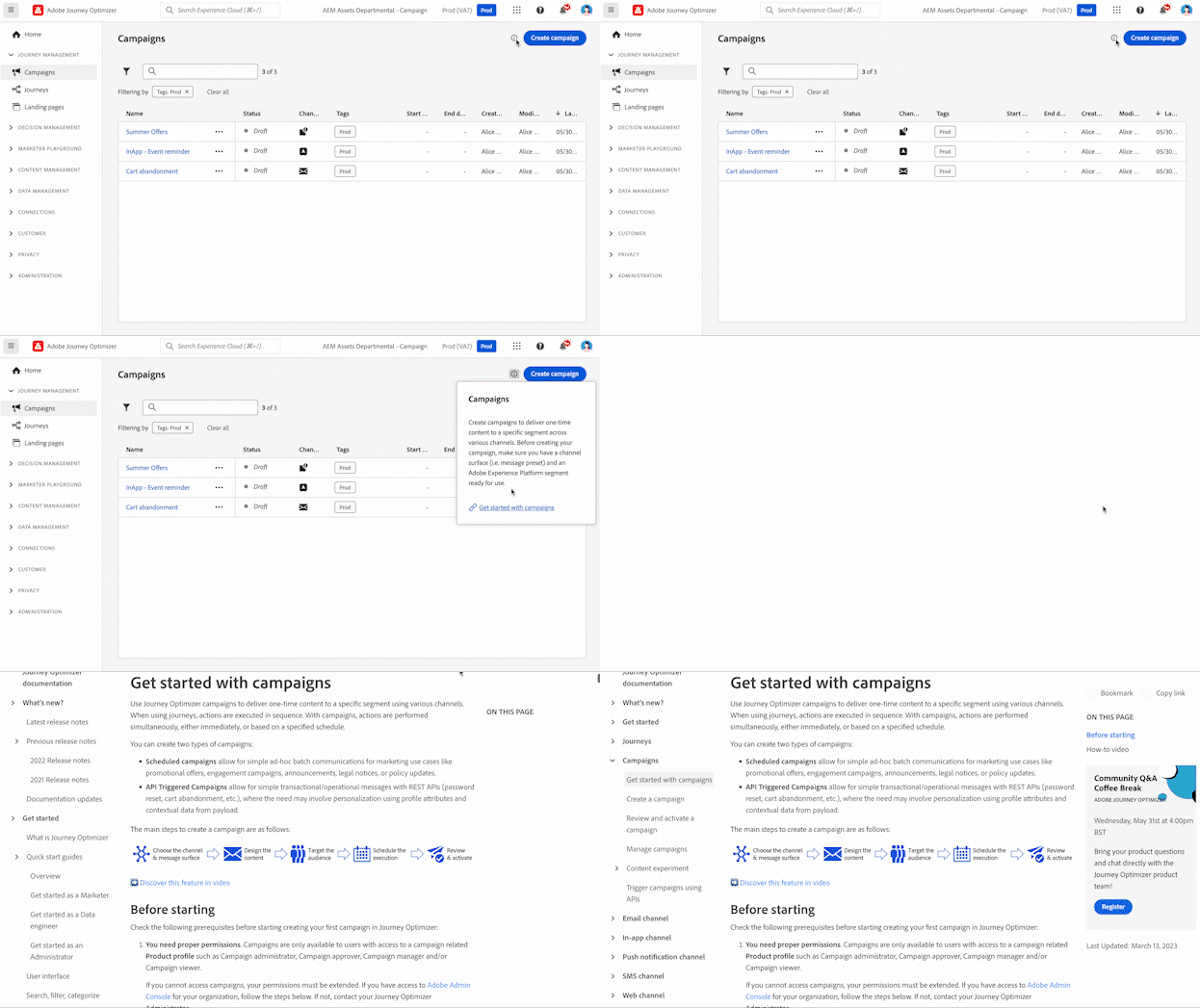
- Access contextual help for the current page
- Contact Adobe support
- Share feedback
Contextual help displays guidance relevant to the screen you are viewing and links directly to the corresponding documentation, so you can get the right information without leaving your workflow.
Support ticket guidelines support-ticket-guidelines
When contacting Adobe support, include the following to help expedite root cause analysis and resolution:
- Environment details – Sandbox name, organization ID, and product area (e.g., Journeys, Campaigns, Decisioning)
- Impact level – Severity of the issue (e.g., production blocked, limited functionality, cosmetic)
- Replication steps – Clear, step-by-step instructions to reproduce the issue
- Logs or screenshots – Relevant error messages, request IDs, or screenshots that illustrate the problem
- Relevant IDs – Journey ID, campaign ID, audience ID, or other object identifiers related to the issue
Notifications in-product-uc
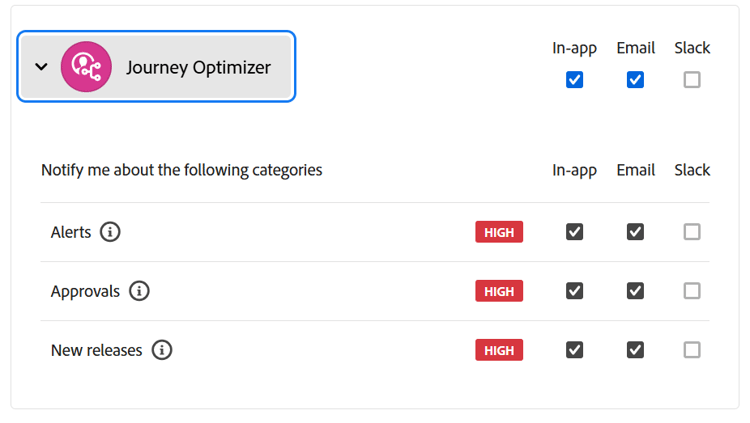
Enable in-product and email notifications to stay informed about:
- Alerts - System failures and performance issues
- Approvals - Requests requiring your review
- New releases - Product updates and new features
To configure notifications:
- Click your profile icon and select Preferences
- Under Notifications, find Journey Optimizer
- Enable the notification types you want to receive
Language preferences language
The interface is available in English, French, German, Italian, Spanish, Portuguese (Brazilian), Japanese, Korean, Traditional Chinese, and Simplified Chinese.
To change your language:
- Click Preferences in your profile menu
- Select your preferred language
- Optionally select a second language as fallback
- Click Save
Keyboard shortcuts and accessibility features are available. Learn more
Home page home-page
The home page provides:
- CX Enterprise Coworker - Enter a business goal in the “What would you like to accomplish today?” prompt to start a conversation.
- Recents - Shortcuts to recently created events, journeys, campaigns, and other objects
- Resources - Links to documentation, tutorials, and support
Left navigation left-nav
The left navigation organizes Journey Optimizer capabilities into functional categories. Available menu items depend on your permissions and license.
Main sections main-sections
Home - Your starting point with quick access to recently created items and helpful resources
Journey Management - Create and manage customer experiences
- Campaigns - Create one-time or scheduled messages to specific audiences. Get started with campaigns
- Journeys - Build multi-step, cross-channel customer experiences. Create your first journey
- Reports - Analyze performance with integrated Customer Journey Analytics reporting. View reporting documentation
Decision Management - Manage personalized offers. Learn about decision management
- Offers - Create and manage personalized offers
- Components - Set up placements, rules, and tags for offers
Content Management - Create and organize content
- Assets - Centralized repository for images and media. Manage assets
- Content templates - Reusable message templates for campaigns and journeys. Create templates
- Fragments - Content blocks that can be used across multiple messages. Work with fragments
- Landing pages - Web forms for subscriptions and preferences. Design landing pages
- Use Case Playbooks - Pre-built workflows for common marketing scenarios. Explore playbooks
Data Management - Manage your data foundation. Learn about schemas and datasets
- Schemas - Define data structure
- Datasets - Store and manage data collections
- Queries - Write and execute queries
- Monitoring - Track data ingestion
Connections - Integrate with other systems
- Sources - Ingest data from external systems. Configure sources
- Destinations - Export data to cloud storage. Set up destinations. You can also activate audiences to eligible personalization destinations, such as Adobe Target, from the Experience Platform destinations catalog.
Customer - Manage audiences and profiles
- Audiences - Create and manage customer segments. Work with audiences
- Subscription lists - Manage opt-in lists. Manage subscriptions
- Profiles - View unified customer profiles. Explore profiles
- Identities - Manage identity resolution. Learn about identities
Privacy - Control privacy and compliance. Privacy overview
- Policies - Define data governance policies
- Requests - Handle privacy requests (GDPR, CCPA)
- Audit - Review activity logs. View audit logs
- Data Lifecycle - Configure data retention
Administration - Configure system settings. Access control overview
- Configurations - Set up events, data sources, and actions. Configure channels
- Business rules - Control message frequency and journey entry. Set up business rules
- Alerts - View and manage system alerts. Monitor alerts
- Sandboxes - Manage environments and copy objects between sandboxes. Work with sandboxes
- Channels - Configure channel settings and deliverability. Set up channel configurations | Get started with configuration
- Tags - Organize and categorize content. Work with unified tags
CX Enterprise Coworker cx-enterprise-coworker
CX Enterprise Coworker is the in-product conversational experience. On the Journey Optimizer home page, enter a business goal in the “What would you like to accomplish today?” prompt to start a conversation. It provides instant help and operational insights. Learn more about CX Enterprise Coworker.
Related topics related-topics
This section contains structured knowledge intended to support interpretation, retrieval, and question answering related to this topic.
For complete understanding, this information should be combined with the documentation on this page. Neither source is intended to stand alone; the page describes the feature, while this section provides additional context that helps disambiguate terminology, intent, applicability, and constraints.
- TL;DR: This page explains how to navigate the Adobe Journey Optimizer interface, covering the four main areas, top bar features, the home page, the left navigation, and CX Enterprise Coworker.
Intents:
- Sign in and navigate the four main interface areas
- Use universal search, help and support, notifications, and language preferences in the top bar
- Configure in-product and email notifications
- Start a conversation with CX Enterprise Coworker from the home-page prompt; find recents and resources on the home page
- Find capabilities organized in the left navigation
Glossary:
- Universal search: A top bar search that finds journeys, campaigns, assets, and other objects across all areas of Journey Optimizer (product-specific)
- Contextual help: Help that displays guidance relevant to the screen you are viewing and links directly to the corresponding documentation (product-specific)
- Use Case Playbooks: Pre-built workflows for common marketing scenarios, listed under Content Management (product-specific)
- CX Enterprise Coworker: The in-product conversational experience; enter a business goal in the home-page prompt to start a conversation (product-specific)
Guardrails:
- Components and capabilities available in your environment depend on your permissions and licensing package.
- Available left navigation menu items depend on your permissions and license.
- The interface is available in ten languages: English, French, German, Italian, Spanish, Portuguese (Brazilian), Japanese, Korean, Traditional Chinese, and Simplified Chinese.
Terminology:
- Canonical name: Navigate the interface
- The four main areas: Left navigation, Top bar, Home page, and Main workspace
- Notification types: Alerts, Approvals, and New releases
FAQ:
- Q: What are the four main areas of the interface? — Left navigation, top bar, home page, and main workspace.
- Q: How do I start a conversation with CX Enterprise Coworker? — Enter a business goal in the home-page prompt, “What would you like to accomplish today?”
- Q: What else does the home page provide? — Recents and links to documentation, tutorials, and support.
- Q: Why do I not see certain menu items or capabilities? — Available components and capabilities depend on your permissions and licensing package; available menu items depend on your permissions and license.
- Q: Which languages does the interface support? — English, French, German, Italian, Spanish, Portuguese (Brazilian), Japanese, Korean, Traditional Chinese, and Simplified Chinese. You can optionally select a second language as fallback.