On this page: Prepare your journey to go live: validate its configuration, test its behavior, and publish it. Learn what happens after publication and how to manage journey versions.
Publishing a journey activates it: it moves to the Live status, becomes available for new profiles to enter, and switches to read-only mode. You cannot publish a journey that contains errors.
When you have finished configuring your journey, follow these steps before going live:
- Validate the journey with the Validate button. If validation fails, fix the errors and validate again before continuing.
- Test the journey using simulation, test mode, or a dry run, depending on what you need to check.
- Publish the journey when testing is complete and the journey has a current, passed validation.
➡️ Discover this feature in video
Step 1: Validate your journey validate
The Validate button in the journey header runs configuration checks across your journey, including every message. Run it when you are ready to publish, test, simulate, run a dry run, or request approval. Any errors and warnings appear in the Alerts panel. Basic checks related to journey activities run automatically while you build. Validation does not simulate the journey or replace testing.
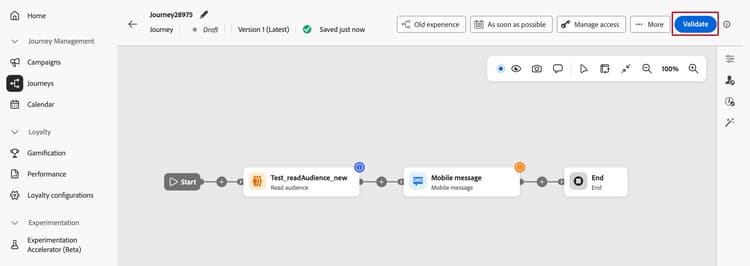
Validation is available for journeys in Draft status. It is not available in test, dry-run, or simulation mode, or while the journey is locked for approval.
About the new validation flow
Message configuration checks that previously ran automatically during autosave now run when you click Validate. The checks themselves have not changed: errors and warnings still appear in the Alerts panel.
- Smaller journeys: On-demand message checks help keep the canvas responsive and free up capacity for faster, more consistent basic activity checks.
- Larger journeys: The benefit grows as you add activities and messages, and you choose when to run message checks rather than interrupting an edit.
To validate your journey, follow these steps:
- Click Validate in the journey header before testing, publishing, or requesting approval. Until the journey has a current, passed validation, Validate replaces Publish.
- Wait for validation to finish. The journey is temporarily locked during the checks. You can resume editing when they finish.
- Review the errors and warnings in the Alerts panel.
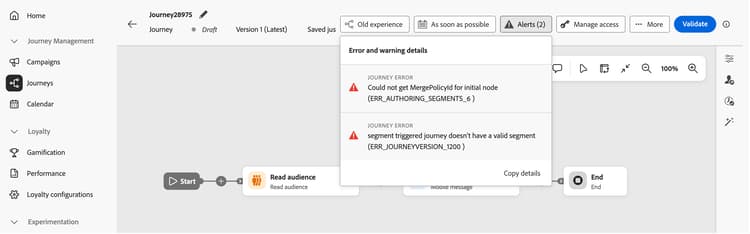
- Errors must be fixed before you publish or test the journey.
- Warnings provide information about potential issues and do not prevent
testing, simulation, or dry runs.
If you edit the journey after validation, the results are no longer current. Click Validate again before performing a critical action so the results reflect the current journey.
When validation passes, proceed to testing. If it fails, resolve the errors and click Validate again. Validation does not rerun automatically after you fix an error.
Step 2: Test your journey choose-validation-method
After validation passes, choose the testing method that matches what you need to verify. These methods let you check journey behavior using different types of data. They are separate from the configuration checks performed by Validate.
Dry run never delivers real communications or updates live profile data. Simulation and Test mode do deliver real messages — Simulation to the execution addresses defined on the simulated users, and Test mode to the real inboxes of profiles you have explicitly flagged as test profiles.
For a full comparison of these three methods, see Choose a validation method.
Fix any issues found during testing before publishing. If you change the journey, run Validate again and repeat the relevant tests.
Step 3: Publish your journey journey-publication
Before you publish before-you-publish
Before publishing, make sure your journey meets the following prerequisites:
- Current, passed validation — The validation results reflect the latest changes, and all blocking errors have been resolved.
- Testing complete — You have checked the journey using the appropriate testing methods and resolved any issues found.
- Publish permission — Publishing requires the Publish journeys high-level permission. Learn more about managing access rights.
- Payload within limit — The journey payload must be within the configured limit (4 MB by default). See Journey payload size validation.
- Approval policy compliance — If your journey is subject to an approval policy, publishing submits it for approval instead of publishing it right away. Once an approver signs off, the journey is published automatically — there is no separate publish step to perform afterward. Learn more.
Publish the journey publish-steps
After completing validation and testing:
-
When validation is current, testing is complete, and the journey meets the prerequisites above, click Publish in the journey header.
note NOTE If your journey is subject to an approval policy, clicking Publish submits the journey for approval instead of publishing it right away. Once an approver signs off, the journey is published automatically — you do not need to publish it again. Learn more 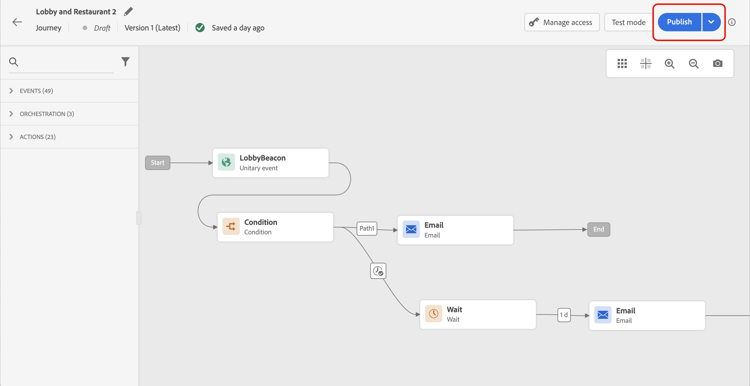
When the journey is published, it is in read-only mode. In read-only mode, you can only modify the activity labels and descriptions, the journey’s name, and the journey’s description. If you need to make additional modifications to a published journey, create a new version of your journey.
Journey statuses journey-statuses
After publication, a journey moves through several statuses:
- Live — The journey is published and profiles can enter it.
- Closed — A previous version that was automatically ended when a new version was published. No entrance can happen.
- Finished — The journey has completed according to its end criteria. For the exact definition of when a journey is considered finished, see How journeys end.
Stop a journey stop-journey
When you stop a journey, it is permanently stopped. All the individuals flowing through the journey are permanently stopped, and the journey stops allowing new entries. If you need to run the journey again, duplicate it and publish the new journey. For more information on how journeys end, see How journeys end.
Republishing requirements republishing
In some cases, you must republish a journey for changes or assets to remain effective:
-
If changes are made to an offer decision used in a journey’s message, you need to unpublish the journey and republish it. This ensures that the changes are incorporated into the journey’s message and that the message is consistent with the latest updates.
-
Assets/Images are accessible in delivered content for up to 2 years (730 days) since their first publication in any fragment/inline message. Re-publishing is required after this expiry period (any time after 730 days) to keep them accessible for another 2 years. Any re-publication done within 730 days of the first publication will not extend the expiry of assets/images to the next 730 days.
Journey versions journey-versions
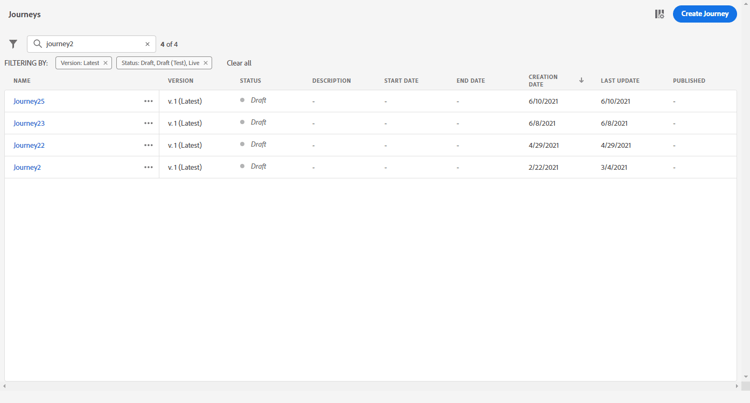
In the journey list, all journey versions are displayed with the version number. When you search for a journey, newest versions appear at the top of the list the first time the application opens. Then, you can define the sorting you want and the application will keep it as a user preference. The journey’s version is also displayed at the top of the journey edition interface, above the canvas.
You can also use AI in Coworker to compare journey versions. For more details, see Journey Version Comparison.
Create a new version of a journey journey-create-new-version
If you need to modify a live journey, create a new version of your journey. To create a new version of an existing journey, follow the steps below:
-
Open the latest version of your live journey, click Create a new version and confirm.
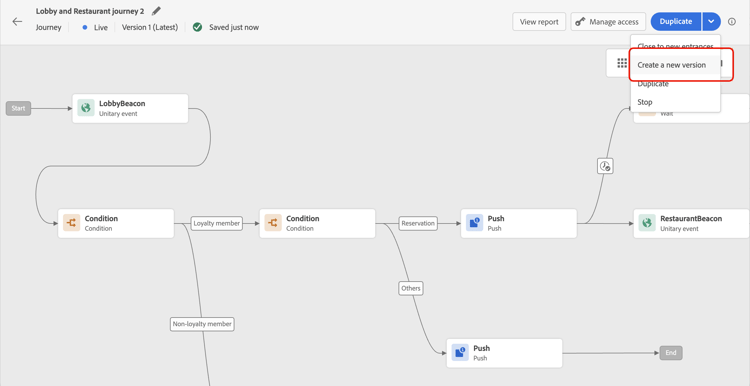
note NOTE You can only create a new version from the latest version of a journey. -
Make your modifications, then validate and test the new version before publishing it.
From the moment the journey is published, individuals will start to flow into the latest version of the journey. People who have already entered a previous version stay in it until they finish the journey. If they later reenter the same journey, they will go into the latest version.
Journey versions can be stopped individually. All versions of journeys have the same name.
When you publish a new version of a journey, the previous version automatically ends and switches to the Closed status. No entrance in the journey can happen. Even if you stop the latest version, the previous version stays closed.
Frequently asked questions faq
Why cannot I publish my journey?
The most common reason is that the journey contains validation errors — you cannot publish a journey with errors. Other blockers include exceeding the payload size limit or the sandbox Audience Qualification limit, missing the Publish journeys permission, or a pending approval. See Before you publish and troubleshoot activity errors.
Can I edit a journey after it is published?
A published journey is in read-only mode. You can only change activity labels and descriptions, the journey’s name, and the journey’s description. For any other change, create a new version of the journey.
What happens to profiles already in the journey when I publish a new version?
New profiles flow into the latest version. Profiles already in a previous version stay there until they finish; if they later reenter, they go into the latest version. The previous version automatically switches to Closed and accepts no new entries. See Journey versions.
How do I re-run a stopped journey?
Stopping a journey is permanent. To run it again, duplicate it and publish the new journey. See Stop a journey.
Do I need to republish after changing an offer decision or updating assets?
Yes. If you change an offer decision used in a journey’s message, unpublish and republish the journey so the change is applied. Assets and images expire 730 days after first publication; republish after that period to keep them accessible. See Republishing requirements.
Can I publish a journey that requires approval?
If your journey is subject to an approval policy, clicking Publish submits it for approval instead of publishing it right away. The journey is published automatically once an approver signs off — there is no separate publish step to perform afterward. Learn more about approval.
Related topics related-topics
- Test your journey - Validate your journey with test profiles before publishing
- Journey simulation - Validate your journey with simulated users before publishing
- Journey Dry run - Test with real production data without contacting profiles
- Troubleshooting - Resolve activity and publication errors
- How journeys end - Understand journey completion and statuses
- Profile entrance management - Configure how profiles enter and re-enter journeys
- Journey guardrails and limitations - Review publication and versioning guardrails
How-to video video
Learn how to publish a journey in this video:
This section contains structured knowledge intended to support interpretation, retrieval, and question answering related to this topic.
For complete understanding, this information should be combined with the documentation on this page. Neither source is intended to stand alone; the page describes the feature, while this section provides additional context that helps disambiguate terminology, intent, applicability, and constraints.
- TL;DR: This page explains how to validate configuration, test behavior, and publish an Adobe Journey Optimizer journey, then manage its statuses and versions.
Intents:
- Publish a journey to make it live and available for profile entry
- Validate configuration and resolve errors before testing or publishing
- Choose Simulation, Test mode, or Dry run to test journey behavior
- Create a new version of a live journey to make modifications
- Understand read-only restrictions that apply after a journey is published
- Stop a journey permanently or manage transitions between versions
Glossary:
- Validate: Checks the journey configuration, including message configuration; it does not simulate the journey or replace testing (product-specific)
- Simulation: Tests with temporary simulated users and sends real messages to their defined execution addresses (product-specific)
- Test mode: Tests branch and message logic in a draft journey with persistent AEP test profiles and sends real messages to their inboxes (product-specific)
- Dry run: Tests with real production audience data without delivering real communications or updating live profile data (product-specific)
- Journey version: A numbered version of a journey; when a new version is published, profiles already in a previous version stay there until they finish (product-specific)
- Closed: The status a previous journey version enters automatically when a new version is published; it accepts no new entries (product-specific)
- Approval policy: When a journey is subject to an approval policy, Publish submits it for approval; the journey is published automatically once an approver signs off (product-specific)
Guardrails:
- A journey with errors cannot be published.
- On-demand message configuration checks help keep the canvas responsive for smaller and larger journeys; the benefit grows as activities and messages are added. Basic activity checks continue automatically, with errors and warnings in the Alerts panel.
- Running message checks on demand frees up system capacity for basic activity checks, helping them respond more quickly and consistently, even on smaller journeys.
- Validation must be current and passed before testing or publishing; errors must be resolved and validation rerun before continuing.
- Warnings do not prevent testing, simulation, or dry runs.
- Validation is available in Draft status, not in test, dry-run, or simulation mode, or while locked for approval.
- The journey is temporarily locked during validation. Changes after validation make the results no longer current.
- Until validation is current and passed, Validate replaces Publish.
- Journey Optimizer validates the total journey payload size at save and publish time; publication may be blocked if the limit is exceeded.
- Publishing requires completed testing with any issues resolved, the Publish journeys high-level permission, and a payload within the configured limit (4 MB by default).
- After publishing, a journey is in read-only mode; only activity labels and descriptions, the journey’s name, and the journey’s description can be edited.
- A new version can only be created from the latest version of a journey.
- When a journey is stopped, it is permanently stopped; to run it again, duplicate it and publish the new journey.
- Assets and images in delivered content are accessible for up to 2 years (730 days) from their first publication in any fragment/inline message. Re-publishing after 730 days keeps them accessible for another 2 years; re-publication within 730 days of first publication does not extend their expiry.
- If an offer decision used in a journey message changes, the journey must be unpublished and republished.
Terminology:
- Publish: Publishing activates a journey, moves it to Live status, and makes it available for new profiles to enter.
- Finished: The journey has completed according to its end criteria.
- Do not confuse: Stop (permanently stops profiles flowing through the journey and prevents new entries) differs from Closed (the previous version accepts no new entries, while profiles already in it finish).
- Do not confuse: Validate checks configuration; Simulation, Test mode, and Dry run test journey behavior using different types of data.
FAQ:
- Q: What should I do if validation fails? - Resolve the errors in the Alerts panel and click Validate again before testing or publishing. Validation does not rerun automatically after an error is fixed.
- Q: Can I edit a journey after it is published? - Only activity labels and descriptions, the journey’s name, and the journey’s description can be changed. To make other modifications, create a new version of the journey.
- Q: What happens to profiles in an older journey version when a new version is published? — Profiles already in the previous version stay there until they finish; new profiles enter the latest version.
- Q: What should I do if an offer decision used in the journey changes? — Unpublish the journey and republish it to incorporate the updated offer decision.
- Q: Is approval required before publishing? — Only if your journey is subject to an approval policy; in that case, publishing submits the journey for approval instead of publishing it right away, and it is published automatically once an approver signs off.