On this page: Learn how to browse, search, and filter your journeys using the journey dashboard, list, and calendar views in Adobe Journey Optimizer.
Journey dashboard dashboard-jo
In the JOURNEY MANAGEMENT menu section, click Journeys. Three dedicated tabs are available: Overview (dashboard), Browse (list and calendar), and Folders view (organize journeys in folders).
Journeys overview
The Overview tab displays a dashboard with key metrics related to your journeys.

- Profiles processed: total number of profiles processed over the last 24 hours
- Live journeys: total number of live journeys with traffic over the last 24 hours. Live journeys include Unitary journeys (event-based) and Batch journeys (read audience).
- Error rate: ratio of all profiles in error compared with the total number of profiles who entered over the last 24 hours.
- Discard rate: ratio of all profiles discarded compared with the total number of profiles who entered over the last 24 hours. A discarded profile represents someone who is not eligible to enter the journey, for example, because of an incorrect namespace or reentrance rules.
Journeys list
The Browse tab shows the list of existing journeys. You can search for journeys, use filters, and perform basic actions on each element. For example, you can duplicate or delete an item.

In the journey list, all journey versions are displayed with the version number. When you search for a journey, newest versions appear at the top of the list the first time the application opens. Then, you can define the sorting you want and the application will keep it as a user preference. The journey’s version is also displayed at the top of the journey edition interface, above the canvas. Learn more about journey version management.
Journeys calendar calendar
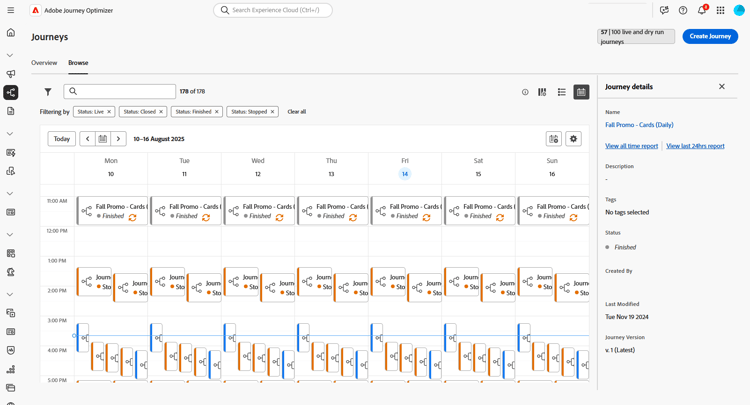
In addition to the journeys list, Journey Optimizer provides a calendar view of your journeys, offering a clear visual representation of their schedules.
How journeys are represented:
- By default, the calendar grid shows all live and scheduled journeys for the selected week. Additional filter options can show completed, stopped and finished activations or activations.
- Draft journeys and journeys in test mode are not displayed.
- Journeys spanning multiple days appear at the top of the calendar grid.
- If no start time is specified, the closest manual activation time is used to position it in the calendar.
- Journeys are displayed as 1-hour timespans, but this does not reflect actual send or completion time.
To navigate in your Journeys calendar:
-
To access the calendar view, open the journeys list and click the

-
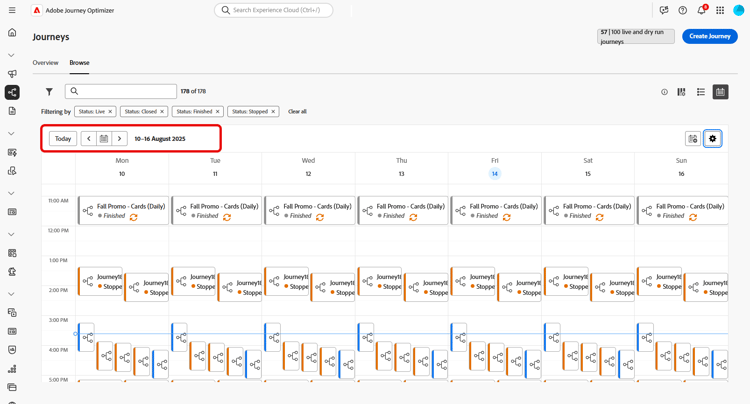
Use the arrow buttons or the date selector above the calendar to move between weeks.
The calendar displays all journeys scheduled for the current week.
-
Click the

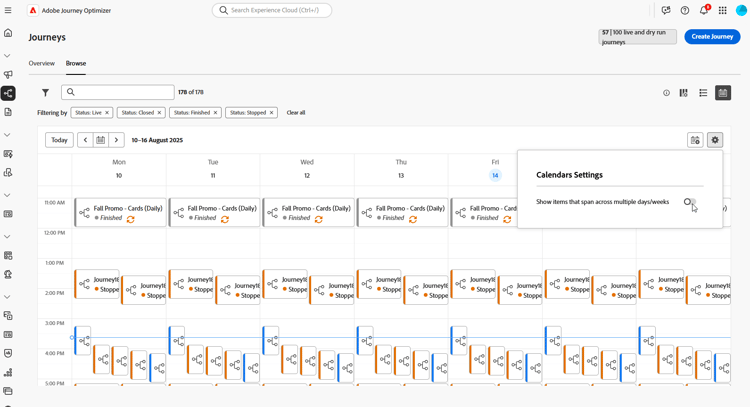
-
Click the

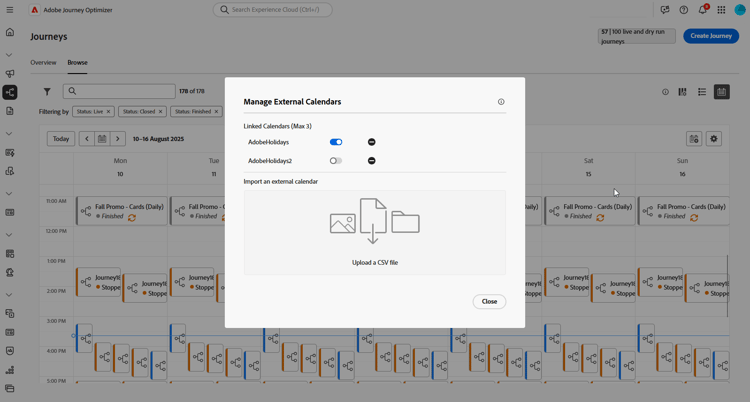
-
Drag and drop your CSV files containing event names, start dates, and end dates.
Uploaded events appear for all users in your organization and display on both Journey and Campaign calendars.
accordion CSV format should be as follows: table 0-row-3 1-row-3 Column1 Column2 Column3 Event name Start date in mm/dd/yy format End date in mm/dd/yy format -
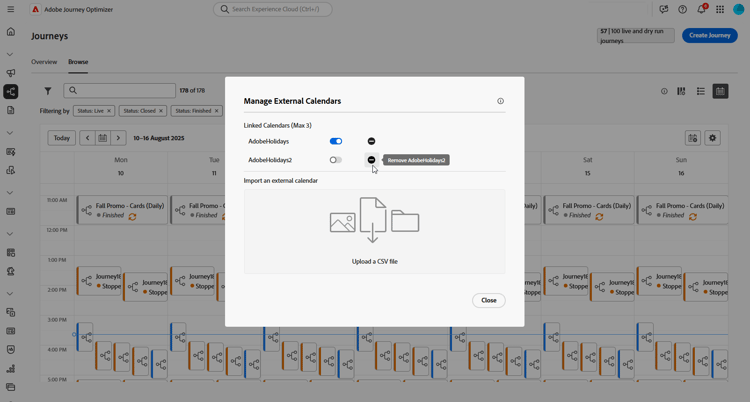
If needed, you can hide, unhide, or remove added external calendars.
-
For more details on a journey, click its visual block to open and explore its details.
Folders view journeys-folders
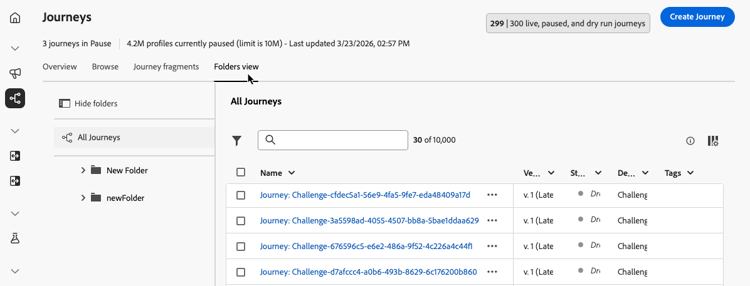
Open the journeys folder view with the Show folders icon on the journey list, or use the Folders view tab. Learn how to work with folders
Filter your journeys journey-filter
In the list of journeys, use various filters to refine the list of journeys.

You can filter journeys according to their status, type, version, and assigned tags from the Status and version filters.
Use the Creation filters to filter journeys according to their creation date or the user who created them.
Display journeys that use a specific event, field group or action from the Activity filters and Data filters.
Use the Publication filters to select a publication date or a user. You can choose, for example, to display the latest versions of live journeys that were published yesterday.
To filter journeys based on a specific date range, select Custom from the Published drop-down list.
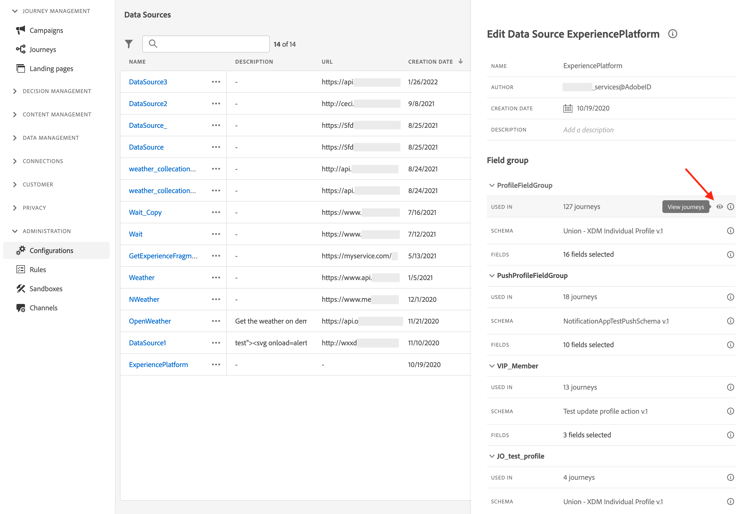
Additionally, in the Event, Data source and Action configuration panes, the Used in field displays the number of journeys that use that particular event, field group or action. You can click the View journeys button to display the list of corresponding journeys.
Journey types journey-types
The type of a journey depends on the activities used in that journey. It can be:
- Unitary event - Unitary events journeys are linked to a specific profile. Events relate to the behavior of a person or something happening linked to a person (for example, a person reached 10,000 loyalty points). Learn more.
- Business event. Business events journey start with a non-profile-related event. The event configuration is performed by a technical user and cannot be edited. Learn more.
- Audience Qualification - Audience Qualification journeys listen to the entrances and exits of profiles in Adobe Experience Platform audiences in order to make individuals enter or move forward in a journey. Learn more.
- Read audience - In Read audience journeys, all individuals in the audience enter the journey and receive the messages included in your journey. Learn more.
Learn more about journey types and associated entry management on this page.
Journey statuses journey-statuses
The journey status depends on its lifecycle. It can be:
- Draft: the journey is in its first stage. It has not been published yet.
- Draft (Test): the test mode has been activated using the Test mode button. Learn more
- Finished: the journey automatically switches to this status based on the journey type and configuration. Profiles already in the journey finish the journey normally. New profiles can no longer enter the journey. Learn when journeys are considered finished.
- Live: the journey has been published using the Publish button. Learn more
- Paused: the live journey has been paused, using the Pause button. Learn more
- Stopped: the journey has been switched off using the Stop button. All individuals instantly exit the journey. Learn more
- Closed: the journey has been closed using the Close to new entrances button. The journey stops letting new individuals enter the journey. Persons already in the journey can finish the journey normally. Learn more
Any configured start and end dates are surfaced in the journey header, next to the status badge. This gives you an at-a-glance view of the journey schedule without opening the properties panel.
-
The Journey authoring lifecycle also includes a set of intermediate statuses that are not available for filtering: Publishing (between “Draft” and “Live”), Activating test mode or Deactivating test mode (between Draft and Draft (test)), Stopping (between Live and Stopped), Resuming (between Paused and Live), Pausing (between Live and Paused) When a journey is in an intermediate state, it is read-only.
-
If you need to modify to a Live journey, create a new version of your journey. You can also pause your live journeys, perform all changes needed, and resume them again at any time. Learn more about pausing journeys
Duplicate a journey duplicate-a-journey
You can duplicate an existing journey from the Browse tab. All objects and settings are duplicated to the journey copy.
To perform this, follow the steps below:
-
Navigate to the journey you want to copy, click the More actions icon (the three dots next to the journey name).
-
Select Duplicate.

-
Enter the name of the journey and confirm. You can also change the name in the journey properties screen. By default, the name is set as follows:
[JOURNEY-NAME]_copy
-
The new journey is created and available in the journey list.
Bulk operations bulk-operations
From the list of your journeys, you can select multiple items at once using the checkboxes and apply operations to all of them from a bulk action bar that appears at the bottom of the screen.

The following operations are available:
- Add to package - Export selected journeys to another sandbox. Learn how to export objects →
- Move to folder - Move selected journeys into a folder. Learn how to work with folders →
- Edit tags - Edit the tags assigned to selected journeys. Learn how to use tags →
- Manage access - Apply access labels to selected journeys. Learn more about object-level access control →
- Delete - Permanently delete selected journeys.
- Pause - Pause selected Live journeys (bulk pause). Only available when Live journeys are selected.
- Resume - Resume selected Paused journeys (bulk resume). Only available when Paused journeys are selected.
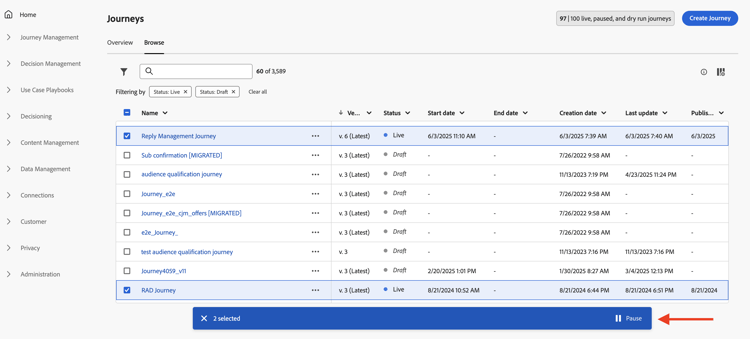
Learn more about Pause/Resume journeys. Learn more about the other bulk actions →
This section contains structured knowledge intended to support interpretation, retrieval, and question answering related to this topic.
For complete understanding, this information should be combined with the documentation on this page. Neither source is intended to stand alone; the page describes the feature, while this section provides additional context that helps disambiguate terminology, intent, applicability, and constraints.
- TL;DR: This page explains how to browse, filter, view (list and calendar), duplicate, and perform bulk operations on journeys from the Journey Optimizer dashboard.
Intents:
- Browse and search journeys from the Overview and Browse tabs
- Filter journeys by status, type, version, tags, creation date, or publication date
- Switch between list view and calendar view to visualize journey schedules
- Add and manage external calendars by uploading CSV files
- Duplicate an existing journey to reuse its settings
- Apply bulk operations to multiple selected journeys from the bulk action bar: add to package, move to folder, edit tags, manage access, delete, pause, or resume
Glossary:
- Journey dashboard: The main journeys interface with an Overview tab showing key metrics and a Browse tab listing all journeys. (product-specific)
- Discard rate: The ratio of profiles not eligible to enter the journey (e.g., due to incorrect namespace or reentrance rules) compared to total profiles who attempted entry over the last 24 hours. (product-specific)
- Journeys calendar view: A visual weekly calendar representation of live and scheduled journeys, accessible by clicking the calendar icon in the journeys list. (product-specific)
- Bulk action bar: The action bar that appears at the bottom of the journeys list once one or more journeys are selected, offering add to package, move to folder, edit tags, manage access, delete, pause, and resume. (product-specific)
- Bulk pause/resume: The pause and resume operations available from the bulk action bar, limited to Live journeys (pause) or Paused journeys (resume), up to 10 per operation. (product-specific)
Guardrails:
- Dashboard metrics refresh every 30 minutes and only when new data is available; they cover the last 24 hours only
- Draft journeys and journeys in test mode are not shown in the calendar view
- Bulk pause/resume is limited to 10 journeys per operation
- The Resume button is only active when Paused journeys are selected; the Pause button is only active when Live journeys are selected
- The calendar displays journeys as 1-hour timespans regardless of actual send or completion time
Terminology:
- Canonical name: Journey dashboard — Acronym: none — variants: journeys list, journeys overview
- Synonyms: “Browse tab” = “journeys list”
- Do not confuse: “Discard rate” ≠ “Error rate” — Discard rate counts profiles ineligible to enter; Error rate counts profiles that entered but encountered a processing error
- Note: Add to package, move to folder, edit tags, manage access, and delete are shared with the Campaigns, Fragments, and Templates lists; pause and resume are journey-specific
FAQ:
- Q: Where can I see key journey performance metrics at a glance? — On the Overview tab of the Journey dashboard, which shows profiles processed, live journeys, error rate, and discard rate for the last 24 hours.
- Q: How do I find journeys that use a specific event or action? — Use the Activity filters and Data filters in the journey list to display journeys referencing a specific event, field group, or action.
- Q: Can I pause multiple journeys at once? — Yes; select multiple Live journeys in the list and click the Pause button in the bottom bar. Up to 10 journeys can be paused per operation.
- Q: How do I add external events to the journey calendar? — Click the calendar add icon, then drag and drop a CSV file with event name, start date, and end date columns; uploaded events are visible to all users in the organization.
- Q: Why does the calendar show a journey as 1 hour even though it runs longer? — The calendar displays all journeys as 1-hour timespans for visual consistency; this does not reflect actual send or completion time.
- Q: What bulk operations can I perform on multiple journeys at once? — Besides pause and resume, you can select multiple journeys and add them to a package, move them to a folder, edit their tags, manage their access, or delete them, using the bulk action bar at the bottom of the journeys list.