Get started with campaigns get-started-campaigns
Adobe Journey Optimizer empowers you to deliver targeted, one-time content to specific audiences across multiple channels. Using campaigns, you can execute coordinated marketing actions simultaneously, reaching your audience with the right message at the right time.
This guide provides a clear roadmap to help you understand campaign fundamentals, choose the right campaign type for your use case, and confidently design campaigns that deliver impactful customer experiences.
What are campaigns?
Campaigns are coordinated marketing actions that deliver content to a specific audience across one or more channels. Unlike journeys where actions execute sequentially, campaigns perform actions simultaneously—either immediately or on a defined schedule.
Use Journey Optimizer campaigns to:
- Deliver one-time or recurring content to targeted audience segments
- Execute coordinated multi-channel communications across email, push, SMS, in-app, web, and more
- Trigger automated responses via API calls for real-time, event-driven messaging
- Design complex marketing workflows with visual orchestration tools
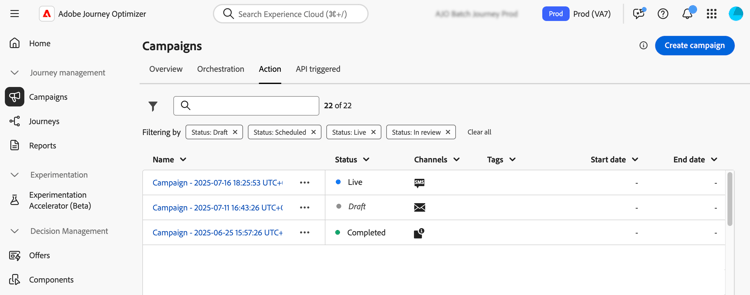
➡️ Ready to start building? Create your first campaign in minutes.
Choose your campaign type campaign-types
Before you start building, it’s important to understand which type of campaign fits your use case. Adobe Journey Optimizer supports three campaign types, each designed for different scenarios and activation mechanisms:
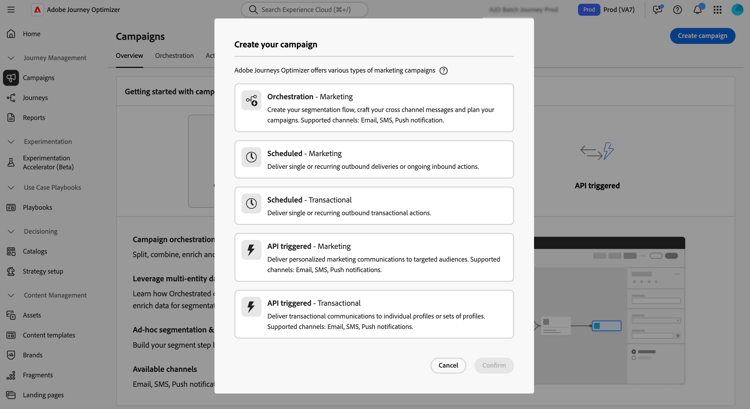
When to use: Complex, multi-step marketing workflows
Orchestrated campaigns provide a visual, drag-and-drop canvas to design and automate sophisticated marketing workflows. From audience segmentation to personalized message delivery across channels, everything happens in one intuitive environment built for speed and control.
Perfect for: Multi-step customer engagement programs, complex segmentation and targeting strategies, cross-channel campaign orchestration, brand-initiated marketing at scale, and advanced workflow automation with multiple decision points.
When to use: Simple, scheduled batch communications
Action campaigns (also known as Scheduled campaigns) are ideal for straightforward, one-off or recurring batch communications that run at a specific time.
Two categories:
- Marketing - Promotional offers, engagement campaigns, announcements, legal notices, or policy updates. Requires recipients to be opted in.
- Transactional - Disruptions, emergencies, cancellations. Does not require opt-in.
Perfect for: Monthly newsletters to customer segments, time-sensitive promotional announcements, seasonal marketing campaigns, product launch communications, and service disruption notifications.
When to use: Real-time, event-driven messaging with external systems
API-triggered campaigns activate through API calls, enabling automated messaging directly from external systems. These campaigns support personalization using both profile attributes and real-time context data from the API payload.
Two categories:
- Marketing - Personalized marketing communications to targeted audiences
- Transactional - Messages following individual actions (password resets, cart purchases, etc.)
Perfect for: Password reset confirmations, cart abandonment recovery, order confirmations and shipping updates, account activity notifications, and real-time personalized recommendations.
Prerequisites prerequisites
Before working with campaigns, make sure you have the following in place:
-
Audiences - Audiences must be available in Adobe Experience Platform before creating campaigns. Get started with audiences →
-
Channel configurations - Channel configurations (presets) must be created and available for the channels you want to use. Set up channel configurations →
-
Permissions - You need appropriate permissions based on the campaign type. Contact your administrator if you cannot access campaign functionalities. Learn about built-in roles →
accordion Campaigns permissions list table 0-row-2 1-row-2 2-row-2 Campaign type Permissions Action campaigns & API triggered campaigns Campaign administrator
Campaign approver
Campaign manager
Campaign viewerOrchestrated campaigns Orchestrated Campaign Administrator
Orchestrated Campaign Approver
Orchestrated Campaign Manager
Orchestrated Campaign Vieweraccordion How to assign campaign permissions -
Navigate to the Roles tab in the Permissions product and select one of the built-in campaign related Roles.
-
From the Users tab, click Add user.
-
Type in your user’s name or email address or select the user from the list and click Save.
If the user was not previously created, refer to the Add users documentation.
Your user should then receive an email redirecting to your instance.
-
Your campaign creation workflow workflow
Building successful campaigns follows a clear, repeatable process. Here’s your step-by-step workflow:
Before starting, clarify your objectives:
- What’s the goal? (e.g., drive conversions, increase engagement, notify customers)
- Who’s the audience? (e.g., build or select from Adobe Experience Platform)
- Which campaign type fits? (See campaign types above)
- What channels will you use? (email, push, SMS, in-app, web, etc.) → See supported channels by campaign type
- When should it execute? (immediate, scheduled, or API-triggered)
Set up the foundation of your campaign:
- Name and describe your campaign for easy identification
- Select campaign type (Action, API-triggered, or Orchestrated)
- Choose your audience
- Set priority if using conflict management
- Configure schedule (for Action campaigns) or API details (for API-triggered). For Action campaigns, you can also send using waves to deliver the message in batches over time.
Type-specific guides: Action campaign properties | API-triggered campaign properties | Orchestrated campaign setup
Create compelling messages for your audience:
- Use the Email Designer for rich email experiences
- Configure push notifications with images and deep links
- Design SMS/MMS messages with personalization
- Create in-app and web experiences
- Add personalization using profile attributes and contextual data
Type-specific guides: Action campaign content | API-triggered campaign content | Orchestrated campaign content
Always review your campaign before activation:
- Preview content with test profiles
- Check targeting to ensure the right audience
- Verify schedule and activation settings
- Request approval if using the approval workflow
- Test deliverability with seed lists
Type-specific guides: Review Action campaigns | Review API-triggered campaigns | Review Orchestrated campaigns
Once review is complete, activate your campaign:
- Manual activation - Activate immediately or at scheduled time
- API activation - For API-triggered campaigns, use the activation endpoint
- Approval process - If required, wait for stakeholder approval
Note: Active campaigns cannot be edited (you must duplicate to make changes)
Type-specific guides: Activate Action campaigns | Activate API-triggered campaigns | Activate Orchestrated campaigns
Track how your campaign performs:
- View campaign reports and analytics
- Monitor delivery rates and engagement metrics
- Track errors and bounces
- Analyze conversion and ROI
- Use insights for optimization
Type-specific guides: Action campaign reports | API-triggered campaign monitoring | Orchestrated campaign analytics
Let’s dive deeper get-started-types
Now that you understand campaigns in Journey Optimizer, choose your campaign type to get started:


As you get more comfortable with campaigns, explore these powerful capabilities:

Scheduling & timing
Schedule campaigns for specific dates/times, set recurring deliveries, and optimize send times for maximum impact. (Action & API-triggered campaigns)

Rate control
Limit message throughput to prevent overload on downstream systems like landing pages or customer care platforms.

Audience targeting
Target specific Adobe Experience Platform audiences with precision, and manage audience qualifications dynamically.

Approval workflows
Implement review and approval processes before campaigns go live, ensuring quality and compliance. (Action & API-triggered campaigns)

Quiet hours
Respect customer preferences by avoiding message delivery during specified time windows. (Action & API-triggered campaigns)

Optimization
Use targeting rules and content experiments to deliver personalized content and maximize engagement.