在此页面上:了解如何在Adobe Journey Optimizer中将移动消息操作添加到历程或营销活动,然后选择配置并编辑内容以发送文本、富格通信和多媒体消息。
您可以使用Adobe Journey Optimizer设计和发送文本(SMS)、富通信(RCS)和多媒体(MMS)消息。 您首先需要在历程或营销策划中添加移动消息操作,然后定义移动消息的内容,如下所述。 Adobe Journey Optimizer还提供了在发送之前测试移动消息的功能,以便您检查渲染、个性化属性和所有其他设置。
根据行业标准和法规,所有SMS/RCS/MMS营销消息都必须包含一种让接收者轻松取消订阅的方式。 要实现此目的,短信收件人可以使用选择启用和选择禁用关键词进行回复。 了解如何管理选择退出
添加移动消息 create-sms-journey-campaign
浏览以下选项卡,了解如何在营销活动或历程中添加移动消息。
-
打开您的历程,然后从面板的 操作 部分拖放 操作 活动。 了解有关操作活动的详细信息。
note important IMPORTANT 自2026年3月发行版起,弃用旧版本机渠道活动(电子邮件、推送、短信、应用程序内、Web、基于代码的体验和内容卡)。 使用这些活动的现有历程可以继续工作,且不会发生任何更改 — 无需迁移。 -
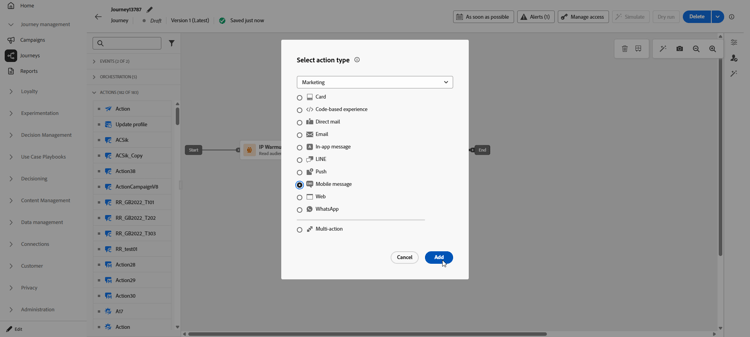
选择 手机消息 作为操作类型,然后单击添加。
-
输入 标签 以在历程画布中标识您的操作。
-
单击 配置操作 按钮。
-
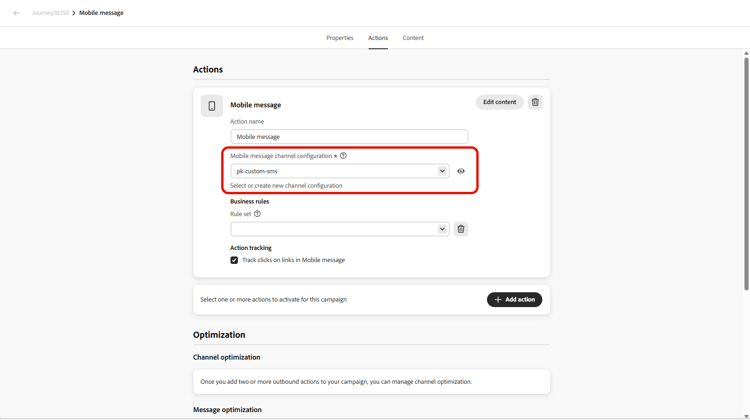
您被定向到 操作 选项卡。 从该位置,选择或创建要使用的移动设备消息配置。 了解详情
-
此外,您还可以通过在 业务规则 下拉列表中选择一个规则集,将上限规则应用于您的移动设备消息操作。 了解详情
-
选择 编辑内容 按钮并根据需要创建内容。 了解详情
-
返回历程画布。 如有必要,请通过拖放其他操作或事件来完成旅程流程。 了解详情
有关如何创建、配置和发布历程的详细信息,请参阅此页面。
-
访问 营销活动 菜单,然后单击创建营销活动。
-
选择要执行的营销活动类型
-
已计划 — 营销:立即或在指定日期执行营销活动。 计划的营销活动旨在发送营销消息。 它们从用户界面配置和执行。
-
API触发 — 营销/事务性:使用API调用执行营销活动。 API触发的营销活动旨在发送营销或事务型消息,即,在个人执行操作(密码重置、购物车购买等)之后发送的消息。
-
-
从 属性 部分,编辑营销活动的 标题 和描述。
-
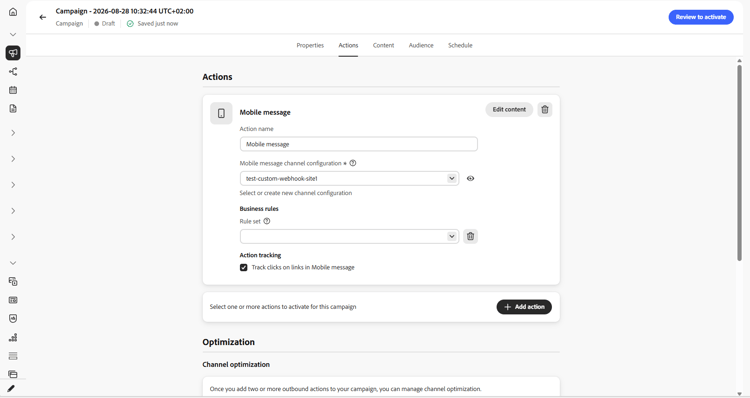
在 操作 选项卡中,单击添加操作,然后选择手机消息。 然后,选择或创建新配置。
在此页面上了解有关移动消息配置的更多信息。
-
单击 创建试验 开始配置内容试验并创建处理以测量其性能并为目标受众确定最佳选项。 了解详情
-
在 操作跟踪 部分中,指定是否要跟踪移动设备消息中的链接点击次数。
-
在 受众 选项卡中,单击 选择受众 按钮,以从可用Adobe Experience Platform受众列表中定义要定位的受众。 了解详情。
-
在 身份命名空间 字段中,选择要使用的命名空间,以便识别所选受众中的个人。 了解详情。
-
从 计划 选项卡,您可以将营销活动设计为在特定的日期或循环频率执行。 在本节中了解如何配置促销活动的计划。
-
从 操作触发器 菜单中,选择手机消息的频率:
- 一次
- 每日
- 每周
- Month
您现在可以访问 Content 选项卡以开始设计您的移动消息。 了解详情
有关如何创建、配置和激活促销活动的详细信息,请参阅此页面。
相关主题
This section contains structured knowledge intended to support interpretation, retrieval, and question answering related to this topic.
For complete understanding, this information should be combined with the documentation on this page. Neither source is intended to stand alone; the page describes the feature, while this section provides additional context that helps disambiguate terminology, intent, applicability, and constraints.
- TL;DR: This page explains how to send a Mobile message from a journey, through an Action activity with the Mobile message channel, or from a campaign in Journey Optimizer, select or create a Mobile message configuration, and edit the content to send text (SMS), rich communication (RCS), and multimedia (MMS) messages.
Intents:
- Add a Mobile message to a journey by dragging an Action activity and selecting the Mobile message channel
- Add a Mobile message to a campaign from the Action tab
- Select or create the Mobile message configuration used by the channel
- Apply capping rules to a journey Mobile message through the Business rules drop-down
- Set the campaign action frequency (Once, Daily, Weekly, or Month)
- Track clicks on links in the Mobile message from the Actions tracking section
Glossary:
- Mobile message channel: The channel selected in the Action activity of a journey, or in a campaign, to send a text (SMS), multimedia (MMS), or rich communication (RCS) message to profiles when they reach that step (product-specific)
- Mobile message configuration: The configuration referenced by the Mobile message channel that defines the content delivered (product-specific)
- Label: The name that identifies the Action activity in the journey canvas (product-specific)
- Business rules: A rule set selected in the drop-down list to apply capping rules to a Mobile message in a journey (product-specific)
- Scheduled - Marketing campaign: A campaign type executed immediately or on a specified date, configured and executed from the user interface, aimed at sending marketing messages (product-specific)
- API-triggered - Marketing/Transactional campaign: A campaign type executed using an API call, aimed at sending marketing or transactional messages following an action performed by an individual (product-specific)
Guardrails:
- Legacy native channel activities (Email, Push, SMS, In-app, Web, Code-based experience, and Content Card) are deprecated as of the March 2026 release; existing journeys using them continue to work without changes and no migration is required.
- RCS is not a HIPAA-Ready Service and must not be used to collect, store, or process any sensitive personal data, including permitted health data.
- All SMS/RCS/MMS marketing messages must contain a way for the recipients to easily unsubscribe.
- Campaign action frequency options are Once, Daily, Weekly, and Month.
Terminology:
- Canonical name: Mobile message channel — variants: SMS
- Do not confuse: “Scheduled - Marketing” (executed from the user interface) ≠ “API-triggered - Marketing/Transactional” (executed using an API call)
FAQ:
- Q: How do I add a Mobile message to a journey? — Drag and drop an Action activity, select Mobile message as the action type (the Mobile message channel), click Add, enter a Label, click Configure action, then select or create the Mobile message configuration and edit the content.
- Q: How do I add a Mobile message to a campaign? — From the Action tab, click Add action, choose Mobile message, then select or create a configuration and edit the content.
- Q: Can I limit how often a journey Mobile message is sent? — Yes, you can apply capping rules by selecting a rule set in the Business rules drop-down list.
- Q: Are the legacy native SMS journey activities still usable? — They are deprecated as of the March 2026 release, but existing journeys using them continue to work without changes and no migration is required.
- Q: How do I track clicks on links in a Mobile message campaign? — In the Actions tracking section, specify that you want to track clicks on links in your Mobile message.
Personas:
- marketer: Can add a Mobile message action to a journey by dragging an Action activity and selecting Mobile message as the action type. Can also add a Mobile message to a campaign from the Action tab and select or create a Mobile message configuration. The page states that all SMS/RCS/MMS marketing messages must contain a way for recipients to easily unsubscribe. Where: “Add a Mobile message”.
Onboarding:
- Level: Beginner
- First minimal step: Drag and drop an Action activity from the Actions section of the palette into your journey.
- Success check: You can check the rendering, personalization attributes, and all other settings before sending.
- Previous: To create a journey before adding a Mobile message action: Create your first journey (building-journeys/journey-gs.md); To configure the Mobile message channel before selecting a configuration: Configure the SMS channel (mobile/mobile-configuration.md)
- Next: To design the content of the Mobile message after creating the action: Create an SMS/RCS/MMS message (mobile/design-mobile.md); To preview, test, and send the Mobile message after editing content: Check and test your Mobile messages (mobile/send-mobile-message.md)