在此页面上:按渠道和通信类型设置频率上限,以便您可以限制用户档案接收的消息数量,并避免客户因相似通信而不知所措。
渠道规则集将上限规则应用于通信渠道。 例如,每天发送的电子邮件或移动通信不超过1个。
利用渠道规则集,可设置按通信类型划分的频率封顶,以防止消息类似的客户超载。 例如,您可以创建一个规则集以限制发送给客户的 促销通信 的数量,并创建另一个规则集以限制发送给客户的 新闻稿 的数量。 根据要创建的促销活动类型,您可以选择应用促销通信或新闻稿规则集。
创建渠道频率上限规则
要创建渠道规则集,请执行以下步骤:
-
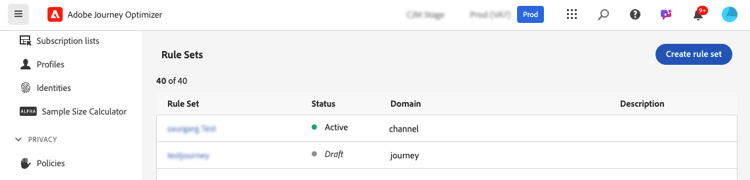
访问 规则集 列表,然后单击创建规则集。

-
选择要添加上限规则的规则集,或创建新规则集:
-
要使用现有规则集,请从列表中选择该规则集。 只能将渠道上限规则添加到具有“渠道”域的规则集。 您可以在 域 列的规则集列表中检查此信息。
-
要在新规则集中创建上限规则,请单击创建规则集,为规则集指定唯一名称并从 规则集域 下拉列表中选择“渠道”,然后单击保存。

-
-
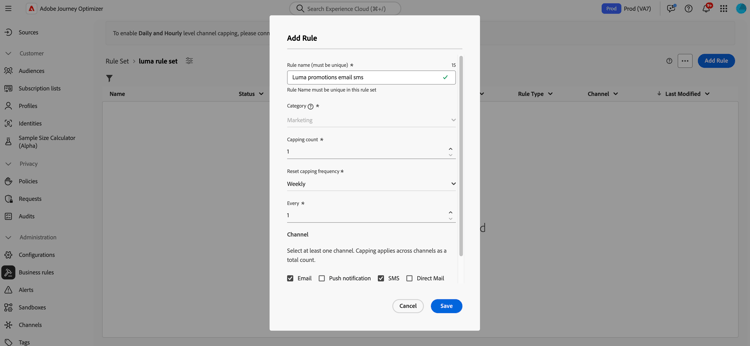
在规则集屏幕中,单击 添加规则 按钮并定义规则的唯一名称。
-
类别字段指定规则适用的消息类别。 目前,此字段为只读,因为只有 Marketing 类别可用。
-
在 上限计数 字段中,设置规则的上限,即根据您在以下字段中所做的选择,每月、每周、每天或每小时可发送给单个用户配置文件的最大消息数。
-
从 重置上限频率 下拉列表中,选择是否要每小时、每天、每周或每月应用上限。 频率上限基于所选的日历期间。 它会在相应时间范围的开头重置。
各期间计数器到期如下:
- 小时 — 频率上限对所选小时数有效。 计数器会在每个时间窗口的开头自动重置。 对于1小时的频率限制,它每小时重置一次,与UTC一小时的结束时间重合。
- 每日 — 每日频率上限在23:59:59 UTC之前的该天有效,并在第二天开始时重置为0。
- 每周 — 频率上限有效期到星期六23:59:59 UTC为止。 无论规则是在何时创建的,有效期都适用。 例如,如果规则是在星期四创建的,则此规则的有效期到星期六23:59:59。
- 每月 — 频率上限在每月最后一天23:59:59 UTC之前有效。 例如,1月的每月到期时间为01-31 23:59:59 UTC。
note important IMPORTANT -
为确保准确性,请确保在创作活动或历程时选择最高优先级的命名空间。 在 Platform 身份标识服务指南
中详细了解命名空间优先级 -
一旦传送通信,配置文件计数器值将更新。 当您发送大量通信时,请注意这一点,因为吞吐量可能导致收件人收到电子邮件时间达到通信启动后的几分钟甚至几小时(如果您同时发送数百万条通信)。 如果收件人收到两个彼此靠近的通信,则这一点很重要。 我们建议将通信间隔至少两小时,在可能的情况下,为收件人提供充足的时间来接收通信,并相应地更新计数器值。
-
Every字段允许您根据指定的持续时间,跨多个小时、天、周或月重复频率上限规则。 示例:应用频率上限规则2周。
确保输入的值与选定的持续时间类型匹配:1-23 (小时)、1-30 (每天)、1-4 (每周)和1-3 (每月)。
当新的时间窗口开始时,计数器自动重置为0。 对于2天的频率上限,此重置在UTC午夜每两天发生一次。
-
选择要用于此规则的渠道: 电子邮件、手机消息、推送通知、直邮或WhatsApp。
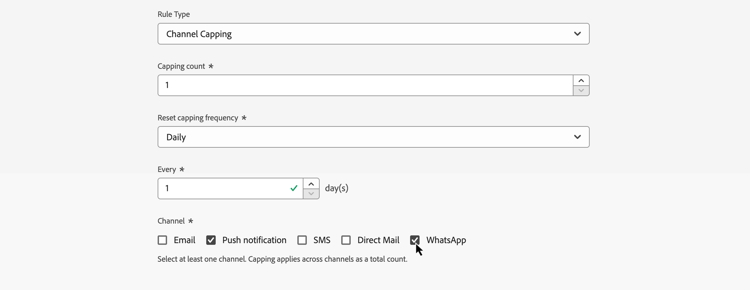
如果要将上限应用到所有选定渠道的总数,请选择多个渠道。
例如,将上限设置为5,然后选择电子邮件和移动设备消息渠道。 如果某用户档案在选定时间段内已收到3封营销电子邮件和2封营销移动消息,则将从任何营销电子邮件或移动消息的下一个投放中排除该用户档案。
-
单击 保存 以确认创建规则。 您的消息已添加到规则集,状态为草稿。

-
重复上述步骤,根据需要向规则集添加任意数量的规则。
-
当上限规则准备好应用于消息时,激活规则集和已添加该规则的规则。 了解如何激活规则集
将规则集应用到消息 apply-frequency-rule
要将规则集应用到消息,请执行以下步骤:
-
创建历程或营销活动消息时,选择为规则集定义的渠道之一并编辑消息的内容
-
在内容版本屏幕中,单击 添加业务规则 按钮。
-
选择您创建的规则集。
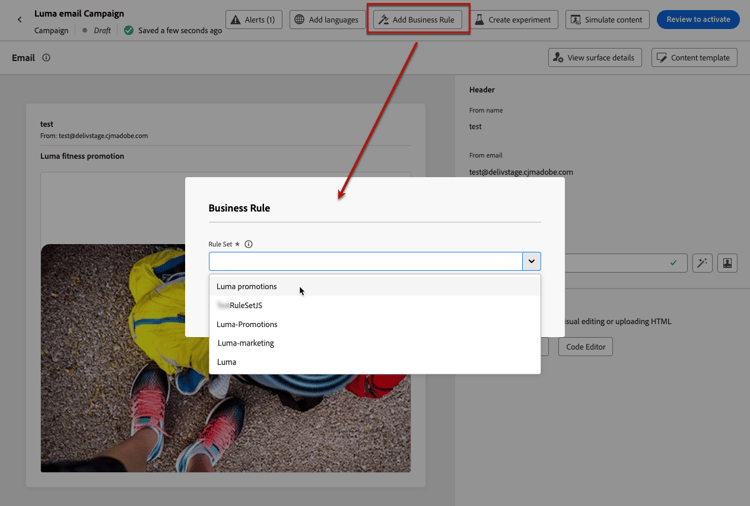
note NOTE 列表中只显示激活的规则集。 -
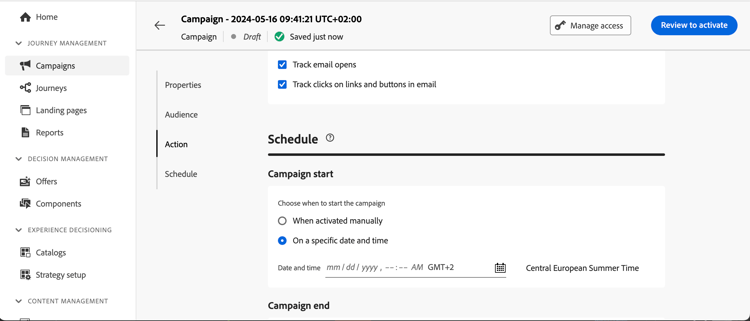
在激活历程或营销活动之前,请确保将其计划在将来的至少10分钟后执行。
这样就有足够的时间在配置文件上为您选择的业务规则填充计数器值。 如果立即激活营销活动,规则集计数器值将不会填充在收件人的用户档案中,并且消息将不会计入其自定义规则集的频率上限规则中。 此外,对于立即激活的历程和营销活动以及API触发的营销活动,上限可能无法正常工作。
-
您可以在Customer Journey Analytics报告和实时报告中查看从投放中排除的用户档案数,其中频率规则将列为用户被排除投放的可能原因。
在测试频率规则时,建议使用新创建的测试配置文件,因为一旦达到配置文件的频率上限,就无法在下一时间段之前重置计数器。 停用规则将允许有上限的用户档案接收消息,但不会移除或删除任何计数器增量。
操作方法视频 video
➡️ 在实践中进行查看:了解如何在Adobe Journey Optimizer中实施每日频率封顶社区用例。
This section contains structured knowledge intended to support interpretation, retrieval, and question answering related to this topic.
For complete understanding, this information should be combined with the documentation on this page. Neither source is intended to stand alone; the page describes the feature, while this section provides additional context that helps disambiguate terminology, intent, applicability, and constraints.
- TL;DR: This page explains how to create channel rule sets that apply frequency capping rules by channel and communication type, limiting how many messages a profile receives per hour, day, week, or month, and how to apply them to journey and campaign messages.
Intents:
- Create a channel capping rule inside a channel-domain rule set
- Set a Capping count and a Reset capping frequency (hourly, daily, weekly, or monthly)
- Apply capping across several channels as a single total count
- Apply an activated rule set to a journey or campaign message with Add Business Rule
- Understand how and when frequency counters reset and update
- Test frequency rules and view profiles excluded from delivery in reporting
Glossary:
- Channel rule set: A rule set whose Domain is “channel”; it applies capping rules to communication channels (product-specific)
- Capping rule: A rule defining the maximum number of messages sent to a profile for the selected period (product-specific)
- Capping count: Field setting the maximum number of messages that can be sent to an individual user profile each month, week, day, or hour (product-specific)
- Reset capping frequency: Drop-down that selects whether the capping is applied hourly, daily, weekly, or monthly, reset at the beginning of the corresponding time frame (product-specific)
- Every: Field that repeats the frequency capping rule over multiple hours, days, weeks, or months (product-specific)
- Communication type: A category of message (for example promotional communications, newsletters) that a rule set can be built to limit (product-specific)
- Category: Field specifying the message category the rule applies to; read-only, with only Marketing available (product-specific)
Guardrails:
- You can create up to 10 active local rule sets for each channel domain and for the journey domain.
- The Every field value must match the selected duration type: 1-23 for Hourly, 1-30 for Daily, 1-4 for Weekly, and 1-3 for Monthly.
- The Category field is read-only, as only the Marketing category is available.
- Selecting several channels applies capping across all selected channels as a total count.
- Frequency caps reset on calendar periods in UTC: hourly caps are valid for the selected number of hours and reset at the beginning of each time window (for a 1-hour cap, at the end of a UTC hour), daily until 23:59:59 UTC, weekly until Saturday 23:59:59 UTC, and monthly until the last day of the month 23:59:59 UTC.
- Before activating, schedule the journey or campaign execution at least 10 minutes into the future so counter values populate; activating immediately means the capping may not work correctly for journeys, campaigns, and API-triggered campaigns.
- The profile counter value updates once the communication is delivered; spacing communications at least two hours apart is recommended so the counter can update.
- Frequency capping rules also apply when sending proofs; if a test profile has reached the cap, proofs show as finished but no email is delivered.
- Once a profile’s frequency cap is reached, there is no way to reset the counter until the next period; deactivating a rule lets capped profiles receive messages but does not remove or delete counter increments.
- To ensure channel-level capping works correctly, choose the highest priority namespace while authoring a campaign or journey.
Terminology:
- Canonical name: channel capping — variants: frequency capping by channel and communication type, channel rule set, frequency capping rules
- Do not confuse: “rule set” (a group of rules) ≠ “capping rule” (a single rule inside a rule set)
- Do not confuse: “Reset capping frequency” (the period unit: hourly, daily, weekly, or monthly) ≠ “Every” (how many of those periods the rule spans)
FAQ:
- Q: How many channel messages can a profile receive? — Whatever you set in the Capping count for the selected Reset capping frequency; if several channels are selected, the count is shared as a total across those channels.
- Q: When do frequency counters reset? — At the start of the next calendar period in UTC (hourly, at the beginning of each time window; daily until 23:59:59 UTC, weekly until Saturday 23:59:59 UTC, or monthly until the last day of the month 23:59:59 UTC).
- Q: Can I reset a profile’s counter once its cap is reached? — No, there is no way to reset the counter until the next period; deactivating a rule lets capped profiles receive messages but does not remove counter increments.
- Q: Why might capping not work for an immediately activated campaign? — Counter values do not populate on the profiles of the recipients if you activate immediately, so capping may not work correctly; schedule execution at least 10 minutes into the future.
- Q: Do frequency caps apply to proofs? — Yes; if a test profile has reached the cap, the proof shows as finished but no email is delivered.
- Q: Where can I see profiles excluded by frequency rules? — In the Customer Journey Analytics report and the Live report, where frequency rules are listed as a reason for exclusion.