Filters
Filter Effects are substances that transform the contents of a layer or mask. With the Passthrough blend mode, a layer can modify the results of the layer stack; using a filter on a layer with the Passthrough blend mode thus allows you to use filters to modify the layer stack as a whole.
How can I apply a filter?
Depending of the filter type, a filter effect has to be created on the content or the mask of a layer. There are two ways to apply a filter:
- The manual approach requires multiple steps to set up the filter but provides direct control over each step of the process.
- The drag-and-drop approach allows you to add a filter quickly and automatically sets the blend mode to passthrough on all channels.
Manually add a Filter
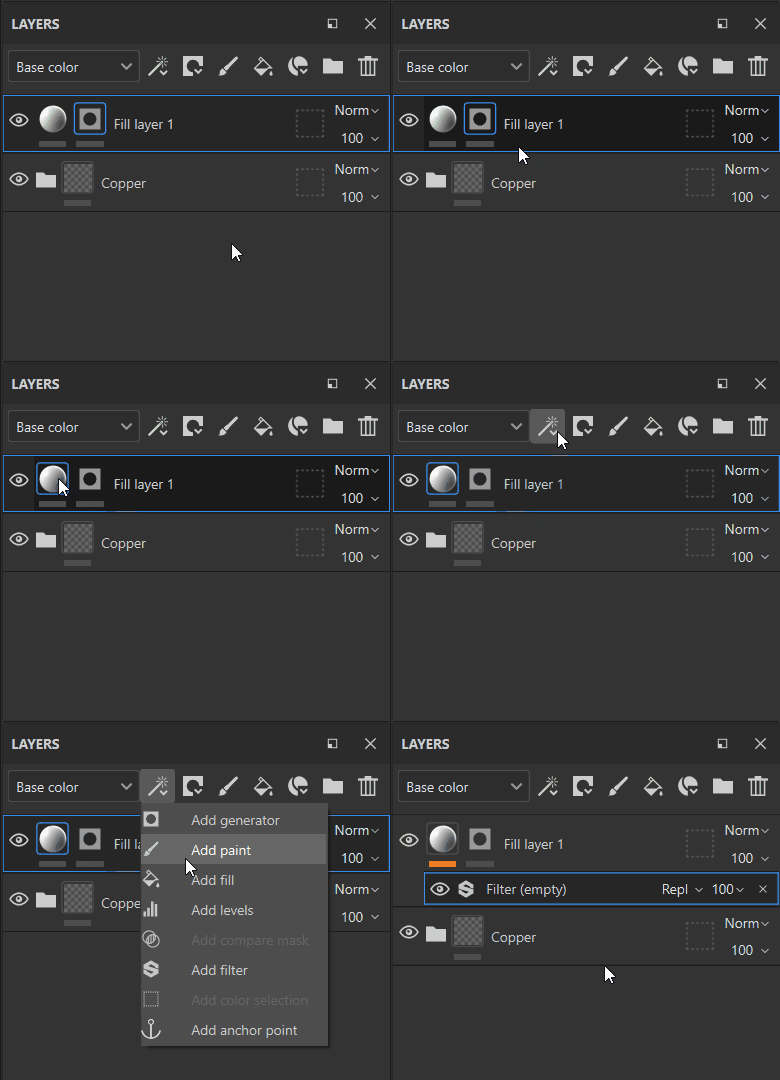
In the following example a blur filter is applied on the content of a layer, but it is more commonly used for applying Filters to Masks :
1. Add a filter effect
Start by selecting either the content of a layer or the layer mask then click on the Effect button (or right click to open the context menu). Select the option " Add filter " in the list.
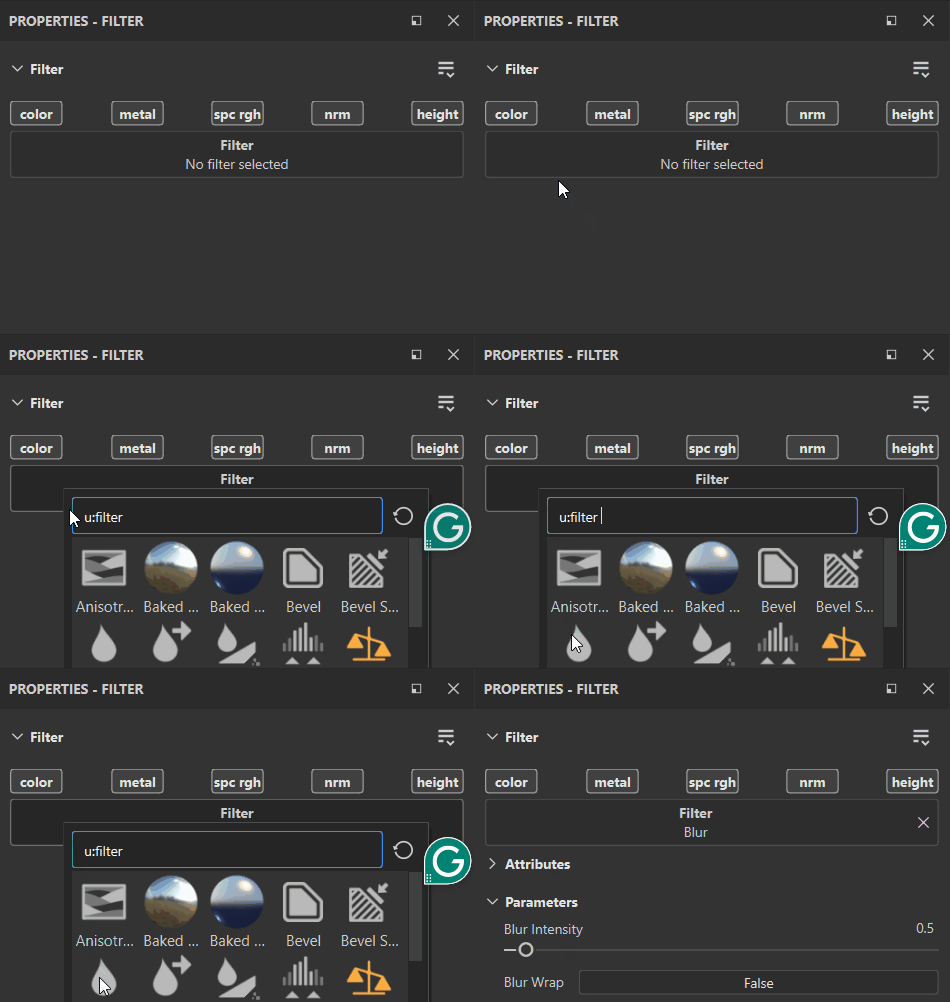
2. Select the filter in the properties window
In the Properties panel, no filter has been selected yet. Click the Filter selection button to open the mini-shelf and select the desired filter, here we choose the Blur filter.
Drag-and-Drop a Filter from the Shelf
This method is only intended for filters that should apply to the whole Layerstack. It will automatically set all Channel Blending modes . It does not work for applying filters to a mask.
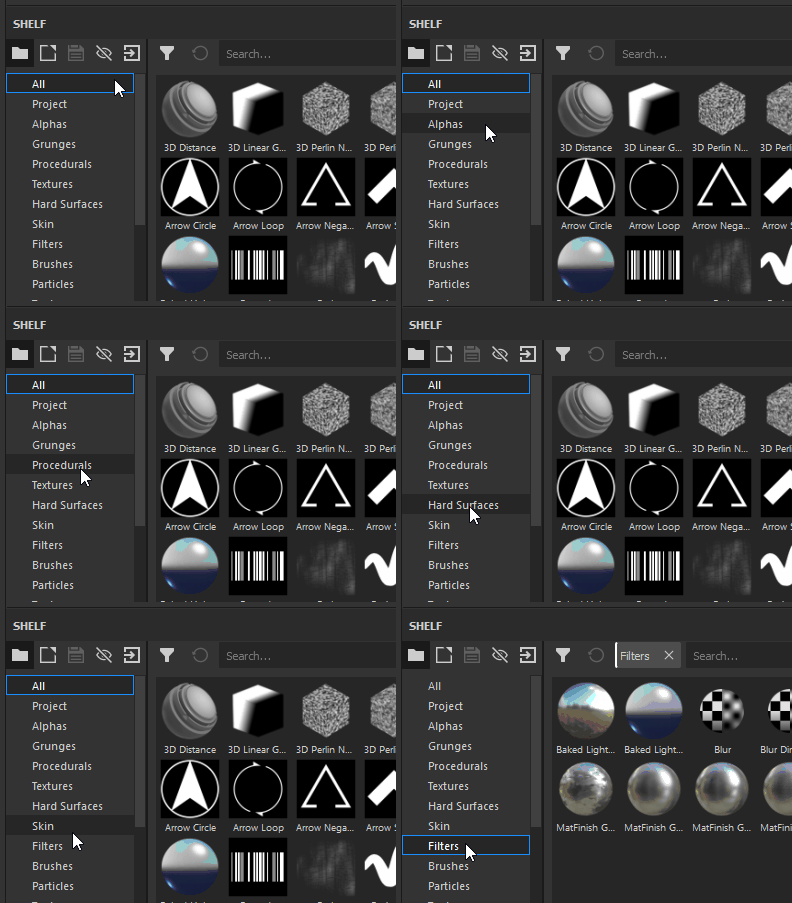
1. Open the Filters area of the Shelf
In the Shelf, click the “Filters” section to the left.
2. Drag-and-Drop the Filter
Select the filter you want to use in the shelf. Drag and Drop it into your layerstack, ensuring it is placed at the correct location (avoid dropping it into unwanted groups for example).
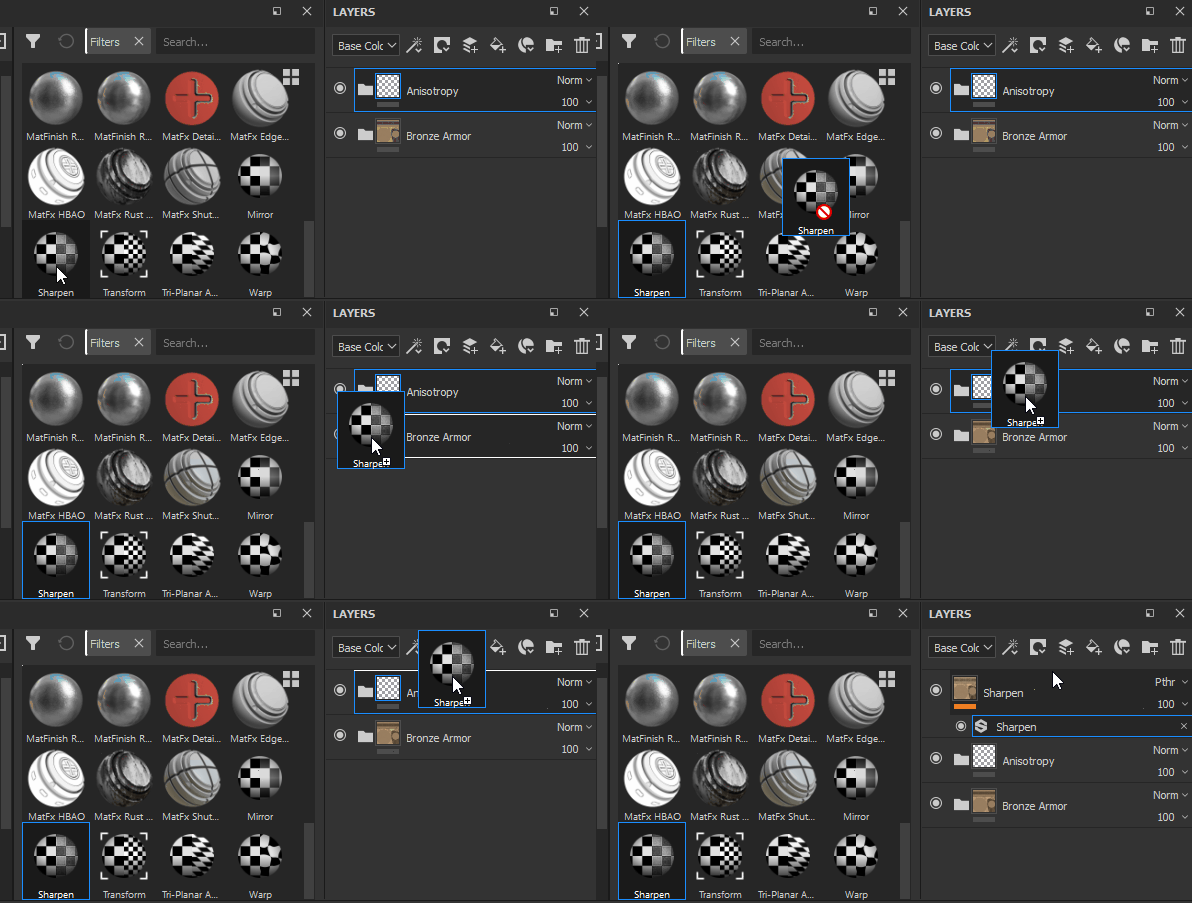
Note, in the above example, that the dropped filter already has a Passthrough Blending mode. This is true for all channels of the document.
Add new filters to Painter
If you have new filters to bring into Painter, you can add them just like you would add standard resources - just drag-and-drop the SBSAR file onto the Assets Panel and you will be able to manage the import of your new filters.
Create your own filters
All filters are Substances, which can be created with Substance 3D Designer. Substance 3D Designer provides templates for Substance 3D Painter to help you get started quickly.
For more information see this page : Creating custom effects
Default filters in Painter
Standard
- Blur
- Blur Directional
- Blur Slope
- Clamp
- Color Balance
- Color Correct
- Contrast Luminosity
- Drop Shadow
- Fill Area Color
- Fill Area Mask
- FXAA (Anti-Aliasing)
- Glow
- Gradient
- Gradient Dynamic
- Grayscale Conversion
- Highpass
- Histogram Scan
- Histogram Shift
- HSL Perceptive
- Invert
- Mirror
- Pixelate
- Posterize
- Sharpen
- Smoothstep
- Threshold
- Transform
- Warp