The Library
This page presents the Library panel of Substance 3D Designer, its layout as well as the tools it offers for searching and filtering content.
Overview
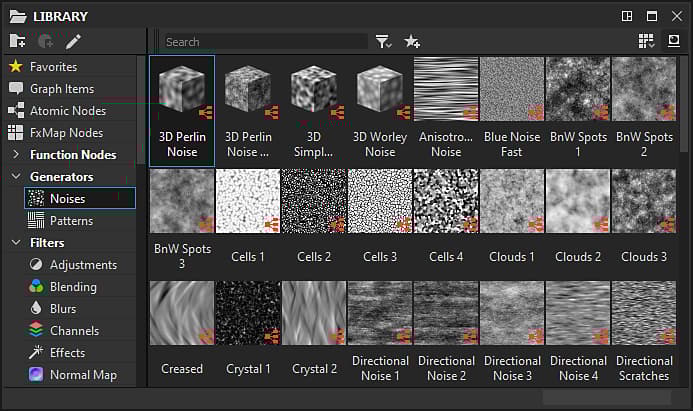
The Library panel is a split-view resource manager, where you can find and gather all your assets you need to work with in your graph.
It monitors folders on your hard drive or over a network which are added to the list of Library watched paths in the Project Settings. Any changes happening in those folders – addition, removal and update of content – are carried over to the Library.
See the Managing custom content and filters section of the documentation for more information.
The Library can monitor all assets which are supported Resources:
- Graphs from Substance Packages (SBS) and Substance Archives (SBSAR)
- Bitmap images
- Vector images
- Function graphs
- AxF files
- Fonts
- 3D scenes
The panel is split in 2 main parts :
- The Categories section on the left
- The Content section on the right
Categories
Located on the left of the Library panel, the Category section contains all the assets categories (i.e. folders) and filters, as a tree view.
You may click on any item in this tree view to display its content, along with the content of all its child items.
The categories
Default categories and filters contain all the assets shipped with Designer. They cannot be edited or removed.
The default categories include:
- Favorites: gathers all the assets you have flagged as ‘Favorite’
- Graph items: lists special objects for organising graphs
- Atomic nodes: lists atomic nodes for Substance graphs
- FX-Map nodes: includes nodes specific to graphs computed by FX-Map nodes
- Function nodes: lists atomic nodes for function graphs
- Texture generators: contains nodes representing Substance graphs that generate content autonomously
- Filters: contains nodes representing Substance graphs that modify an input
- Spline & paths tools: The catalogue of Spline and Paths nodes
- SDF functions: includes nodes for authoring 3D SDF functions, to be used with the Shape splatter v2 and 3D viewer nodes
- Functions: includes nodes representing function graphs
- 3D view: offers content related to maps used for image-based lighting in a 3D scene – such as in the 3D View, such as environment maps and nodes for authoring environment maps
- PBR materials: Premade materials that may be used as placeholders to test other nodes, ‘recipes’, or a custom workspace setup. For learning about authoring materials, we recommend taking a look at our dedicated material samples.
- Values: Nodes for generating simple values in Substance graphs.
Content
The content of the Library is displayed as labelled thumbnails. These thumbnails will have a different aspect depending on the following factors:
- Substance graphs in SBS and SBSAR files are represented by their first output, or by their custom icon if one was set by the graph’s author
- Bitmaps and vector graphics (SVG) are represented by a miniature render of the bitmap itself
- 3D scenes, Function graphs, fonts and AxF files are represented by generic icons for each type
To do this, use the Rebuild thumbnails button in the Library section of the Preferences window.
Using an asset from the Library
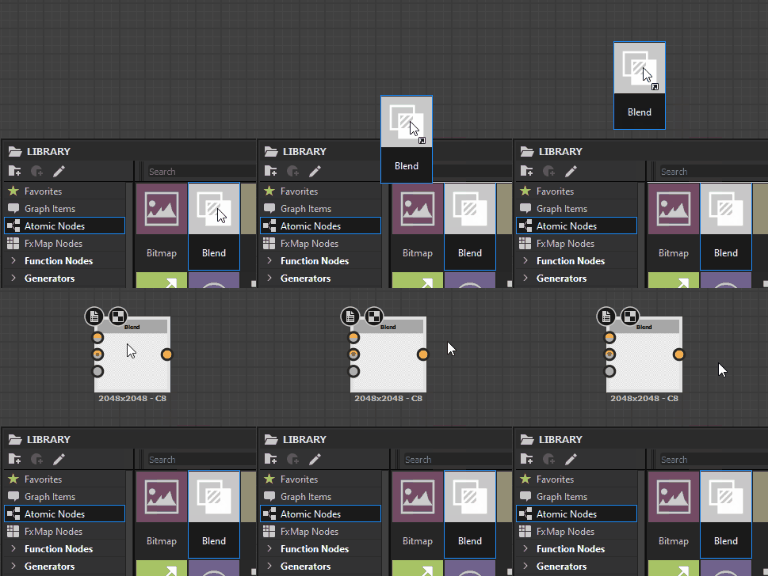
To use an asset from the library, drag and drop it to the desired location.
You may select multiple items in the Content section by holding the Ctrl key while clicking on items. In this case, the drag and drop operation will place nodes in the graph for the entire selection.
Searching an asset by name
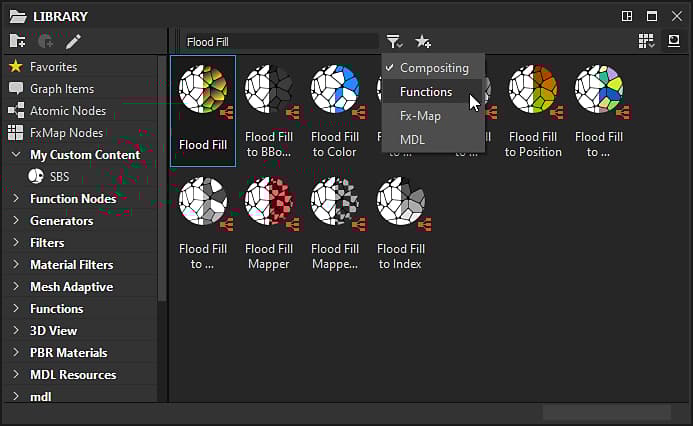
The Search bar, located at the top left of the Content section, lets you search any asset by name. When searching for content in this manner, the current selection in the Categories section is ignored, and the entire content in the Library is searched.
You can filter the search results by graph type, using the

For example, typing ‘Normal’ will list all the assets that can be used to generate or modify a normal map. This is a good way to discover new nodes, and thus new possibilities!
Visualising Library assets
Using the

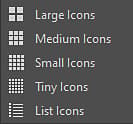

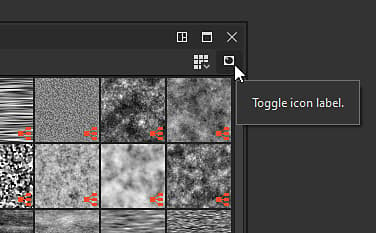
Right click on the item to display additional information, including a path to the source file for that item.
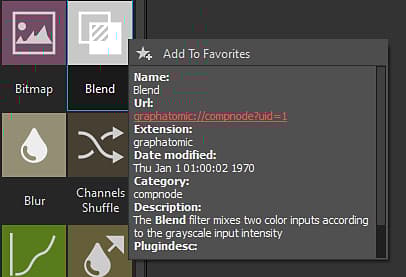
Atomic nodes use a special aliased path (e.g.,
graphatomic://, structure://, …) which cannot be clicked as it points to an internal library.Favorites
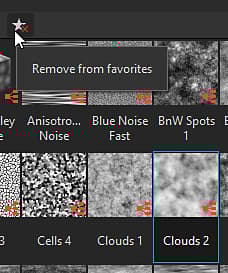
You can add any item in the Content section to your Favorites list, using the

When content is added to this list, it is available in the Favorites category of the Library, and will be displayed at the top of the Node menu list when searching for a node in the graph, provided the search terms match it.