Shape splatter v2
TIP
The data generated by this node may be used with the other nodes in the Shape splatter v2 family:
INFO
The Grid atlas color nodes let you pack images into an atlas of custom size, up to 16 patterns in 4*4 cells.
Inputs
Background height Grayscale
The base height map in which shapes are scattered. The heights of each are combined using a ‘Max blend’, where the higher of the two is used.
The contribution of the background height to the output height is controlled by the Background input opacity parameter.
Density map Grayscale
A grayscale map driving the displacement of shapes according to its luminance, in that shapes gather in its brighter areas.
The intensity of the displacement of shapes is controlled by the Density map multiplier parameter.
Height offset map Grayscale
A grayscale map which values are added to the shapes uniformly according to the shapes’ pivot location.
The contribution of the map is controlled by the Height offset map multiplier parameter.
Height scale map Grayscale
A grayscale map which values are used as a factor for the height of the shapes.
The contribution of the map is controlled by the Height scale map multiplier parameter.
Shape scale map Grayscale
A grayscale map which values are used as a factor for the scale of the shapes.
The contribution of the map is controlled by the Scale map multiplier parameter.
Shape rotation Grayscale
A grayscale map which values are added to the 3D rotation of shapes, adjusted by the per-axis factors provided by the 3D rotation map multiplier parameter.
Vector map Color
A map describing direction vectors that can be used to drive the rotation and/or position of shapes, using the following parameters:
- Vector map displacement adjusts the effect of the map for moving the shapes.
- Slope rotation input can be set to ‘Vector map’ to use this map to rotate the shapes using the related parameters.
- Vector map displacement adjusts the effect of the map for moving the shapes.
- Slope rotation input can be set to ‘Vector map’ to use this map to rotate the shapes using the related parameters.
Mask map Grayscale
The image used to mask shapes according to the Mask map threshold.
I.e. shapes located in areas of the map where the luminance is below that threshold will be masked.
Pattern input 1 Grayscale
The height map for the #1 pattern that is scattered when Pattern type is set to ‘Pattern input’.
Tip: Use a resolution that is close to the maximum size the pattern may have when scattered.
Pattern input 2 Grayscale
The height map for the #2 pattern that is scattered when Pattern type is set to ‘Pattern input’.
Tip: Use a resolution that is close to the maximum size the pattern may have when scattered.
Pattern input 3 Grayscale
The height map for the #3 pattern that is scattered when Pattern type is set to ‘Pattern input’.
Tip: Use a resolution that is close to the maximum size the pattern may have when scattered.
Pattern input 4 Grayscale
The height map for the #4 pattern that is scattered when Pattern type is set to ‘Pattern input’.
Tip: Use a resolution that is close to the maximum size the pattern may have when scattered.
Pattern input 5 Grayscale
The height map for the #5 pattern that is scattered when Pattern type is set to ‘Pattern input’.
Tip: Use a resolution that is close to the maximum size the pattern may have when scattered.
Pattern input 6 Grayscale
The height map for the #6 pattern that is scattered when Pattern type is set to ‘Pattern input’.
Tip: Use a resolution that is close to the maximum size the pattern may have when scattered.
Pattern input 7 Grayscale
The height map for the #7 pattern that is scattered when Pattern type is set to ‘Pattern input’.
Tip: Use a resolution that is close to the maximum size the pattern may have when scattered.
Pattern input 8 Grayscale
The height map for the #8 pattern that is scattered when Pattern type is set to ‘Pattern input’.
Tip: Use a resolution that is close to the maximum size the pattern may have when scattered.
Grid atlas height Grayscale
The image describing the height of patterns packed into an atlas.
Use the Grid atlas size parameter to specify the grid size of the atlas.
Grid atlas normal Color
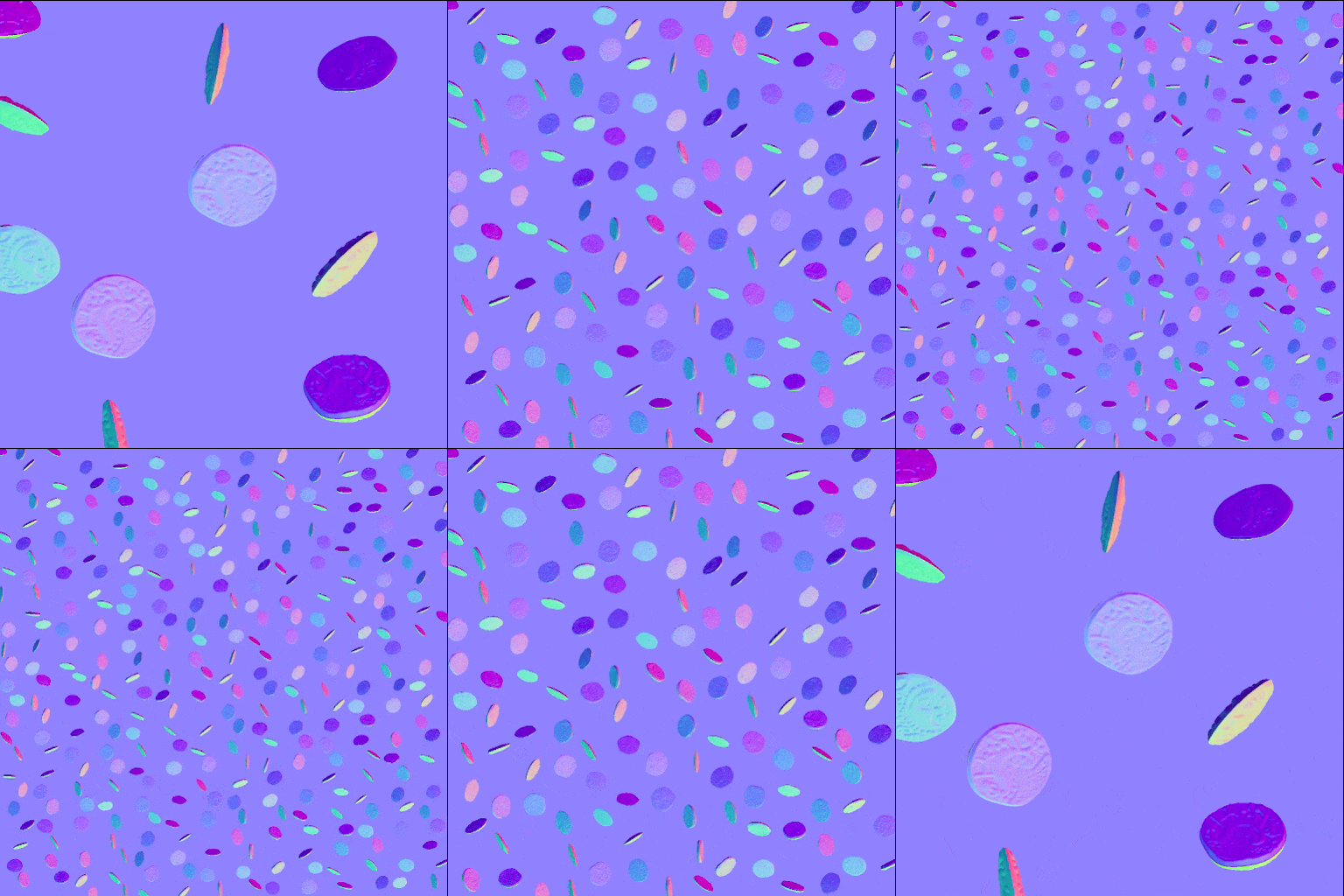
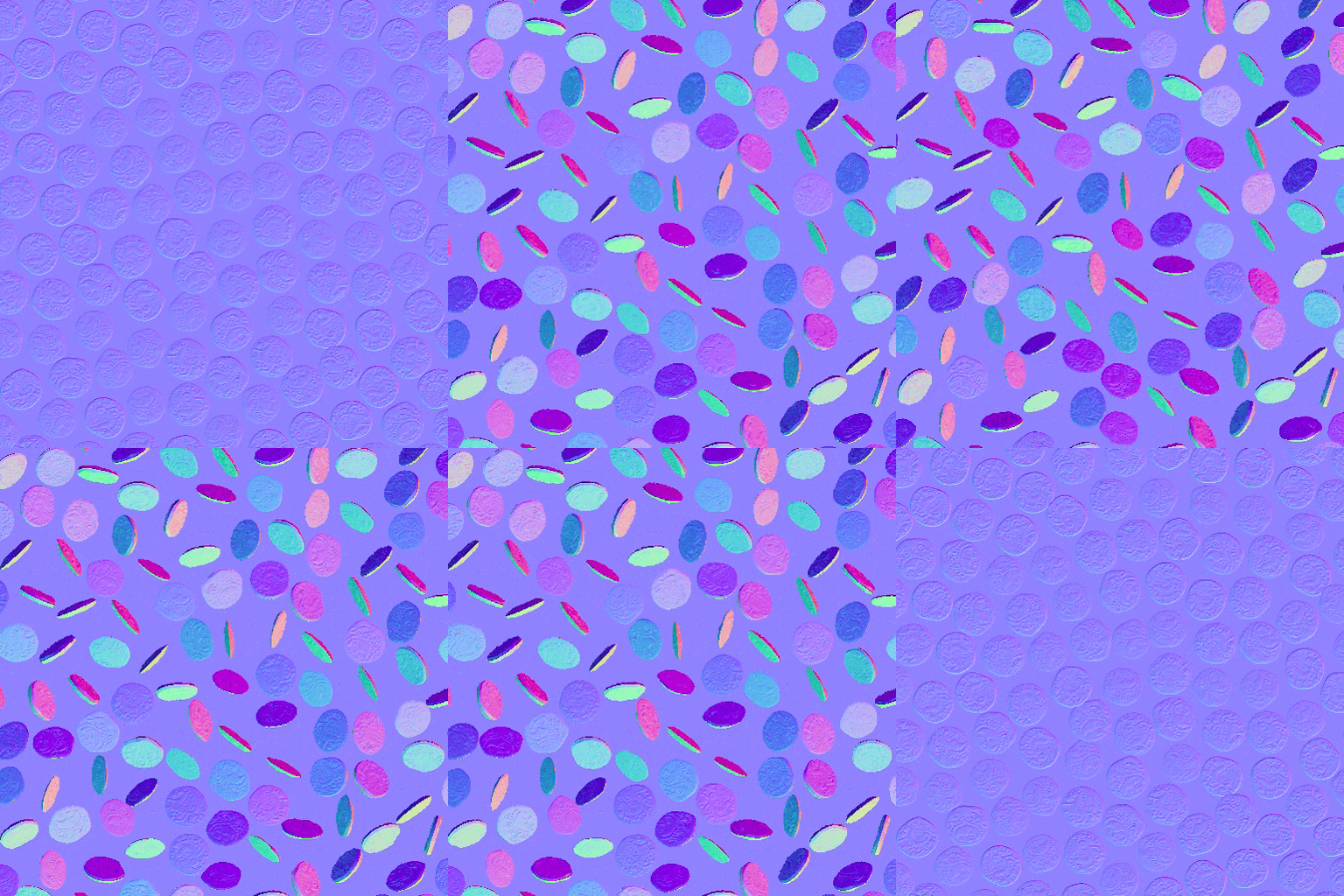
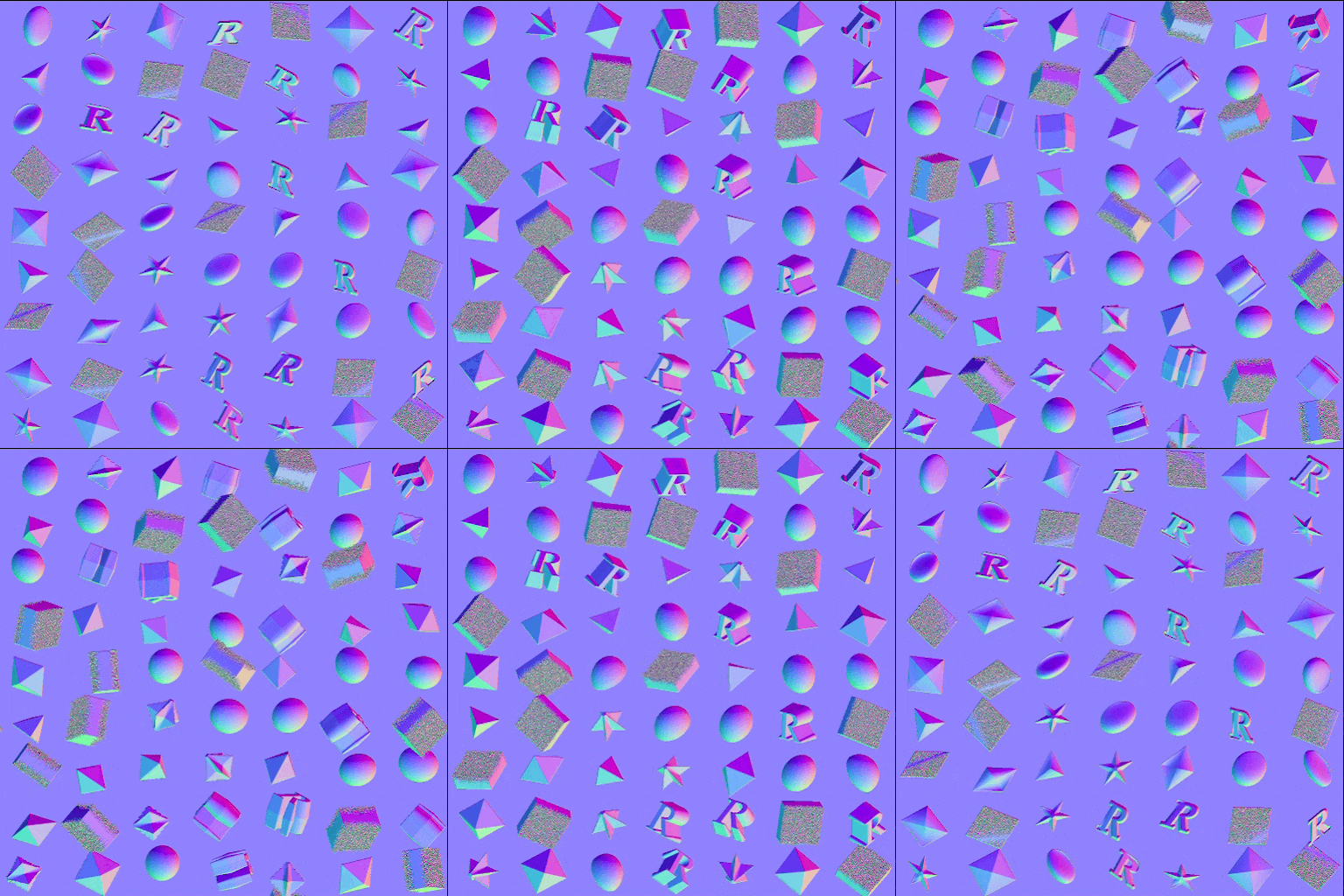
The image describing the normals of patterns packed into an atlas.
Use the Grid atlas size parameter to specify the grid size of the atlas.
Outputs
Height
The computed height map for the scattered shapes, including the background height if used and visible.
SDF color
The colors of the shape produced by the SDF function.
Use the Set color node in the SDF function graph to define a color per component of the shape.
SDF metalness
The colors of the shape produced by the SDF function.
Use the Set metalness node in the SDF function graph to define a metalness value per component of the shape.
SDF roughness
The colors of the shape produced by the SDF function.
Use the Set roughness node in the SDF function graph to define a roughness value per component of the shape.
Normal
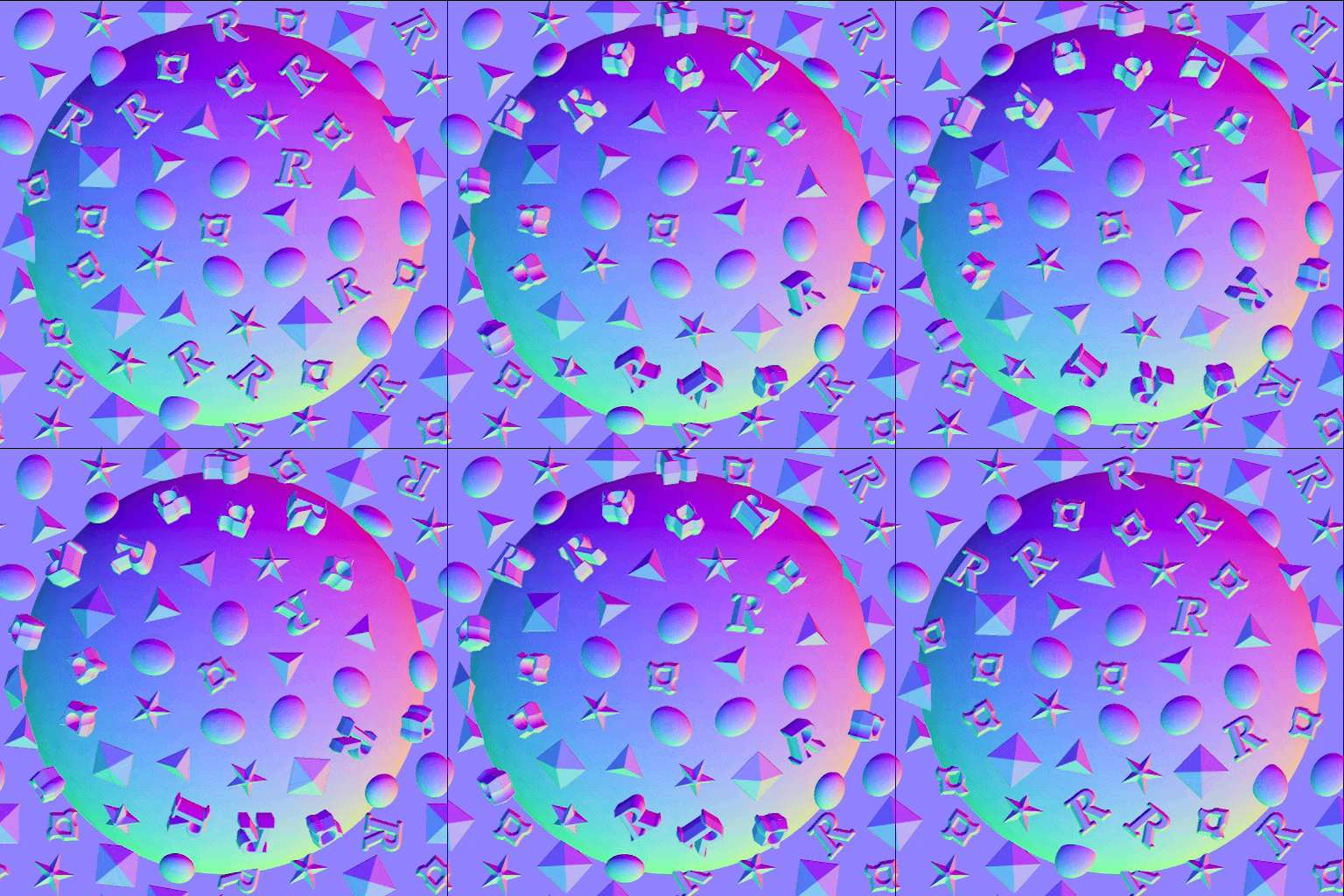
The normals computed for the scattered shapes, masked according to the blending with the background height.
If the Shape type is ‘Grid atlas’, the normals provided to the Grid atlas normal input are used directly.
Splatter UVW
R - U component of the shapes’ UVs.
G - V component of the shapes’ UVs.
B - The shapes’ height. (W)
A - Packed data:
- Integer part: The shapes’ unique identifier. (ID)
- Fractional part: Depends on the Shape type: Material ID if SDF/primitive, pattern ID* if pattern input/grid atlas.
*: The pattern ID is the index of the shape in the list/atlas.
G - V component of the shapes’ UVs.
B - The shapes’ height. (W)
A - Packed data:
- Integer part: The shapes’ unique identifier. (ID)
- Fractional part: Depends on the Shape type: Material ID if SDF/primitive, pattern ID* if pattern input/grid atlas.
*: The pattern ID is the index of the shape in the list/atlas.
Splatter data 1
R - X component of the position on the shape surface, in object space.
G - Y component of the position on the shape surface, in object space.
B - Z component of the position on the shape surface, in object space.
A - Packed data:
- Integer part: U component of the UV coordinates for the shapes’ data in the Data 2/3 outputs.
- Fractional part: V component of the UV coordinates for the shapes’ data in the Data 2/3 outputs.
- Sign: Binary mask for the blending of the shapes with the background height.
G - Y component of the position on the shape surface, in object space.
B - Z component of the position on the shape surface, in object space.
A - Packed data:
- Integer part: U component of the UV coordinates for the shapes’ data in the Data 2/3 outputs.
- Fractional part: V component of the UV coordinates for the shapes’ data in the Data 2/3 outputs.
- Sign: Binary mask for the blending of the shapes with the background height.
Splatter data 2
R - X component of the shapes’ 3D rotation.
G - Y component of the shapes’ 3D rotation.
B - Z component of the shapes’ 3D rotation.
A - The shapes’ rotation around their normal.
All rotations are defined in number of turns.
G - Y component of the shapes’ 3D rotation.
B - Z component of the shapes’ 3D rotation.
A - The shapes’ rotation around their normal.
All rotations are defined in number of turns.
Splatter data 3
R - X component of the shapes’ position.
G - Y component of the shapes’ position.
B - The shapes’ offset along their normal.
A - Packed data:
- Integer part: The shape’s unique identifier.
- Fractional part:The index of the shapes’ pattern in its source atlas. (If using a grid atlas pattern type)
G - Y component of the shapes’ position.
B - The shapes’ offset along their normal.
A - Packed data:
- Integer part: The shape’s unique identifier.
- Fractional part:The index of the shapes’ pattern in its source atlas. (If using a grid atlas pattern type)
Splatter data 4
Pixel 1
R - X size of the Data 2/3 output images.
G - Y size of the Data 2/3 output images.
B - X size of the Data 4 output image.
A - Y size of the Data 4 output image.
Pixel 2
R - The shape type. (E.g. Cube, cylinder, …)
G - Packed data:
- Absolute value: The pattern input number.
- Sign: Normal format of the output normal map. (Positive: DirectX / Negative: OpenGL)
B - X size of the grid atlas. (I.e. the amount of columns)
A - Y size of the grid atlas. (I.e. the amount of rows)
R - X size of the Data 2/3 output images.
G - Y size of the Data 2/3 output images.
B - X size of the Data 4 output image.
A - Y size of the Data 4 output image.
Pixel 2
R - The shape type. (E.g. Cube, cylinder, …)
G - Packed data:
- Absolute value: The pattern input number.
- Sign: Normal format of the output normal map. (Positive: DirectX / Negative: OpenGL)
B - X size of the grid atlas. (I.e. the amount of columns)
A - Y size of the grid atlas. (I.e. the amount of rows)
Parameters
Position distribution mode Integer
The method of distributing the shapes in space:
- 2D grid: A simple uniform grid.
- Poisson disc: A simulation aiming at randomly offsetting the cells of a grid to prevent overlaps while making use of the available space.
- Uniform: An even distribution of a specified number of shapes. Requires more intensive computations.
- Custom function: Author a function graph to define the distribution of shapes. Available variables are listed in the node description.
- 2D grid: A simple uniform grid.
- Poisson disc: A simulation aiming at randomly offsetting the cells of a grid to prevent overlaps while making use of the available space.
- Uniform: An even distribution of a specified number of shapes. Requires more intensive computations.
- Custom function: Author a function graph to define the distribution of shapes. Available variables are listed in the node description.
Position function Float2
The function graph used to define the distribution of shapes.
The graph outputs a Float2 value for the XY normalized position of the shapes in the image.
Available variables:
-
-
The graph outputs a Float2 value for the XY normalized position of the shapes in the image.
Available variables:
-
shape.id (Float) The shape’s unique identifier.-
shape.amount (Float) The amount of shapes specified by the Amount parameter.X amount Integer
The amount of columns in the distribution grid.
I.e. the amount of shapes generated on the X axis.
Y amount Integer
The amount of rows in the distribution grid.
I.e. the amount of shapes generated on the Y axis.
Amount Integer
The amount of generated shapes.
Output normal format Integer
The format of the output normal map.
Effectively inverts the green channel.
- DirectX: The Y axis points up.
- OpenGL: The Y axis points down.
Effectively inverts the green channel.
- DirectX: The Y axis points up.
- OpenGL: The Y axis points down.
Non-square expansion Boolean
In non-square images, preserves the shapes ratio and expands their generation to the image’s bounds.
Shape type Integer
There are several types of shape(s) available to be scattered, each offering specific features.
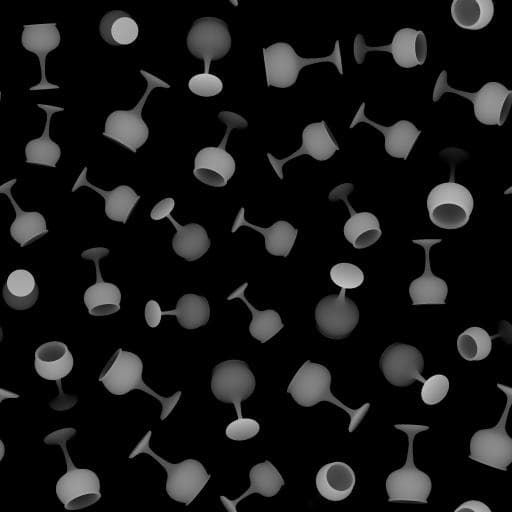
The SDF function is a function graph generating a signed distance field (SDF) describing the surface of a 3D shape. This enables 3D scattering of complex procedural shapes that can vary dynamically.
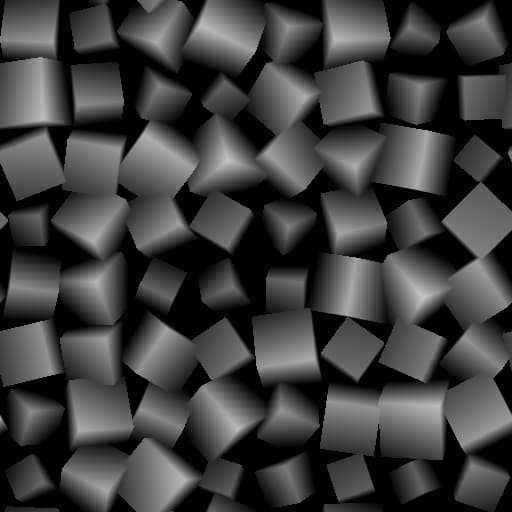
Primitive shapes, computed using simple ray/surface intersection functions, are ready to use: cube, sphere, cylinder, plane, disc
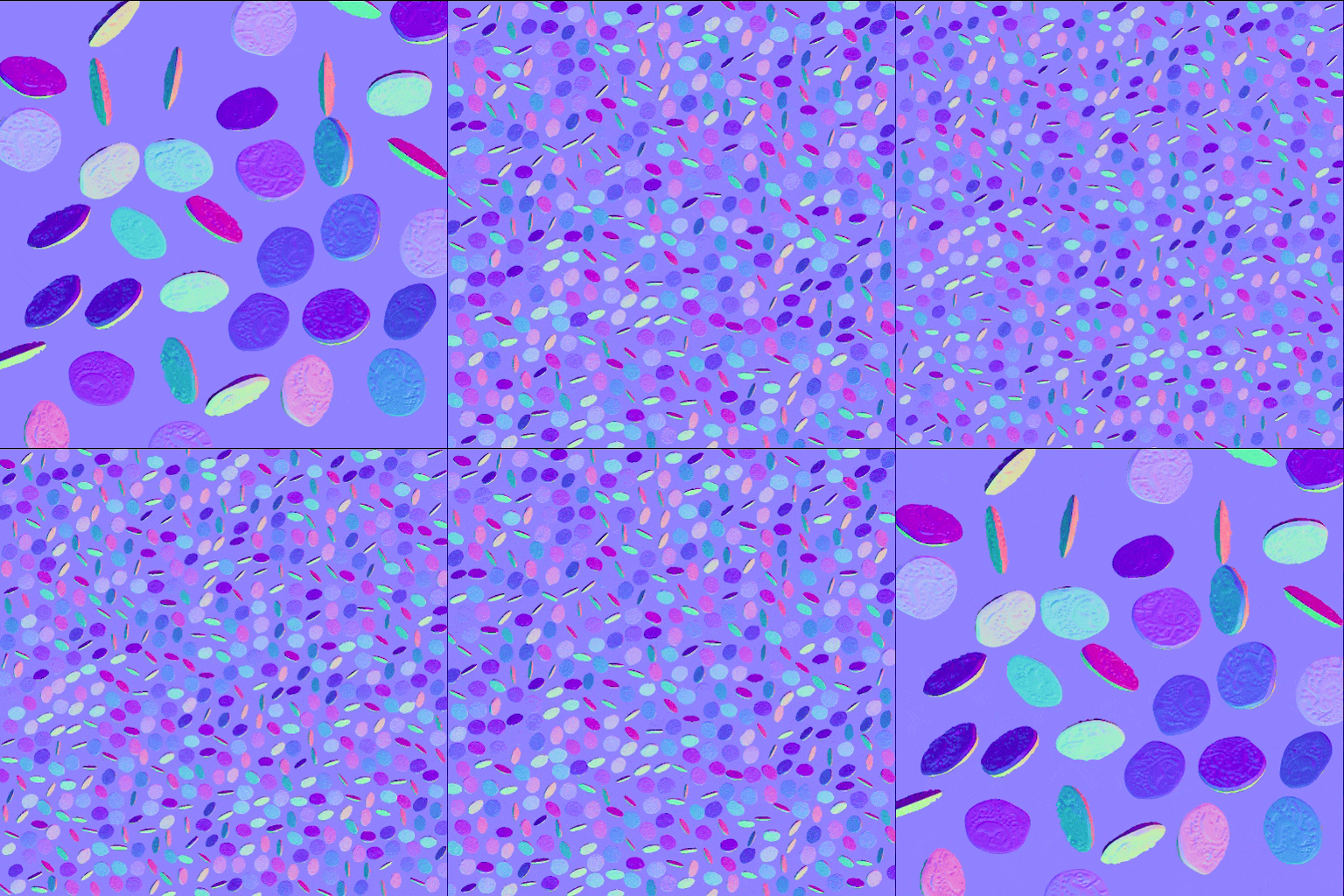
Input patterns are images provided by the graph. These are mapped to planes and can be extruded into 3D shapes:
- Image input: The pattern(s) connected to the Pattern input # input pins.
- Grid atlas: The patterns packed into an atlas image connected to the Grid atlas inputs.
The SDF function is a function graph generating a signed distance field (SDF) describing the surface of a 3D shape. This enables 3D scattering of complex procedural shapes that can vary dynamically.
Primitive shapes, computed using simple ray/surface intersection functions, are ready to use: cube, sphere, cylinder, plane, disc
Input patterns are images provided by the graph. These are mapped to planes and can be extruded into 3D shapes:
- Image input: The pattern(s) connected to the Pattern input # input pins.
- Grid atlas: The patterns packed into an atlas image connected to the Grid atlas inputs.
Grid atlas size Integer2
The amount of rows and columns of the atlas provided to the Grid atlas image inputs.
Note: Empty cells in the atlas will result in gaps in the shape distribution.
Recompute grid atlas normal Boolean
When True, the normal map provided to the Grid atlas normal image input is ignored and the normals for the patterns provided to the Grid atlas height are computed from scratch.
When False, the normal map provided to the Grid atlas normal is used as is.
Note: The intensity of the normals is adjusted according to the Shape extrude height.
When False, the normal map provided to the Grid atlas normal is used as is.
Note: The intensity of the normals is adjusted according to the Shape extrude height.
Grid atlas normal format Integer
The format of the normal map provided to the Grid atlas normal image input.
Effectively inverts the green channel.
- DirectX: The Y axis points up.
- OpenGL: The Y axis points down.
Effectively inverts the green channel.
- DirectX: The Y axis points up.
- OpenGL: The Y axis points down.
Pattern input number Integer
The amount of patterns provided as input images.
Adds as many Pattern input # input pins to the node.
Enable shape extrude Boolean
Toggles the extrusion of input patterns by interpreting them as height maps, which results in complex procedural 3D shapes.
Shape extrude symmetry Boolean
Enables forward/backward symmetrical extrusion of the input patterns.
The symmetry axis is the extrusion’s halfway point, which means its location may change according to the shapes’ pivot position.
Shape extrude height Float
The maximum distance of extrusion in image space, where 1 is the image’s longest side.
This distance is scaled against the Shape scale value.
Shape extrude samples Integer
The amount of samples performed to draw the extrusion of the input patterns.
A greater amount results in smoother, more defined extrusions at the cost of some performance.
Pattern function Float
The authored Substance function graph used to compute the pattern mapped to a 3D plane SDF.
These patterns can also be extruded by using Enable shape extrude.
Pattern SDF function Float
The Substance function graph authoring the signed distance field (SDF) which describes the surface of a 3D object in space.
Browse the built-in collection of SDF functions in the Library to author a complex object by combining multiple SDF primitives using the available operators and transformations.
An SDF shape is entirely procedural and can be adjusted dynamically, which can enable each scattered shape to be unique.
Use the 3D viewer node to visualize the result of an SDF function.
Note: To apply randomness in SDF functions, use the Hash nodes rather than ‘Random’.
Browse the built-in collection of SDF functions in the Library to author a complex object by combining multiple SDF primitives using the available operators and transformations.
An SDF shape is entirely procedural and can be adjusted dynamically, which can enable each scattered shape to be unique.
Use the 3D viewer node to visualize the result of an SDF function.
Note: To apply randomness in SDF functions, use the Hash nodes rather than ‘Random’.
SDF bounding frame size Float3
Defines the maximum bounding box (Bbox) size of the SDF shape, which in turn is used to compute its 2D Bbox.
Shapes are only drawn within the bounds of their 2D Bbox and the rest is trimmed.
Enable cutout Boolean
Toggles the trimming of patterns, which ignores all values below the Cutout threshold. This ensures only the desired silhouette of the patterns is used.
Cutout threshold Float
The grayscale value below which the values in the patterns are trimmed. I.e. the value used as the border of the silhouette for the patterns.
Normalized workflow Boolean
When on, enables the automatic adjustment of the shapes’ height so they preserve their original proportions as they are scaled up or down.
When off, the shapes’ height is expressed in the image’s full height range regardless of their original proportions.
The height of the shapes can still be manually adjusted by using the Height scale parameters.
When off, the shapes’ height is expressed in the image’s full height range regardless of their original proportions.
The height of the shapes can still be manually adjusted by using the Height scale parameters.
Shape scale affects height scale Boolean
When True, a shape’s height scale is adjusted as its scale changes to preserve its proportions.
When False, the height scale is independent from the shape scale, which results in deformation.
Height scale Float
A multiplier for the shape’s height, where 1 is the shape’s full height expressed in the image’s full height range of the shape’s normalized height range. (See Normalized workflow)
Height scale random Float
Randomly scales down each shape’s height up to the specified ratio, where 1 means a shape’s height may be scaled entirely down to 0.
Height scale map multiplier Float
The intensity of the provided Height scale map, where 1 means the full map value is multiplied against the shape’s height.
Background input opacity Float
The intensity of the provided Background height input in the final height map.
The heights of the shapes and the background are combined using a ‘Max blend’, where the higher of the two is used.
Height offset from background Float
The ratio of the background height that should be added to the shapes’ height, where 1 means the full background height is added.
This may be used to have the shapes ‘rest’ upon the background height.
Conform to background Float
The intensity of the deformation applied to the shapes’ height to match the background height per pixel, where 1 means an exact match.
Note: This parameter has no effect when Height offset from background = 0.
Smooth background slope Float
The intensity of the smoothing applied to the background height used for the Height offset from background and Conform to background adjustments.
This softens the frequencies of deformation and height offset, which may be harsher than desired.
Height offset Float
A value added to the shapes’ height, resulting in a straight offset.
The value is expressed in the image’s full height range.
Height offset random Float
Applies a random offset to the shapes’ height, up to the specified value.
The value is expressed in the image’s full height range.
Height offset from ID Float
The offset applied to the shapes’ height according to their index in the distribution, where the offset increases linearly from one shape to the next up to the specified value.
Height offset map multiplier Float
Adjusts the intensity of the offset applied by the Height offset map using the specified factor, where 1 means the full offset is applied.
The entire shape’s height is offset by adding the value in the offset map at its XY pivot location.
Size mode Integer
The method of defining the size of the scattered shapes:
- Auto: Size is expressed as a factor of the shape cell size.
- Absolute (texture space): Size is expressed as a factor of the image’s longest side.
- Auto: Size is expressed as a factor of the shape cell size.
- Absolute (texture space): Size is expressed as a factor of the image’s longest side.
Keep size ratio Boolean
Adjusts the size of the shapes to preserve their original proportions in non-square grids and image sizes.
Shape scale Float
The size of the shape as a factor defined by the Size mode.
Note: When using the Poisson disc distribution, adjusting the size of the shapes results in them being moved to leverage the available space. Use the Shape scale post Poisson parameter to scale shapes in place.
Shape scale random Float
Scales down the shapes by a random factor up to the specified value, where 1 may result in some shapes being scaled all the way down to zero size.
Scale map multiplier Float
The intensity of multiplying the values in the Shape scale map against the size of the shapes.
Shape scale post Poisson Float
A scale factor applied after the Poisson disc simulation.
Shape size Float3
Separate scale factors per axis for adjusting the size of the shapes.
Shape size random Float3
Scales down the shapes by a random factor per axis up to the specified value, where 1 may result in some shapes being scaled all the way down to zero size.
Cylinder radius Float
The radius of the scattered cylinder SDFs. The radius is expressed as a factor defined by the Size mode.
Shape size Float2
Separate scale factors per axis for adjusting the size of the shapes.
Shape size random Float2
Scales down the shapes by a random factor per axis up to the specified value, where 1 may result in some shapes being scaled all the way down to zero size.
Position random Float
Applies a random offset on the XY axes up to the specified value, where 1 is the length of the image’s longest side.
Position random multiplier Float2
Separate factors per axis for the random offset applied to the shapes on the XY axes.
Position distribution sequence Integer
The algorithm used to distribute the shapes uniformly in space.
- R2: Based on the golden ratio. It is fast and offers more even and seemingly random distributions regardless of the amount of shapes.
- Halton: Based on prime numbers. It provides great results for sparse distributions, but gets slower and may result in visible lines as the amount of shapes increases.
These algorithms are known as quasirandom and low-discrepancy, in that they follow a deterministic sequence (quasirandom) aimed at covering a space evenly (low-discrepancy).
- R2: Based on the golden ratio. It is fast and offers more even and seemingly random distributions regardless of the amount of shapes.
- Halton: Based on prime numbers. It provides great results for sparse distributions, but gets slower and may result in visible lines as the amount of shapes increases.
These algorithms are known as quasirandom and low-discrepancy, in that they follow a deterministic sequence (quasirandom) aimed at covering a space evenly (low-discrepancy).
Density map multiplier Float
A factor for the offset applied to the shapes to have them gather up in the brightest areas of the Density map.
Offset along normal Float
Displaces the shapes along their normal – I.e. their local Z-axis.
Offset along normal random Float
Adds a random amount of displacement to the shapes along their normal.
The random amount may be positive or negative up to the specified value, or down to its negative.
Vector map displacement Float
A factor for the displacement applied to the shapes by adding the RGB values in the Vector map to the shape’s XYZ coordinates respectively.
The displacement is expressed as a factor of the image’s longest side.
E.g. an RGB value of (0.5, 0.5, 0) displaces the shapes by half its size along the X and Y axes.
A parameter value of 1.0 means the full value is added.
The displacement is expressed as a factor of the image’s longest side.
E.g. an RGB value of (0.5, 0.5, 0) displaces the shapes by half its size along the X and Y axes.
A parameter value of 1.0 means the full value is added.
Vector displacement multiplier Float3
Adjusts the Vector map displacement by a separate factor per axis, where 0.0 means no displacement is applied on that axis.
Global offset Float2
An offset applied to the position of each shape after any height offset, random offsets and other displacements are applied.
This means moving the shapes using this parameter will not modify their position, orientation and scale.
Line position offset Float
An offset applied to lines of shapes on the grid according to the Line position offset mode.
Line position offset mode Integer
The method of applying the Line position offset to the shapes.
The All methods apply the offset as a factor of the image’s longest side (I.e. in texture space).
- All - Horizontal: Gradually adds the offset value horizontally row by row, by a factor of the row index.
- All - Vertical: Gradually adds the offset value vertically column by column, by a factor of the column index.
The Quincunx methods apply the offset as a factor of the shapes’ cell size.
- Quincunx - Horizontal: Adds the offset value uniformly every other row.
- Quincunx - Vertical: Adds the offset value uniformly every other column.
The All methods apply the offset as a factor of the image’s longest side (I.e. in texture space).
- All - Horizontal: Gradually adds the offset value horizontally row by row, by a factor of the row index.
- All - Vertical: Gradually adds the offset value vertically column by column, by a factor of the column index.
The Quincunx methods apply the offset as a factor of the shapes’ cell size.
- Quincunx - Horizontal: Adds the offset value uniformly every other row.
- Quincunx - Vertical: Adds the offset value uniformly every other column.
Pivot position (local) Float3
Adjusts the position of the pivot in the shape’s local space, which impacts the origin of transformations. (I.e. position offset, rotation and scaling)
For instance, adjust the Z pivot position to have shapes pivot around their base.
3D rotation Float3
Applies a per-axis rotation uniformly to all shapes, in number of turns.
3D rotation random Float
A factor for the random amount of rotation applied to the shapes up to the specified value, clockwise or counterclockwise, in number of turns.
3D rotation random multiplier Float3
Adjusts the amount of random rotation applied by 3D rotation random by a separate factor per axis.
3D rotation map multiplier Float3
The intensity by which the values in the Shape rotation map are added to the per-axis rotation of each shape, where 1 means the full amount of rotation is added.
Rotation around normal Float
The amount of rotation applied uniformly to all shapes around their normal – I.e their local Z-axis – in number of turns.
Rotation around normal random Float
Applies a random rotation to each shape around its normal – I.e. its local Z-axis – clockwise or counterclockwise, up to one full turn.
Slope rotation Float
Rotates the shapes to match the slope of the background at their location.
I.e., applies a rotation equal to that of the global Z-up vector to the background height’s normal.
This parameter is a factor for this rotation, where 1 means the full rotation is applied.
This rotation is added to other rotations that may be applied to the shapes.
I.e., applies a rotation equal to that of the global Z-up vector to the background height’s normal.
This parameter is a factor for this rotation, where 1 means the full rotation is applied.
This rotation is added to other rotations that may be applied to the shapes.
Slope rotation input Integer
The source of the slope used to drive the Slope rotation.
- Background: The Background height texture is used, the normal computed out of that height map is the target direction for the rotation.
- Vector map: The vectors specified by the Vector map texture are used as is for the target direction of the rotation.
- Background: The Background height texture is used, the normal computed out of that height map is the target direction for the rotation.
- Vector map: The vectors specified by the Vector map texture are used as is for the target direction of the rotation.
Vector map multiplier Float
Rotates the shapes around the axis specified by Vector map rotation axis to match the direction of the vectors described by the Vector map texture.
I.e., applies a rotation equal to that of the global X-right vector to the vectors in the texture.
This parameter is a factor for this rotation, where 1 means the full rotation is applied.
This rotation is added to other rotations that may be applied to the shapes.
I.e., applies a rotation equal to that of the global X-right vector to the vectors in the texture.
This parameter is a factor for this rotation, where 1 means the full rotation is applied.
This rotation is added to other rotations that may be applied to the shapes.
Vector map rotation axis Integer
The axis around which the rotation specified by the Vector map should be performed.
- Normal: Rotates the shapes around their normal, similarly to using the ‘Rotation around normal’ parameter.
- Z axis: Rotates the shapes around the global Z axis, similarly to using the Z component of the ‘3D rotation’ parameter.
- Normal: Rotates the shapes around their normal, similarly to using the ‘Rotation around normal’ parameter.
- Z axis: Rotates the shapes around the global Z axis, similarly to using the Z component of the ‘3D rotation’ parameter.
Mask random Float
Hides the specified ratio of the total amount of shapes in random sequence, where 1 means all shapes are hidden.
This parameter is combined with the Mask map. (If used)
Mask map threshold Float
The grayscale value in the Mask map below which shapes are hidden.
The map is combined with the Mask random parameter.
UV scale Float2
A per-axis multiplier for the UVs of the shapes, where tiling increases with the values.
Cap UV scale Float2
A per-axis multiplier for the UVs of the cylinder’s caps, where tiling increases with the values.
Cap UV mode Integer
The method of computing the UVs for the cylinder’s caps.
- Polar: Use polar coordinates where U increases around the cylinder’s Z-axis and V increases as its gets farther away from it.
- Planar: Use a planar projection where the UVs are mapped using the caps’ bounding box (I.e. a rectangle adjusted to the caps’ size)
- Polar: Use polar coordinates where U increases around the cylinder’s Z-axis and V increases as its gets farther away from it.
- Planar: Use a planar projection where the UVs are mapped using the caps’ bounding box (I.e. a rectangle adjusted to the caps’ size)
Show shape 2D bbox Boolean
Overlays a visualisation of the shape’s bounding rectangle in the image. This is the area in which shapes are drawn.
Show shape 3D bbox Boolean
Overlays a visualisation of the shape’s bounding volume in 3D space. This is the area in which the SDF shapes and extruded planes are drawn.
For SDF shapes, this areas matches the SDF bounding frame size.
This visualisation helps assess the span and orientation of the shape.
For SDF shapes, this areas matches the SDF bounding frame size.
This visualisation helps assess the span and orientation of the shape.
Show shape pivot Boolean
Overlays a visualisation of the shapes pivot, as a combination of its local XYZ axis vectors.
This visualisation helps assess the orientation of the shape as well as the origin of its transformations. (I.e. offset, rotation, scaling)
Examples
recommendation-more-help
dd48abc6-e399-43d2-9777-578ec70c5a23