3D viewer
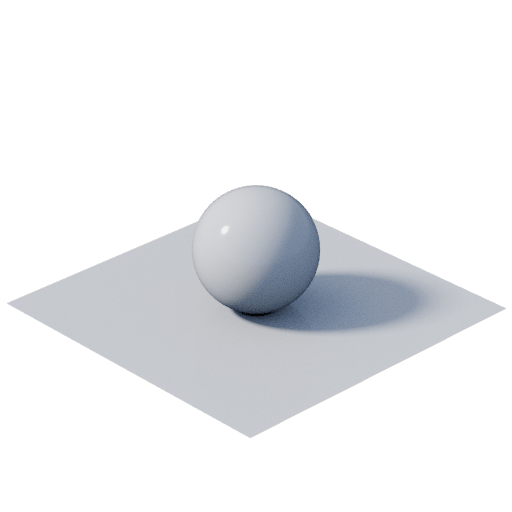
In: Filter > Effect
Description
Computes a 3D render for a specified SDF or intersection scene defined by a function graph, with a custom camera and environment light.
This node is useful for authoring and visualizing SDF functions to be used in the Shape splatter v2 node .
Helpers are available to visualize key attributes of shapes in space.
For advanced users, custom functions can be authored to set up the camera and/or the 3D render per pixel.
INFO
To learn more about concepts and workflows involving SDF functions, go to the dedicated page: Working with SDF functions
Inputs
Environment Color
The image that should be projected onto the infinite sphere used as the scene’s environment, and used for the environment lighting.
The projection is equirectangular, the same used by Designer’s default environment maps available in the 3D View > HDRI environments category of the Library.
When left unconnected, a default environment is used.
Tip: Use an HDR image (32-bit) for precise lighting.
The projection is equirectangular, the same used by Designer’s default environment maps available in the 3D View > HDRI environments category of the Library.
When left unconnected, a default environment is used.
Tip: Use an HDR image (32-bit) for precise lighting.
Input 1 Color
An image that may be sampled in the Custom output function graph when the Output parameter is set to ‘Custom’.
Use a Sample color node set to ‘Image input 0’ to sample from this image.
Use a Sample color node set to ‘Image input 0’ to sample from this image.
Input 2 Color
An image that may be sampled in the Custom output function graph when the Output parameter is set to ‘Custom’.
Use a Sample color node set to ‘Image input 1’ to sample from this image.
Use a Sample color node set to ‘Image input 1’ to sample from this image.
Outputs
Output
The rendered scene, using the AOV selected in the Output parameter.
Note: For accurate readings in some AOVs, make sure the 2D View uses a linear color space, and the node uses an HDR 32-bit output format.
Note: For accurate readings in some AOVs, make sure the 2D View uses a linear color space, and the node uses an HDR 32-bit output format.
Parameters
Scene type Integer
The type of function used to describe the surfaces and shapes to be rendered:
- SDF: Use a signed distance field (SDF) function, which can describe complex shapes.
- Intersection: Use intersection functions, which are faster when only simple primitive shapes are needed.
- SDF: Use a signed distance field (SDF) function, which can describe complex shapes.
- Intersection: Use intersection functions, which are faster when only simple primitive shapes are needed.
SDF scene Float
The signed distance field (SDF) function describing the surfaces and shapes in the scene.
Use the nodes in the SDF functions category of the Library to author the function.
Use the nodes in the SDF functions category of the Library to author the function.
Intersect scene Float
The intersection function describing the surfaces and shapes in the scene.
Intersection functions for simple primitives and operators are available in the 3d_intersection folders of the 3d_functions.sbs Library package.
Tip: You can access the package by dropping any SDF node from the Library into the Explorer.
Intersection functions for simple primitives and operators are available in the 3d_intersection folders of the 3d_functions.sbs Library package.
Tip: You can access the package by dropping any SDF node from the Library into the Explorer.
Output Integer
The type of 3D render that should be output by the node, commonly referred to as AOVs (Arbitrary output variables).
Available AOVs are:
- Beauty: The final result of the 3D render, with art-directed colors and effects.
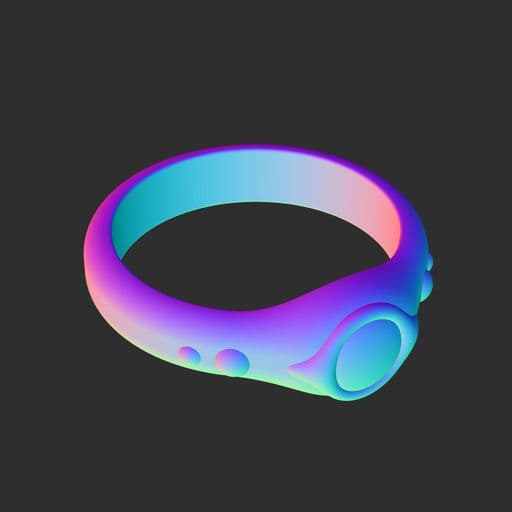
- Normal WS: The world space normals of the shapes in the scene.
- Normal TS: The tangent space normals of the shapes in the scene.
- Position: The world space position of the surfaces of the shapes in the scene.
- Distance: The raw distance from the camera to the shapes in the scene
- Depth: The signed distance of the shapes from the camera target plane, where the plane always faces the camera.
- Color: The shapes’ base color (Use the ‘Set color’ node to assign colors to shapes in the scene function)
- Material ID: The material IDs applied to the shape surfaces (Use the ‘Set material ID’ node to assign material IDs to shapes in the scene function)
- Sphere tracing steps: A visualization of the amount of steps required for defining the surface of a shape. Brighter values mean more steps were required.
- Custom: Author a custom function to compute the color of the render per pixel.
Note: For accurate readings in some AOVs, make sure the 2D View uses a linear color space, and the node uses an HDR 32-bit output format.
Available AOVs are:
- Beauty: The final result of the 3D render, with art-directed colors and effects.
- Normal WS: The world space normals of the shapes in the scene.
- Normal TS: The tangent space normals of the shapes in the scene.
- Position: The world space position of the surfaces of the shapes in the scene.
- Distance: The raw distance from the camera to the shapes in the scene
- Depth: The signed distance of the shapes from the camera target plane, where the plane always faces the camera.
- Color: The shapes’ base color (Use the ‘Set color’ node to assign colors to shapes in the scene function)
- Material ID: The material IDs applied to the shape surfaces (Use the ‘Set material ID’ node to assign material IDs to shapes in the scene function)
- Sphere tracing steps: A visualization of the amount of steps required for defining the surface of a shape. Brighter values mean more steps were required.
- Custom: Author a custom function to compute the color of the render per pixel.
Note: For accurate readings in some AOVs, make sure the 2D View uses a linear color space, and the node uses an HDR 32-bit output format.
Custom output Float4
The function graph defining the per-pixel RGBA colors of the rendered scene, as a Float4 value.
Available variables:
-
-
-
-
-
-
-
-
-
The node’s image inputs can be sampled by selecting the following Sample color node slots:
- Image input 0 samples Input 1.
- Image input 1 samples Input 2.
Available variables:
-
scene.position (Float3) The world space position of the scene’s surfaces.-
scene.normal (Float3) The world space normals of the scene’s surfaces.-
scene.hit (Boolean) Returns ‘True’ when a surface is hit by a camera ray.-
view.origin (Float3) The per-pixel world space position of the camera view.-
view.direction (Float3) The per-pixel forward vector of the camera view, according to the projection mode. (E.g. perspective or orthographic)-
material.color (Float3) The base color of the scene’s surfaces.-
material.metalness (Float) The metalness of the scene’s surfaces.-
material.roughness (Float) The roughness of the scene’s surfaces.-
material.id (Integer) The material IDs of the scene’s surfaces.The node’s image inputs can be sampled by selecting the following Sample color node slots:
- Image input 0 samples Input 1.
- Image input 1 samples Input 2.
Environment rotation Float
The rotation of the Environment, in number of turns.
Background mode Integer
Specifies the source of the scene’s background, drawn where no shape surfaces are visible.
- Color: The flat ‘Background color’.
- Environment: The image provided to the ‘Environment’ input, applied to an infinite sphere using equirectangular projection. (When the input is not connected, a default environment is used.)
- Color: The flat ‘Background color’.
- Environment: The image provided to the ‘Environment’ input, applied to an infinite sphere using equirectangular projection. (When the input is not connected, a default environment is used.)
Background color Float4
The flat color used as the scene’s background.
IBL samples Integer
The amount of light samples performed per camera sample.
A higher value results in smoother, more accurate lighting at the cost of performance.
A higher value results in smoother, more accurate lighting at the cost of performance.
Camera samples Integer
The amount of camera samples performed per pixel.
This parameter affects the quality of the anti-aliasing and the depth of field effect.
A higher value results in a clearer, less noisy image at the cost of performance.
This parameter affects the quality of the anti-aliasing and the depth of field effect.
A higher value results in a clearer, less noisy image at the cost of performance.
Ray marching steps Integer
The amount of steps performed in the sphere tracing process, the ray marching technique used to detect and draw the surfaces of the shapes.
A higher value results in accurate, consistent surfaces (especially for complex shapes), at the cost of performance.
Tip: Set the Output parameter to the ‘Sphere tracing steps’ AOV to visualize the areas of the shapes that require more steps. These areas will be impacted first by reducing the amount of steps.
A higher value results in accurate, consistent surfaces (especially for complex shapes), at the cost of performance.
Tip: Set the Output parameter to the ‘Sphere tracing steps’ AOV to visualize the areas of the shapes that require more steps. These areas will be impacted first by reducing the amount of steps.
Secondary ray marching steps Integer
The amount of steps performed in the sphere tracing process to compute the diffusion and specular occlusion in order to draw cast shadows.
A higher value results in more accurate shadows at the cost of performance.
A higher value results in more accurate shadows at the cost of performance.
Camera mode Integer
The method of projecting the scene onto the render image:
- Perspective: This projection conveys depth and enables lens effects such as depth of field.
- Orthographic: This projection flattens the scene, nullifying depth.
- Custom function: Author a function graph to set up a custom camera.
- Perspective: This projection conveys depth and enables lens effects such as depth of field.
- Orthographic: This projection flattens the scene, nullifying depth.
- Custom function: Author a function graph to set up a custom camera.
Camera function Float3
The function graph defining the camera’s transform. This may be used for setting up a custom camera.
The function should set these variables:
-
-
The following variables are available to get:
-
-
-
-
-
The function should set these variables:
-
view.origin (Float3) The per-pixel world space position of the camera view.-
view.direction (Float3) The per-pixel forward vector of the camera view, according to the projection mode. (E.g. perspective or orthographic)The following variables are available to get:
-
camera.origin (Float3) The world space position of the camera. (camera.direction * camera_distance + camera.target)-
camera.direction (Float3) The world space direction of the camera, I.e. the camera’s Y-forward vector.-
camera.right (Float3) The camera’s X-right vector.-
camera.up (Float3) The camera’s Z-up vector.-
camera.target (Float3) The world space position of the camera target.UV position Float2
The position in 2D image space used to infer the camera position and direction orbiting the Target position.
Tip: This parameter can be adjusted intuitively by using the position gizmo available in the 2D View when the node is selected.
Tip: This parameter can be adjusted intuitively by using the position gizmo available in the 2D View when the node is selected.
FOV Float
The orthographic camera’s field of view (FOV), which impacts the zoom factor.
Focal length Float
The camera’s focal length, which impacts the zoom factor and depth of field effect.
Distance from target Float
The distance that the camera should rest from the Target position.
Adjusting this moves the camera along the camera-to-target direction.
Adjusting this moves the camera along the camera-to-target direction.
Target position Float3
The position of the camera target, towards which the camera is always oriented.
Tonemapper Integer
The tonemapping algorithm that should be applied to the scene render.
- None (Raw)
- sRGB
- AgX
- ACES
- None (Raw)
- sRGB
- AgX
- ACES
Enable depth of field Boolean
Simulates the ‘depth of field’ camera lens effect for the perspective camera.
Use the F number and Focus distance parameters to adjust the aperture and focal point of the effect respectively.
The result is also impacted bt the Focal length.
Use the F number and Focus distance parameters to adjust the aperture and focal point of the effect respectively.
The result is also impacted bt the Focal length.
F-number Float
The camera’s aperture.
A lower value results in a shorter depth of field, I.e. a shorter distance range for objects being sharp and a stronger blurring effect as the distance from that range increases.
A lower value results in a shorter depth of field, I.e. a shorter distance range for objects being sharp and a stronger blurring effect as the distance from that range increases.
Focus distance Float
Sets the distance of the focal point as a distance from the camera along along its forward vector.
Surfaces within range of that distance will appear sharp, that range — the depth of field — is defined by the F-number.
Surfaces within range of that distance will appear sharp, that range — the depth of field — is defined by the F-number.
Exposure (EV) Float
The amount of light reaching the camera sensor, I.e. the intensity of the lighting in the render.
A lower value results in a darker rendered scene.
The ‘Exposure Value’ (EV) specifically refers to how much light the camera sensor is exposed to.
A lower value results in a darker rendered scene.
The ‘Exposure Value’ (EV) specifically refers to how much light the camera sensor is exposed to.
Base color Float3
The default base color for surfaces where that color is not defined by its SDF or intersection function.
Roughness Float
The default roughness value for surfaces where that value is not defined by its SDF or intersection function.
Metalness Float
The default metalness value for surfaces where that value is not defined by its SDF or intersection function.
Helpers opacity Float
The opacity of the 3D helpers, where a lower value results in fainter helpers.
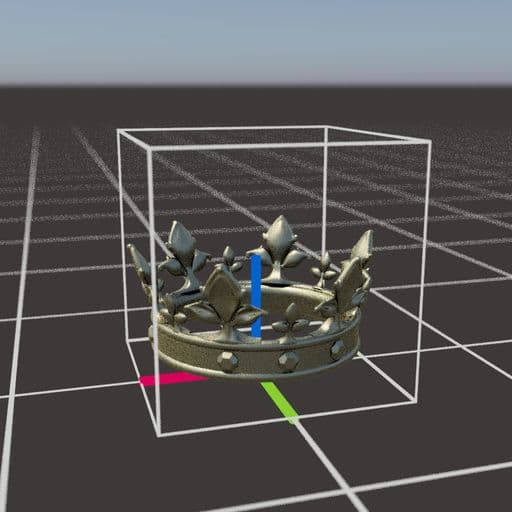
Bounding frame Boolean
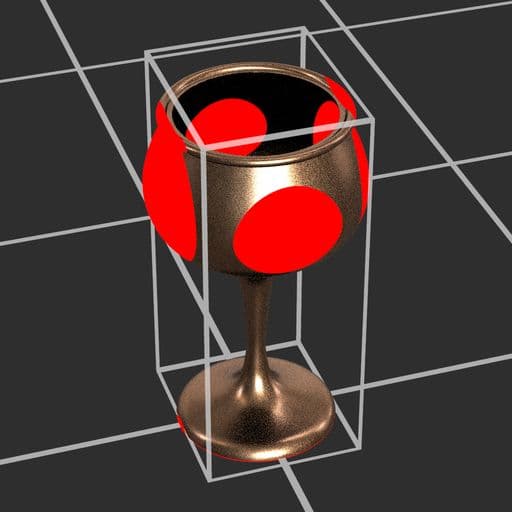
A visualization of a six-sided cage defining the bounds of the entire scene. Should ideally be the smallest possible size which fully includes the scene.
Use the Bounding frame size parameter to adjust the size of the cage.
The Colorize out of frame parameter lets you easily visualize the surfaces outside of that cage, which impacts the result of using that scene in the Shape splatter v2 node . (See ‘Bounding frame size’ tooltip)
Use the Bounding frame size parameter to adjust the size of the cage.
The Colorize out of frame parameter lets you easily visualize the surfaces outside of that cage, which impacts the result of using that scene in the Shape splatter v2 node . (See ‘Bounding frame size’ tooltip)
Bounding frame size Float3
Sets the XYZ size of the bounding frame.
Adjust the frame to your scene, then apply those same values to the SDF bound frame size parameter of the Shape splatter v2 node to ensure all shapes in the scene are correctly included and drawn by that node.
Adjust the frame to your scene, then apply those same values to the SDF bound frame size parameter of the Shape splatter v2 node to ensure all shapes in the scene are correctly included and drawn by that node.
Colorize out of frame Boolean
Applies a red color to the surfaces outside of the bounding frame.
This helps check that the scene is fully included in its bounding frame.
This helps check that the scene is fully included in its bounding frame.
Axis Boolean
A visualization of the scene’s XYZ axes as colored lines starting at the scene’s origin.
Grid Boolean
A visualization of a grid laid on the XY axes, where the size of one cell in X and Y is one scene unit.
Transform helpers Boolean
A visualization of the last applied rotation.
The visualisation includes
- An arrow representing the rotation axis direction vector, and colored after the weights of each world space axis.
- An arc representing the rotation angle, orthogonal to the arrow matching its color.
The visualisation includes
- An arrow representing the rotation axis direction vector, and colored after the weights of each world space axis.
- An arc representing the rotation angle, orthogonal to the arrow matching its color.
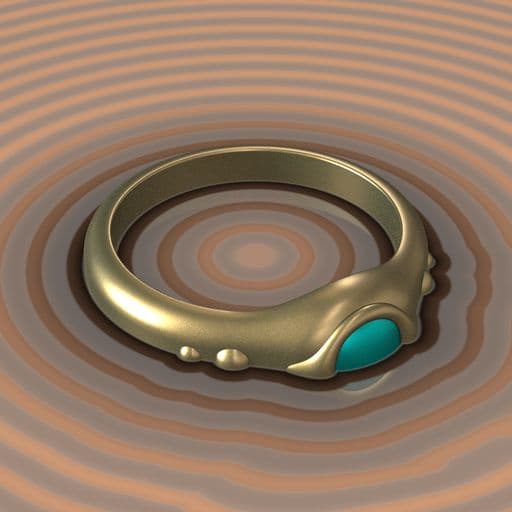
SDF isolines Boolean
A colored visualization of the signed distance field (SDF) function isolines.
The isolines are regularly repeating lines representing the distance field of the shape on the XY plane at a given height.
These are useful for checking the uniformity of the space defined by the SDF function.
Use the SDF isolines frequency and SDF isolines position parameters to adjust the density and height of the isolines.
The isolines are regularly repeating lines representing the distance field of the shape on the XY plane at a given height.
These are useful for checking the uniformity of the space defined by the SDF function.
Use the SDF isolines frequency and SDF isolines position parameters to adjust the density and height of the isolines.
SDF isolines frequency Float
The amount of isoline repetitions within a given distance.
A higher value results in denser, thinner lines.
A higher value results in denser, thinner lines.
SDF isolines position Float
The world space height of the XY plane used to draw the isolines.
Use this to check the distance field of the shape at various elevations.
Use this to check the distance field of the shape at various elevations.
Min. hit distance Float
Defines the minimum distance that translates into a hit for the SDF ray marching process.
A low value will increase the number of ray marching steps.
A low value will increase the number of ray marching steps.
Examples
| table 0-row-2 1-row-2 1-align-center 2-align-center 4-align-center 5-align-center html-authored no-header | |
|---|---|
|
|

|
|
recommendation-more-help
substance-3d-designer-help-guide