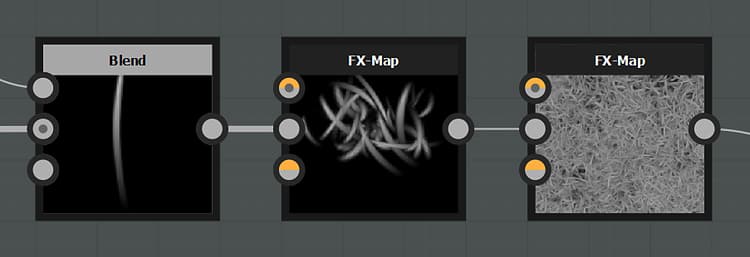
FX-Map
Similar to the Pixel processor, it is up to you to define and create the functions that determine the behavior and output of this node.
TIP
Take a look a the dedicated guide to learn and understand more about the FX-Map process.
IMPORTANT
It is recommended to be very familiar with all aspects of the software and have no problems creating mathematical functions for parameters before attempting to use the FX-Map node.
Examples
Parameters
Keep in mind that unlike other nodes, the majority of an FX-Map’s behavior is not determined by the parameters, but rather by editing the FX-Map functions inside of it.
Color mode Boolean
Toggles between a grayscale and a color output image. Color will be much slower than grayscale.
Background Float/Float4
Sets the background starting color onto which to composite results.
Render region Float4
Lets you set the starting pixel range for each side of the FX-Map, resulting in a stretching effect.
Tiling region Float4
Lets you offset the tiling distance of the FX-Map.
Cull outside Boolean
Performs an optimization by culling patterns that fall outside of the normal range.
Roughness Float
Functions as a depth and opacity multiplier. It applies a bias to the FX-map blending process.
Global opacity Float
Sets the global opacity of the FX-map’s output.
FX-Map guide
Coming soon.
Input connectors
Background Grayscale/Color PRIMARY
The output image’s background color.
Input image # Grayscale/Color
Output connectors
Output Grayscale/Color
Examples
recommendation-more-help
dd48abc6-e399-43d2-9777-578ec70c5a23