Project settings
This page presents the Projects settings in Substance 3D Designer, and the settings contained within.
Substance 3D Designer allows you to create preferences per project, and share them across workstations. These preferences can be found in the Projects tab of the Preferences window.
This is very helpful if you want to set up a common working environment for a team working on the same project, by using the same Project File on all systems.
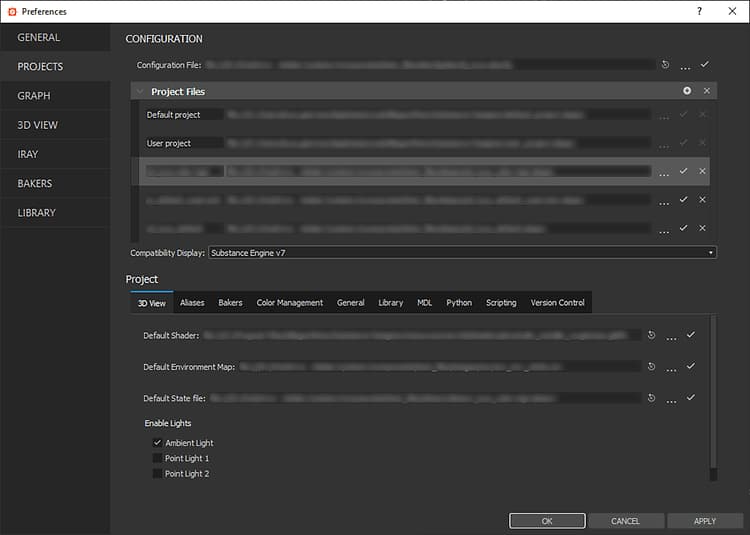
Configuration
Configuration file
This allows you to set the path of the Configuration File for Substance 3D Designer. A configuration file uses the *.sbscfg extension, and contains a list of project files along with a set Compatibility Display setting.
Default: default_configuration.sbscfg
For more information about Configuration Files, you can refer to the Configuration List - SBSCFG page of the documentation.
Project files
A project file contains a number of settings which define key aspects of the working environment in Designer, arranged into tabs. These settings are listed in the Project chapter of this page. Project files use the *.sbsprj extension.
You can import multiple project files to be used for your working environment in Designer. When multiple project files exist, settings which are lists (e.g. library watched paths, aliases, etc.) are combined, and settings which are unique set values are defined by the last project file of the list.
Default: default_project.sbsprj (read only), user_project.sbsprj
Compatibility display
Some of the nodes created with a recent version of Designer are not compatible with older versions of the Substance Engine.
Compatibility Mode will highlight the nodes which are not compatible with the selected Substance Engine, with a yellow outline.
Default: Substance Engine v7
3D View
Default: Default (predefined renderer)
Default: open_pbr.glslfx
Default: panorama_map.hdr
Default: Empty (in this case, a preset scene state is used)
Default: Ambient Light only
Aliases
Aliases are used to shorten system paths and allow teams to share assets more efficiently. Aliases are used throughout the software as well as in SBS files.
These settings allow you to add and edit aliases. When an alias is applied, it replaces the mapped path using the following syntax: ://.
Example: if a resource myResource in the folder myFolder is placed at the location C:/Users/user/Documents, then mapping this location to myalias will result in the myalias://myFolder/myResource path being used in the application and the SBS package the resource belongs to.
Default: sbs; sd-3dview-shapes; sd-3dview-maps; sd-3dview-shaders (Default project)
Also, we recommend not nesting aliases – i.e. aliasing a path which is also included in another alias.
Bakers
Default: $(mesh)_$(bakername)
Default: None
The scene object which name should be used for matching the low poly and high poly scene objects:
- Geometry name: use the name of the mesh geometry object
- Parent name (Legacy): use the name of the parent of the mesh geometry object (same as in Designer versions 14.1 and lower)
Default: Geometry name
Default: None
Default: _ignorebf
Note: The Ignore Backface and Low/High Poly Mesh suffixes can be combined in any order (e.g. body-torso_low_ignorebf)
Color management
Please refer to the Color Management page.
General
Default: None
Note: We recommend using the current templates as a reference for configuring and formatting your template SBS files. The templates can be found in the resources > templates folder in the Substance 3D Designer installation directory.
Default: mikktspace.dllAlways recompute tangent frames
Default: UncheckedNormal and Tangent Smoothing Angle
Default: 180.0°
Default: DirectX
Regarding the Normal filter node, you can set the default value for the Alpha Channel Content parameter. You can either choose to force the alpha to 1 in all cases, or fill it with information from its input.
Default: Force Alpha to 1
Default: Default (BMP) / Piz-based wavelet, unchecked, unchecked (EXR) / Unchecked, unchecked, 75 (JPG) / Best Speed, unchecked (PNG) / Default (TGA) / LZW (TIF) / Unchecked, 75 (WEBP)
SBS packages generally have dependencies, i.e. reliance on external resources such as other SBS packages, bitmaps or vector files.
These dependencies, which are listed in the Dependency Manager, are stored and referenced in the SBS package with a path which points to these resources.
For dependencies which include the same path as the SBS package (I.e. they are located in the same locations or sub-folder(s) from that location), the reference path is written relative to the SBS package location.
Example: for a SBS package myproject/mypackage.sbs, an image myproject/myfolder/myimage.png will be referenced to the myfolder/myimage.png path in mypackage.sbs).
For dependencies which do not include the same path as the SBS package (I.e. they are located in a different location altogether from the SBS package), you can choose how the path is written.
If it is set to relative paths, the resource will be referenced in the same way as described above.
Example: for a SBS package myparentfolder/myproject/mypackage.sbs, an image myparentfolder/myotherfolder/myimage.png will be referenced to the …/myotherfolder/myimage.png path in mypackage.sbs.
If it is set to absolute paths, the resource will be referenced by its full system path.
Example: for a SBS package myparentfolder/myproject/mypackage.sbs, an image myparentfolder/myotherfolder/myimage.png will be referenced to this same full path in mypackage.sbs
Default: …relative paths.
Note: In all cases, moving the resources will break dependencies , which will result in Ghost instance nodes in graphs. To consolidate all dependencies in a single project folder along with the SBS package, you can use the Export with dependencies… features in the Explorer panel. This effectively creates an self-contained project folder which can be moved freely.
Library
This section lets you manage the custom content of the Library.
The content of all folders listed in the Paths added list will be included in the Library. Any change to the content are reflected in the Library, following a refresh period which can be set in the Library tab of the Preferences window.
In the columns of the list, you can find options giving you more granular control over the way the content of these folders are added to the Library:
- Enabled: The content of the folder is shown in the Library (Default: Checked)
- Recursive: The content of all children folders is also shown in the Library (Default: Checked)
- Exclude pattern: Files which name matches the input Regex (regular expression) are not shown in the Library (e.g.
wip-*) . Learn more about the regular expression syntax here - Exclude extension: Files which extension include the input text string are not shown in the Library. Multiple strings should be separated by
;semicolons. (E.g.jpg;png;tif;fbx)
If SBS packages are added to the Library, the graphs and resources it contains can be shown in the Library as separate entries, if their Visible In Library parameter is set to ‘Yes’.
Options are available to define if this parameter should be set to ‘Yes’ by default when creating/adding a new graph or resource in a package.
Default: Checked
If a Photoshop document (*.PSD file) included in the Library has multiple layers, an option lets you display the content of each layer as a separate image entry in the Library.
Default: Checked
See the Managing custom content and filters section of the documentation for more information.
Python
Substance 3D Designer will automatically load all plugins located in the folders you add to the Url list.
Default: None
Plugin packages still need to be installed manually using the Plugin Manager.
Scripting
You may go to the Application callbacks page in the Scripting section of our documentation to get started.
This section lets you set up and control scripts to be executed when specific events happen in Designer. It is particularly useful when used in conjunction with the Perforce integration which can be configured in the Version Control tab of the Project Settings.
Designer has pre-configured callbacks triggers, which will execute the script you provide using the interpreter set up in the Interpreters list described below.The included callbacks are the following:
- onBeforeFileLoaded – executes the script before a SBS package is loaded
- onAfterFileLoaded – executes the script after a SBS package is loaded
- onBeforeFileSaved – executes the script before a SBS package is saved
- onAfterFileSaved – executes the script after a SBS package is saved
- getGraphExportOptions – executes the script when the Export Outputs options are called
A Python script is included in the installation files, with the functions triggered by each callback already set up and ready to use. You can use it as a starting point and add functionality according to your needs. This script is functions.py, located in the tools > scripting folder of the installation files
Default: None
Note: Initially, selecting a script for any of the callbacks will input that script in all callbacks for convenience. You can freely set up different scripts for specific callbacks after that point.
Default: None
Version Control
Please refer to the Version control page.
How should you use this?
You should set all preferences that are project-specific in a Project File (*.sbsprj) in Designer. These preferences include:
- Tangent space plugin
- Library
- Aliases
- 3D View settings
- Baking settings
- Version Control settings
All the paths are stored relative to the Project File (.spsprj). so you can have a library folder at the same location as your Project File in Perforce, with the following sub-folder tree :
- maps/
- meshes/
- sbs/
- sbsar/
- psd/
- 3Dview/
- …
On the same level as the Project File, you may also store a tangent space plugin or default shader.
The Configuration File (*.sbscfg) should be placed in the Perforce workspace alongside the Project File.