Color Management
This page explains the Color Management features and settings in Substance 3D Designer.
Substance 3D Designer can be configured to use OpenColorIO (OCIO) or Adobe Color Engine (ACE) for Color Management. This allows you to have consistent color transforms and image display across multiple applications.
In this mode, Designer will work internally with linear RGB colors. Since 8-bit depth is usually not enough to represent linear colors, it is recommended to use at least 16-bit depth for color textures in the graph.
Adobe ACE users should make sure the ICC profiles selected in the OS matches their monitors.
Configuration
Color Management settings can be configured in Projects tab of the Preferences dialog. You can set the following settings:
Color Management Mode
OpenColorIO
OpenColorIO configuration
When using the OpenColorIO mode for Color Management, Designer will use the information stored in a configuration file (*.config) to perform color transforms, identify color spaces and set defaults.
Substance 3D Designer ships with the following configurations:
- Substance: a simple configuration which includes common color spaces
- ACES 1.0.3: the full-featured Academy Color Encoding System (ACES) configuration, an industry standard for Color Management workflows
You can find these configuration files in the resources > ocio folder of Designer’s installation files.
Bitmap Color Space Defaults
2D and 3D View Display Default
Adobe ACE
Color settings
When using the Adobe ACE mode for Color Management, Substance 3D Designer will use the information stored in ICC Profiles (*.icc / *.icm) to perform color transforms and identify color spaces.
Designer ships with a number of ICC Profiles. You can find the files for these profiles in the resources > icc folder of Designer’s installation files.
You can add your own ICC Profiles by placing these files in the Adobe/Adobe Substance 3D Designer/icc location in the Documents folder for the current system user.
Bitmap Color Space Defaults
2D and 3D View Display Default Space
Graph Display
Legacy mode
When using Legacy mode, Color Management is disabled in Designer-
In this mode, graphs and images behave exactly in the same way as in previous versions. This means your workflow from previous versions is entirely unaffected if this setting is left untouched. There are however some useful additions:
You can choose to use ACES sRGB tonemapping in the 3D View to match the output of other software, such as Unreal Engine.
You can set a colour space for exported bitmaps as described in the Exporting Outputs section in this page. The available color spaces are the following:
- sRGB
- Linear
- Raw
In Legacy mode, Designer uses the sRGB working color space, which can be reproduced by most displays.
Considering the ‘Raw’ option writes the image data as-is from the graph – i.e. using the graph working color space – this means the Raw and sRGB options result in the same color output.
By default, the ‘sRGB’ option will be set for outputs which contain color information (e.g. Base Color, Emissive), and the ‘Raw’ option is set for outputs which hold pure data (e.g. Roughness, Metallic, Height, Normal). As explained above, these defaults effectively result in the same colors, and are set only to differentiate the end usage of their outputs.
The Linear option is the only one which results in a color transform being applied to the image, and may be only used for High Dynamic Range (HDR) images, which commonly use floating point precision (i.e. 16F or 32F bit depth) in linear color space. This allows these images to be used in a wide array of color spaces and production environments.
Importing bitmaps
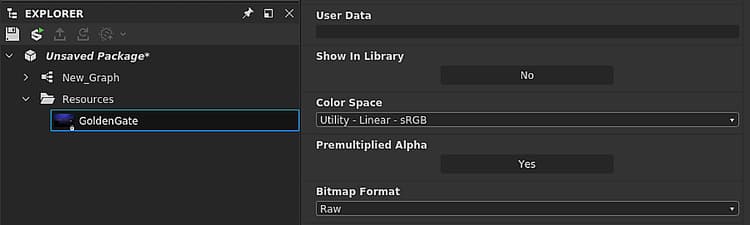
You can assign a color space (OCIO) or ICC profile (Adobe ACE) to imported and linked bitmaps.
When importing or linking bitmaps, a color space or ICC profile will be set by default to the bitmap resource using the options set in the Bitmap Color Space Default section of the Color Management tab in the Project settings.
You can change the color space of a bitmap at any time, the option is located in the bitmap resource’s Properties.
Exporting outputs
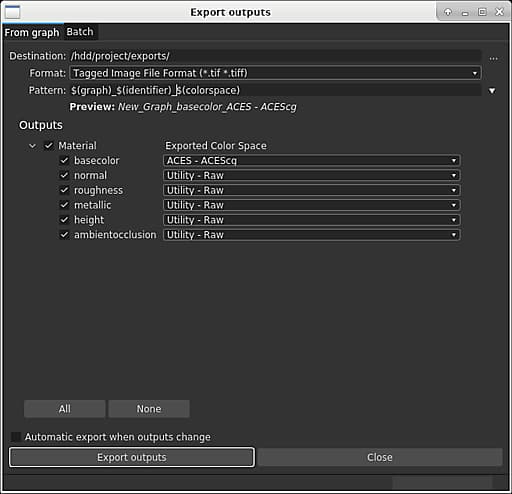
When using the Export Outputs dialog, it is possible to assign a color space (OCIO) or attach an ICC profile (Adobe ACE) for each output.
Designer will convert images to the specified color spaces before saving the image files.
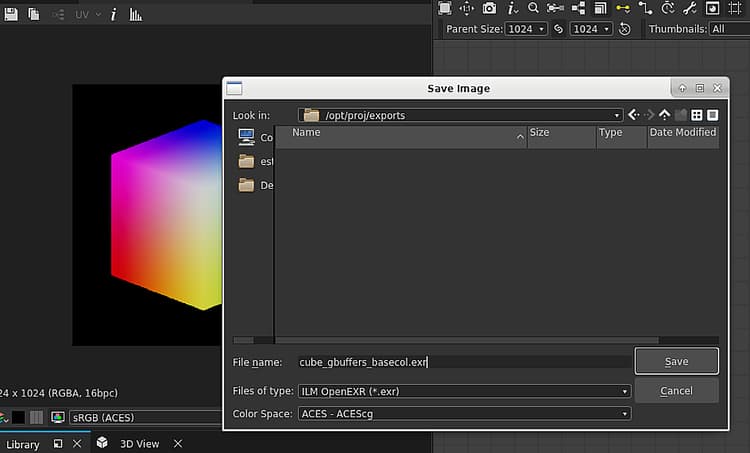
You can also assign a color space (OCIO) or attach an ICC profile (Adobe ACE) to images saved from the 2D View.
2D & 3D views
Display toolbar
You can toggle Color Management on/off and change the display transform for the view at any time using the drop down menu in the display toolbar.

Library HDRI environments
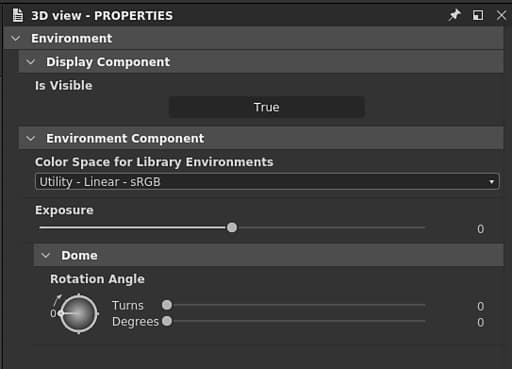
The HDRI environments shipped with Designer are in the Linear sRGB color space.
When using an OpenColorIO configuration where the scene linear color space is not Linear sRGB – such as the ACES configuration – the environment will display incorrect colors.
In that case, the color space for library HDRI environments should be set manually in the environment properties, available in the 3D View panel Environment menu.
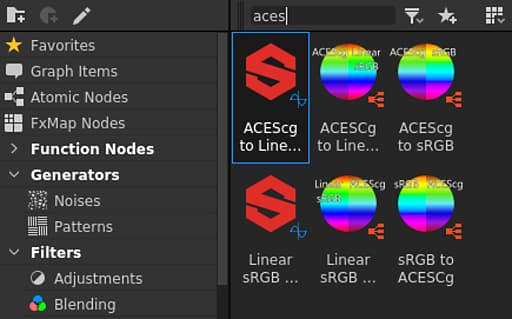
Color conversion nodes
The Library includes the following nodes for performing conversions to and from the ACEScg color space:
These are useful when working with graphs created without Color Management or materials from the Substance 3D assets library.
Known limitations
The current implementation of color management in Substance 3D Designer has the following limitations:
- Color management is currently not exposed in the Python API;
- OpenColorIO looks are not supported.