2D view
This pages describes the user interface and features of the 2D View panel in Substance 3D Designer.
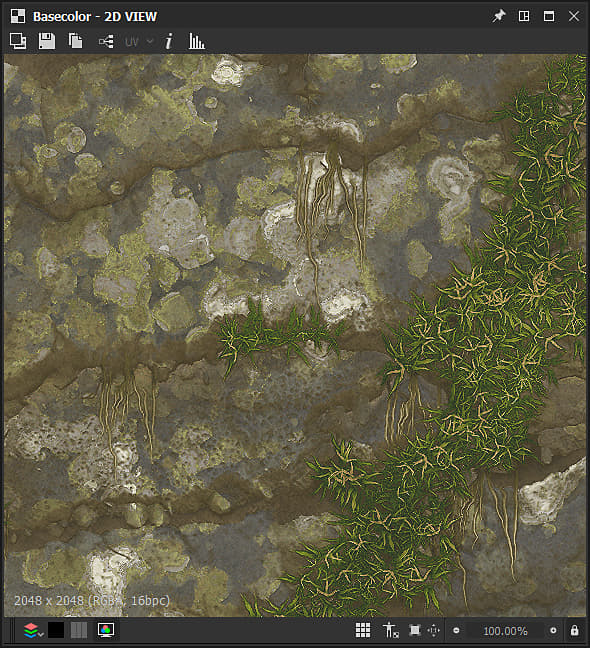
Overview
The 2D View is one of the main panels of Designer’s user interface. Its main purposes are the following:
- displaying value or image output by a specified node or going through a specified node connector
- displaying bitmaps and vector graphics resources
- displaying additional information about the content it currently holds, such as color channels or exact color values
- controlling parameters’ gizmos
When a displayed image or value is modified, the 2D View updates automatically to stay in sync with the current state of the data.
Multiple 2D View panels can be active at any time, and each can display different images or values. You can control when a new panel should be used by using the

Displaying content in the 2D View
The most straightforward way to display any image in the 2D View is to double-click LMB…
- …on a Bitmap or vector graphics resource in the Explorer
- …on a node or node connector in the Graph View
Images can also be dragged and dropped directly into the viewport by holding LMB on a resource in the Explorer panel, or RMB on a node in the Graph View.
In the Graph View, you can send an image to the 2D View using the View output in 2D View contextual menu option, which is accessed by clicking RMB…
- …on a node to display that node’s output. If the node has more than one output, select the desired output in the submenu
- …on empty space in the Graph View to display that graph’s output. If the graph has more than one output, select the desired output in the submenu
When loading a graph, its first output is automatically displayed in the 2D View by default. You can disable this behaviour in the Preferences. Go to Edit > Preferences > Graph > Substance compositing graph and uncheck the View output in 2D view when opening a graph option.
Viewport
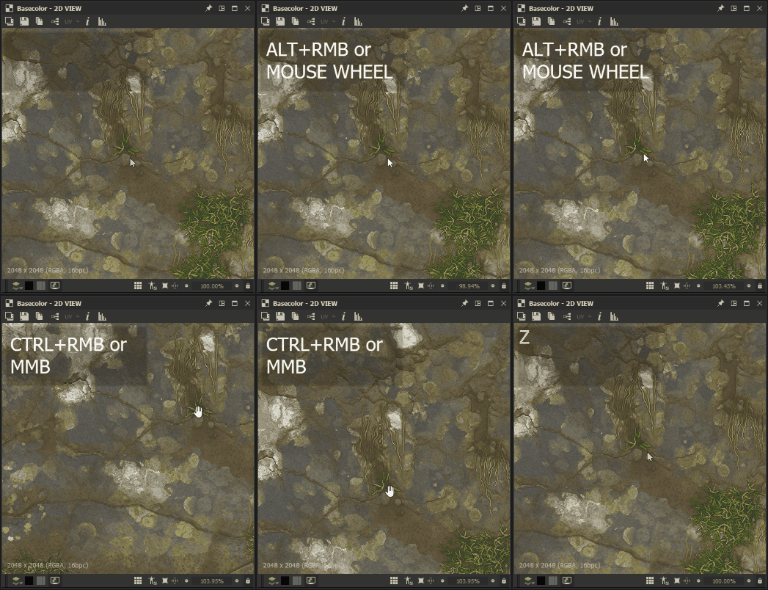
The viewport is the display area of the 2D View, and lets you navigate the displayed image using the following mouse and keyboard shortcuts:
- Pan: Ctrl+RMB / MMB
- Zoom: Alt+RMB / MouseWheel / ‘Display scale’ tool:

- Adjust to fit viewport: F / ‘Fit to view’ button

- Adjust to 1:1 scale: Z / ‘Fit to scale’ button

Using a trackpad (macOS only)
- Pan: Two-finger swipe
- Zoom: Two-finger pinch / Two-finger swipe while holding Cmd
- Mouse wheel up pulls the image closer
- Alt+RMB and drag up pushes the image away
The image native resolution, color format and bit depth appear in the bottom left area of the viewport.
In addition to navigation, the viewport offers the following features:
- Tiled display: repeats the image in the viewport in a tiled pattern. This is useful for checking how a pattern or texture will repeat. It is enabled using the Space bar or

- Physical size display: Displays the image with a ratio matching the Physical size property of the graph It is enabled using the

- Keep view size: This option locks the display scale so it stays consistent throughout different images. It is enabled by default and can be disabled using the

Main toolbar
The main toolbar of the 2D View panel lets you do more with your displayed images, and offers the following features:
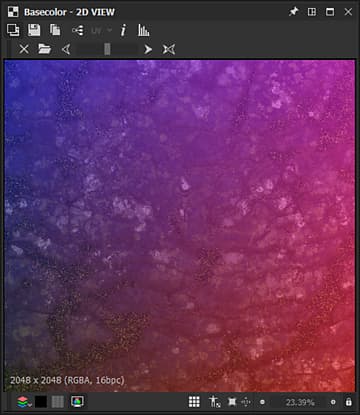
You can overlay a different image on top of the currently displayed one. Press the

Once the file is selected, a new toolbar appears with the following controls for the image overlay:


A slider gives you manual control over the opacity of the overlay image.
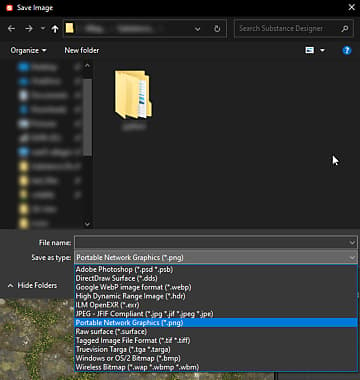
The image currently displayed can be exported to an image file. Press the

While the image will be exported as its native resolution – which is displayed in the bottom left area of the viewport – the bit depth and color format will depend on the image format selected. For instance, 32-bit floating point precision images can only be exported at their full data range with image formats which support this precision, such as TIFF, EXR and HDR. If the image format does not support the data, clamping and/or color banding are likely to occur in the exported image.
In general, be mindful of which precision and features are offered by the image formats you intend to use – floating point support, ICC profiles, etc.
If either OCIO or Adobe ACE color management mode is currently used, and additional option is available to select the color space of the exported image.
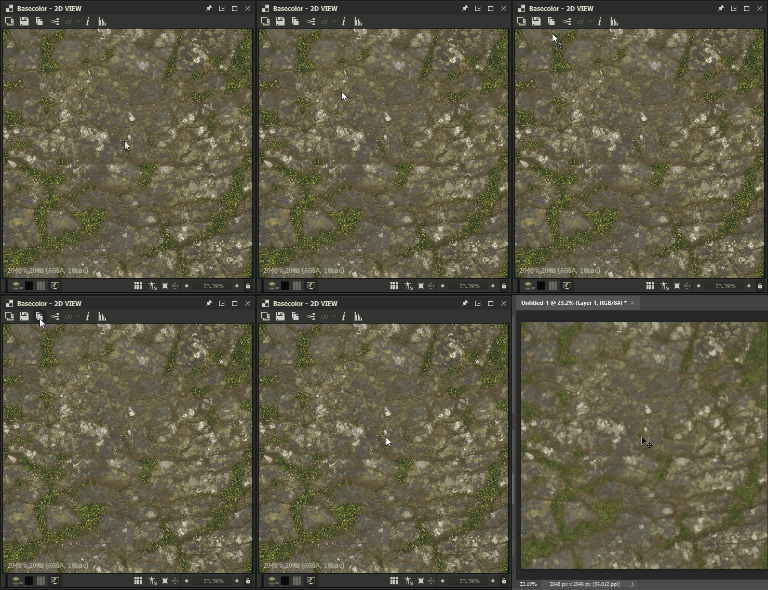
The image currently displayed can be copied to the clipboard. Press the

The image will be copied as an 8-bit precision image at its native resolution, which is displayed in the bottom left area of the viewport.
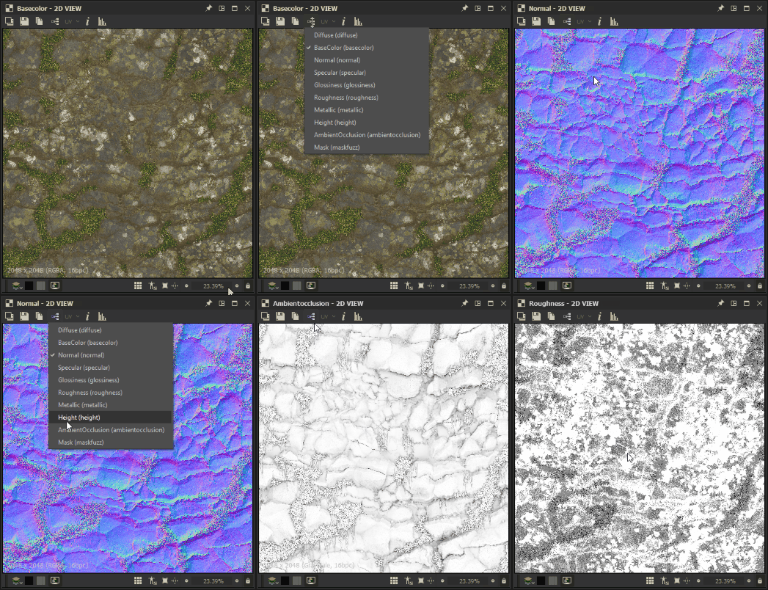
If the image currently displayed is a graph output, you can quickly switch to any other graph output using the

This feature is not available to other nodes, including nodes which have more than one output.
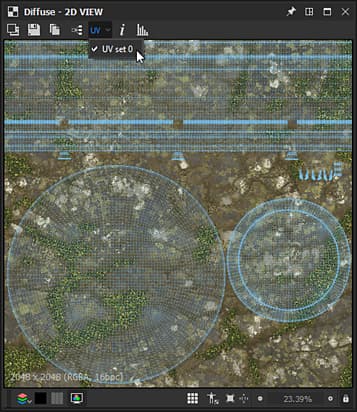
If the Display UVs in 2D View option is enabled in the Scene menu of the 3D View dock, then the UV overlay feature is available in the 2D View.
You can enable it using the UV button.

This displays the UVs of the mesh currently selected in the 3D View as a colored wireframe.
If material color information is available in the mesh file, then the material color is used as the color of the UV overlay.
If the mesh has multiple UV sets, the desired UVs can be selected in the drop-down checklist which can be opened by clicking the arrow next to the ‘UV’ label in the button.
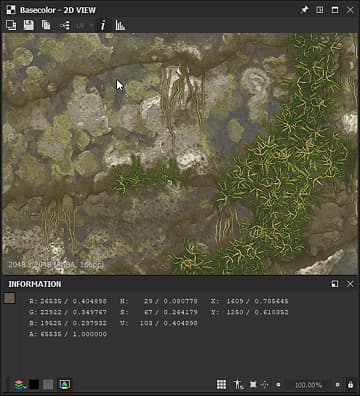
You can display the exact pixel values and coordinates in an image with the Information panel, which is enabled using the

Colors are represented by RGBA and HSV values, and displayed depending on the precision of the image, as follows:
-
8-bit: 0-255 integer / 0.0-1.0 floating point
-
16-bit: 0-65532 integer / 0.0-1.0 floating point
-
16F (16-bit floating point): raw floating-point value
-
32F (32-bit floating point): raw floating-point value
Pixel coordinates are represented by X and Y values.
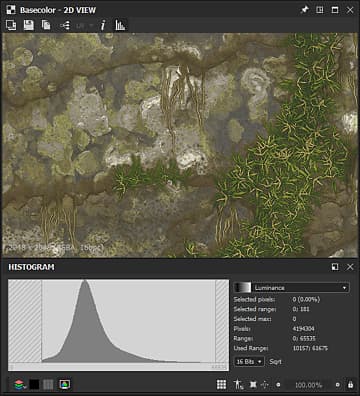
You can display the histogram of the image with the Histogram panel, which is enabled using the

The following histogram modes are available:
-
Luminance
-
Red
-
Green
-
Blue
-
RGB
-
Alpha
The following information is listed below the modes:
-
Pixels: the number of pixels in the image
-
Range: the entire value range available
-
Used range: the value range from the lowest value pixel to the highest
Additionally, you can click LMB on the histogram, or hold LMB and drag across the histogram to select a specific portion of the data. The following information is then displayed for this selection:
-
Selected pixels: the number of pixels which have the selected values
-
Selected range: the value range of the selected portion
-
Selected max: the highest number of pixels which have a value included in the selected portion
The selection can be cleared by clicking RMB on the histogram.
How some of the values above are represented depends on the precision selected in the lower section of the panel, as follows:
-
8 bits: 0-255 integer
-
16 bits: 0-65532 integer
-
32 bits: raw floating-point value
Some portions of the histogram may include very low pixel count values, and thus be challenging to read. In this case, you may enable the square root mode, using the Sqrt button, which uses the square root of the actual values to draw the histogram.
Display toolbar
The Display toolbar, which is located at the bottom of the 2D View panel by default, lets you control how the image is displayed in the viewport.
The leftmost section includes controls for color and transparency, while the rightmost section includes the viewport controls detailed in the Viewport section of this page.
Color channels
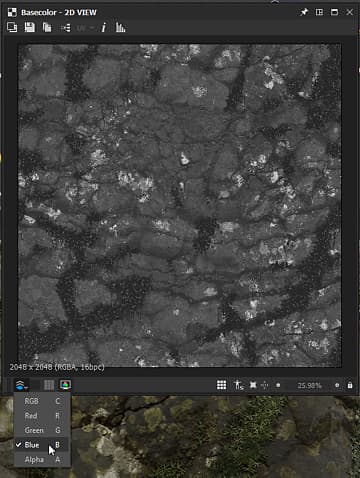
You can display a single channel of the image using the

The following keyboard shortcuts can be used to quickly switch over to different color channels:
- RGB: C
- Red: R
- Green: G
- Blue: B
- Alpha: A
The icon of the Color channels button changes depending on the currently display channel(s).
Transparency toggle
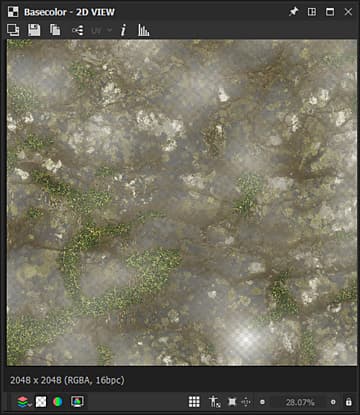
Transparency display can be toggled on and off, using the


There are two main ways to interpret transparency, which can be selected using the


To display correct colors, the appropriate transparency mode should be selected in the 2D View panel to match the transparency method which was applied when the image was created.
Color space
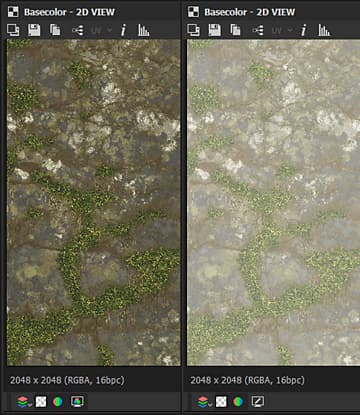
For the most accurate representation of color, images are displayed by default in a color space which matches the one used by the monitor.
The available controls and the effect of the


Bitmap painting tools
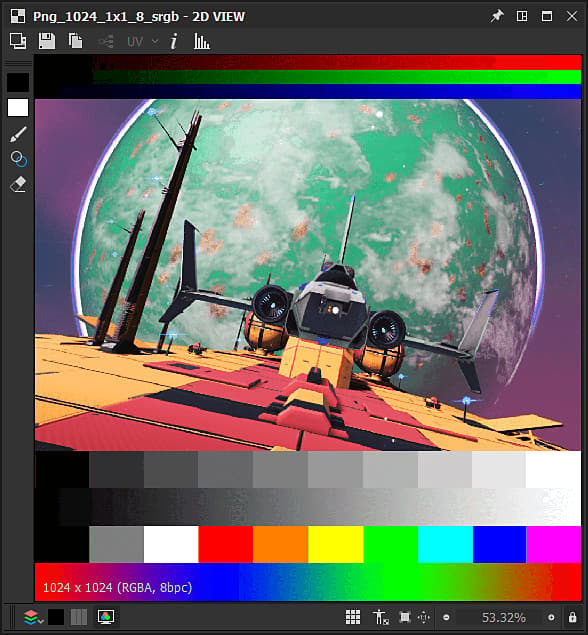
The Bitmap painting tools are available for Bitmap resources matching these criteria:
- The bitmap uses 8-bit precision
- The bitmap resource is imported into the package, linked images are not supported
| note note |
|---|
| NOTE |
| New bitmap resources created within Substance 3D Designer will automatically match these criteria. |
Vector graphics editor
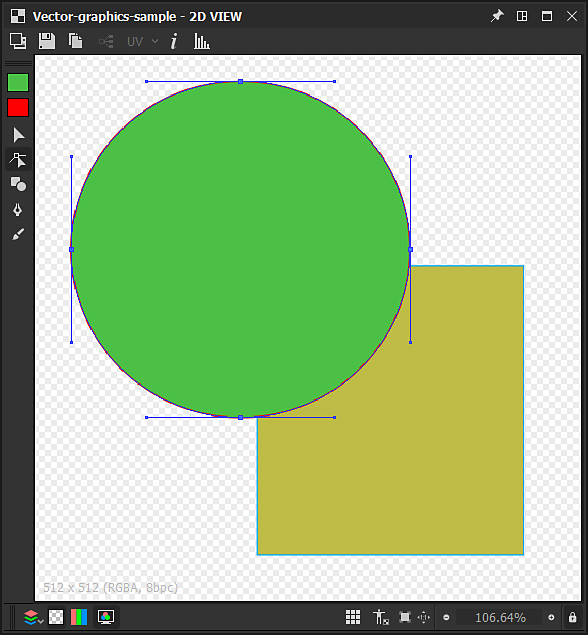
The Vector graphics editor is available for imported SVG resources, linked resources are not supported.
| note note |
|---|
| NOTE |
| New SVG resources created within Substance 3D Designer will automatically match this criterion. |
Color management
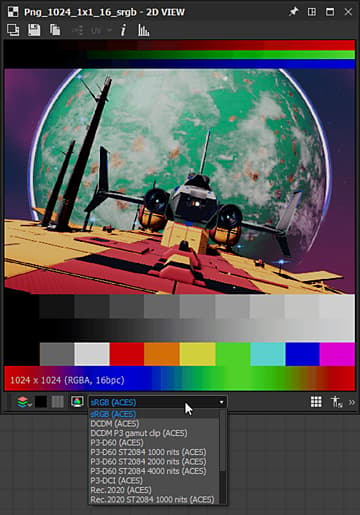
The 2D View offers simple color management controls to let you choose which display color space should be used when displaying the image.
These controls will adapt to the current Color management mode set in the Project settings, as follows:
- Legacy: you can disp.lay the image in the
- Adobe ACE: you can
- OCIO: you can