Explorer
This page describes the Explorer dock in Substance 3D Designer. This dock lets you manage packages and their resources.
Overview
The Explorer dock is where you manage your files and resources currently open in Substance 3D Designer. It shows you a list of all packages currently open, with each package expanded as a hierarchy to show resourcesinside of it.
The Explorer is where you start and end your projects, as it lets you create, save and export any kind of resource.
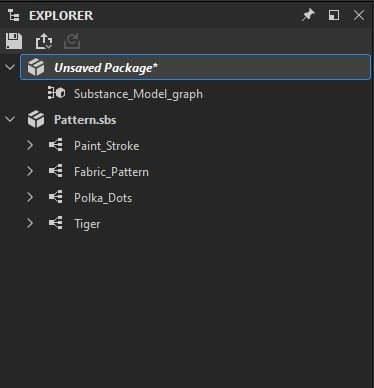
You can do a few important actions through the Explorer dock:
- Create new packages and graphs
- Load existing packages
- Save and close loaded packages
- Import and link resources
- Export graph results to textures
- Publish a package to a Substance 3D asset (SBSAR)
- Send packages to other Substance 3D applications
- Bake maps from a mesh
Top toolbar
This toolbar lets you quickly perform functions related to your overall workflow. All buttons are context-aware, which means they activate and change their behaviour based on your current selection in the Explorer.


- Publish any selected package to a Substance 3D asset (SBSAR);
- Send the selected package to Substance 3D Sampler, Substance 3D Painter or Substance 3D Stager.


- The tool is only available if selected items are of the same type: only graphs, folders or packages;
- When the selection includes folders or packages, the tool cleans all graphs therein recursively;
- If one of the targeted graphs is a Substance graph, a second option is available which lets you clean all parameter functions on nodes in that graph.
Learn more about the tool in the ‘Remove unused nodes’ section of the Graph view page.
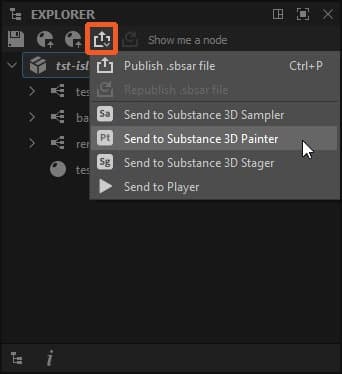
Publish/Send
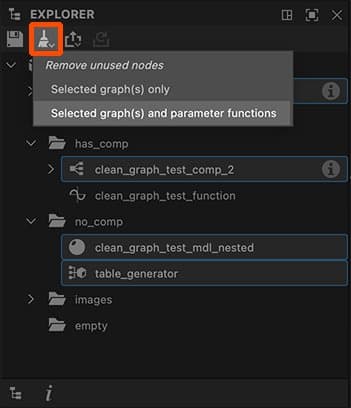
Remove unused nodes
Contextual menus
Most of your interaction with the Explorer is through contextual menus, which are displayed by clicking RMB on an item in the Explorer’s tree view.
The available options differ depending on the selected and clicked item(s):
Empty space is only available below any currently open Packages. Clicking next to existing items is not considered empty space.
New Package: Creates a new empty package;
Open Package: Opens a file dialog to open an SBS file.
New lets you create new graphs (Substance graph, bitmap and vector graphics resources, as well as folders for sorting content
Import and Link let you bring in resources
Reload, Save, Save as and Save a copy as let you save to disk or recall from disk a previously saved version of the package.
Publish .sbsar file and Republish .sbsar file let you publish your uncompiled, unoptimized Substance graph, into an efficient and portable SBSAR file for us in other Substance applications and Integrations. Publish as Previous repeats the previous Publish action with the same options, skipping the options dialog for faster iteration. The toolbar contains buttons with the same functionality.
Export with dependencies is different from saving and publishing. It takes your SBS files, collects all referenced resources and dependencies and creates a self-contained package. The dialog lets you choose what libraries to gather, and if the file should be a compressed archive (7-zip). This is a good choice for sharing an SBS file with someone else, without worrying about missing dependencies.
Send to… opens a sub-menu letting you directly send your package to Substance 3D Sampler, Substance 3D Painter, Substance 3D Stager or Substance Player.
Copy copies the selected package.
Paste pastes copied graphs and/or resources into the selected package.
Close package(s) closes all selected packages
Compute Outputs forces Designer to calculate all outputs of all graphs in the package.
Show In Explorer… opens the location of the package in your OS’ file explorer window
Dependency Manager opens the Dependency Manager window for the selected package.
Open Dependencies opens all dependenies in the Explorer (Substance graphs only).
Open: (Return) Opens this graph in the graph View.
Copy: (Ctrl-C) Copies the current graph to clipboard.
Remove: (Delete) Deletes graph from this package.
Rename: (F2) Rename this graph.
View Outputs in 3D View: Sends this graph’s outputs to the 3D View, to display as a material.
Compute Outputs: Computes this graph’s Outputs and keeps them in memory.
Export outputs…: Opens the dialog for exporting to bitmaps.
Open: (Return) Uses this 3D Mesh in the 3D View, replacing the standard cube or plane.
Copy: (Ctrl-C) Copies this resource to clipboard.
Paste: (Ctrl-V) Pastes resource from clipboard.
Remove: (Del) Deletes resource from this package.
Rename: (F2) Rename this resource.
Reload: Force reload this mesh from disk.
Show in Explorer: Open a system file browser window at the location of the resource on disk.
Relocate: Change this Resource to be linked to another file.
Bake model information…: Opens the Baking dialog.
New: Lets you create in the folder new graphs (Substance graph, Substance function graph, bitmap and vector graphics resources, as well as folders for sorting content.
Import and Link: Let you bring in resources and place them in the folder.
Copy: (Ctrl-C) Copies the folder and all its contents to clipboard.
Paste: (Ctrl-V) Pastes the folder and all its contents from clipboard.
Rename: (F2) Rename this folder.
Remove: (Del) Deletes the folder and all its contents from its package.
Compute Outputs: Computes the outputs of all graphs included in the folder and keeps them in memory.
Bottom toolbar
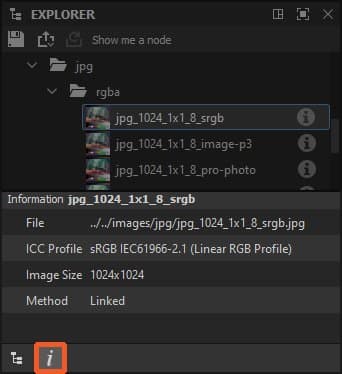
The toolbar at the bottom of the Explorer dock provides information about a package or a package resource:


- Package: the full filepath of the package
- Bitmap resource: the full filepath of the resource, its ICC profile, image size and import method (I.e., linked or imported)
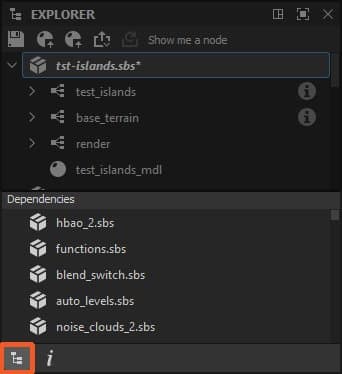
Dependencies
Information