Graph view
This page presents the Graph view dock of Substance 3D Designer.
The graph view is the main window of Substance 3D Designer, where you author and edit your graphs. The graph view has two main areas: a toolbar at the top, providing quick access to certain functions, and the actual graph area where nodes are placed.
The graph view is used for all graph types, but differs slightly between Substance graphs, function graphs and FX-Map graphs, mainly in the toolbar area.
Viewport navigation
The graph may be navigated using the following actions:
- Pan: MMB / Ctrl+RMB
- Zoom: MouseWheel / Alt + RMB
Using a trackpad (macOS only)
- Pan: Two-finger swipe
- Zoom: Two-finger pinch / Two-finger swipe while holding Cmd
- Mouse wheel up pulls the graph view closer
- Alt+RMB and drag up pushes the graph view away
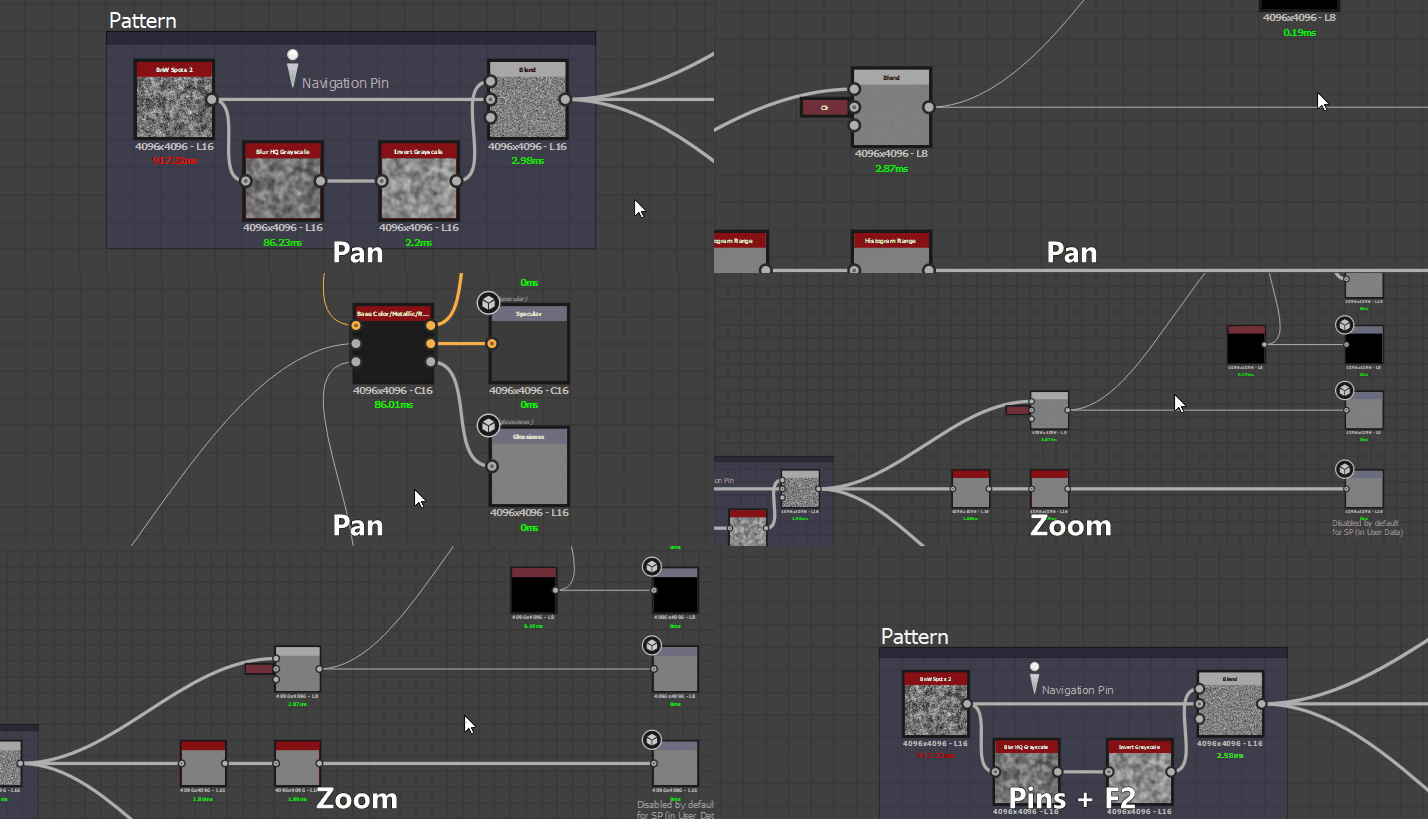
You focus on the selected node(s), or the whole graph if nothing is selected, with the F key.
Navigation can also happen by using Navigation pins and the F2 key, see graph items below.
Moving objects
Click LMB on a object (I.e., a node or graph item) then hold and drag the cursor to move a node around the graph. If more than one object is selected, all selected objects are moved along with the one under the cursor.
If the cursor reaches a border of the Graph View while moving objects, the view is panned in the direction of the cursor. Note that the pan is faster as the cursor moves further away from the border.
This also applies to drawing selection boxes across Graph View borders.
By default, objects are snapped to the grid as they are moved. Hold Ctrl (Windows) / ⌘ (macOS) while moving objects to disable that snapping.
Graph items
Several helper objects are available to help organise and navigate the graph, especially when as it grows into a complex network of nodes which can be challenging to read:
Dot nodes let you reroute and merge connections, and can be used as portals to hide long or unwieldy connections;
Frames helps you group nodes with a visible title and color-coding;
Comments let you keep track of the purpose of a node or group of nodes, and make any other helpful annotations;
Navigation pins enable the ability to quickly jump to points of interest in the graph.
Graph contextual menu
When clicking RMB in empty space in the graph, a contextual menu appears and can include the following options:
Add node: Open the Node menu to add a node in the graph;
Add comment: Add an unparented Comment graph object;
Add frame: Add a Frame graph object;
Add pin: Add a Pin graph object;
Add Dot node: Add a Dot node;
View outputs in 3D view: Assign all the graph’s outputs to a material in the 3D view by matching usages, see Interacting with the 3D view below;
Reset and view outputs in 3D view: Reset a material in the 3D view and assign all the graph’s outputs to that material by matching usages, see Interacting with the 3D view below;
View output in 2D view: Display one of the graph’s outputs in the 2D view, see Interacting with the 2D view below;
Compute node thumbnails: Trigger the computation of the result of all nodes in the graph – which will be stored in the image cache – and use their first output as their thumbnail;
Clear nodes thumbnails: Clear the image cache containing the result of all nodes in the graph, which in turn clears the node’s thumbnails;
Save package: Save the package which contains this graph;
Paste: Paste the nodes currently copied in the clipboard, including their upstream connections, at the cursor’s location. If the cursor is not in the Graph View viewport, the nodes are placed at the center of the viewport.
Paste without link: Paste the nodes currently copied in the clipboard, excluding their upstream connections, at the cursor’s location. If the cursor is not in the Graph View viewport, the nodes are placed at the center of the viewport.
Select all: Select all nodes in the graph;
Previous pin: Navigate to the previous Pin object in the graph;
Next pin: Navigate to the next Pin object in the graph;
Copy selection: Copy the selected node(s), connection(s) and parameter value(s) to the clipboard;
Delete selection: Delete the selected node(s);
Delete and relink: Delete the selected node(s) and replace them by direct connections from their upstream nodes to their downstream nodes, if possible;
Duplicate selection: Duplicate the selected node(s) in the same graph, including their upstream connections, at the cursor’s location. If the cursor is not in the Graph View viewport, the nodes are placed at the center of the viewport.
Duplicate selection without link: Duplicate the selected node(s) in the same graph, excluding their upstream connections, at the cursor’s location. If the cursor is not in the Graph View viewport, the nodes are placed at the center of the viewport.
Select upstream nodes: Select all nodes upstream of the selected node(s);
Select downstream nodes: Select all nodes downstream of the selected node(s);
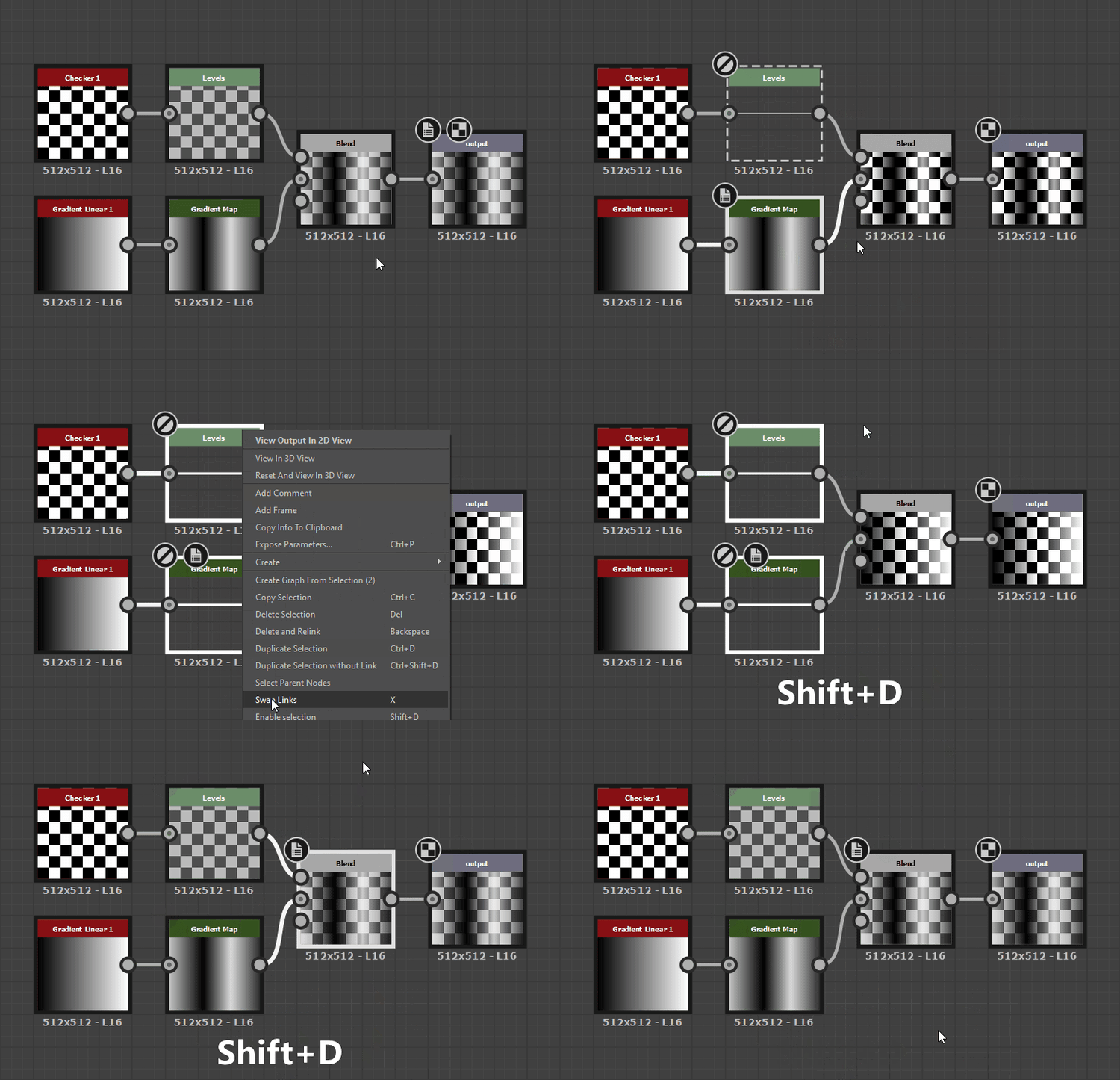
Swap links*: Swap the connections between the selected pair of input and output connectors;
Disable node/selection: Disable the selected node(s) so they have no impact on the result of the stream, see Disabling nodes below.
*: Only available when the selection includes two links, or three nodes where two of the nodes are connected to inputs of the same third node.
Working with nodes
Graphs are primarily vessels for nodes which can ingest, generate and modifiy data then output it as the graph’s result. Using nodes involve the following concepts and actions.
Creating AND MANAGING NODES
Nodes can be placed in graphs in 5 ways, regardless of the graph type:
- Clicking or dragging from an icon on the node toolbar (see below). Only Atomic nodes can be placed this way.
- Right-clicking on an empty area of the graph, and choosing Add node. Only Atomic nodes can be placed this way.
- Dragging a thumbnail from the Library View into the graph View. This method works for all types of nodes, including node Instances.
- Pressing Spacebar to access the Node menu. See below.
- Using the keyboard shortcut mapped to a node. Mapping is performed in the Preferences window.
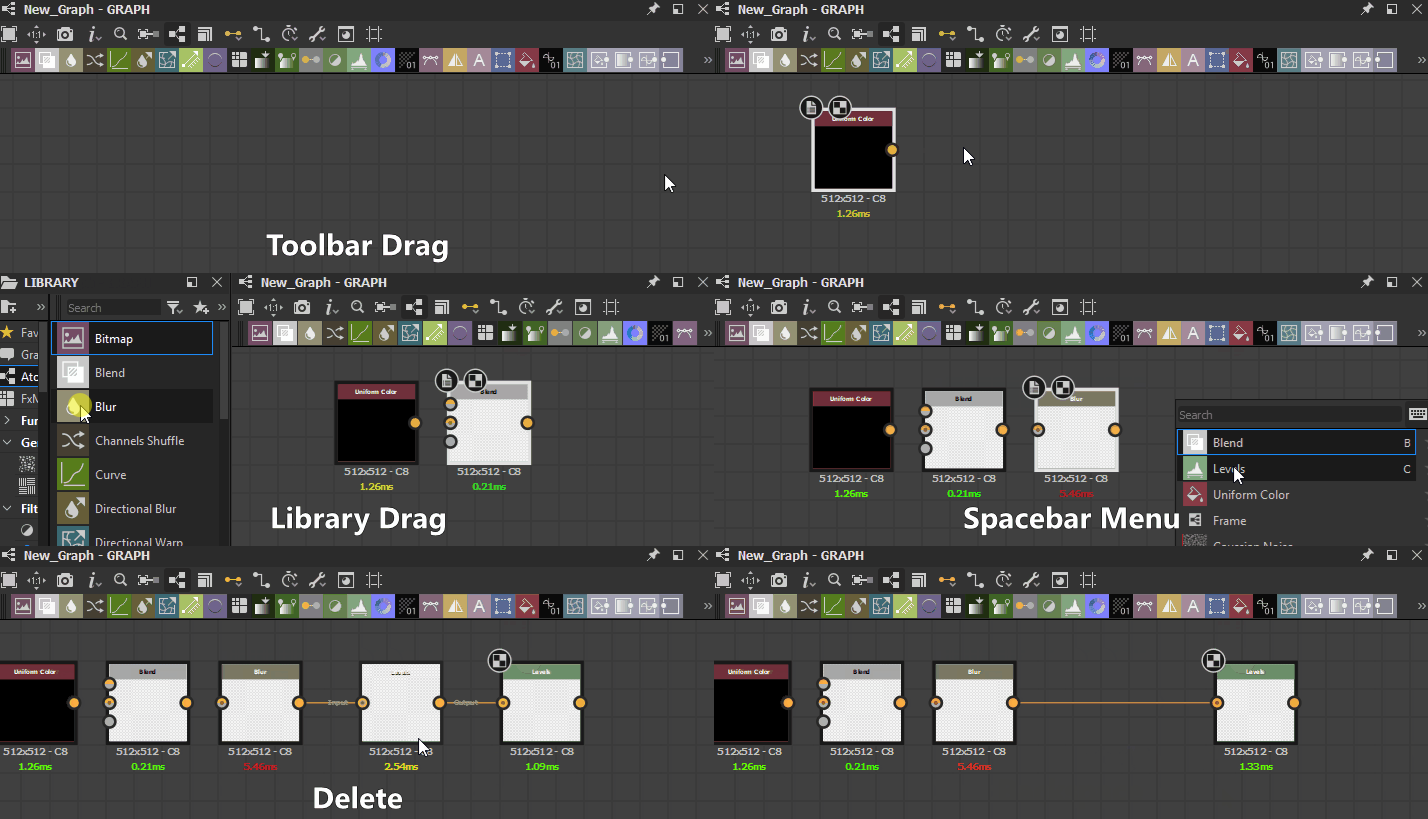
If a node is placed when another node is selected, Designer will attempt to automatically connect the new node to the old node.
This automatic connection always places the new node after the old one in the flow.
Removing nodes can be done in two ways, depending on how you want a lost link to be treated:
- Select a node and press Delete, or right-click and choose Delete selection. This breaks all existing connections, potentially leading to broken functionality.
- Select a node and press Backspace, or right-click and choose Delete and relink. This attempts to keep links when possible, preventing broken functionality.
Node menu
Pressing Spacebar in the Graph View displays the Node menu.
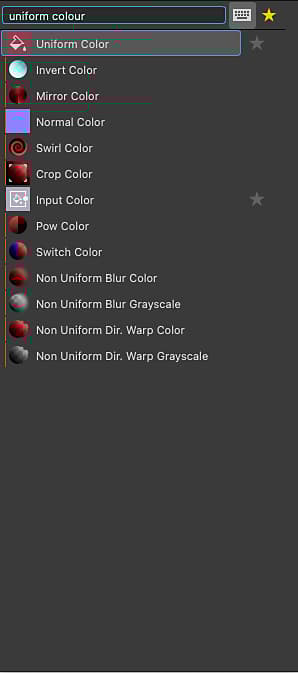
This menu provides access to all nodes in the Library through a search interface and lets your favorite nodes so they appear on top of the list.
You may use the arrow keys to go through the search results. The lists loops, so that using the ‘Up’ arrow key on the first item goes to the last item.
Search is fuzzy, which means it is forgiving of small differences in the search term. E.g., ‘Colour’ vs ‘Color’, ‘Normalize’ vs ‘Normalise’, etc.
If a single node is selected in the graph, or the Node menu is spawned by dragging a node connector, the search results are automatically filtered based on the output type.
For instance, only nodes with a Primary Input of type Grayscale are listed for an output of type Grayscale.
SELECTING NODES
You may select one or more nodes to copy them, delete them, move them around the graph, etc.
To select a single node, place the cursor on the node and click LMB.
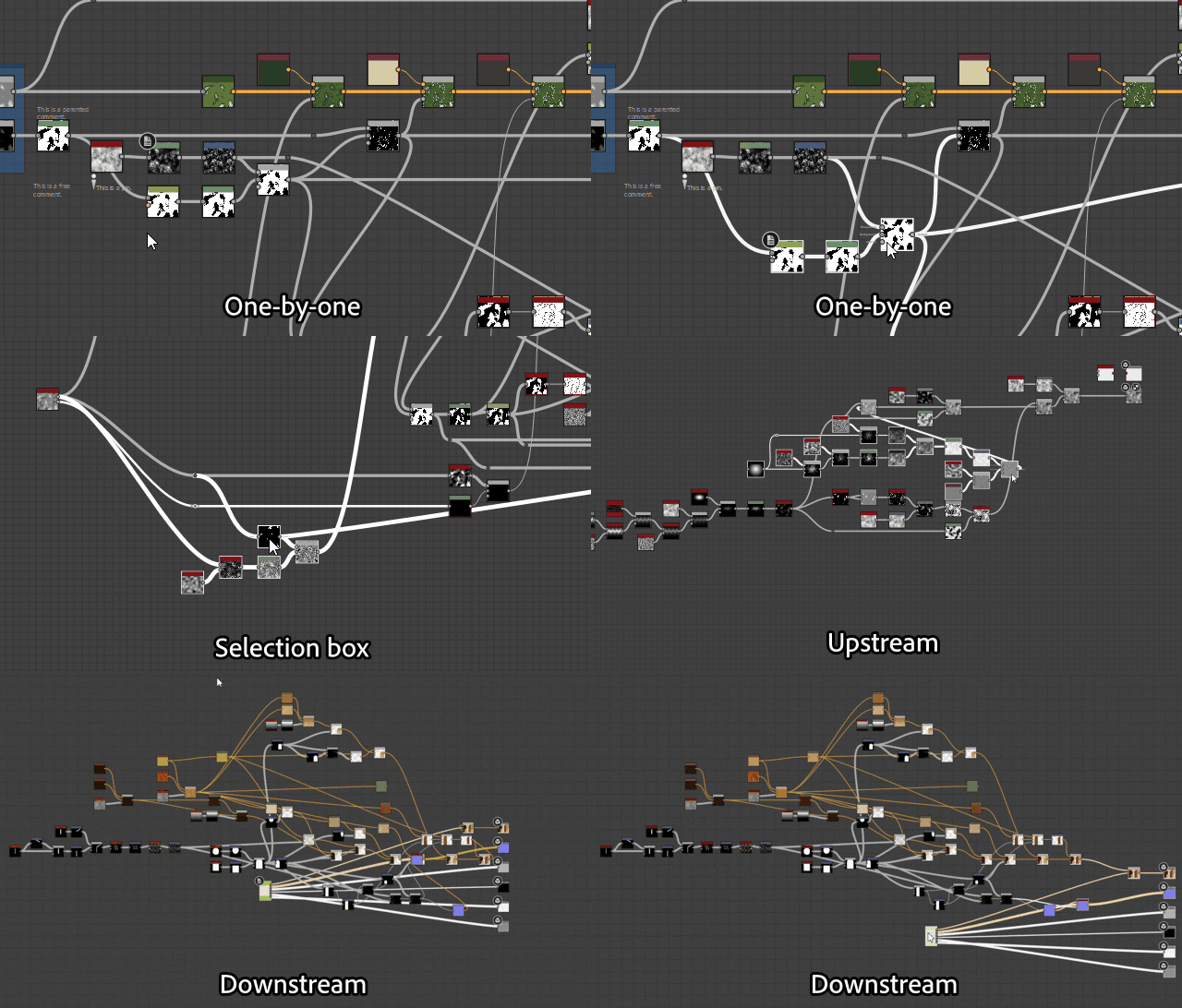
To select multiple nodes, the several methods are available:
- One-by-one: Hold Ctrl then click LMB on nodes. Unselected nodes are added to the selection, while selected nodes are removed from the selection;
- Selection box: Click LMB on empty space in the graph, hold then drag the cursor to draw a selection box. Nodes at least partially included in the box are selected when releasing LMB;
- Upstream: Click RMB on a node and select the Select upstream nodes option: the node and all nodes which are part of streams connected to the node’s inputs are selected;
- Downstream: Click RMB on a node and select the Select downstream nodes option: the node and all nodes which are part of streams connected to the node’s outputs are selected.
Node contextual menu
When clicking RMB on a node, a contextual menu appears and can include the following options:
View output in 2D view: Display one of the node’s outputs in the 2D view, see Interacting with the 2D view below;
View in 3D view: Assign all the node’s outputs to a material in the 3D View by matching usages, see Interacting with the 3D view below;
Reset and view in 3D view: Reset a material in the 3D view and assign all the node’s outputs to that material by matching usages, see Interacting with the 3D view below;
View output in 3D view*: Assign a specific node output to a material in the 3D view by matching usages;
Add comment: Create a Comment graph object and parent it to this node;
Add frame: Create a Frame graph object and fit it to the selected node(s);
Copy info to clipboard: Copy the node’s unique identifier (UID) to the clipboard;
Expose parameters: Display the Expose node parameters dialog for this node;
Create*: Create input and/or output nodes for each of this node’s inputs and/or outputs;
Open reference*: Load the graph referenced by this node as a separate Graph view tab;
Open reference in context**: Load the graph referenced by this node in the context of the current graph, as a breadcrumb in the existing Graph View tab;
Create graph from selection: Copy the selected node(s) into a new graph;
Copy selection: Copy the selected node(s), connection(s) and parameter value(s) to the clipboard;
Delete selection: Delete the selected node(s);
Delete and relink: Delete the selected node(s) and replace them by direct connections from their upstream nodes to their downstream nodes, if possible;
Duplicate selection: Duplicate the selected node(s) in the same graph including their upstream connections;
Duplicate selection without link: Duplicate the selected node(s) in the same graph excluding their upstream connections;
Select upstream nodes: Select all nodes upstream of the selected node(s);
Select downstream nodes: Select all nodes downstream of the selected node(s);
Swap links***: Swap the connections between the selected pair of input and output connectors;
Disable node/selection: Disable the node or selected node(s) so they have no impact on the result of the stream, see Disabling nodes below.
*: Only available for graph instance nodes.\ **: Only available for graph instance nodes and if the Enable in-context editing option is checked in the Preferences.\ ***: Only available when the selection includes two links, or three nodes where two of the nodes are connected to inputs of the same third node.
Connecting nodes
A node A’s output connector can be connected to another node B’s input connector, which will result in node B using the data output by A for performing its computations.
- for a input connector: the node falls back to a default value set for that input;
- for an output connector: the data is ignored and discarded when the graph is computed.
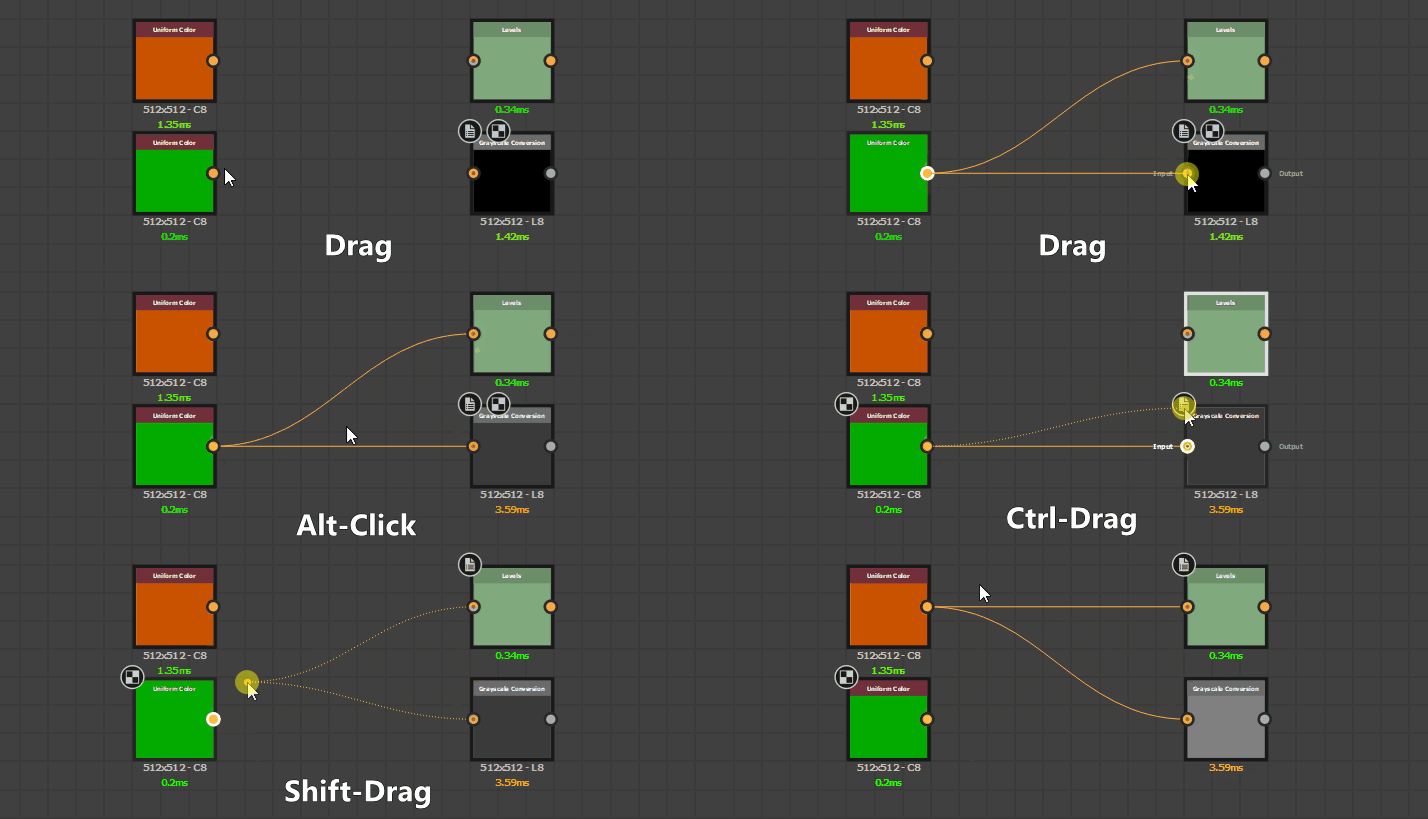
You may create a new link by clicking LMB on each of those connectors, in any order.
Also, if a node B is created while a node A is selected, then the first output of node A will be automatically connected to the primary input of node B.
The following operations may be performed on existing links:
Delete: Delete links by either clicking LMB on the link and pressing Delete**,** or by Alt-clicking on any connection that has links. Alt-clicking deletes all links on that connection;
Duplicate: Duplicate links by holding Ctrl, clicking LMB on a connector and dragging the cursor. Click LMB on another connector to connect the link;
Move: Links can be picked up and moved from a connector to another by holding Shift, clicking LMB on a connector and dragging the cursor. Click LMB on another connector to connect the link.
Disabling nodes
Nodes can be disabled so they have no effect in the graph but do not need to be disconnected or deleted.
Disabled nodes have the following behaviour:
- They are displayed with the

- The nodes will output the data received in their main input;
- Disabled nodes can be chained together;
- Their properties and connections are not modified;
- Their disabled state is saved and persists across sessions;
- When publishing to SBSAR, the resulting file takes into account the disabled state of nodes – i.e. what you see is what you get.
You can disable a node or a group of selected nodes by using the Shift+D keystroke, or by right-clicking in the graph and selecting the Disable node/Disable selection item in the contextual menu.
- The node has at least one input
- The node has only one output
- The types of the main input and of the output must match – i.e. grayscale to grayscale, color to color
- All selected nodes must have the same state – i.e. all must be enabled, the same rule applies for enabling them
Interacting with the 2D view
To display a node output in the 2D view, double-click LMB on a node, or click RMB on the node and select the View output in 2D view option in the contextual menu. If the node has more than one output, select the desired output in the submenu.
You may display any of the graph outputs in the 2D view by clicking RMB on an empty area in the Graph view, and selecting the View output in 2D view option in the contextual menu. If the graph has more than one output, select the desired output in the submenu.
Interacting with the 3D view
To apply an node output in the 3D view, click RMB on a node and select the View in 3D view option in the contextual menu. If the node has more than one output, select the desired output in the submenu. Then choose a target channel of the shader currently used in the 3D view.
(Substance graph only) You may apply all the graph outputs in the 3D view by clicking RMB on an empty area in the Graph view, and selecting the View Outputs in 3D view option in the contextual menu. Make sure one or more Output nodes are present in the graph and that it is set up correctly.
Toolbars
Graph tools
The main toolbar can be found in every graph type, and provides general functions, as well as toggles for the visibility of the other toolbars. You can find these functions:

Focus view on selection, or whole scene if selection is empty.

Bring back the current zoom level to it’s default state, and centers the view on the middle of the graph. Can mean zooming in or out.


- Display node badges: Toggles node Badges on all nodes.
- Display node size: Toggles node resolution display (Substance graph only).
- Display timings: Toggles display of millisecond timings for each node (Substance graph only).
- Limit text scaling when zooming out: Keeps the text of graph items at a constant screen size past a zoom threshold, which keeps the text clearly visible when zooming out.

Enables a tool to find nodes, exposed parameters and other variables in the graph. Learn more in the dedicated page.


Only on Substance graphs:


Choose between Standard (1), Material (2) and Compact Material (3) link creation modes to link node connectors individually or in batch. Learn more in the dedicated page.


- Export outputs: Opens the Bitmap Export interface.
- Reexport outputs: Performs the previous export operation again.
- PSD Exporter: Opens the PSD Exporter interface.


Node palette
The node toolbar differs depending on the graph type:

Substance graphs: see atomic nodes and graph items.

Substance function graphs: see graph items.

FX-Map graphs: see graph items.
Parent size

This toolbar is only available in Substance graphs, and sets the Output size of the graph’s parent, which impacts the graph’s Output size if it uses the Relative to parent inheritance method.
Horizontal and vertical size are linked by default, but can be unlinked for non-square textures. Values can also be reset to the default value of 256 x 256.
Node image cache

This toggle the use of cache when computing nodes in Substance graphs.
When a node is computed, its output images are stored in memory – i.e., cache – so they can be reused when recomputing the graph if this node is not impacted by a change. This means only the part of the graph which actually changes gets recomputed.
The memory storage limit of this cache can be changed in the General section of the Preferences, under the Memory section.
Enabling this option results in a large boost to the overall responsiveness of graph computations, at the cost of a significant increase of Designer’s memory usage.
Remove unused nodes
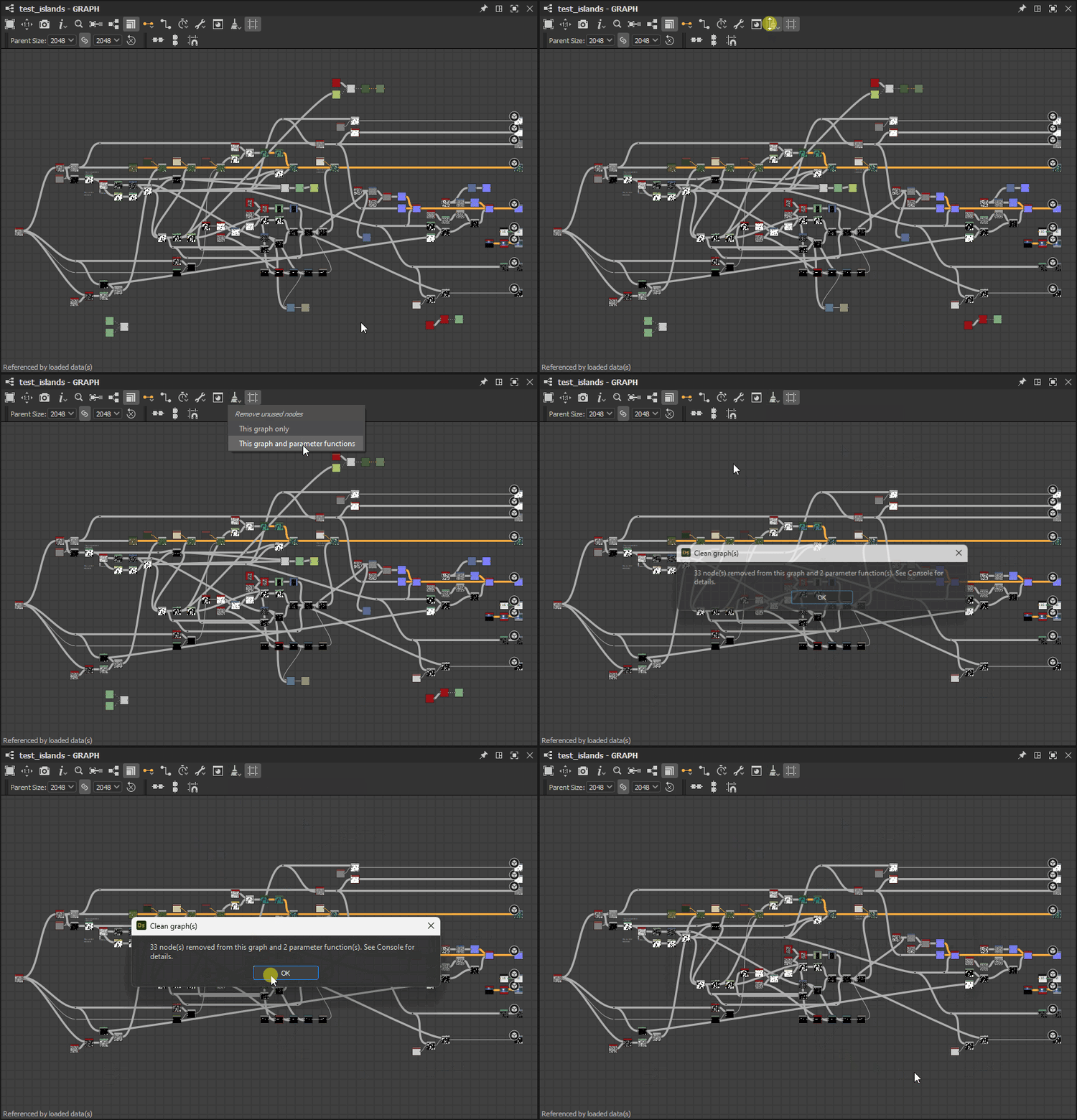
As you iterate in graphs and try things, some nodes which have no effect on the final result can get left behind. This adds clutter as well as wasteful computation since all nodes are evaluated in the first stages of graph rendering.
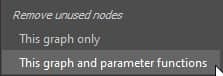
The
The first option applies the cleaning to the current graph exclusively.
If the current graph is a Substance graph, a second option is enabled which lets you include all node parameter functions in the cleaning process. This means if a function graph controlling a node parameter value has unused nodes, then that graph will be cleaned as well following the same rules.
After the cleaning has completed, a report dialog is displayed. You will find more details in the Console, as logs tagged GraphCleaner. These logs will include the number of removed nodes per graph and parameter functions.
Cleaning can be undone across all impacted graphs as a single action.