Node finder

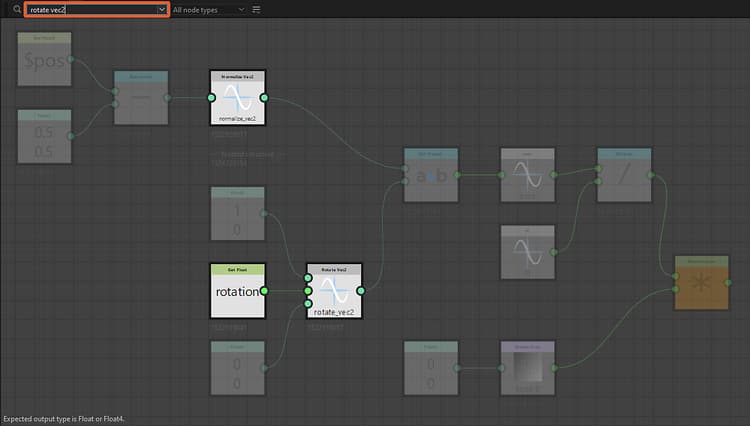
The Node Finder tool lets you perform a search for nodes and variables using a text query. All nodes that do not match the query are dimmed to make the results stick out.
The query can match any of those criteria:
- An identifier of a graph referenced by an instance node
- An identifier of an exposed parameter or variable used in a node parameter function
- A node’s UID (unique identifier)
- A node’s label
The search can traverse graph instances recursively so nodes and variables can be found across subgraphs. If you are unsure about the exact term you need to search, a fuzzy search option is available to apply a tolerance to the query.
Interface
The Node Finder can be accessed in two ways:
In the Graph View, press Ctrl+F (Windows) / Cmd+F (macOS) to display the Node Finder toolbar and automatically set the focus on the query field. This lets you perform a search quickly.
In the Graph View toolbar, click the

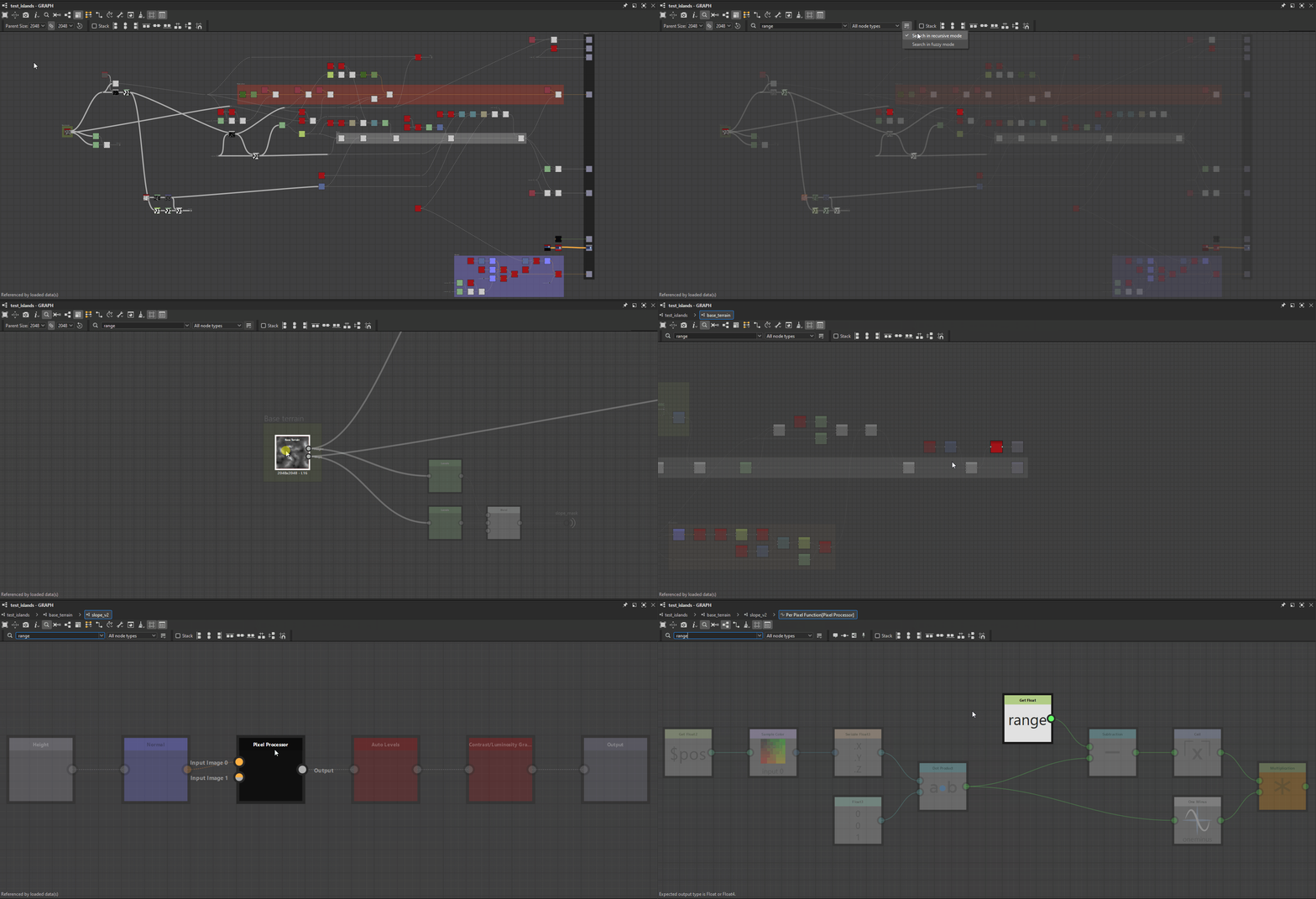
Searches traverse graphs. In other words, a search remains active when opening graphs through these actions:
- Instance node: Open reference in context (Ctrl+E / Cmd+E) (Note: graph editing in context needs to be enabled in Edit > Preferences > Graph)
- Pixel Processor: Edit function (Ctrl+E / Cmd+E)
- Value Processor: Edit function (Ctrl+E / Cmd+E)
- FX-Map: Edit FX-Map graph (Ctrl+E / Cmd+E)
- Node parameters: Edit function
Search query

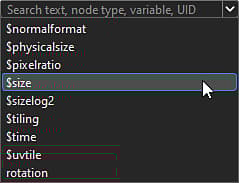
The search terms can be typed into this field and the arrow button opens a list of query suggestions which include some of the variables available in the current context.
Learn more about the queries you can perform in the Search query section below.
Node type

This combobox lets you filter search results to only retain a specific type of nodes.
Note that all instance nodes are the same type of node – indeed, the ‘instance’ type – while atomic nodes each are their own type.
The list is contextual to the current graph type.
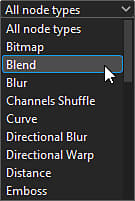
Node types for compositing graphs
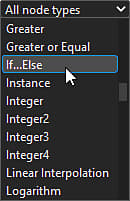
Node types for function graphs
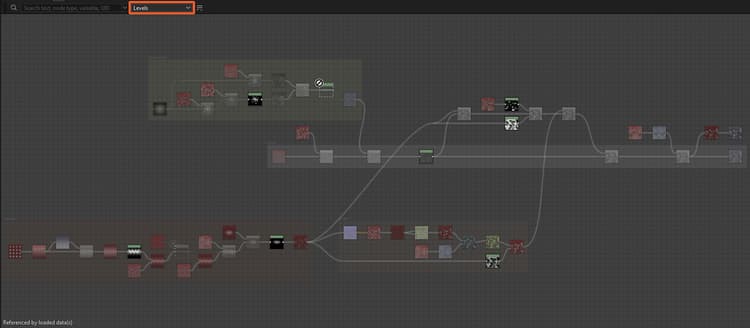
Searching for the ‘Levels’ node type in a Substance graph
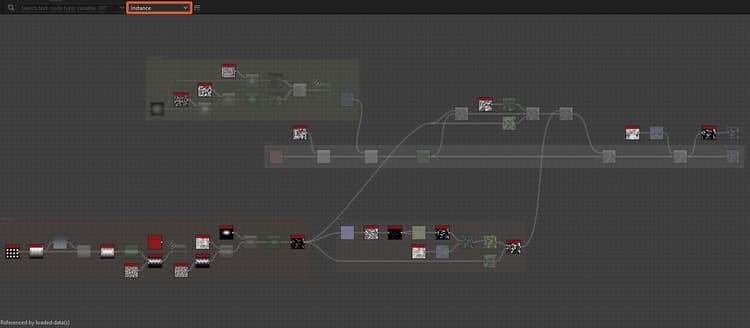
Searching for the ‘Instance’ node type in a Substance graph
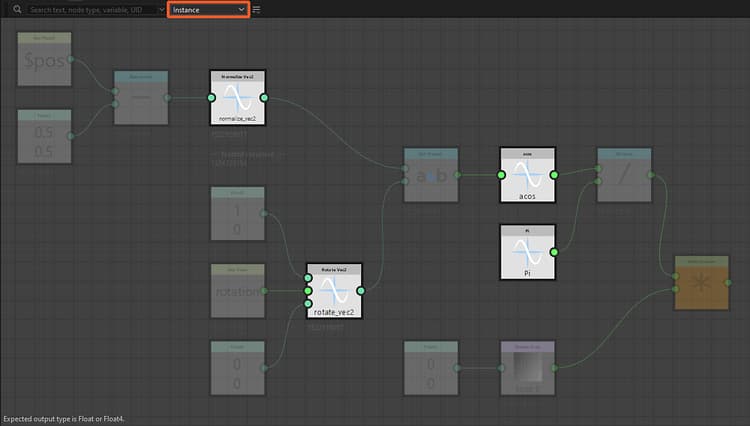
Searching for the ‘Instance’ node type in a Substance function graph
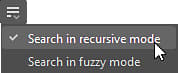
Search options
The

Learn more about these options in the Search options section below.
Search query
To find nodes, a text query is matched against the node properties listed below.
- Search is not case-sensitive. E.g., ‘my node label’ and ‘My Node Label’ return the same results.
- Whitespaces before and after the query are ignored.
- Multiple queries cannot be performed at the same time in the same graph. E.g., ‘levels blur’ will not match both ‘Levels’ and ‘Blur’ nodes. Likewise, logical operators are not supported.
Instance graph identifiers
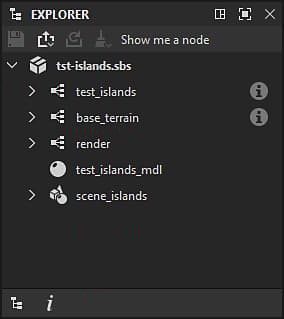
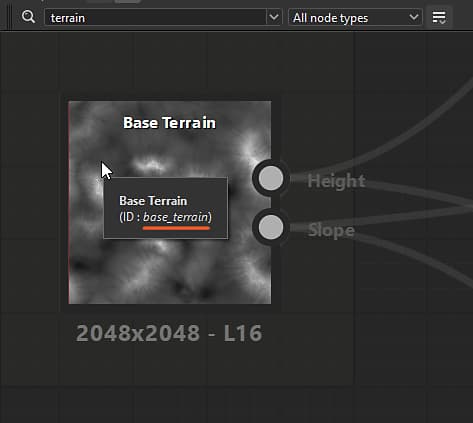
Instance nodes can be found using the identifier of the graphs they reference.
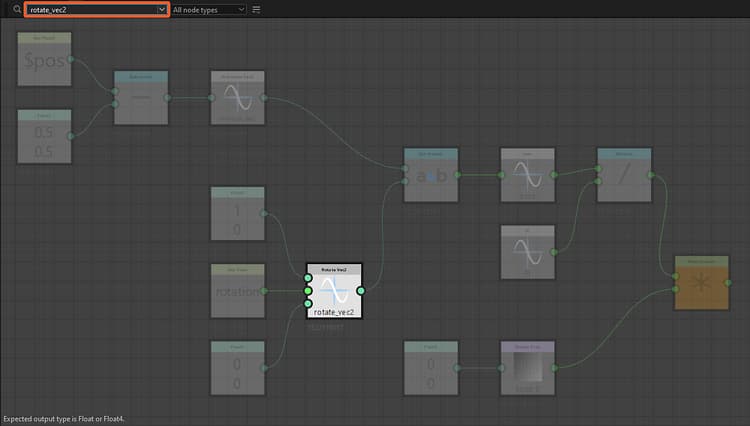
Click image to enlarge
Graphs are listed by their identifiers in the Explorer.
The tooltip of instance nodes includes the identifier of their referenced graph.
Exposed parameters and variables
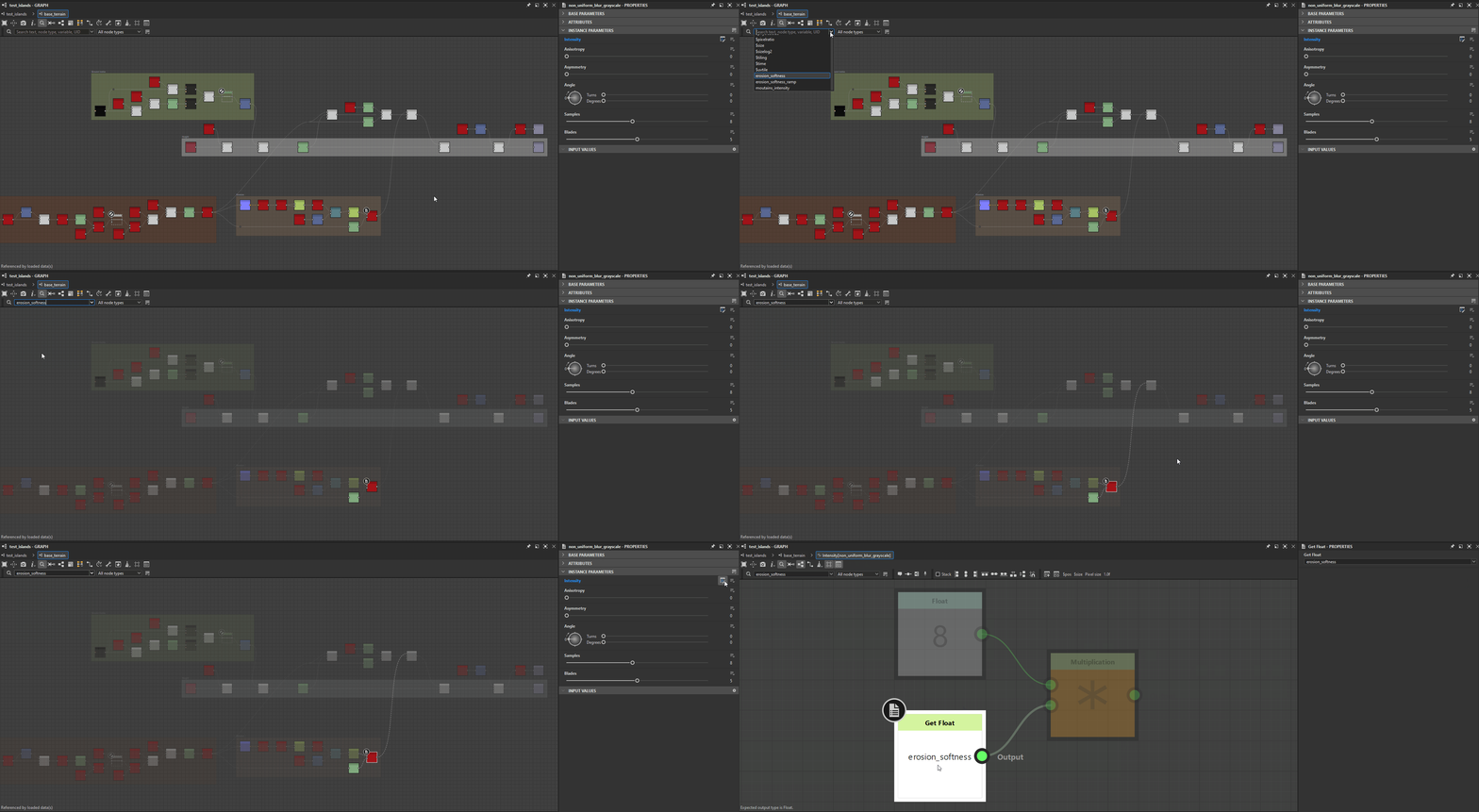
The identifier of exposed parameters, or any other variable, can be searched directly.
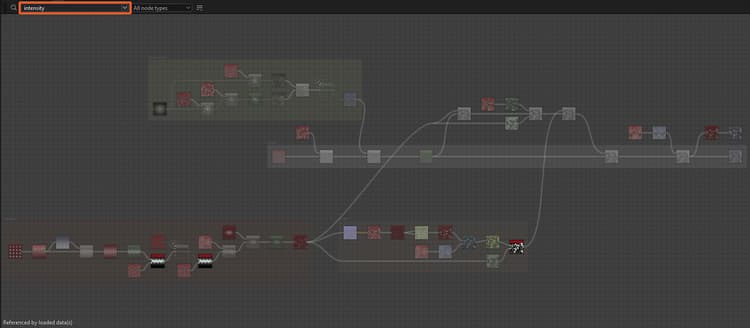
Click image to enlarge
The query field can be expanded to reveal a list of suggestions.
These include built-in variables available for the current graph type, as well as the identifiers of the graph’s exposed parameters.
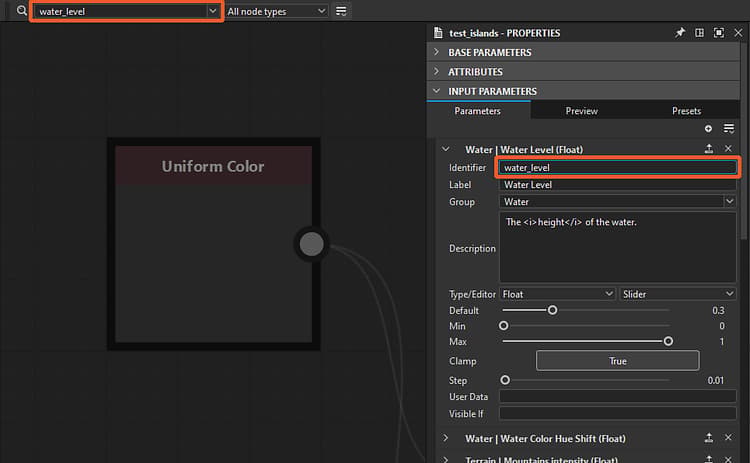
The identifier of exposed parameters can also be copied or edited directly in the Substance graph properties.
Click image to enlarge
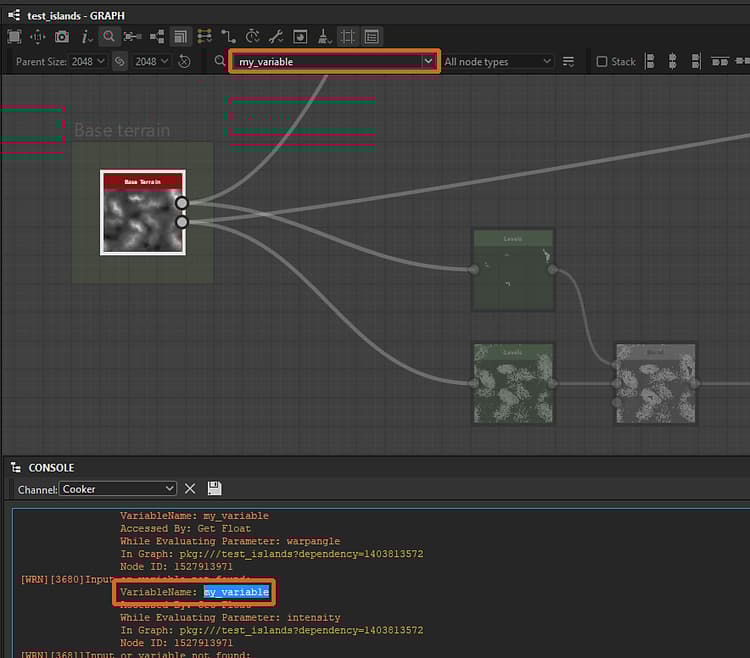
When a graph has errors or warnings raised by a variable used by a node, go to Windows > Console to display the full error/warning message which will include the variable. You may then copy and paste this variable into the Node Finder query field to quickly locate the node causing the issue.
Variables can also be copied directly from the XML data in the SBS file using any text editor.
Node UID
Each node in a graph has a unique identifier number (UID) that can be used to search for that node.
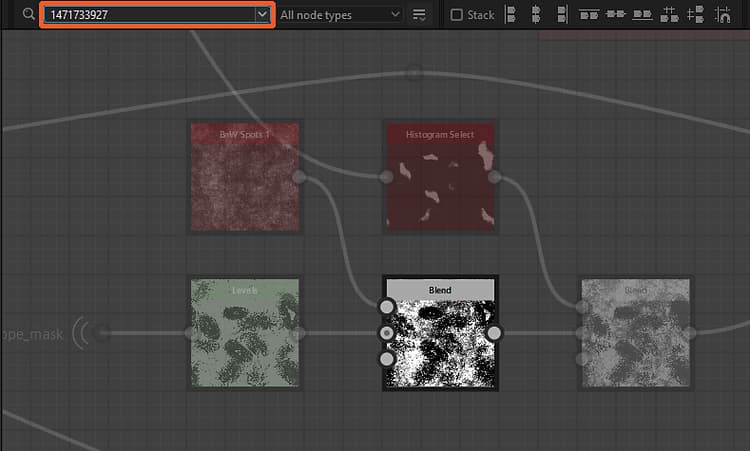
Click image to enlarge
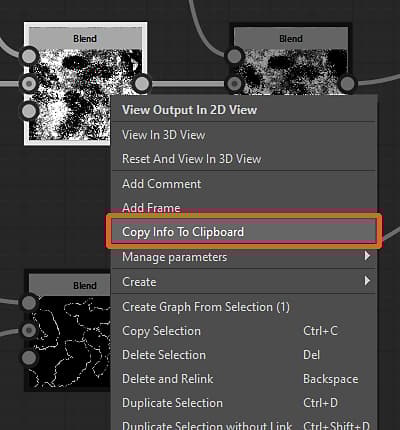
A node’s UID can be copied to the clipboard from its contextual menu.
The action copies the UID in this format:
uid=1234567890
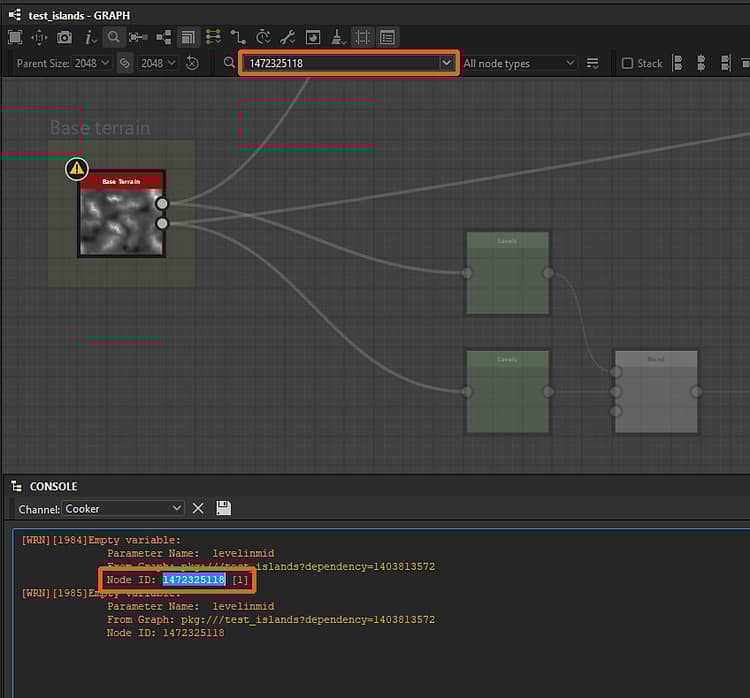
When a graph has errors or warnings raised by a node, go to Windows > Console to display the full error/warning message which will include the node’s UID. You may then copy and paste this UID into the Node Finder query field to quickly locate the node causing the issue.
Node UIDs can also be copied directly from the XML data in the SBS file using any text editor.
Node Label
Nodes can also be found using their labels.
Searching for specific nodes is particularly effective when using their exact label with fuzzy search turned off.
Search options
The
Both can be enabled at the same time.
Recursive mode
Enable this option to have searches traverse graph instances to include results from subgraphs.
This option may be essential when troubleshooting graphs, if you need to find a node by its UID acquired from a warning or error message in the Console.
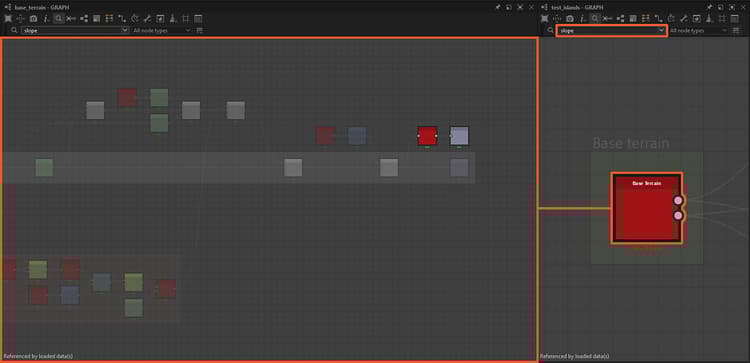
The query on the right highlights the instance node below, because its referenced graph on the left has matches for that query
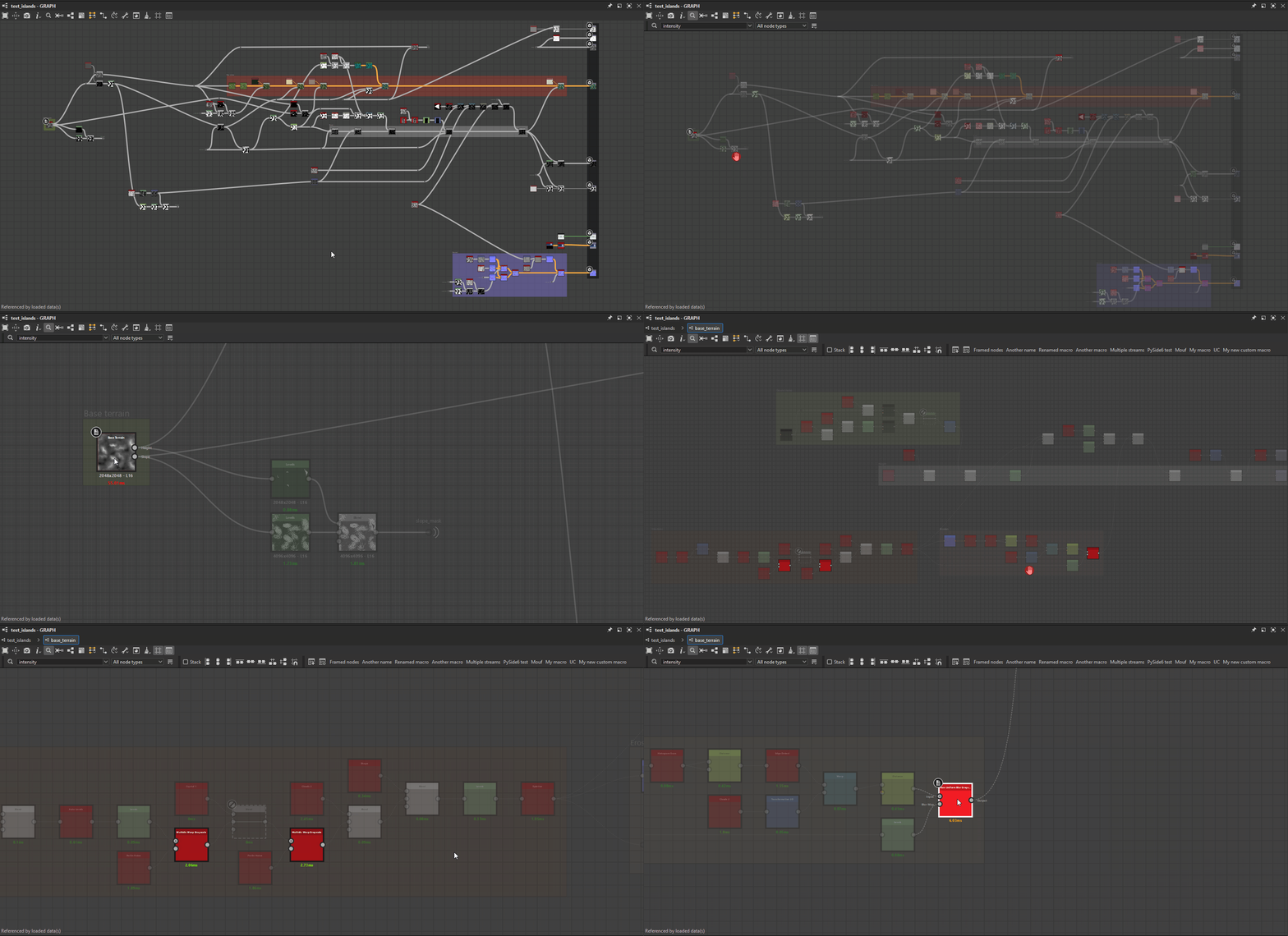
An instance node references a graph where multiple nodes match the query.
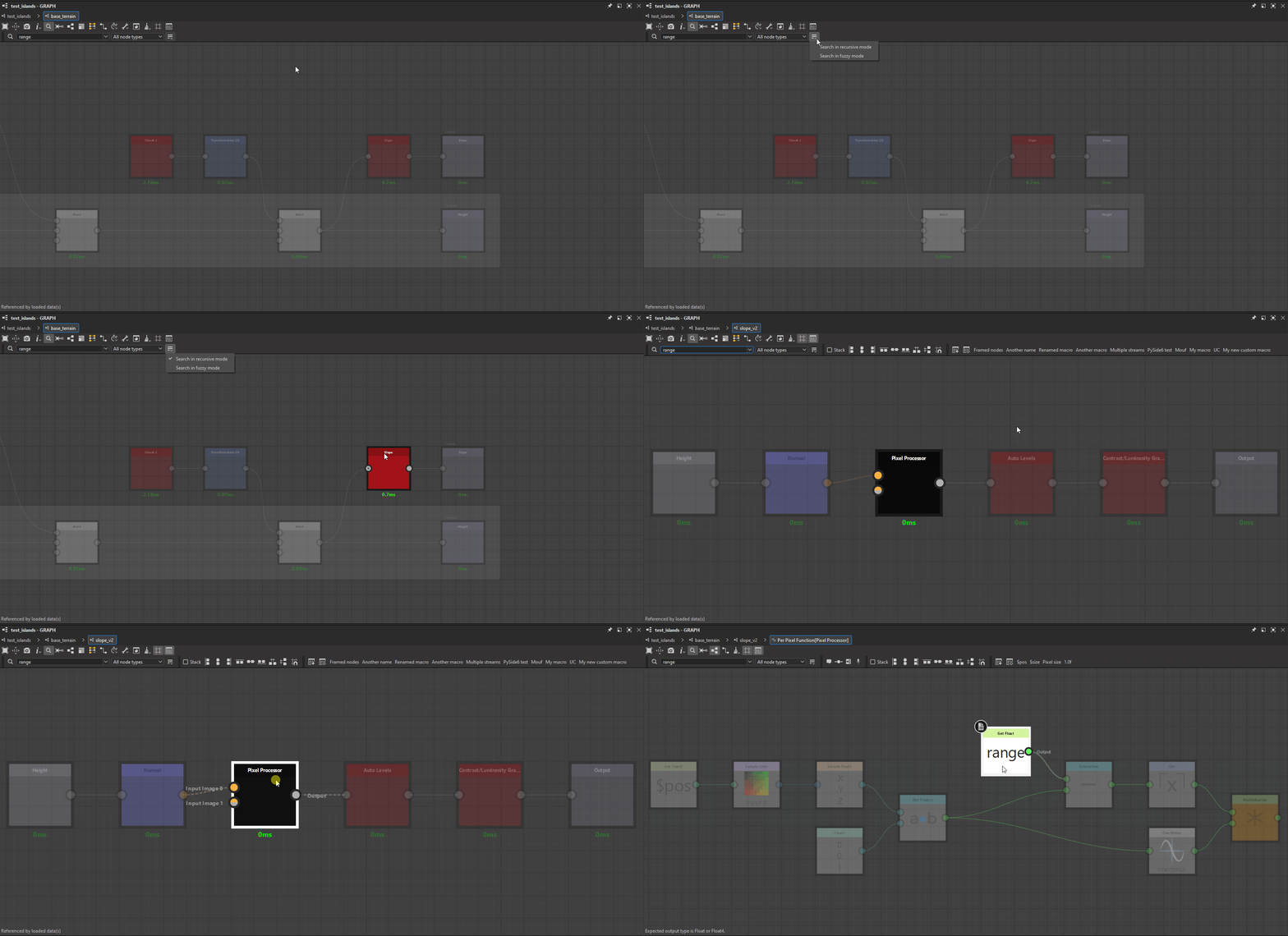
Enabling the ‘Recursive search’ option highlights the instance node referencing a graph where a Pixel Processor node uses a variable matching the query.
Fuzzy mode
If you are unsure about the exact spelling of a query, this options enables a tolerance in the results.
Note that using this option will likely result in undesired matches.