Exposing a parameter
Exposing parameters is one of the most powerful tools and is key to opening up your graphs to other applications such as Substance 3D Painter, Substance 3D Sampler and Substance Integrations for Maya and 3DS Max.
This page explains all required concepts to get started exposing. It’s recommended that you first learn what a Graph Instance isbefore continuing on this page. It’s also good to have a grasp on the difference between Publish and Exporting, as well as the filetypes involved.
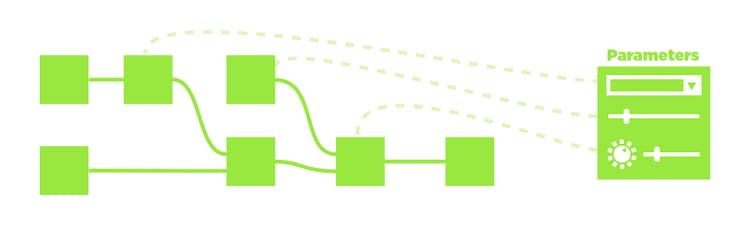
*Dashed, transparent lines above are an abstract representation of the connection
from exposed parameters to Graph Parameters.
Understanding parameters and exposing
A parameter is a simple value, with a UI element, that controls the behavior of a graph. You use them constantly in all Substance software: to change a color, to set blend mode, to choose an opacity value, etc… Without parameters, Substance software would not allow for any customization at all.
Parameters can come in many different forms: sliders, dials, type-in boxes, drop-down menus, etc… The values they represent can be many different types: decimal values, whole (integer) values, boolean (true/false) values, even text snippets.
+++Why not expose every parameter automatically, all the time? [Substance graphs](…/…/…/compositing-graphs/substance-compositing-graphs.md) can get complicated and can contain hundreds of parameters at once. It doesn’t make sense to always show all parameters to a user, especially if you are building graphs with a simple goal, that don’t need many parameters. When exposing parameters, you work as a UI or UX designer: you think what controls make sense, which values are required and how to make it easy to use for yourself, for other users online or for your coworkers.
+++
How to expose
Currently there are two main methods to expose parameters. One method is more suited for quickly exposing a single parameter, the second method is more suited for exposing multiple parameters in one sweep.
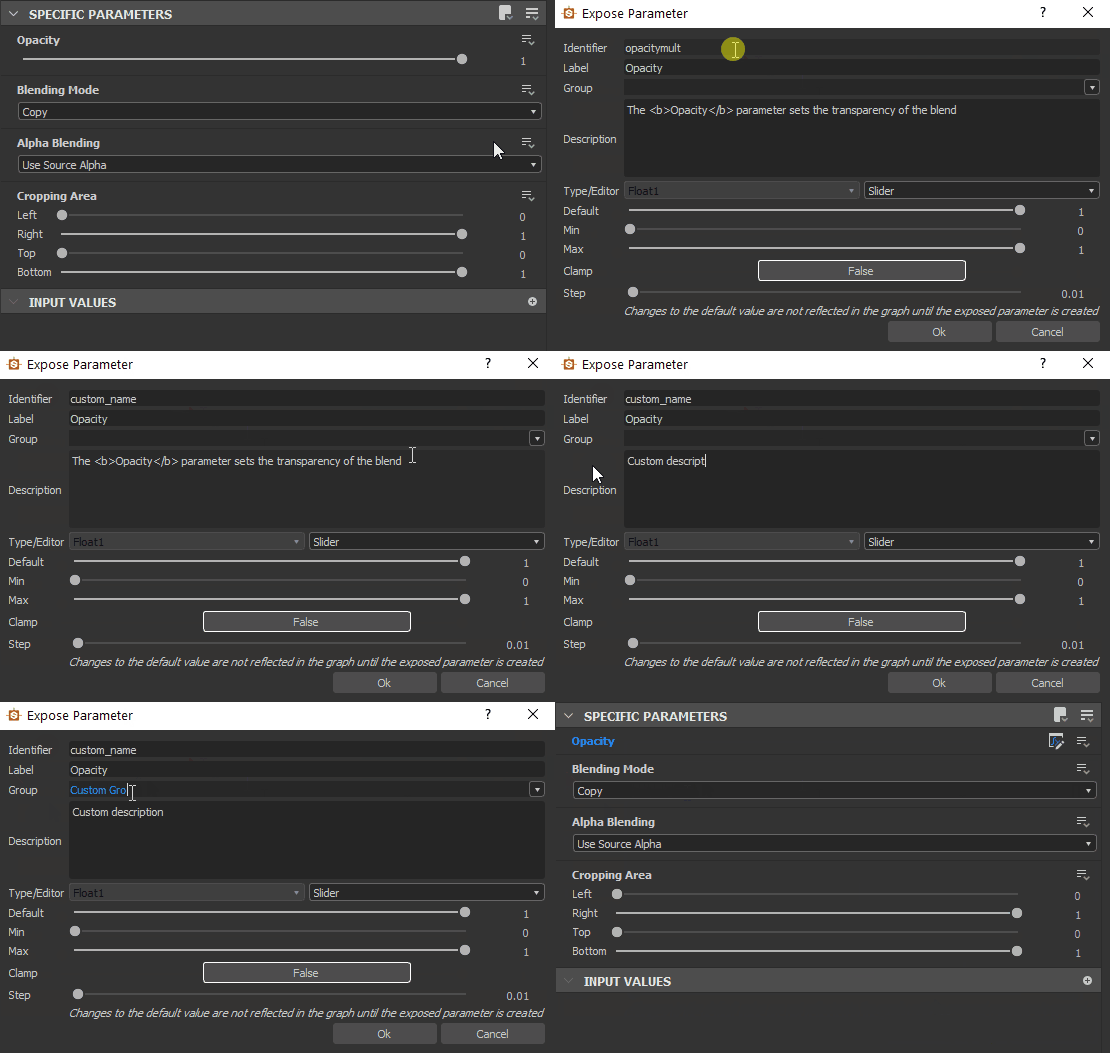
SINGLE EXPOSE METHOD
-
Find the parameter you want to expose in the Properties panel, under the Specific Parameters tab
-
Click the

-
Choose

-
The Expose parameter dialog appears, set any parameter properties as you wish.
It is recommended to at least change the Identifier and Label
-
Press OK to confirm
-
The parameter’s name turns blue, and the

17+3.5, 7/3, (4+2)*3. Press Enter to validate the formula and the result will be input in the field. If the formula is invalid, the field reverts to its previous value.Some numerical fields in other parts of the application, such as in the Properties dock, also support this feature.
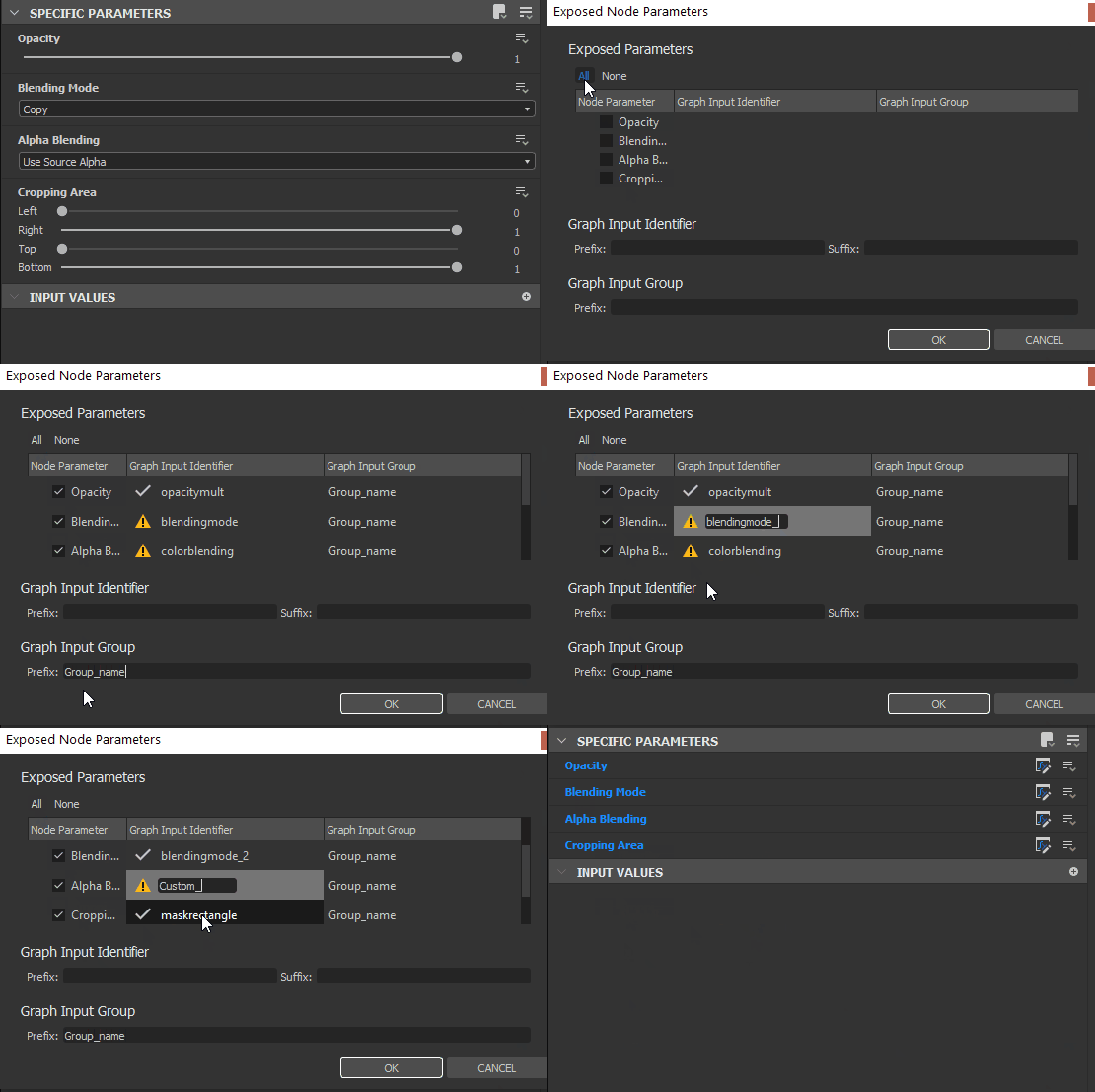
Batch expose method
When exposing one parameter, this method will be a bit slower than the previous. When exposing multiple parameters, it is much faster.
- Instead of finding a single parameter, find the

- Choose Batch expose parameters… from the drop down menu
- The Batch expose dialog appears, allowing you to customize the exposing of all of a node’s Specific parameters
- Use All, None or specific checkboxes to decide which parameters to expose
- Click on a parameter name under the Graph input identifier column in the list to change its name.
- Click on a Group name under the Graph input group column in the list to add a (sub-)group for one specific parameter
- Use the Graph input identifier and Graph input group type-in boxes at the bottom to add prefix, suffix and input groups to all exposed parameters at once. All these values are applied on top of the per-parameter settings.
- Click OK to confirm and expose all selected parameters. The parameter names now show blue to confirm the parameters are exposed, as well as an
Limitations
There are some limitations tied to exposing parameters, as listed in the table below.
Another significant limitation is related to static parameters. These cannot be changed in a published Substance 3D asset (SBSAR).
Static parameters – as opposed to dynamic parameters – cannot be edited on-the-fly after the graph has been cooked – i.e., processed in order to run its algorithm quickly and efficiently. Cooking occurs in Designer every time the graph is edited or published.
As such, static parameters are visible and editable in Designer, but are hidden in a published Substance 3D asset. You may use Preview mode to see these limitations in effect before publishing to a Substance 3D asset: see ‘Previewing parameters’ below.
As a workaround, you may use a Switch or Multi Switch node and multiple sets of logic to switch between different values/states for these parameters.
Modifying exposed parameters
Once exposed, it is no longer possible to access a parameter like before. Changing its value, renaming, arranging in the UI and even removing the parameter all happen on the Graph Properties level. This section details how to do so.
To change an exposed parameter’s options either:
- Click on the Dropdown options button
- Choose
- Double-click in an empty area of your graph to get to the graph properties, then find the parameter in the list of Input parameters
- Single click on your graph in the Explorer, then find the parameter in the list of Input parameters
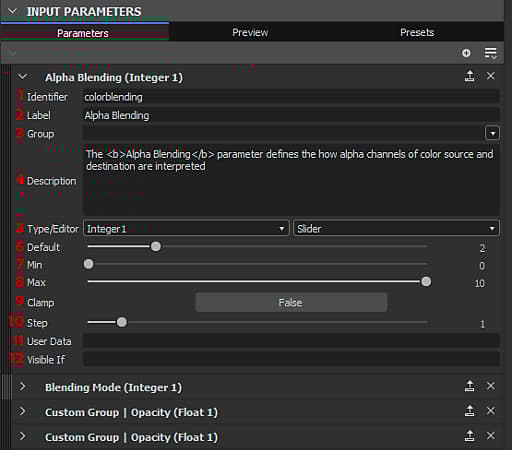
INPUT PARAMETERS
All exposed Parameters are listed under the Input Parameters tab. The following properties are available for most common cases such as Floats and Integers with default Editor type.
- Identifier: Unique identifier for this parameter. Can not contain spaces or special characters.
- Label: UI-only Label. If no Label is defined, the identifier is shown in the UI. Can contain spaces and special characters
- Group: Group parameters together into collapsible section to keep long lists of parameters clean and manageable. Parameters are grouped together if they share the exact same group name. Use the
/character to create sub-groups – e.g.My Group/My Sub-group - Description: Textfield for description, used as tooltip.
- Type / Editor: Set the data type as well as the UI editor type. Certain Editors are only available for certain data types (such a drop down list only for Integer). Changing Editor will in many cases wipe default values, be careful.
- Default: Default value the parameter starts out at. This is also the value used in your graph while previewing nodes. Try to use an easy, useable value here, avoid extreme cases.
- Min: Minimum value for UI
- Max: Maximum value for UI
- Clamp: Set wether Min and Max are soft or hard limits (allow the user to go past the limits).
- Step:Set the precison or granularity of the value.
- User Data: Custom user data, available for any purpose.
- Visible If: Special expression system to show or hide parameters based on external conditions. See Visible if: control visibility of inputs, outputs and parameters
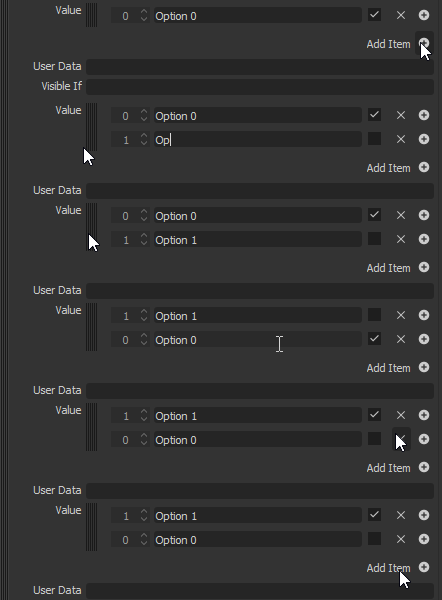
Drop down list
A special case is the Drop down list for Integer types. There is no Default, Min or Max, just a single Value setting that allows you to define a list of Items.
- Every Item corresponds to an Item in the Drop Down List.
- The first value for an Item is the actual, internal integer used by the graph. Make sure you set these up correctly for your Multi Switch for example (they start at 1, not 0).
- The second value is the UI Label shown to the user.
- The third checkbox allows you to mark one Item as the default selected one.
- The X deletes an Item, the + adds an Item
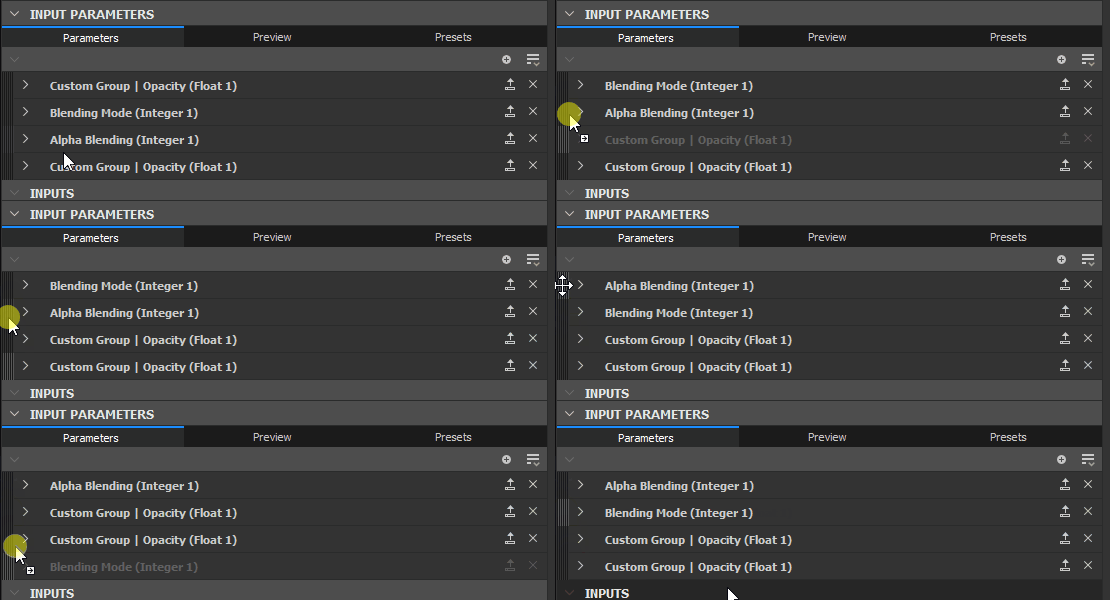
Re-order
Re-ordering of Parameters can easily be done by dragging and dropping the dark, striped handles to the left of the input parameters name in the list. Keep in mind Grouping parameters can affect the order.
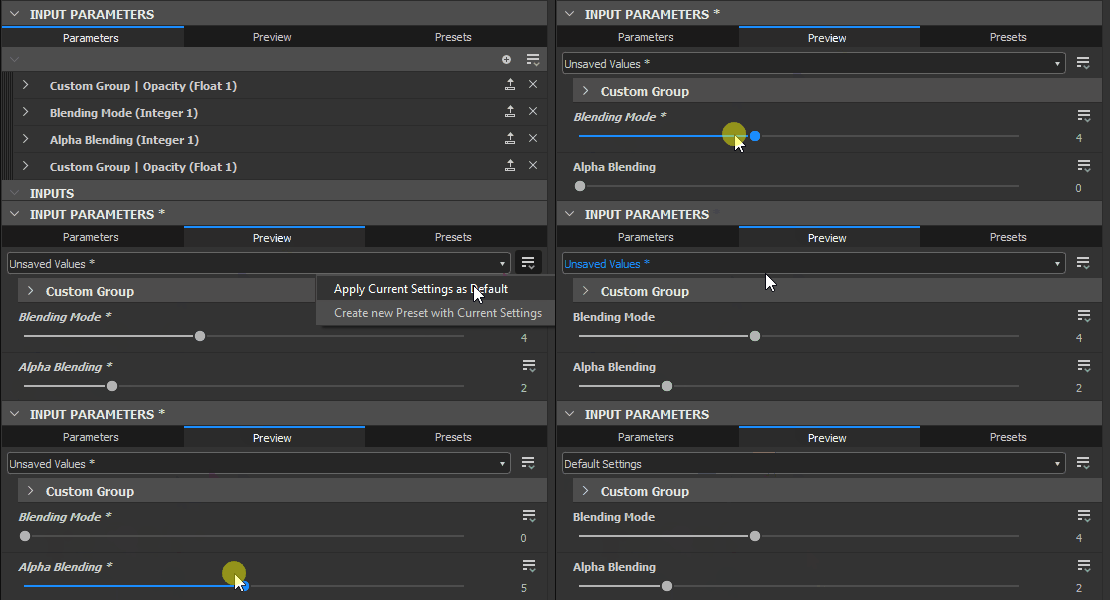
PREVIEWING PARAMETERS
As setting up parameters can be difficult without seeing the final result, a Preview Mode can be enabled, to check how the parameters UI will look and behave externally. Click the Preview tab in the top middle of the Input Parameters rollout.
Normally, any changes made in Preview Mode are discarded. You can however use the Apply button next to the eye icon to set the current values of the Preview Mode as the new default values.
Preview Mode also allows you to create Embedded Presets.
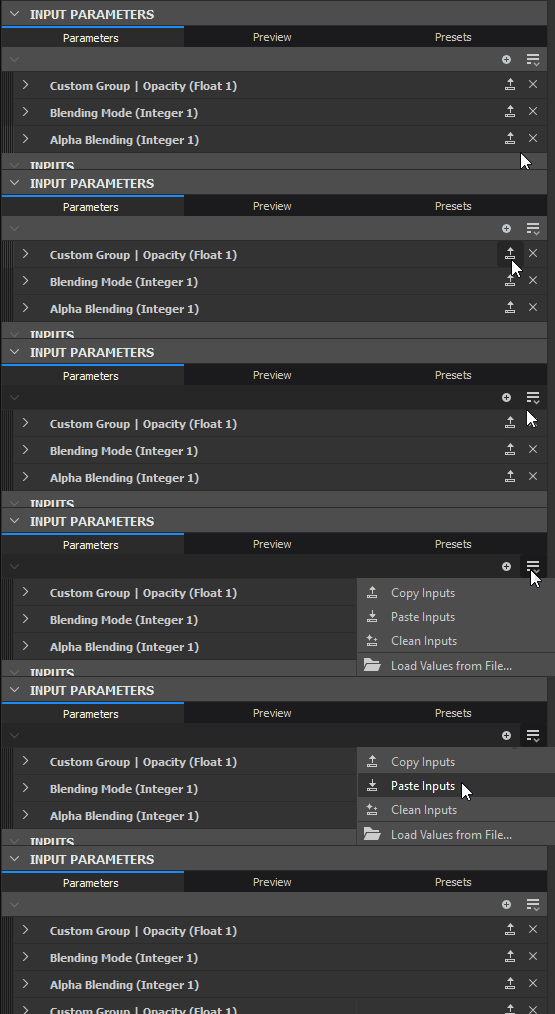
COPY-PASTING PARAMETERS
Parameters can be copy-pasted between graphs.
A single parameter can be copied with the Copy button

Choose Paste Inputs

If you want to transfer values, and not the actual exposed parameter itself, read about Parameter Presets.
Removing and cleaning exposed parameters
Because of the nature of parameters, where you can have on Input Parameter controlling multiple Nodes, or where Input parameters can exist without controlling a node, problems can arise with missing or unused parameters. Below common issues and their solutions are described.
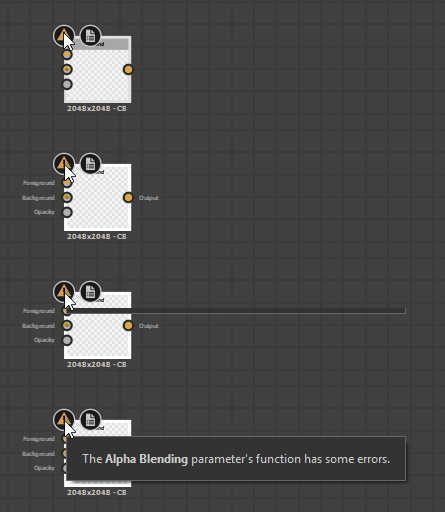
TRACKING BROKEN PARAMETERS ON NODES
You can track what parameter is used by which node through the Node Finder Tool

If a node has an actual problem, it will display a Warning badge

To reset and remove a problem, for the parameter you want to fix or reset, click on the Dropdown button

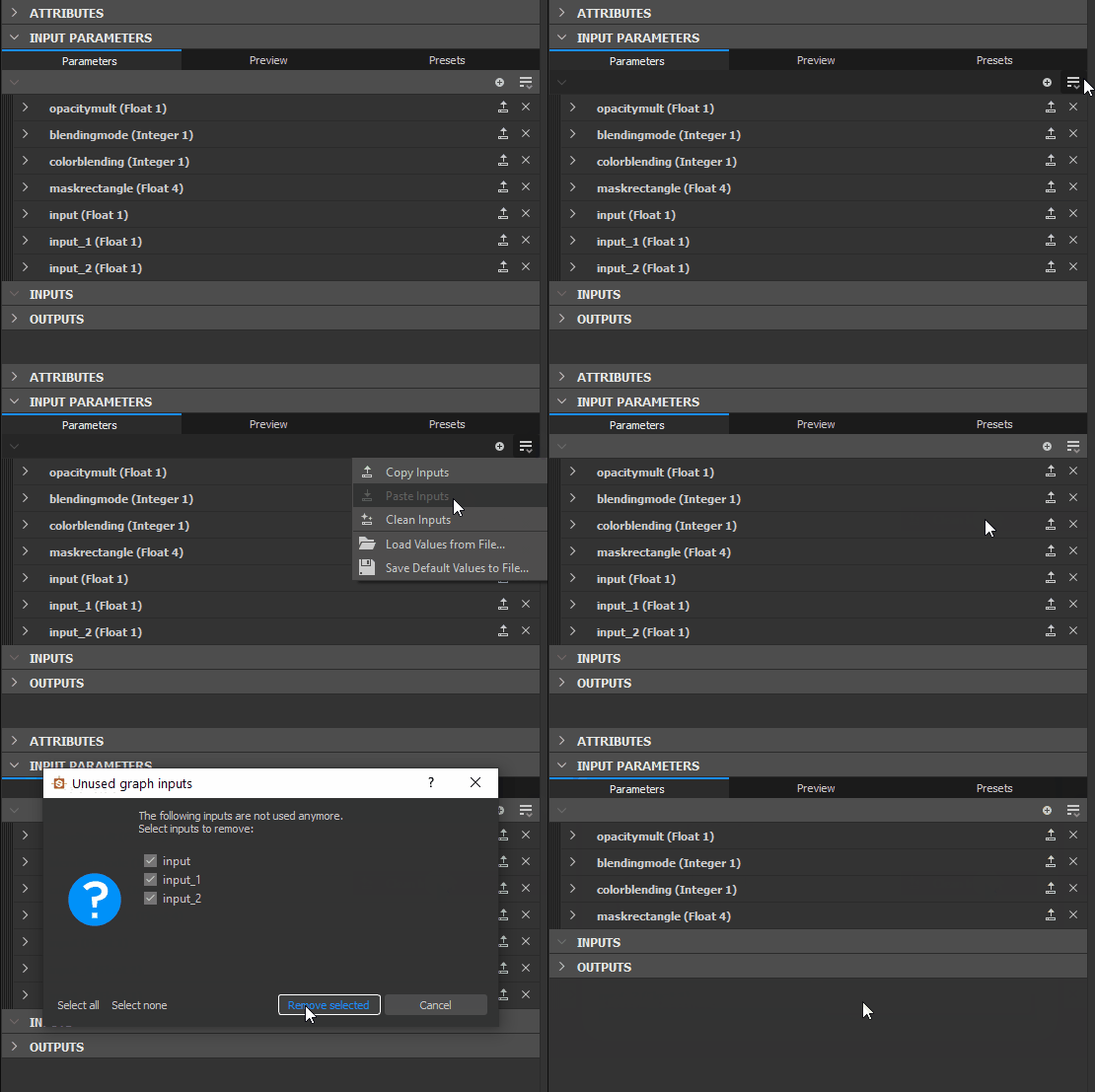
CLEANING UP UNUSED INPUT PARAMETERS
If you have lost track of your Input Parameters and no longer know which ones are used, they can be cleaned up using a small tool. Click the Input Parameter menu button
A new dialog appears, listing all unused parameters. Check or uncheck whatever parameters you want to remove or keep, and click OK. If no dialog appears, there are currently no unused parameters to clean up.
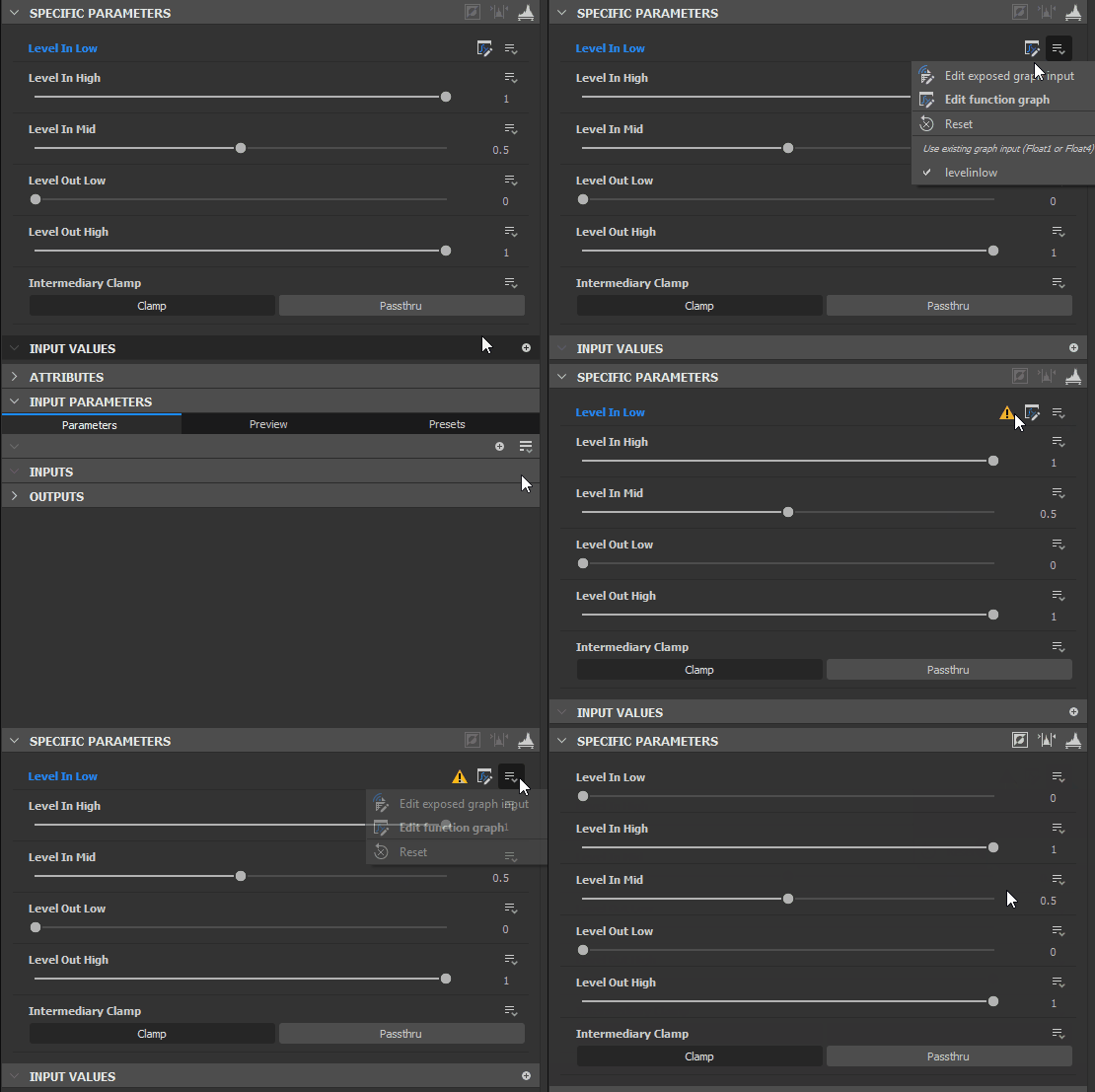
REMOVING PARAMETERS
To actually remove a parameter that is in use, requires two distinct steps.
- On the node with the exposed parameter, click the dropdown arrow to the right of the Function Expose button that is colored in blue:

- In the Input Parameters list of the Graph, click the X all the way to the right of the parameter’s entry. This deletes the parameter completely. If any nodes try to make use of this parameter, a warning badge will appear (see above).